- Visit Downdetector to check if Messenger servers are down.
- Ensure that you have enabled Mobile Data permission for the Messenger app.
- Try disabling Low Data Mode and VPN if Messenger can’t connect to the internet.
Try Basic Fixes
- Check if Messenger is down: Facebook Messenger servers can occasionally experience problems. Hence, it’s a good idea to check Messenger’s server status on Downdetector .
- Turn off VPN: Issues with your VPN connection can also prevent the Messenger app from connecting to the internet. To check for this possibility, temporarily disable your VPN connection and try using the Messenger app again.
- Update the app: If you haven’t updated Messenger in a while, it may not work correctly on your iPhone. Head over to the App Store to update the Messenger app and see if that helps.
Fix 1: Enable Mobile Data for Messenger
iOS lets you configure mobile data permission for each of your apps individually. If you’ve disabled mobile data for the Messenger app, then it won’t be able to connect to the internet. Here’s how you can change that.
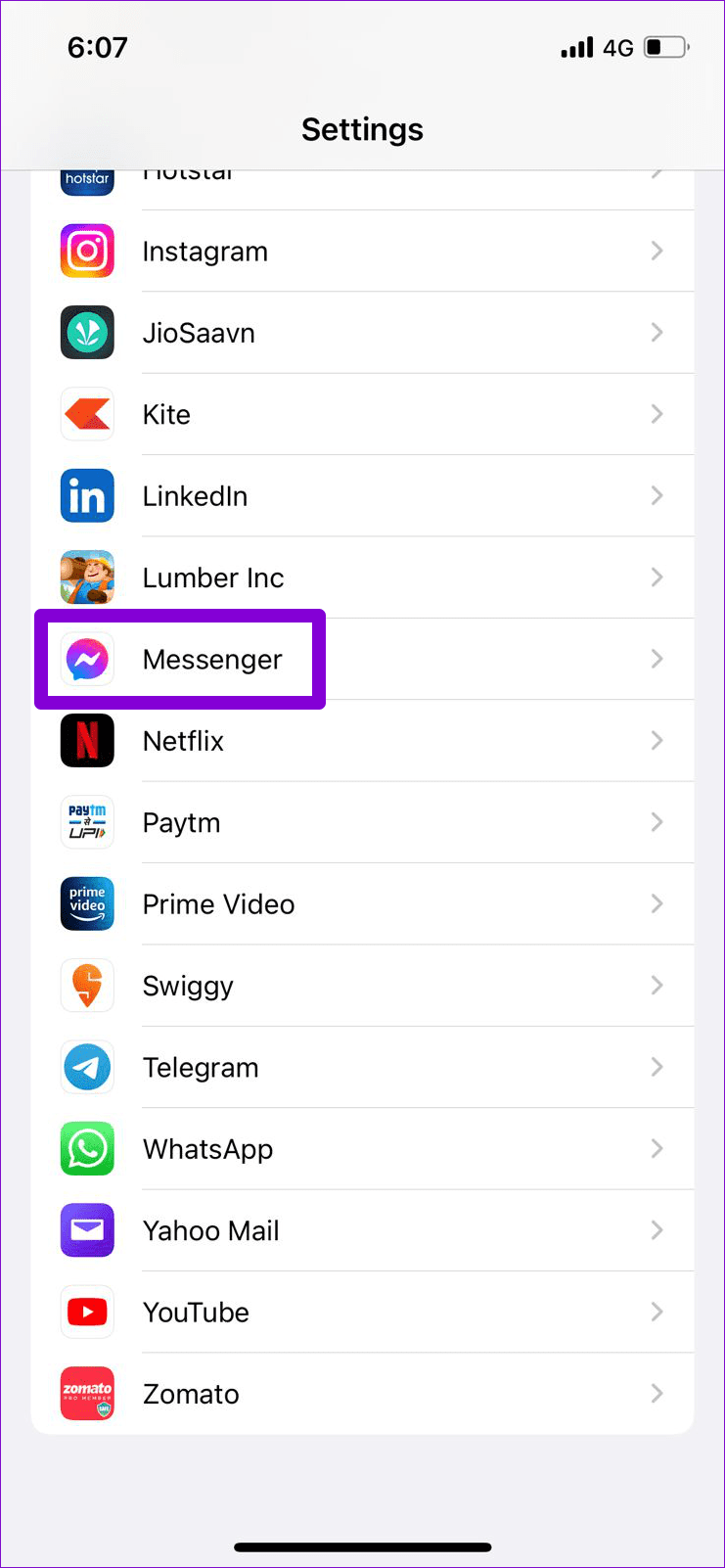
Step 1: Open the Settings app on your iPhone and scroll down to tap on Messenger .
Step 2: Enable the Mobile Data toggle.
Fix 2: Disable Low Data Mode
Enabling Low Data Mode on your iPhone can sometimes prevent apps from using the internet freely and result in such issues. It’s best to turn off Low Data Mode if apps have trouble connecting to the internet.
To disable Low Data Mode on Wi-Fi:
Step 1: Open the Settings app and tap on Wi-Fi .
Step 2: Tap the info icon next to your Wi-Fi network and toggle off Low Data Mode .

Likewise, if you are using Facebook Messenger on mobile data, use the steps below to disable Low Data Mode.
Step 1: Open up the Settings app and navigate to Mobile Data .
Step 2: Tap on Mobile Data Options and disable Low Data Mode from the following menu.

Fix 3: Reset Network Settings
A recent change to your iPhone’s network settings may have caused this problem. If that’s the case, you can reset the network settings on your iPhone . Note that this will delete all your saved Wi-Fi networks, paired Bluetooth devices, and reset network preferences on your iPhone.
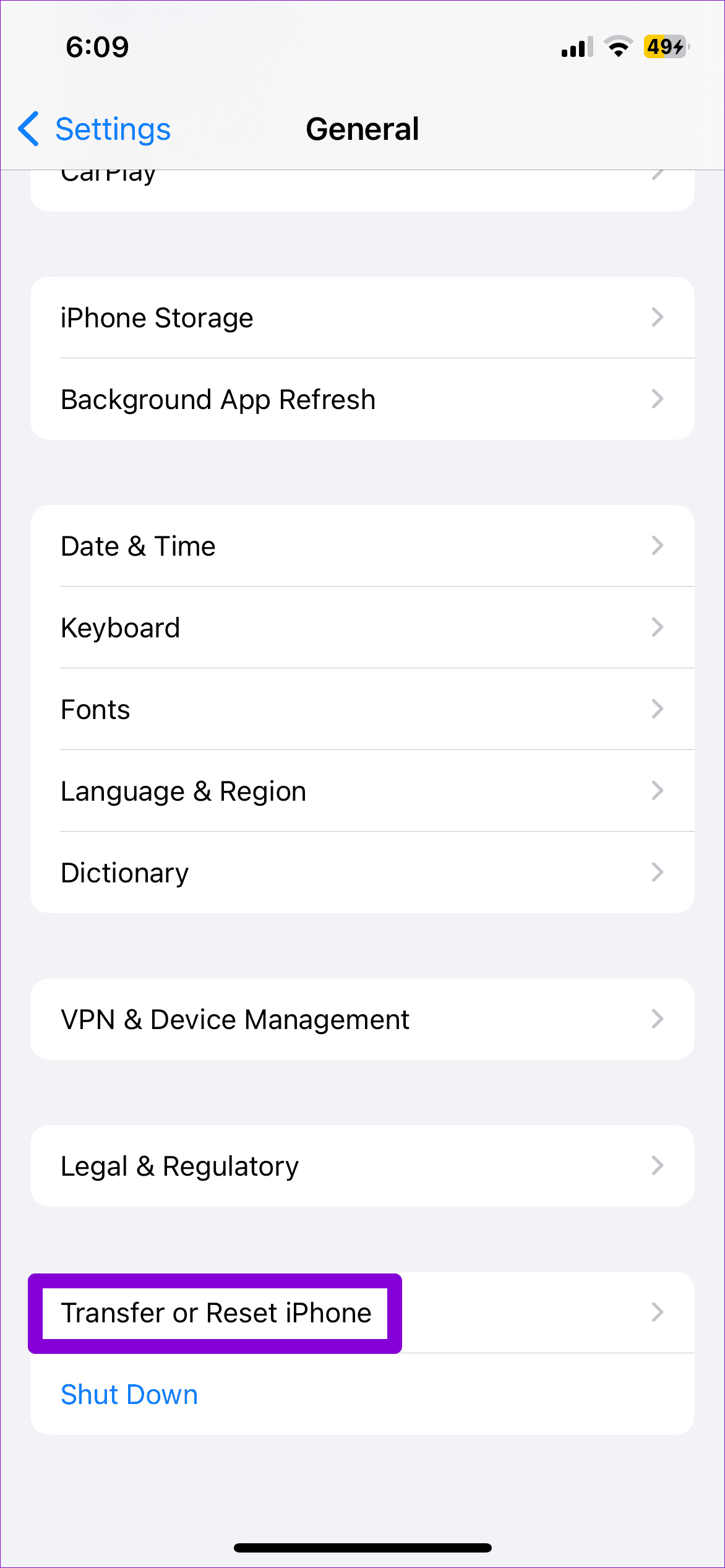
Step 1: Open the Settings app and go to General >Transfer or Reset iPhone .
Step 2: Tap Reset and select Reset Network Settings from the menu that pops open.