- You won’t be able to access the dictionary if it isn’t downloaded to your Kindle reader.
- You have not enabled the right dictionary for the language present in the book.
- If you use your Kindle offline, Wikipedia and word translation will not work.
Basic Fixes
- Check Network Connection : If you want to use Wikipedia to find the meaning of a word or translate a word, disable airplane mode and use an internet connection on your Kindle.
- Restart Kindle: Shutting down your Kindle shuts down all the operations, clearing bugs. Therefore, restarting your Kindle can help fix the problem.
- Update Kindle: If several readers face a problem while using the dictionary on their Kindle devices, Amazon will take note of it and release an update to your Kindle reader .
Fix 1: Download the Dictionary
If you can’t use the dictionary on your Kindle , the dictionary may not be added to your Kindle reader in the first place. Here’s how to fix it.
Step 1: Connect your Kindle to the internet and open the library . Scroll down to find the Dictionaries section.
Step 2: You will see a collection of dictionaries. Select the one you want to use and tap on the three dots icon . Tap on Download .
The dictionary will now be downloaded on your Kindle reader.

Step 3: Tap anywhere on the screen and select the downward-facing arrow at the top of the screen. Tap on all Settings .
Step 4: Tap on Language & Dictionaries > Dictionaries .
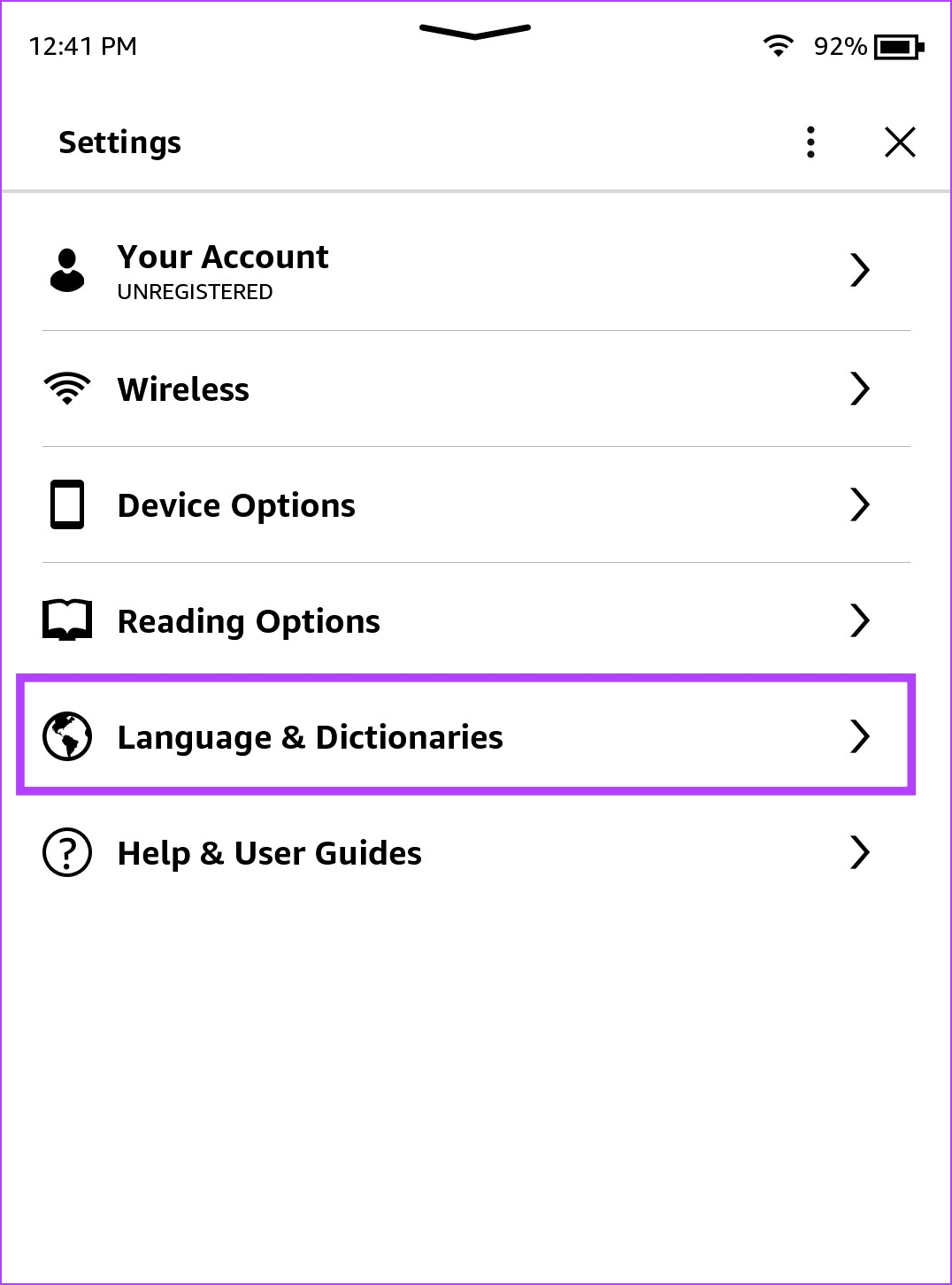
Step 5: Tap on the language of the dictionary and select the dictionary you downloaded.
Now, you can use the selected dictionary while reading a book on your Kindle ebook reader.

Fix 2: Re-Download the Dictionary
If you downloaded a dictionary and it is not working, the chances are it wasn’t downloaded properly and faced an interruption in the process. You can delete the dictionary and download it again.
Step 1: Open the library and scroll down to find and open the Dictionaries section. Tap on the three dots icon on the downloaded dictionary.
Step 2: Tap on Remove Download and tap on three dots icon on the dictionary you want to re-download.
Step 3: Tap on Download . The dictionary will be downloaded onto your Kindle device.
Once downloaded, you can go to Settings > Language and Dictionaries > Dictionaries and select the dictionary you downloaded.

Fix 3: Reset Kindle
Any misconfiguration causing your Kindle’s dictionary not to work properly will be fixed once you reset it. Here’s what happens if you reset your Kindle:
- You will lose all your data, including books, documents, and settings.
- You will need to re-download any content that you want to keep.
- You will need to sign in to your Amazon account again.
Step 1: Tap anywhere on your screen while reading a book. If you are on the home page, jump to Step 2.
Step 2: Tap on the downward-facing arrow icon to open the control panel and go to All Settings . Tap on Device Options .
Step 3: Tap on Reset . Tap on yes to confirm and wait for it to complete the process.

