- A temporary glitch with your account might be causing issues. Sign out of OneNote, then sign back in with your Microsoft credentials.
- Windows offers a built-in app repair tool. Go to Settings > Apps & features > find OneNote > click Advanced options > choose Repair.
- If all else fails, remember you can still access your notes. Head to OneNote online and sign in with your Microsoft account.
Preliminary Fixes
- Close and reopen OneNote : Microsoft offers a quick-note feature on OneNote and keeps running the app in the background. You should completely close the OneNote app and then reopen it.
- Update the OneNote app : If OneNote does not open, it might be due to an outdated build. Go to the Microsoft Store and update the app. For those using the Microsoft 365 version of OneNote, go to File > navigate to Office Updates > install the latest OneNote build.
- Run Windows Store apps troubleshooter : Microsoft offers a handy troubleshooter for fixing Windows Store apps. Launch Windows Settings > go to System > Troubleshoot > Other troubleshooter > click on Run adjacent to Windows Store Apps.
- Try OneNote web : Microsoft also offers OneNote on the web. If you can’t access the native apps, try OneNote from the web.
Fix 1: Delete OneNote Cache
OneNote collects cache data in the background to make certain app tasks faster. Sometimes, overburdening such cache data or corrupting the cache can cause this error.
Step 1: Press the Windows + R keys and open the Run menu.
Step 2: Type OneNote / safeboot in it and hit Enter .
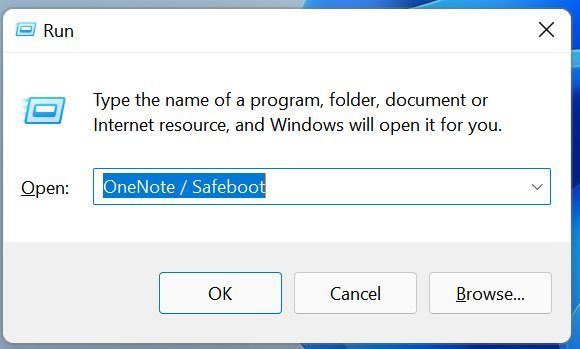
Step 3: The process will delete the app cache and open the app on the computer.
Fix 2: Repair OneNote
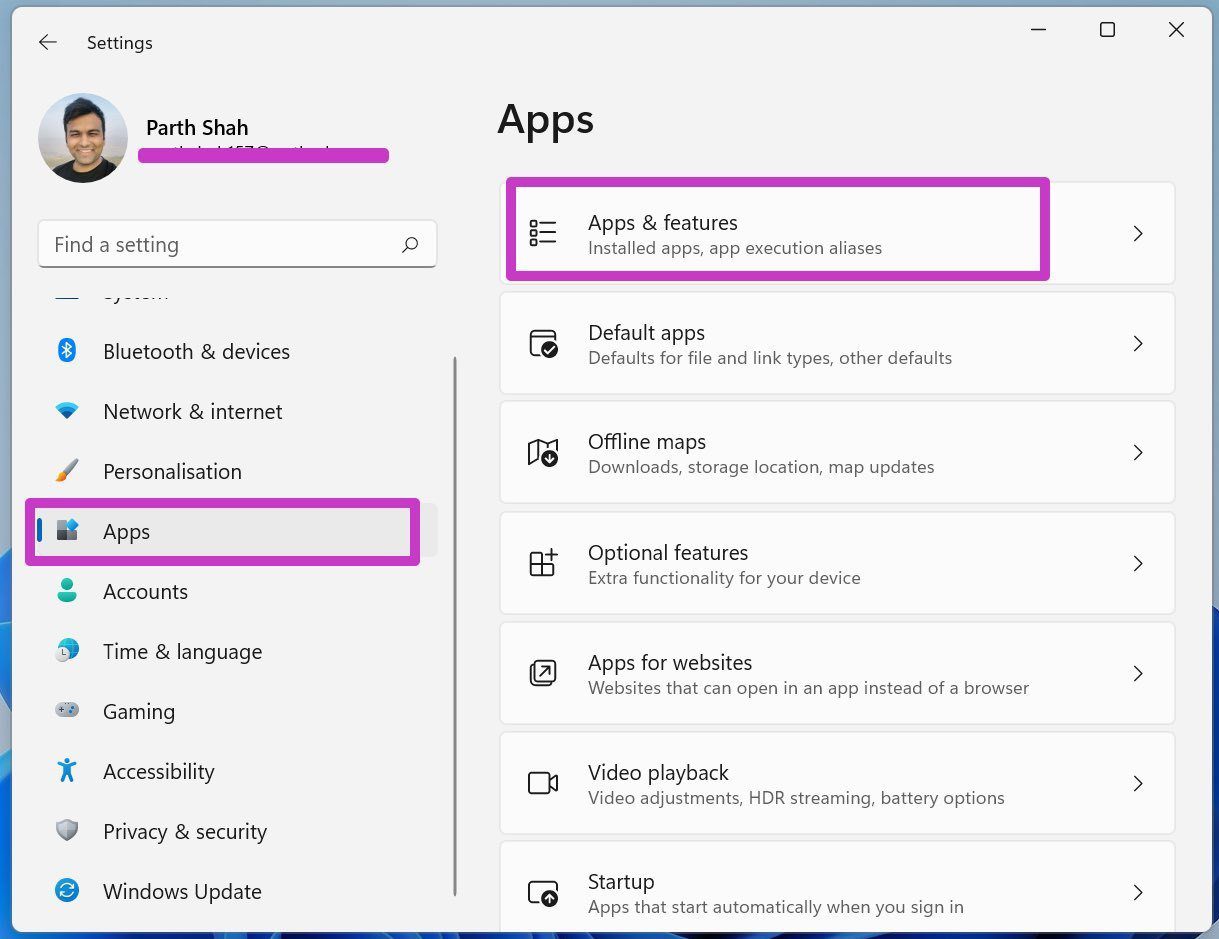
Step 1: Open the Settings app on Windows.
Step 2: Go to the Apps menu and open Apps & features .
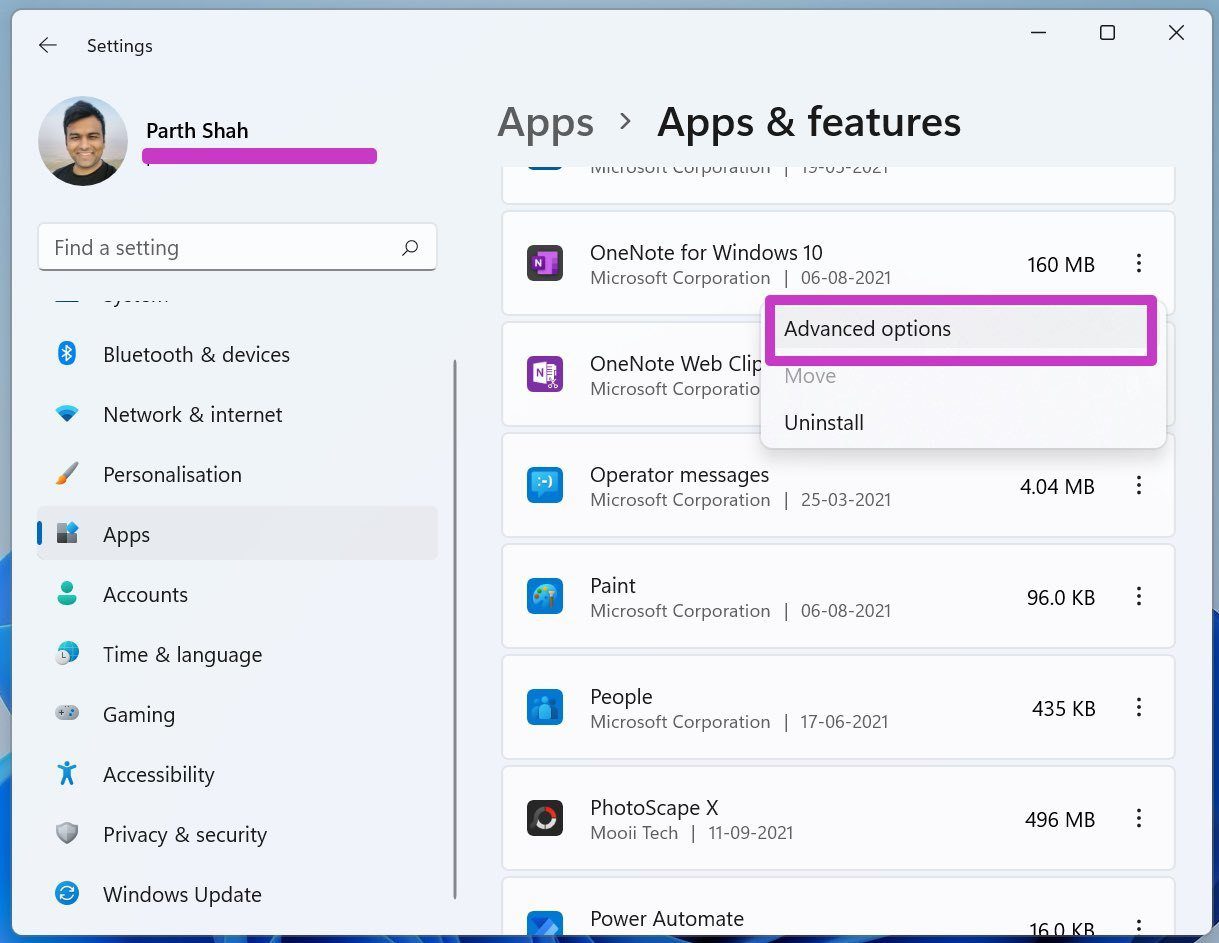
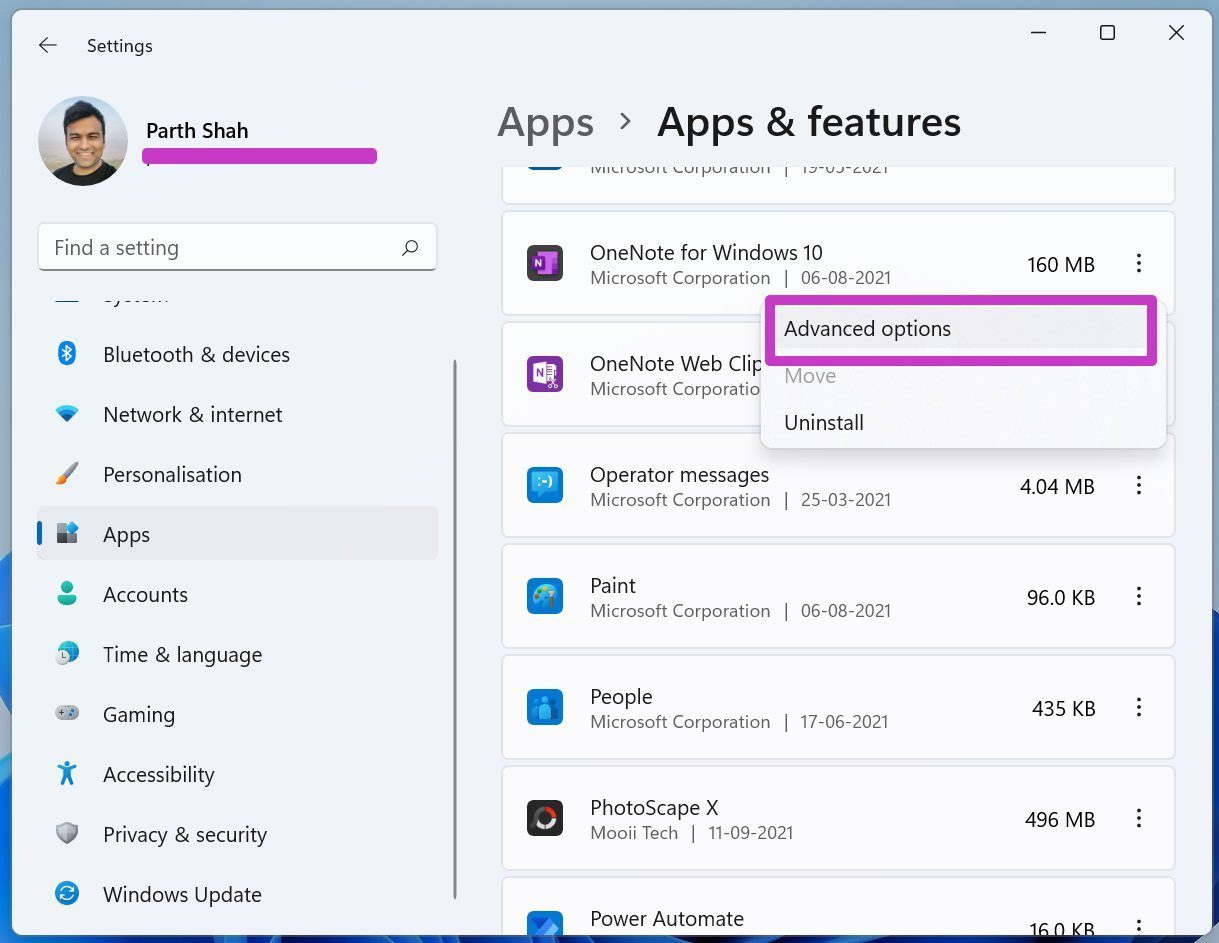
Step 3: Scroll to OneNote and click on the three-dot menu beside it.
Step 4: Open Advanced options .
Step 5: Under the Reset menu, select Repair .
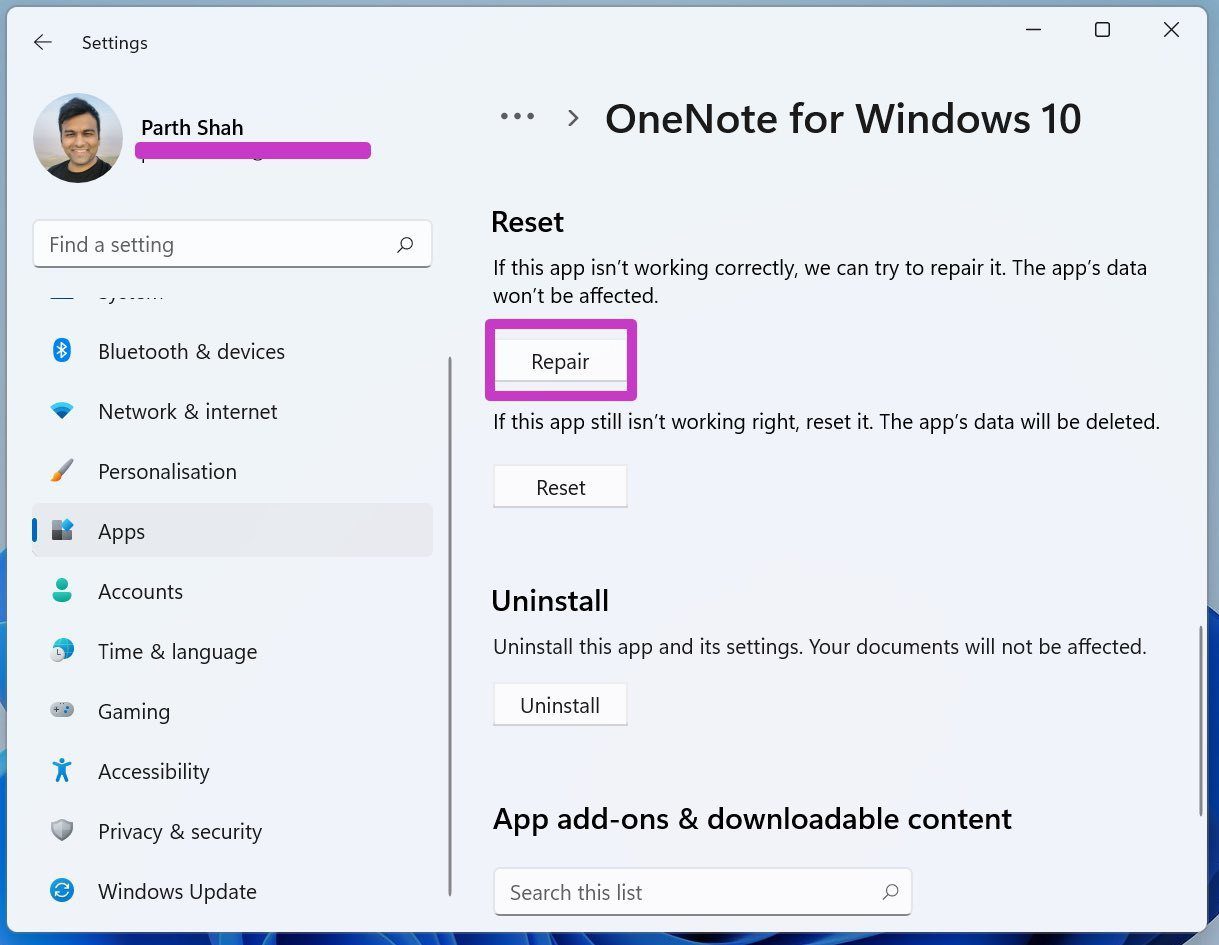
Let Windows run the Repair tool and troubleshoot the OneNote not opening issue on Windows 10 and Windows 11.
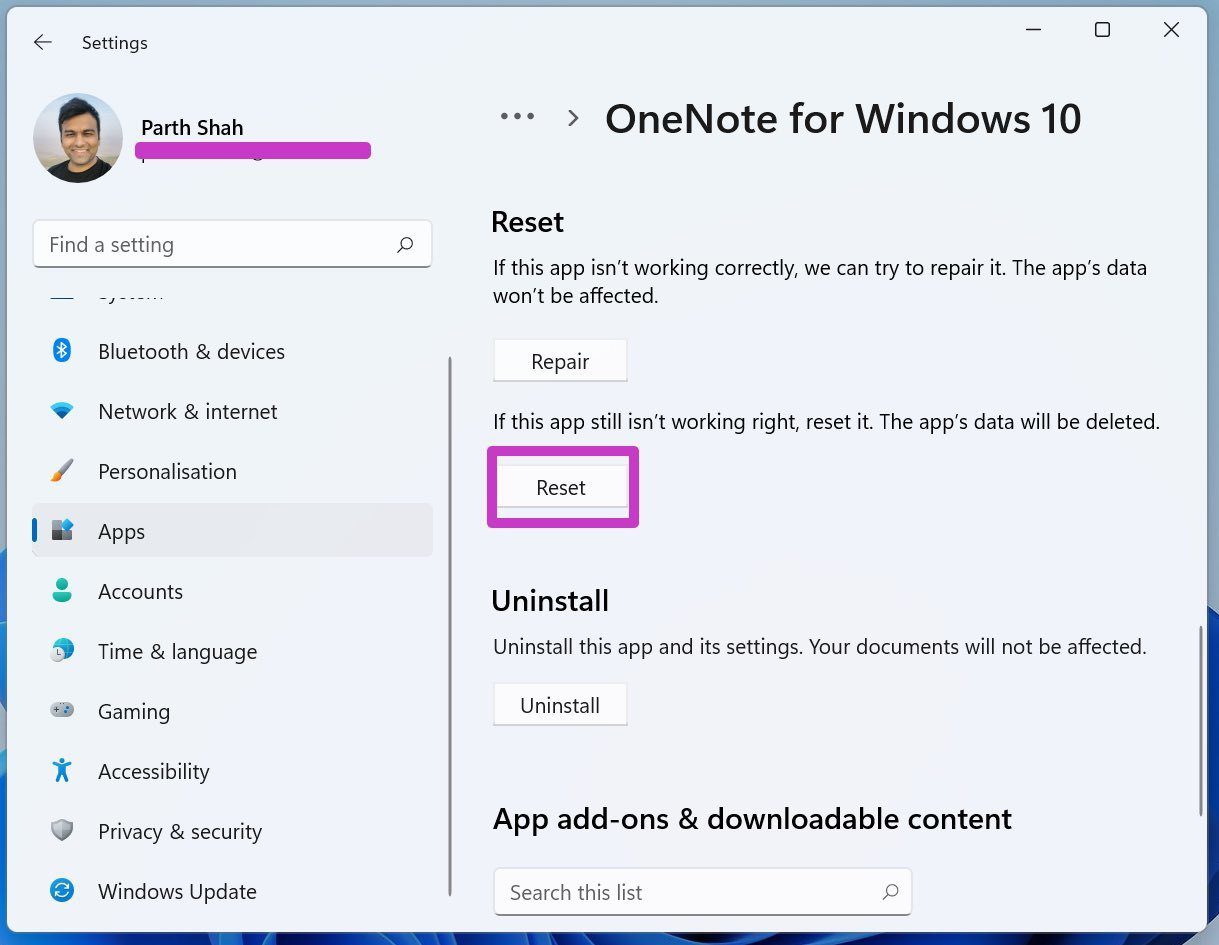
Fix 3: Reset OneNote on Windows
The Reset function will delete all the app’s data on your computer, and you will have to open OneNote notebooks again from OneDrive.
Step 1: Open the Windows Settings and go to Apps .
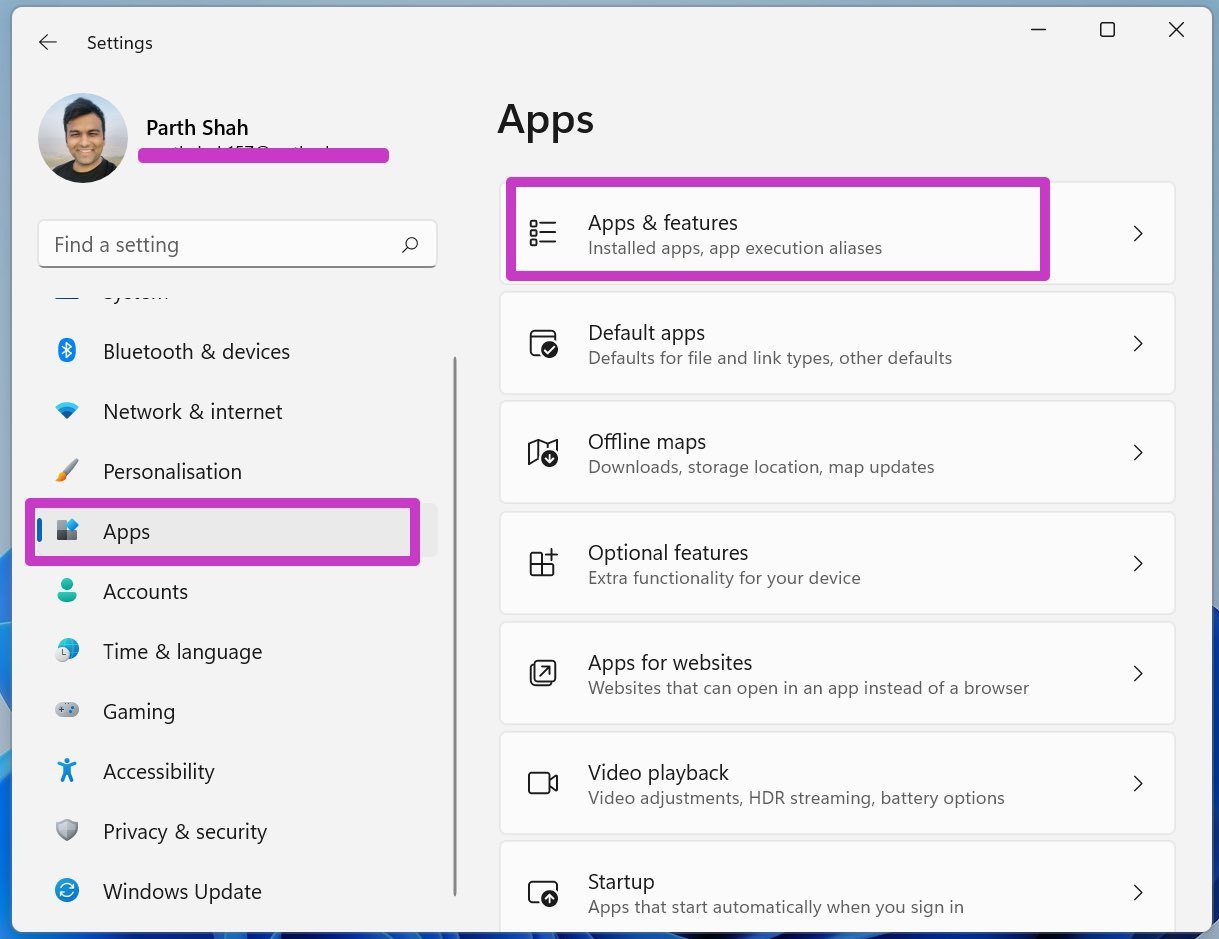
Step 2: Find OneNote under the Apps & features menu and go to Advanced options .
Step 3: Scroll down to Reset .