- Common reasons for error include unassigned or wrong drive letters and problems during the mapping process.
- You can choose to disconnect and reconnect to resolve the issue quickly.
- MountPoints2 key stores information on network drives.
Fix 1: Assign or Change Drive Letter
Step 1: Right-click the Windows Start button , locate Disk management, and click to open.
Step 2: Locate the partition you want to change the letter of and right-click on it.
Step 3: Select Change Drive Letter and Paths .
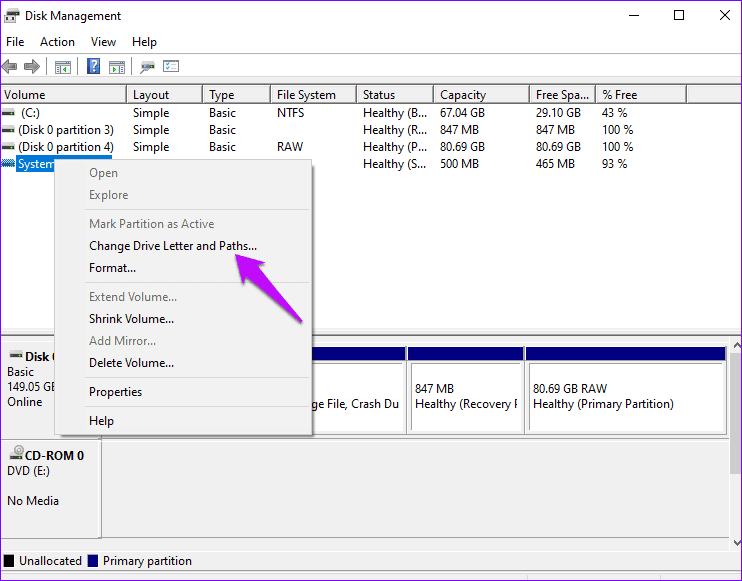
Step 4: On the next window, click Add > select Assign the following drive letter > select a preferred drive from the drop-down menu. Press OK to update the changes.

Fix 2. Remap the Network Drive
The Windows system assigns specific letters to your computer drives. However, during network mapping , the drive letters may get mixed up.
Step 1: Open the Run prompt (Win + R), type cmd , and use Ctrl + Shift + Enter to launch it with admin permission.
Step 2: Copy and paste the below command and press Enter .
net use Z /delete
Remember to replace ‘Z’ with the partition you want to delete.
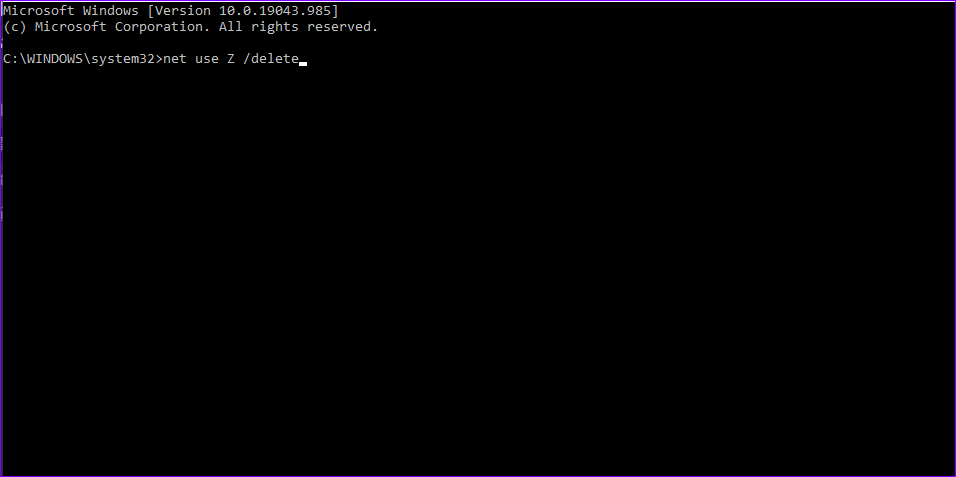
Step 3: After deleting the device name, modify it by running this command.
net use Z: \\server\share /user:username password
Remember to use the same drive letter ‘Z’ with where you want to map the drive. Also, input a relevant user and username password for the drive you want to modify.

Step 4: Restart your device and confirm that the mapping issue has been resolved.
Method 3. Delete MountPoints2 Key
Deleting some registry keys could resolve your system’s mapping issues. Here’s how to erase the MountPoints2 key.
Step 1: Press the Windows + R keys to launch the Run dialog box. Type regedit and press Enter to open the Registry Editor.
Step 2: Locate this path in the next window.
HKEY_CURRENT_USER\Software\Microsoft\Windows\CurrentVersion\Explorer
Step 3: Right-click MountPoints2 and select Delete . Confirm the dialog boxes that may appear and restart your system.

Note : The entries are available in Server_Name#Share_Name. If you know which is causing the issue, delete that entry alone.
