- Go to Settings on your Apple Watch, open the Sound and Haptics menu, and turn on Haptic Alerts.
- By default, your Apple Watch notifies you with sound and haptic feedback. To disable sound, turn on Silent Mode in Settings.
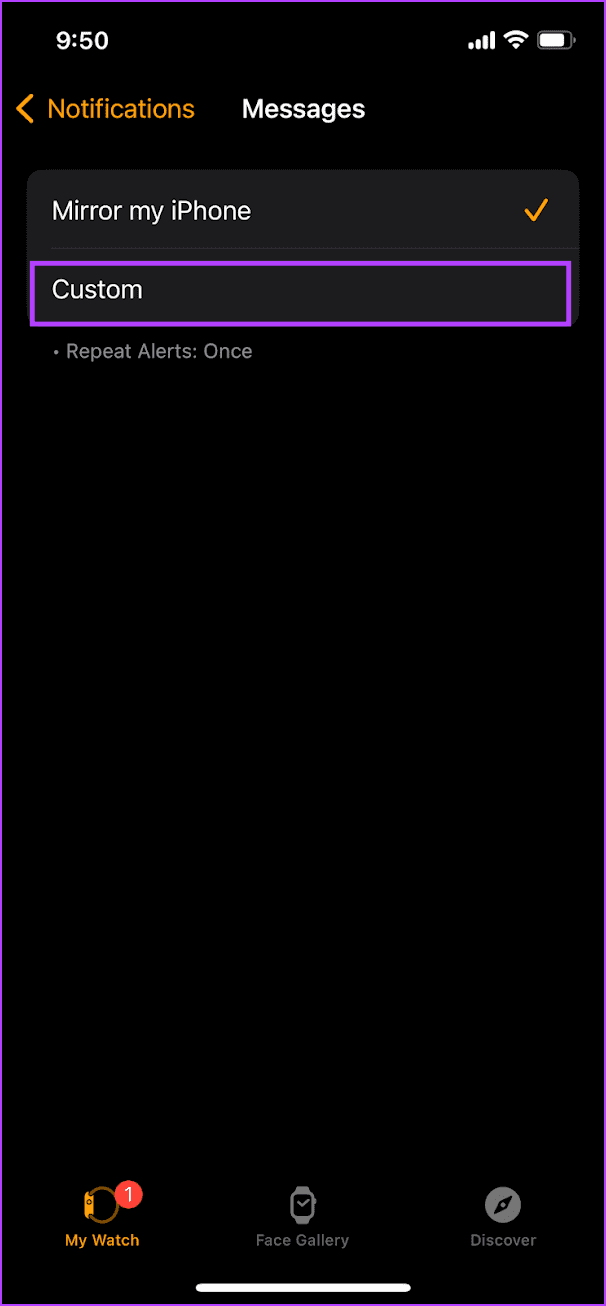
- To set haptics for only certain apps, open the Watch app on your iPhone, go to Notifications, and use a Custom notification scheme.
Method 1: Set Apple Watch to Vibrate Only for Alarm and Notifications
Here’s how to make your Apple Watch vibrate to alert you of all the notifications. Doing this will also set the Apple Watch alarm to vibrate only.
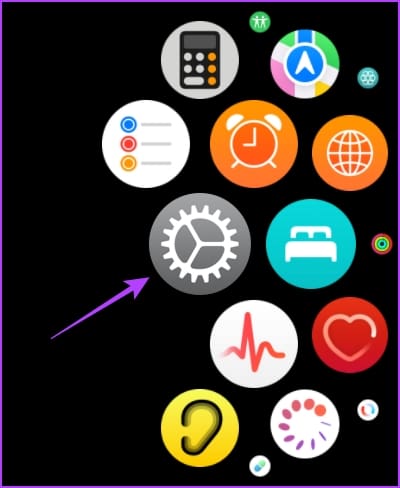
Step 1: Press the Digital Crown once to open the home screen and tap the Settings app.
Step 2: Tap on Sounds & Haptics , and turn on Haptic Alerts .
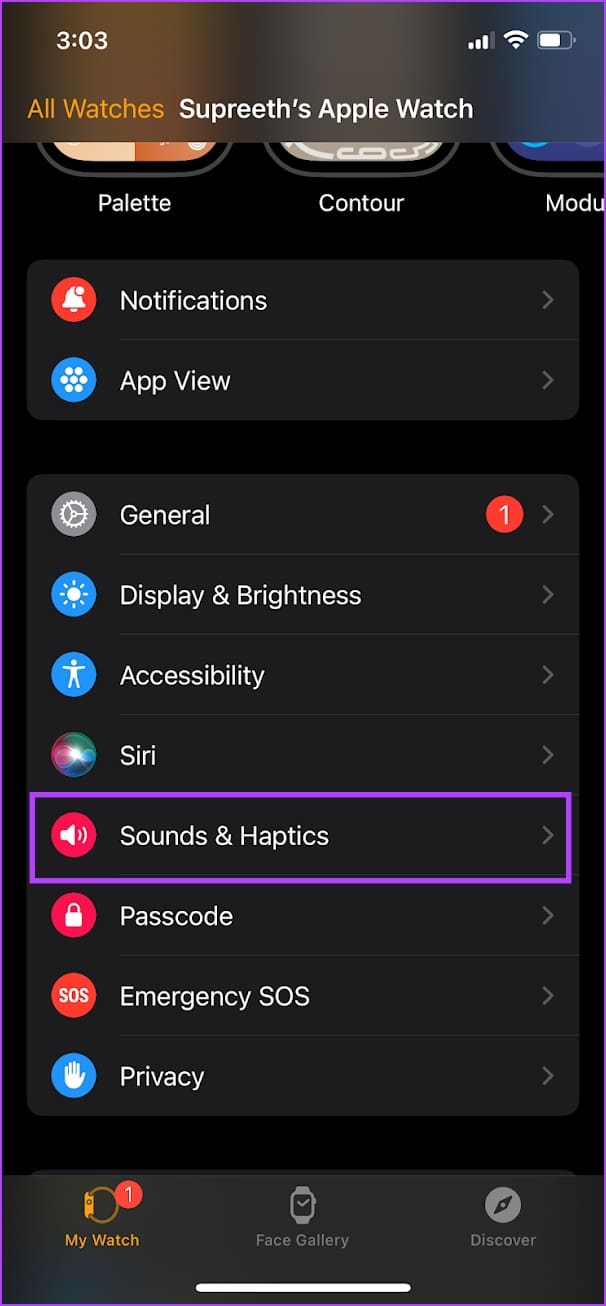
Alternatively, you can open the Watch app on your iPhone, tap on Sound & Haptics , and turn on the toggle for Haptic Alerts .
Increase the Vibration Intensity
Your Apple Watch offers two levels of vibration intensity – default and prominent. If you receive vibrations and haptic feedback on your Apple Watch but aren’t happy with the vibration levels, here’s how to increase it.
Step 1: Press the Digital Crown once to open the home screen and go to Settings .
Step 2: Tap on Sounds & Haptics . Scroll down and find the option to change the haptic intensity.
You can either use the Default option or the Prominent option. The selection will show you a preview of how the vibration feels like.
Alternatively, you can open the Watch app on your iPhone, tap on Sound & Haptics , and choose the Haptic Intensity .
Also Read : Fix Apple Watch not receiving notifications
Method 2: Make Apple Watch Vibrate on Silent for All Notifications
By default, your Apple Watch notifies you with sound and haptic feedback. However, if you wish to receive a vibration but not the sound for notifications, you must enable Silent Mode on your Apple Watch.
Step 1: Press the Digital Crown once to open the home screen and go to Settings .
Step 2: Tap on Sounds & Haptics , and turn on Silent Mode .
You can also open the Control Center on your Apple Watch by swiping up on your watch face and enabling the Silent Mode option.

Alternatively, you can open the Watch app on your iPhone, select Sound and Haptics , and turn on the toggle for Silent Mode .
Method 3: Put Apple Watch on Vibrate Only for Specific Apps
If you want specific apps to vibrate when sending notifications on your Apple Watch, whereas sounds for other apps, you can set a custom notification scheme. However, you can only do so for stock apps on your Apple Watch.
Step 1: Open the Watch app on your iPhone. Tap on Notifications . Select the application .

Step 3: Tap on the Custom Notifications option. Turn off the toggle for Sound and ensure that the toggle is on for Haptics .