- Interference from other connected devices may cause the problem, so disconnecting them could be effective.
- In most cases, the built-in Windows Bluetooth troubleshooter should fix the problem.
Basic Fixes
- Check the battery level on your Bluetooth keyboard : Most Bluetooth keyboards come with a battery-level indicator. If it flashes a red LED, your keyboard is running out of battery juice. Charge it and then connect it.
- Reset Bluetooth keyboard : When your Bluetooth keyboard misbehaves suddenly, you can reset it to fix the issue. Open your Bluetooth keyboard’s manual and follow the steps to reset it.
- Enable Bluetooth toggle on the keyboard : For hybrid keyboards that support wireless (Bluetooth) and wired connections, you’ll find a physical switch on the keyboard to enable Bluetooth.
Fix 1: Run the Bluetooth Troubleshooter
Do you face Bluetooth issues only with your keyboard or with other devices? If it’s the latter, run a Bluetooth troubleshooter on Windows to fix the issue. Follow the steps below.
Step 1: Launch the Windows 11 Settings by pressing Windows + I > click System in the left pane > Troubleshoot in the right pane.

Step 2: Select Other trouble-shooters .

Step 3: Run the Bluetooth troubleshooter from the following menu.

Once Windows completes running the Bluetooth troubleshooter, connect your keyboard again.
Fix 2: Remove Other Connected Devices From Your Computer
You can remove Bluetooth devices such as mouse, microphones, earphones, and speakers if they’re connected to your Windows 11 PC. After that, try to re-establish the Bluetooth connection with a keyboard. Here’s how to remove saved Bluetooth devices from Windows.
Step 1: Open Windows 11 Settings menu (use Windows + I keys).
Step 2: Select Bluetooth & devices from the left sidebar.

Step 3: Click on the three-dot menu beside a Bluetooth device you want to remove.
Step 4: Click Remove device .

Step 5: Select Add device from the same menu.

Ensure to enable Bluetooth on your keyboard (with enough charge) and connect it to your computer.
Fix 3: Reinstall Bluetooth Drivers
Corrupt Bluetooth drivers can also cause connection issues with your keyboard. You can reinstall the Bluetooth driver from the Device Manager menu.
Step 1: Right-click on the Windows key and open Device Manager .

Step 2: Expand the Bluetooth menu and find your keyboard from the list.

Step 3: Right-click on it and select Uninstall device from the context menu.

Step 4: Confirm your decision and restart your computer.
Fix 4: Restart the Bluetooth Support Service
This service is essential for discovering Bluetooth devices. A quick restart may fix minor glitches that trigger the Bluetooth problem.
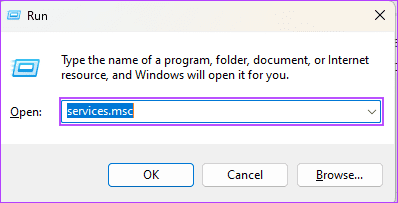
Step 1: Press Windows + R to open the Run dialog, type services.msc , and hit Enter .
Step 2: Right-click Bluetooth Support Service and click Restart .

