- Ensure Chrome doesn’t prompt you for a download location every time. You can set it to download files automatically.
- Cached data can sometimes disrupt downloads. Clear Chrome’s browsing data, including cookies and cached files.
- Outdated software can cause glitches. Ensure you’re running the latest version of Chrome.
Basic Fixes
- Check the internet connection: Chrome downloads may get stuck and take forever to complete due to a slow or intermittent internet connection. Before starting the download process, you must run tests for the internet speeds on your desktop.
- Clear Google Chrome cache : A corrupt or outdated cache may lead to issues like Google Chrome’s inability to complete downloads. You can clear the cache from a specific website and try again.
- Check device space : If your Windows PC or Mac has low space, you may face errors when completing downloads from Google Chrome. You should check the storage breakdown on your desktop before starting the download process.
- Temporarily disable antivirus : An active third-party antivirus app may block the download process for security reasons. You should completely close such apps in the background for an error-free download process in Google Chrome.
- Update Google Chrome : Google frequently releases updates with new features and bug fixes. Chrome downloads that don’t finish might be due to an outdated browser on your desktop. Try updating it.
Fix 1: Allow Chrome to Download Files Automatically
Step 1 : Launch the Chrome browser > click on the three vertical dots > select Settings .

Step 2 : Navigate to the Download option and toggle off the Ask where to save each file before downloading .
Also Read : How to close all tabs from the same website on Google Chrome
Fix 2: Try Another Google Chrome Profile
Step 1: Launch Google Chrome and click your profile picture at the top-right corner.
Step 2: Click Add .

Step 3: Sign in with your Google account details and try again.
You can also click the three-dot menu at the top to open Chrome’s private mode to complete downloads. This mode disables all the extensions in the Chrome browser.
Fix 3: Disable Extensions
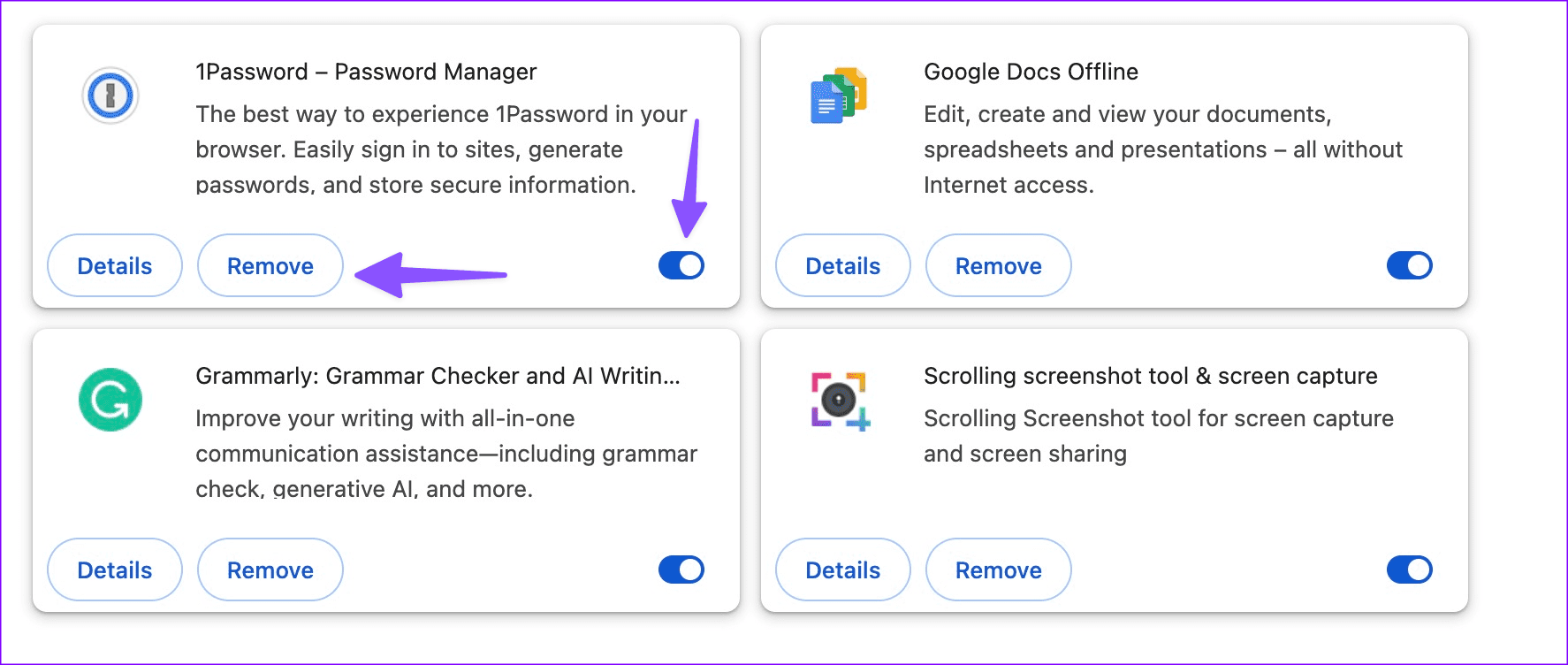
If your Chrome downloads work fine in private mode, one of the installed extensions is the main culprit. Uninstall unnecessary Chrome extensions and try again.
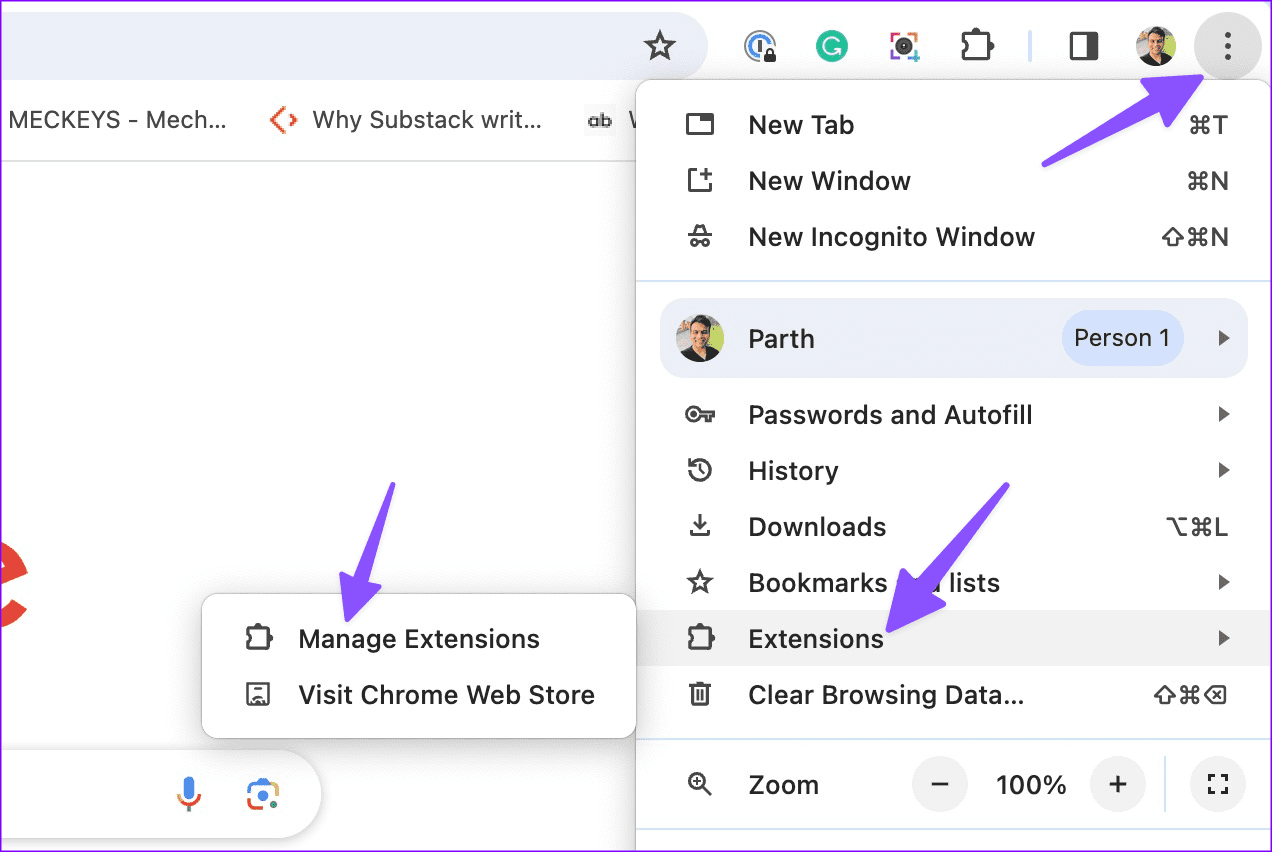
Step 1: Launch Google Chrome > click the three-dot menu at the top > expand Extensions > select Manage Extensions .
Step 2: Disable or uninstall unnecessary Chrome extensions .
Also Read : How to set a custom search engine as default in Chrome
Fix 4: Tweak DNS Settings
If your local ISP or network admin has blocked your IP address due to excessive data downloads, you may run into errors like downloads not working or a download failed network error . You should change the DNS settings and try again.
Step 1 : Launch Chrome > click on the three vertical dots > and select Settings .
Step 2 : Within the Settings menu, scroll down and click on Privacy and security .
Step 3 : Under Privacy and security, select Security .

Step 4 : Under Advanced, next to Select DNS provider, click on the chevron (arrow) icon and select Cloudflare (1.1.1.1) .

Step 5 : Once you’ve done this, restart the Chrome browser. The issue should be resolved, and you can download files completely in Google Chrome.
