- Review the spelling and autocorrect settings in Outlook and ensure they are enabled.
- Set the correct proofing language in Outlook and try running the spell check manually.
- Consider opening Outlook in safe mode to check if one of your add-ins is causing the issue, or run Microsoft’s Office repair tool.
Fix 1: Check Spelling and Autocorrect Settings
The first thing you should do is ensure that spell check is enabled and configured correctly in Outlook. Here’s how to do it.
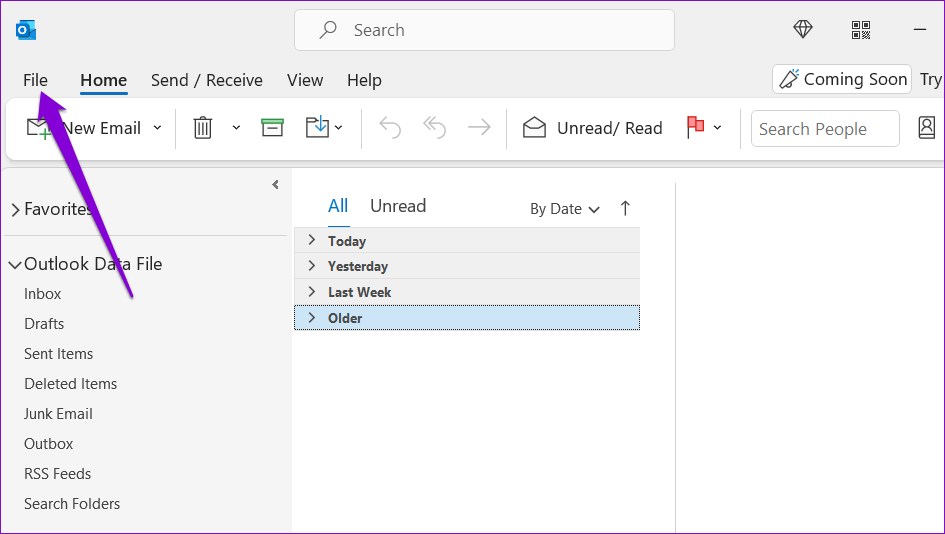
Step 1: Open the Outlook app on your PC and click the File menu in the top-left corner.
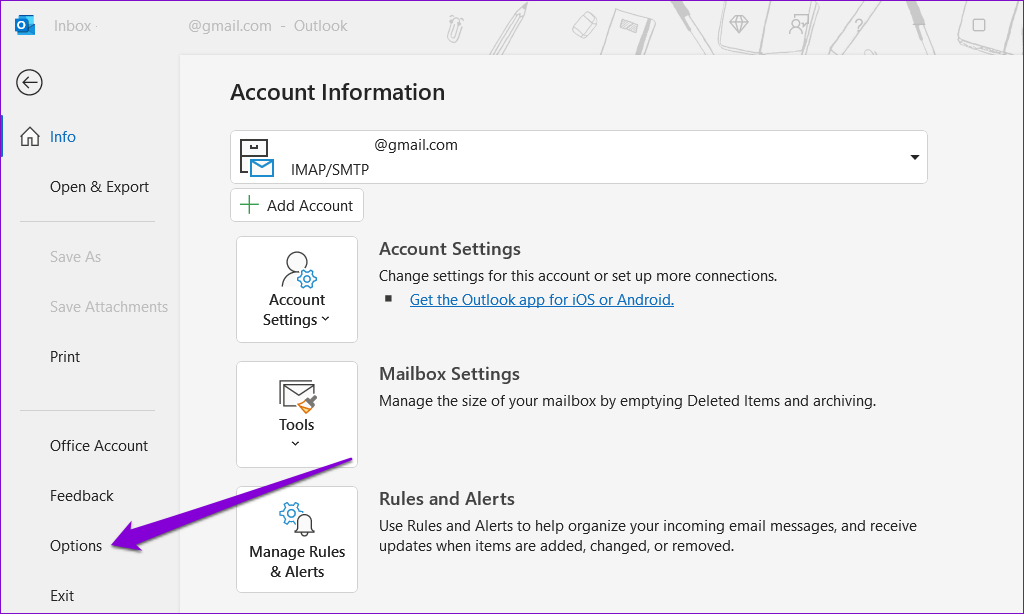
Step 2: Select Options from the left sidebar.
Step 3: Switch to the Mail tab and tick the checkbox that reads Always check spelling before sending . Then, clear the Ignore original message text in reply or forward checkbox.

Step 4: Click the Spelling and Autocorrect button.

Step 5: Tick the Check spelling as you type and Mark grammar errors as you type boxes. Then, click OK .

Fix 2: Check the Proofing Language
If the spell check is not working even after you turn it on, you may have set the wrong proofing language. Here’s how you can change that.
Step 1: Open Microsoft Outlook and click the New Email button.

Step 2: Under the Review tab, select Language > Set Proofing Language .

Step 3: Choose your preferred language from the list, and click the Set As Default button.

Step 4: Uncheck the Do not check spelling or grammar box. Then, click OK .

Fix 3: Run Spell Check Manually
Another thing you can do is run a spell check manually in Outlook. For that, compose an email as you normally would and intentionally type in a few misspelled words. Then, switch to the Review tab and click the Spelling and Grammar option at the top.

If Outlook’s spell check does not work even when you run it manually, a third-party add-in or corrupted files may be responsible for the issue.
Fix 4: Open Outlook in Safe Mode
An outdated or buggy third-party add-in can cause certain features, like spell check, to stop working in Outlook. To check for this possibility, you can open Outlook in Safe Mode.
Press and hold the Ctrl key on your keyboard and double-click the Outlook shortcut. Click Yes when the confirmation prompt appears. If the spell check feature works as expected while Outlook is in safe mode, you should disable all the add-ins and re-enable them one at a time.
Step 1: In the Outlook app, go to File > Options .
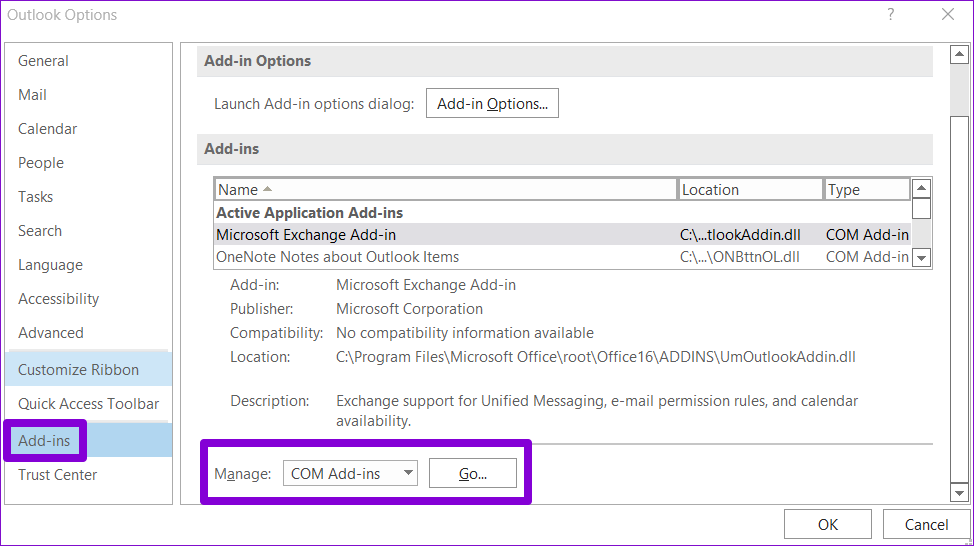
Step 2: In the Outlook Options window, switch to the Add-ins tab. Click the drop-down menu next to Manage and select COM Add-ins . Then, click the Go button next to it.
Step 3: Uncheck the boxes to disable add-ins and click OK .
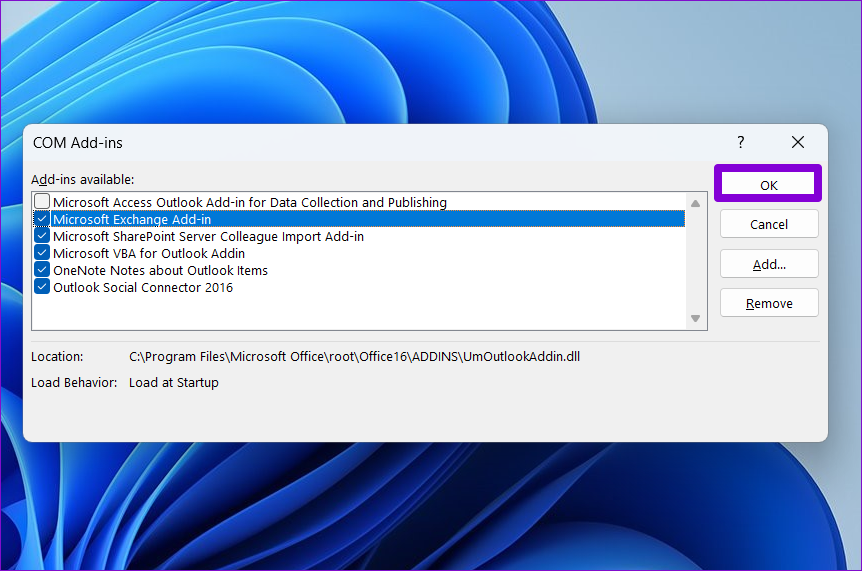
Restart the Outlook app after this and enable your add-ins one by one until the problem occurs again. After you find the problematic add-in, consider updating or removing it.
Fix 5: Run the Office Repair Tool
Running the Office repair tool is an effective way to fix issues with Office apps like Outlook. The tool can automatically scan your Office apps for installation issues or corrupted files and fix them. Here’s how to run it.
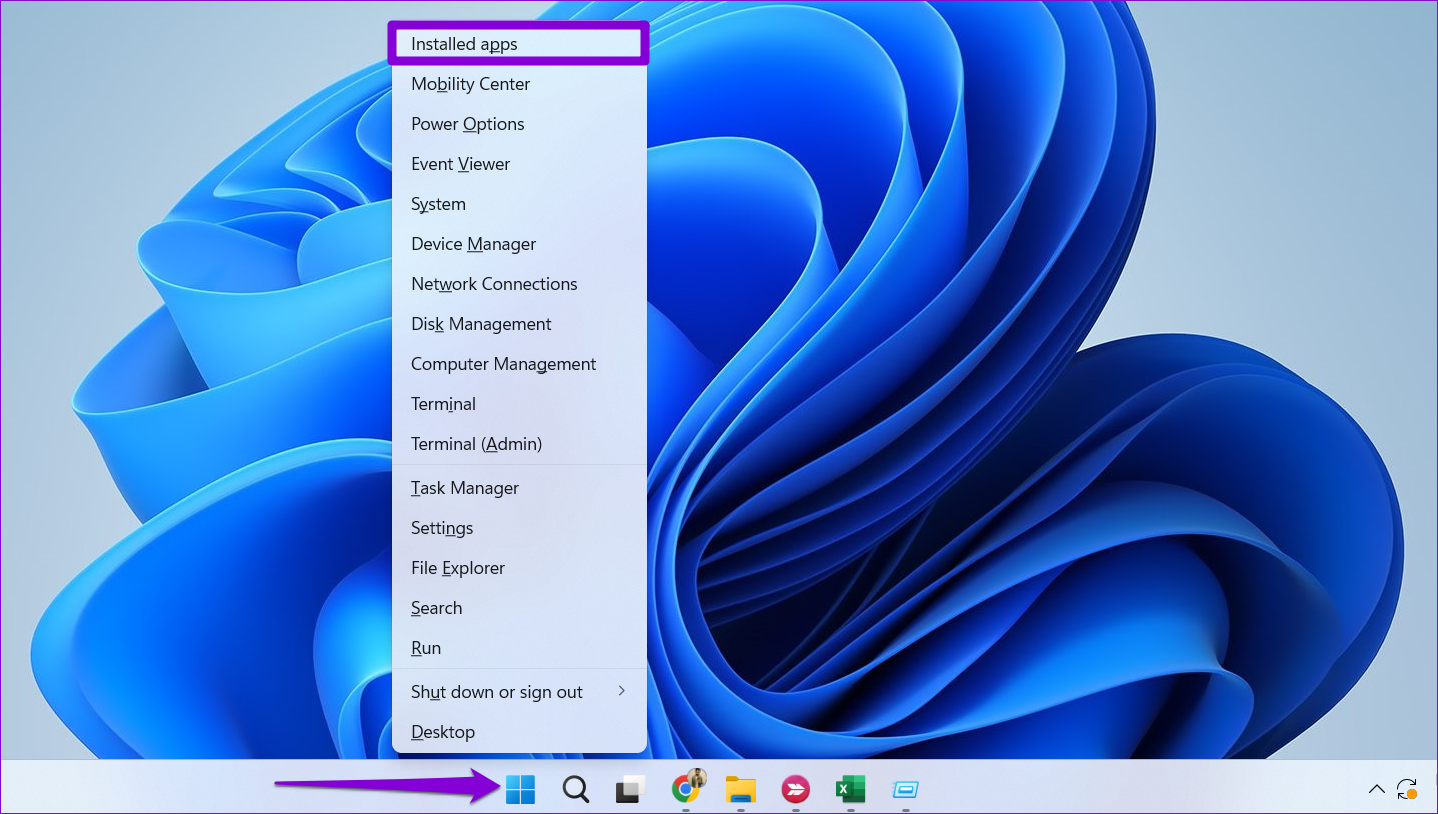
Step 1: Right-click on the Start icon and select Installed apps from the list.
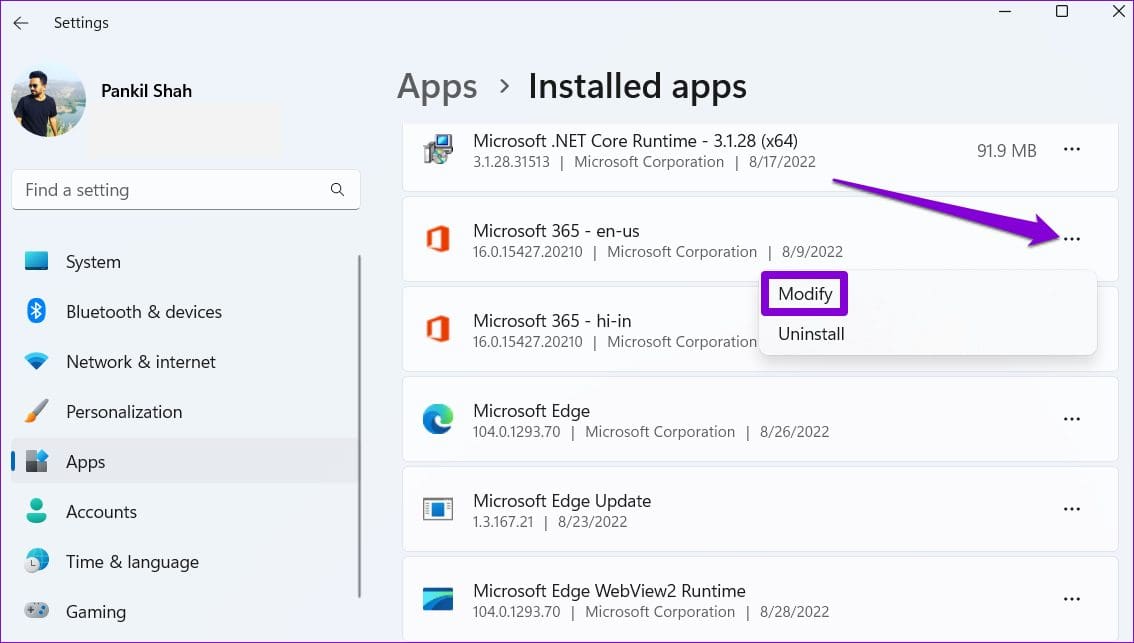
Step 2: Scroll down to locate the Microsoft Office suite on the list. Click the three-dot menu icon next to it and select Modify .
Step 3: Select Online Repair and click on Repair .

