- Factors like inadequate permission to access your phone’s microphone, battery restrictions, and corrupted cache can cause the Voice Recorder app to malfunction.
- The Voice Recorder app won’t record anything if another app in the background is already using your phone’s microphone.
- Ensure to update the Voice Recorder app if nothing else works.
Fix 1: Allow Voice Recorder App to Use Microphone
Like any other app, Voice Recorder needs permission to use your Samsung Galaxy phone’s microphone. If the app can’t access the microphone, it can’t create any audio recordings. Hence, it’s the first thing you should check.
Step 1: Long-press on the Voice Recorder app icon and tap the info icon from the menu. Then, go to Permissions .

Step 2: Tap on Microphone and select Allow only while using the app .

Fix 2: Enable Microphone Access From Privacy Settings
If your Samsung Galaxy phone is running One UI 4.0 or above, ensure the microphone access option is enabled in the privacy settings. Otherwise, the Voice Recorder won’t use your microphone despite having the necessary permission.
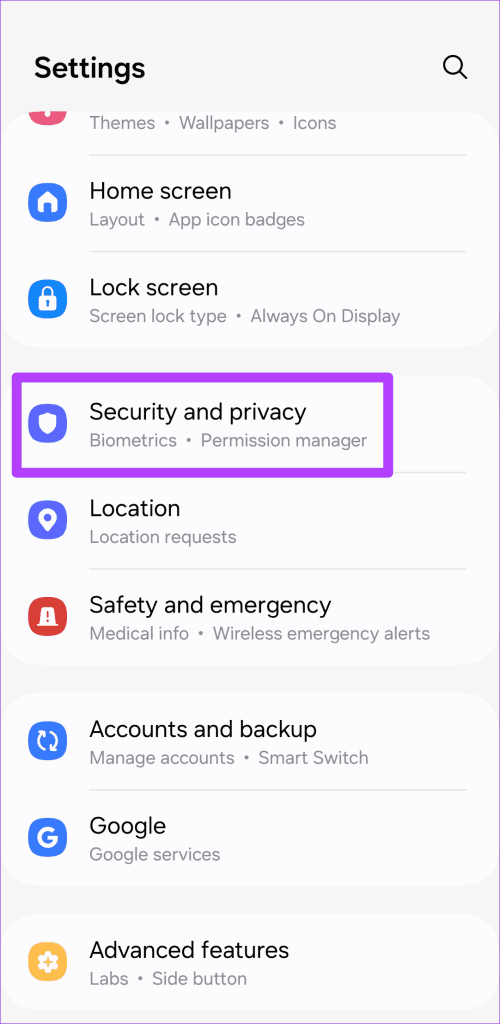
Step 1: Open the Settings app and go to Security and privacy > More privacy settings .
Step 2: Enable the toggle next to Microphone access .
Fix 3: Close Background Apps
The Voice Recorder app may be unable to record anything if another app in the background is already using the microphone. To avoid this, close any background apps with access to the microphone.
Press the Recents button or swipe up from the bottom of the screen to bring up the app switcher. Swipe up on the apps you want to close. After that, use the Voice Recorder app again.
Fix 4: Allow Unrestricted Battery Usage to the App
Does the Voice Recorder app on your Samsung Galaxy phone stop recording automatically after a few minutes? That could happen if you have applied any battery restrictions to the app. Here’s how to remove them.
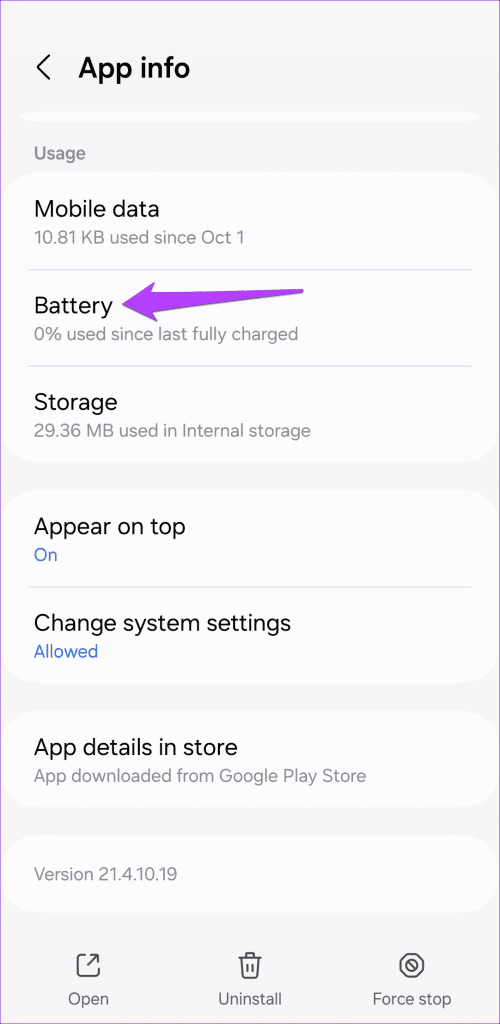
Step 1: Long-press on the Voice Recorder app icon and tap the info icon from the menu that appears.
Step 2: Tap on Battery and select Unrestricted from the following menu.
Fix 5: Clear App Cache
Clearing the cache is an effective way to resolve issues with any Android app, including Voice Recorder. This will remove any temporary files associated with the app that may have been causing the problem.
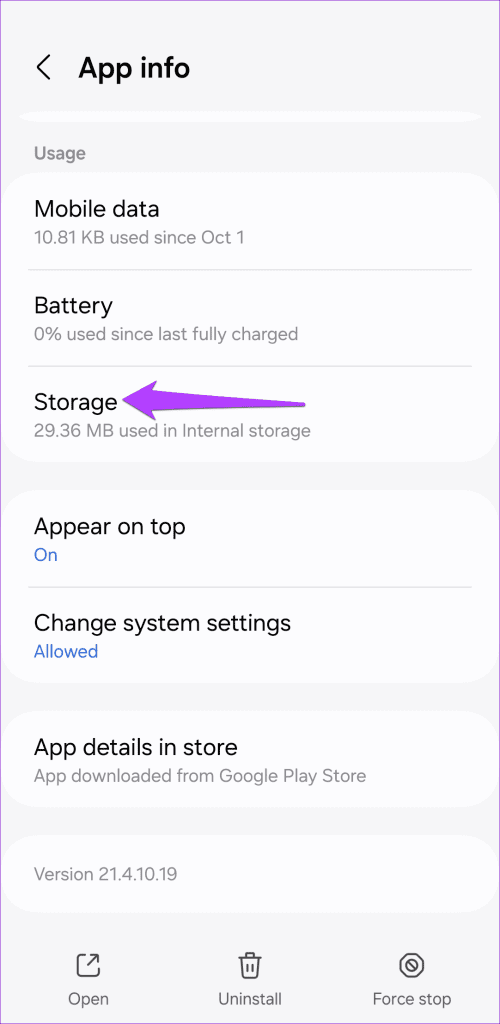
Step 1: Long-press on the Voice Recorder app icon and tap the info icon from the resulting menu.
Step 2: Go to Storage and tap the Clear cache option.