- Like mobile and tablet apps, Samsung TV apps also collect cache in the background to improve the loading time and overall app performance. When an app collects a corrupt cache, you may face issues with opening or loading it.
- Run Device Care and reset Samsung Smart Hub.
- Reset all settings by going to Settings > General > Reset > enter your PIN and proceed.
Basic Fixes
- Restart router : A simple restart can help you connect to your internet network.
- Perform soft reset : Power off your Smart TV and disconnect the plug from the outlet. After about a minute, reconnect the plug and press the power button on your TV.
- Disable VPN : A VPN connection might limit you from running apps on your Samsung TV in your region.
- Update Tizen OS version: An updated software version will help you fix bugs causing this issue.
Fix 1: Clear App Cache
Like mobile and tablet apps, Samsung TV apps also collect cache in the background to improve the loading time and overall app performance. When an app collects a corrupt cache, you may face issues with opening or loading it.
Step 1: Open Samsung TV Home and slide left to Settings .
Step 2: Launch Device Care and select Manage Storage .

Step 3: Open the details of an affected app. Then, select Clear Cache and Clear Data from the following menu.
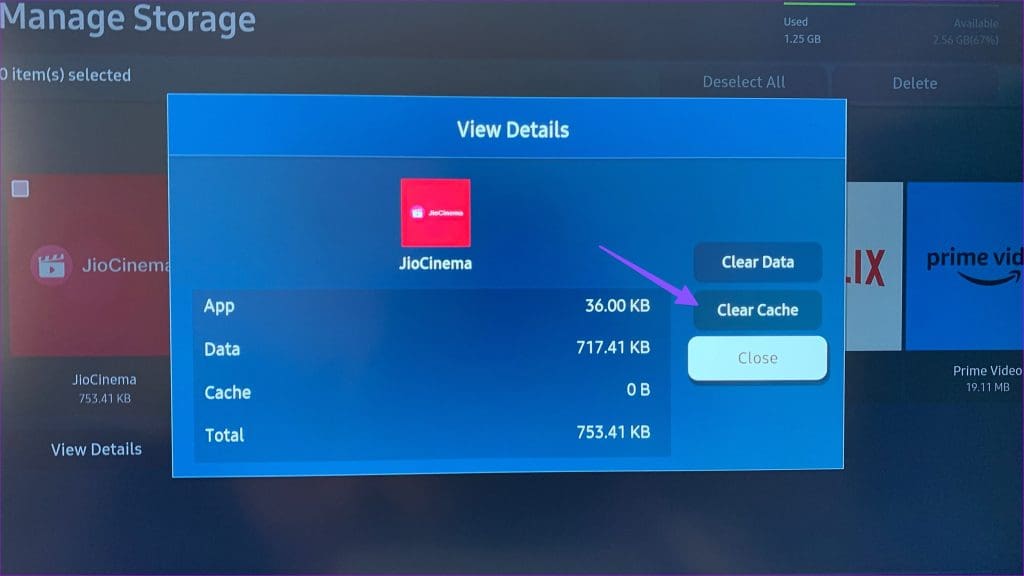
Repeat the same for all the affected apps, and you are good to go.
Fix 2: Run Device Care
Tizen OS has a built-in Device Care tool to troubleshoot pictures, sound, power, network, and more. You can run it using the steps below.
Step 1: Head to Device Care in Samsung TV Settings .
Step 2: Select Start Device Care and let the system troubleshoot the problem.

Fix 3: Reset Network Settings
You can reset network settings and try opening affected apps.
Step 1: Open Samsung TV Home , slide left to Settings , and open All Settings .
Step 2: Scroll to General and choose Network . Then, select Reset Network and confirm the same.

It restores the network settings to the factory defaults. You need to connect to a Wi-Fi network again. If you are confused, read our separate post to establish a wireless network on your Samsung TV.
Fix 4: Reset Samsung Smart Hub
The Samsung Smart Hub controls all the functions of your TV and lets you download apps and games. Resetting it will remove all apps and preferences.
Step 1: Select Settings and go to All Settings .
Step 2: Select Support from the list of options on the left menu.
Step 3: Select Device Care > Self Diagnosis .

Step 4: Choose Reset Smart Hub and follow the on-screen instructions.
When asked to enter a PIN , enter 0000 , the default PIN.
Fix 5: Factory Reset Samsung TV
This process removes all data from your Samsung TV, so you will have to set it up again from scratch.
Step 1: Go to Settings on the home screen of your Samsung TV and select General .
Step 2: Select Reset and enter a four-digit PIN (the default PIN is 0000).

