- Start by inspecting and cleaning the microphones on your iPhone. Note that their placement varies depending on the iPhone model.
- Ensure that apps on your iPhone have permission to use the microphone.
- If the issue persists, try installing any pending updates or resetting your iPhone.
Try Basic Fixes
- Unplug all the accessories and disable Bluetooth: One of the external accessories connected to your iPhone may be causing problems with the microphone. To avoid any interference, consider disconnecting all wired accessories. Additionally, turn off Bluetooth to prevent accidental connections to your wireless headphones.
- Close background apps using your microphone: The microphone may not work in the app you are using if another app is already using it in the background. To avoid this, close apps running in the background.
- Restart or update the problematic app: At times, temporary glitches with an app can prevent the microphone from working. Most of the time, you can fix such issues by restarting or updating the problematic app from the App Store .
Fix 1: Rule Out Issues With the Hardware
You should test the microphone on your iPhone to rule out any hardware-related issues.
To test your iPhone’s primary microphone (the one located at the bottom), use the Voice Memo app. Record a small clip and play it to see if the primary microphone works.

Similarly, to test the microphones on the front and back, use the camera app. Record a couple of videos using both the rear and front-facing cameras on your iPhone. After recording the videos, play them to check if the voice is clear.
If the microphones is working all right, continue with the fixes below.
Fix 2: Allow Apps to Use Microphone
If the microphone not working issue is limited to specific apps, ensure that those apps have permission to access your iPhone’s microphone. Here’s how to check.
Step 1: Open the Settings app and tap on Privacy & Security .
Step 2: Tap on Microphone and use the toggles in the following menu to enable microphone access for your favorite apps.

Fix 3: Disable Noise Cancellation
Noise cancellation is a feature on the iPhone that reduces ambient noise when holding the receiver to your ear. Sometimes, this feature can get finicky and lead to microphone issues. You can try disabling this feature to see if that helps.
Note: iPhone 13 and newer models do not support noise cancellation.
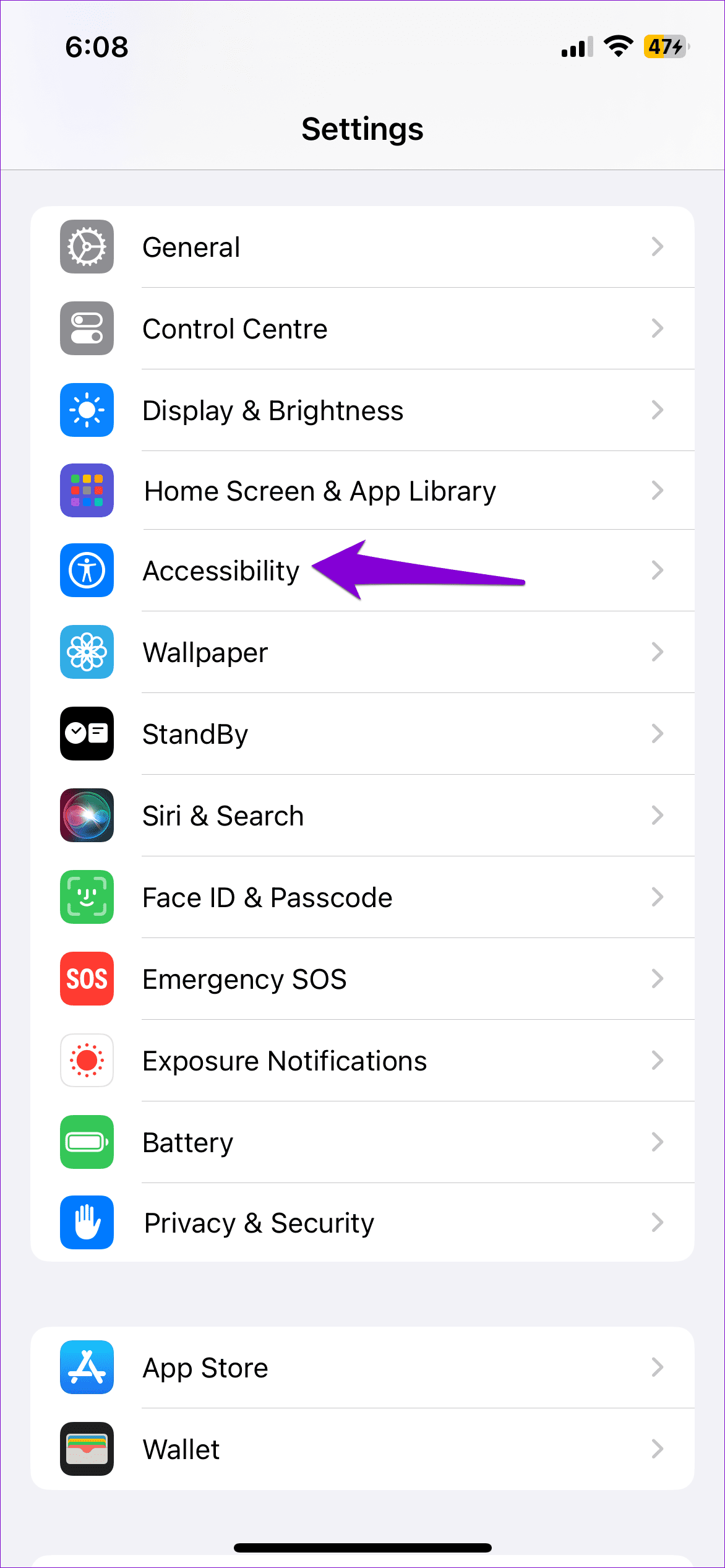
Step 1: Open the Settings app on your iPhone > navigate to Accessibility .
Step 2: Under Hearing, tap Audio/Visual and turn off the toggle for Phone Noise Cancellation .
After disabling noise cancellation, check if the microphone works fine during calls.
Fix 4: Install iOS Updates
There’s a chance that the issue with the microphone not working on your iPhone is related to a bug. If that’s the case, installing pending software updates should help. To do so, open Settings > go to General . Tap on Software Update to download and install pending updates.

Note: You might encounter such issues if you use a beta version of iOS. As these builds can be unstable at times, it’s best to leave the iOS beta and switch to a stable build to avoid such issues.
Fix 5: Reset Your iPhone
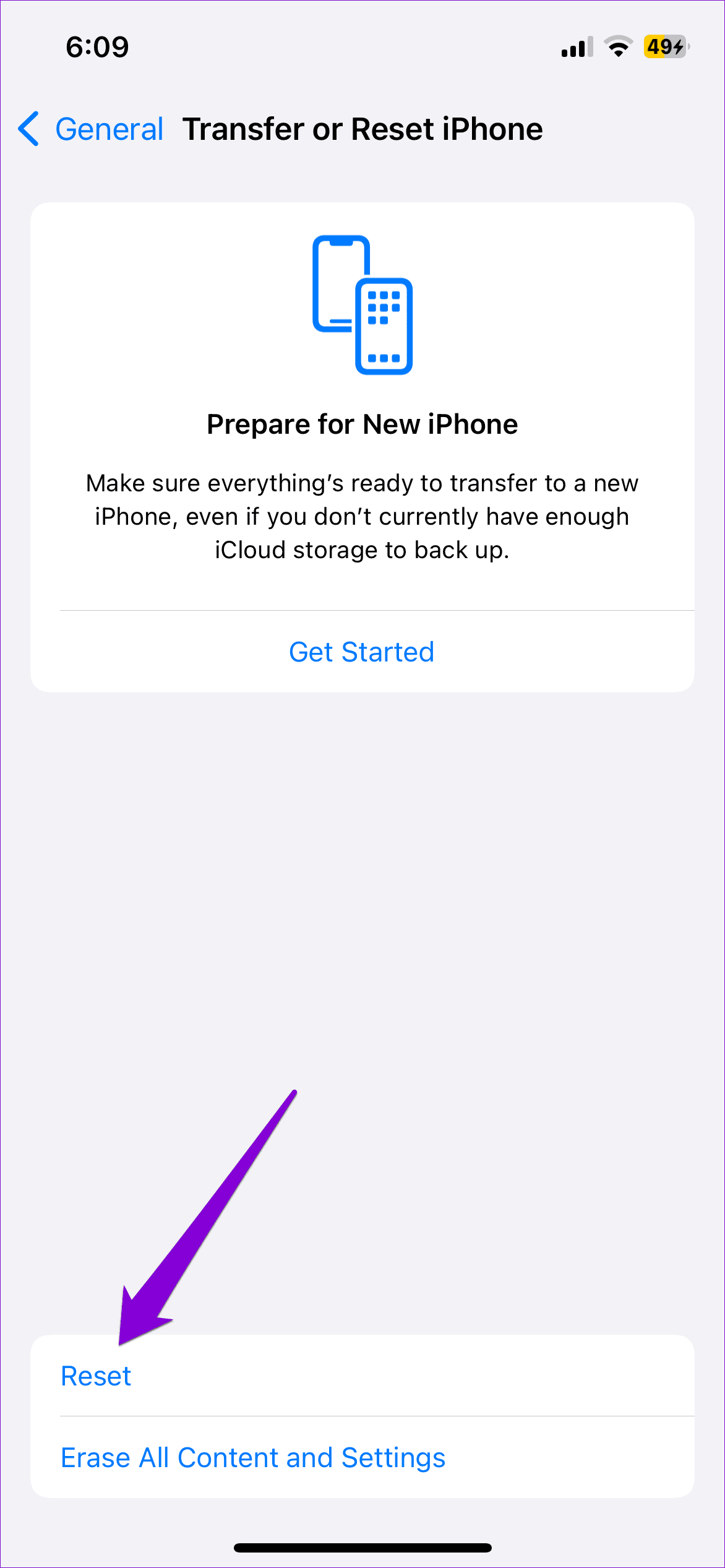
Lastly, if nothing works, consider resetting your iPhone as a last resort. This will revert all the settings on your iPhone to default. Don’t worry; this won’t affect your personal data.
Step 1: Open Settings > tap on General > select Transfer or Reset iPhone .
Step 2: Tap on Reset and select Reset All Settings .
Step 3: Now, enter your iPhone’s passcode to authorize the action, follow the on-screen prompts, and check if this gets the microphone working again.