- Built-in Excel tools can fix minor file corruption. Open an Excel file > click File > Open > Open and Repair.
- Sometimes add-ins can cause conflicts. Open Excel in Safe Mode to see if the problem persists.
- Outdated software can cause glitches. You can update Office to the latest version and check the issue.
Fix 1: Repair Files From File Explorer
Step 1: Open the Microsoft Excel app on your computer.
Step 2: Select File at the top-right corner > select Open .

Step 3: Find an Excel file from your computer and expand the Open menu.
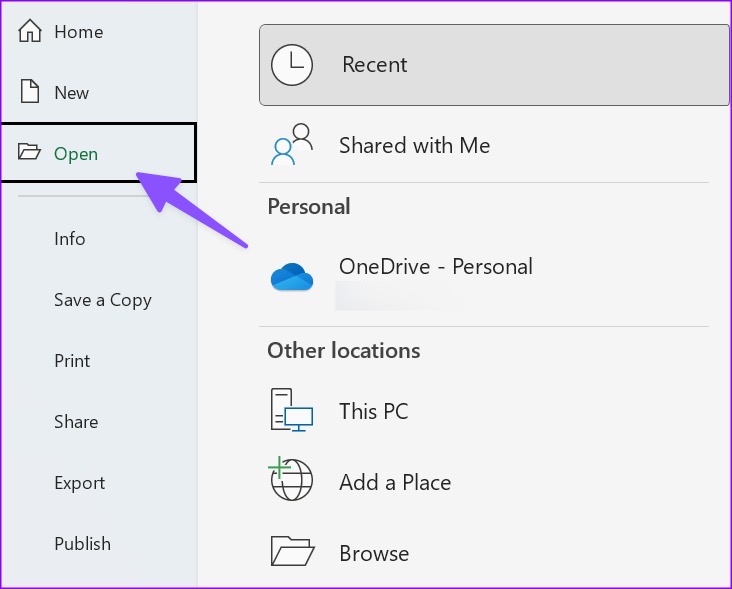
Step 4: Select Open and Repair and start making changes.

Fix 2: Disable Read-Only Permission
Sometimes, you need to disable the read-only permission from file properties for it to save changes.
Step 1: Press the Windows key + E keyboard shortcut to launch the File Explorer app on your Windows 11 computer.
Step 2: Find an Excel file and right-click on it. Open Properties .
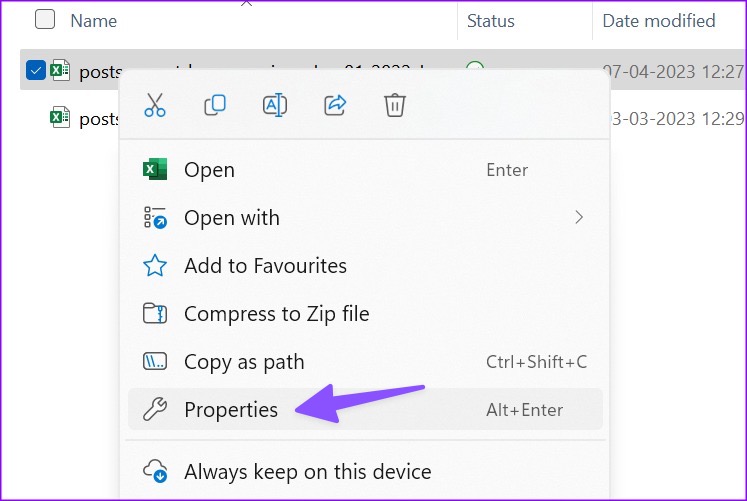
Step 3: Uncheck the Read-only box > click Apply > hit OK .

Fix 3: Disable Add-ons
If Excel runs fine in Safe mode, it confirms that the issue is with one of the installed add-ons.
Step 1: Open an Excel file on your PC > select File .
Step 2: Go to More > choose Options .

Step 3: Select Add-ins > hit Go beside the Manage menu.

Step 4: Turn off the checkmark beside add-ins > hit OK .

Fix 4: Repair Office
Step 1: Click the Windows + I keyboard shortcut to open the Settings app.
Step 2: Select Apps from the left sidebar > Installed Apps from the right pane.
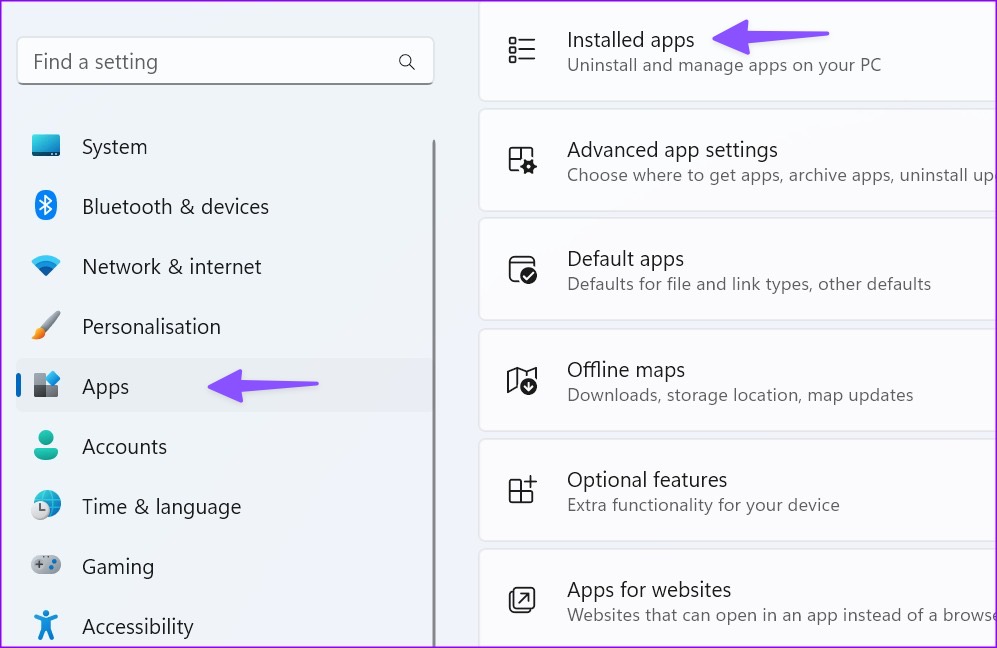
Step 3: Scroll to Microsoft 365 > click the three horizontal dots menu beside it > select Modify .

Step 4: Click the radio button beside Quick Repair > select Repair .

Follow the on-screen instructions to complete the repair process.
Fix 5: Manually Save a Copy Offline
Step 1: Open a troubling Excel file > hit the File menu at the top left corner.
Step 2: Select Save a Copy .

Step 3: Save the Excel file to a relevant folder.
If you face the same problem on Excel for Mac , check our dedicated post to fix the problem.
