- Clean your device’s microphone for better voice input.
- Verify microphone access for Gboard under App info > Permissions > Microphone .
- Enable voice typing under Gboard settings > Voice typing .
Basic Fixes
- Enable system-wide microphone access – Go to Settings > Security and Privacy > enable Microphone access .
- Force stop Gboard and reopen – Open Android settings, locate Gboard among installed apps, open the app, and tap Force Stop .
- Update Gboard – Head to Google Play Store, search Gboard , and tap Update .
Fix 1: Verify Microphone Permissions for the App
If you have denied microphone permissions for a specific app, it can’t detect your voice and convert it into text. Enabling the required permission should fix it.
Step 1: Long-press the app icon to open App info, select Permissions , and tap Microphone .
Step 2: Set Microphone access to Allow only while using the app .

Fix 2: Enable Voice Typing
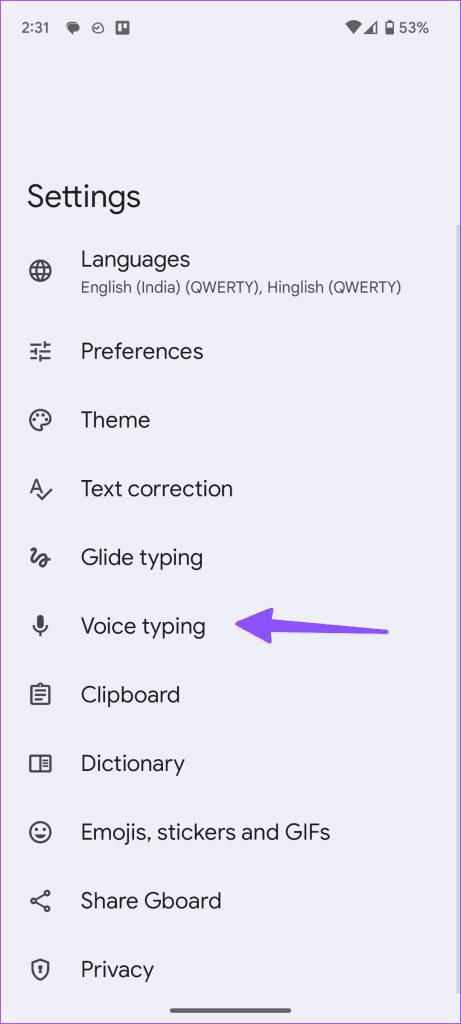
If voice typing is disabled in your device’s keyboard such as Gboard, you won’t be able to use its Voice-to-text feature. Head to Gboard settings to enable it.
Step 1: Open Gboard, tap its menu in the top left, and press the Settings gear icon.
Step 2: Select Voice typing and enable its toggle. Additionally, turn on the Add punctuation feature if available.
Fix 3: Temporarily Disable Multilingual Typing in Gboard
Turning off the multilingual typing in Gboard temporarily is another effective technique to fix Voice-to-text related issues on Android.
Step 1: Open Gboard settings, tap Languages , and select your preferred language.
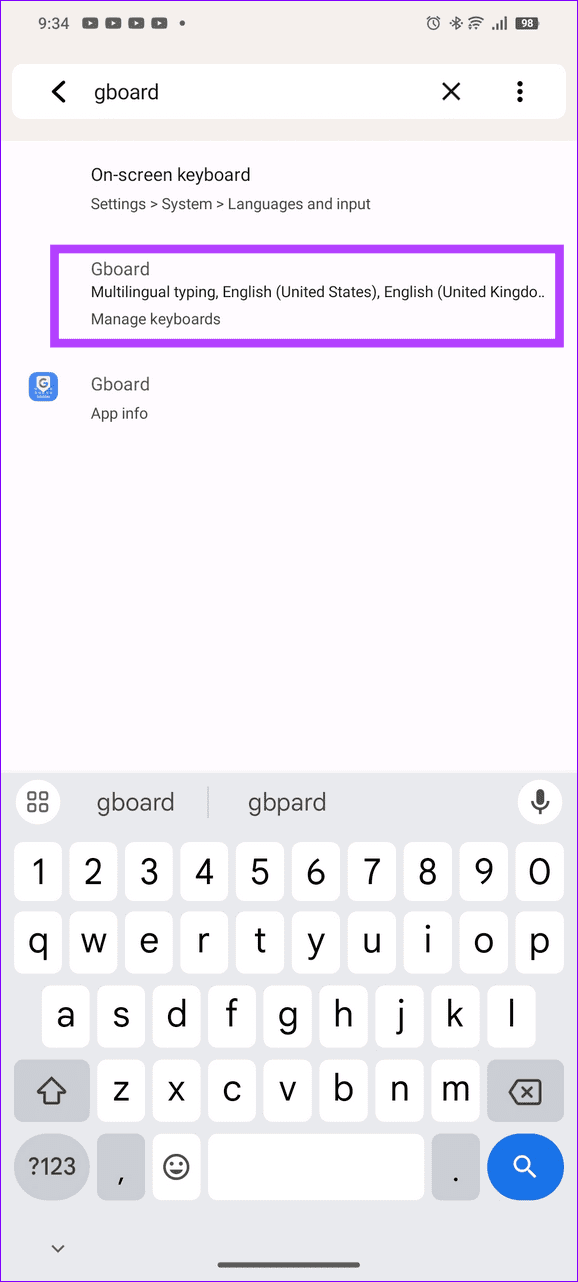
Step 2: Toggle off Multilingual typing .
Step 3: Alternatively, tap the Pencil icon in the top right, and select the secondary language to delete it. This will disable the Multilingual typing support.

Fix 4: Download Languages for Better Voice Typing
You should download speech recognition languages when using Gboard to improve voice typing and fix voice-to-text issues in low network strength areas.
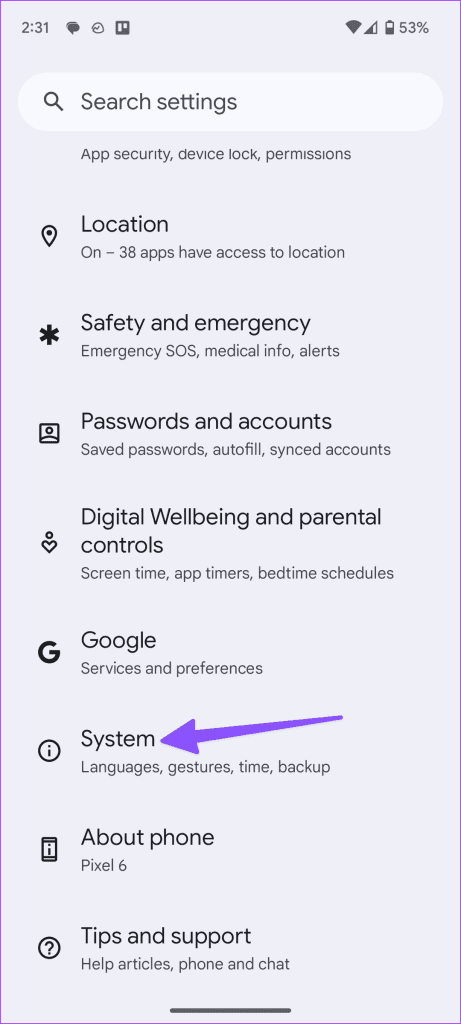
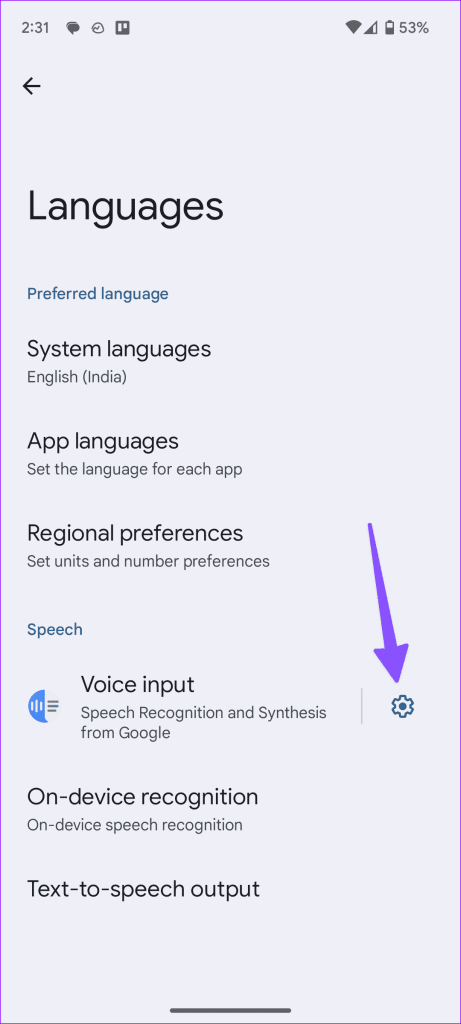
Step 1: Open Android settings, tap System , and press Languages .
Step 2: Tap the Settings gear beside Voice input and press Add a language . Download relevant voice packs for a better voice typing experience.
Fix 5: Turn On Personalization for Voice Typing
Enabling personalization for voice typing fine-tunes it and improves voice detection by analyzing your Gboard usage pattern and corrections, fixing existing voice-to-text issues.
Note: This feature may be unavailable on certain Android smartphones. Update Gboard from the Google Play Store.
Step 1: Open Gboard settings, select Voice typing , and tap Manage personalization .
Step 2: Enable the Personalize for you toggle.

