- Ensure YouTube servers are working fine and your phone is set to the correct date and time.
- Changing the default DNS server on your Android or iPhone can also fix this error.
- Turn off restricted mode on YouTube and try updating the app on your phone.
Try Basic Fixes
- Check if YouTube is down: If there is an issue with YouTube’s server, the app will continue to display the 400 error, and you won’t be able to fix it. You can check YouTube’s server status on Downdetector to see if it is a widespread issue.
- Update the app: The “There was a problem with the server [400]” error may be buggy due to an outdated version of the app. Head over to the Play Store or App Store to update the YouTube app and check if that solves the error.
Fix 1: Enable Mobile Data for YouTube (iPhone)
On iOS, you can manage mobile data access for each app individually. If you’ve previously disallowed mobile data access to the YouTube app, it will not be able to connect to the internet unless you are using Wi-Fi.
To fix this, open the Settings app and scroll down to tap on YouTube . Then, enable the toggle next to Mobile Data .

Fix 2: Check the Date and Time Settings
Is your phone set to an incorrect date or time? While that may not seem like a big deal, it can affect YouTube’s ability to establish a connection with its servers. To fix this, you must enable the automatic date and time feature on your Android or iPhone.
Android
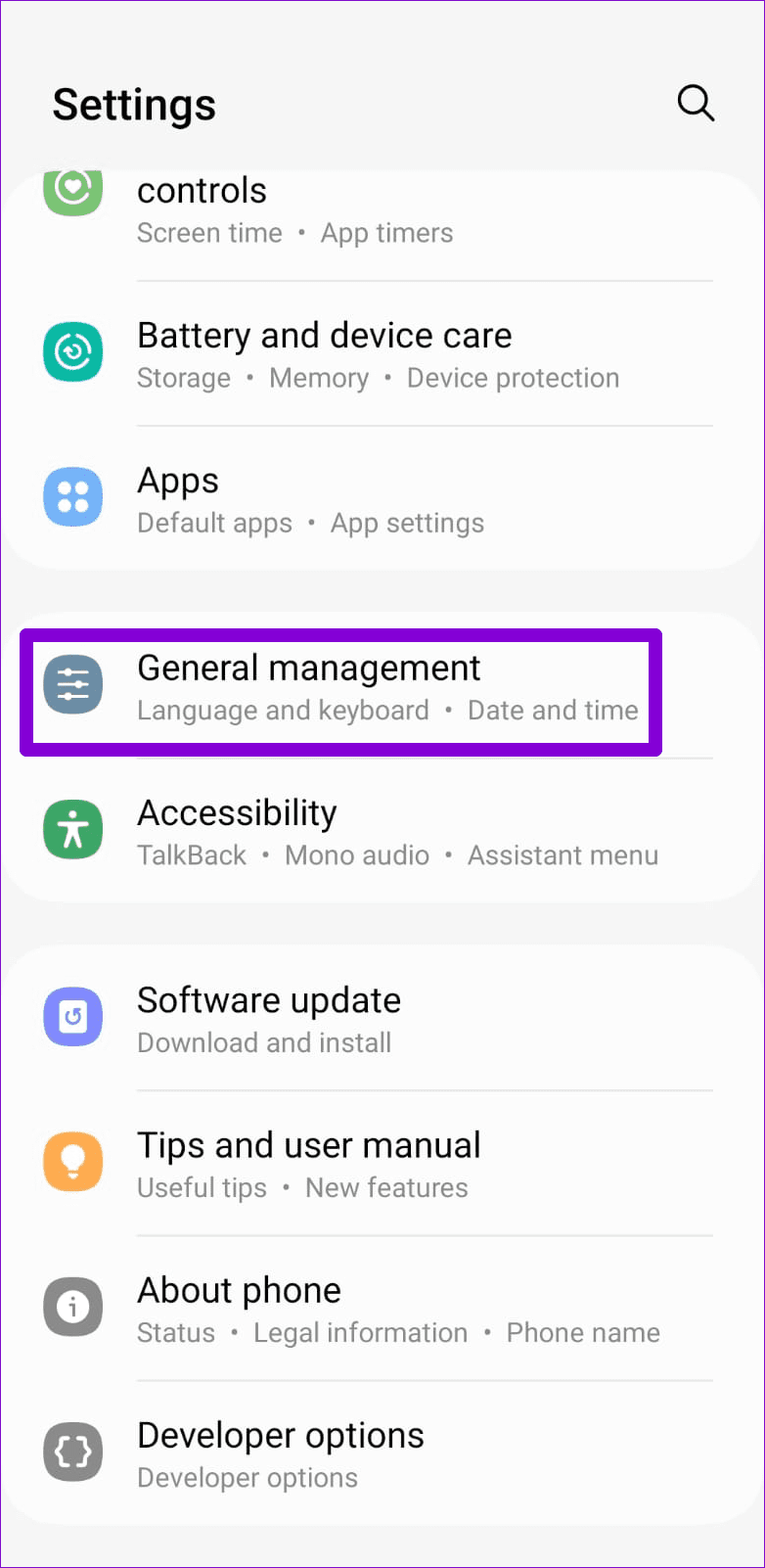
Step 1: Open the Settings app and navigate to General Management .
Step 2: Tap on Date and time . Then, enable the toggle for Automatic date and time .
iPhone
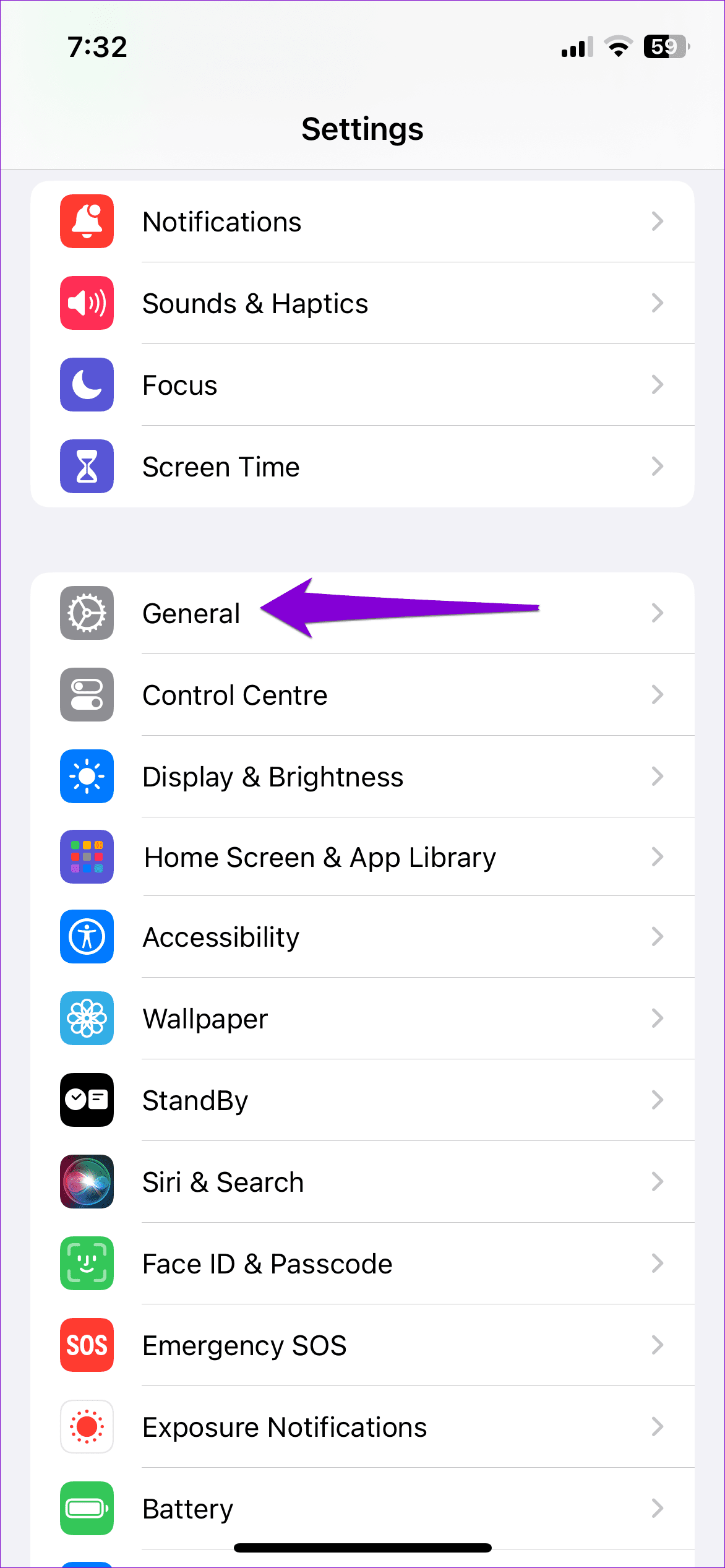
Step 1: Launch the Settings app on your iPhone and navigate to General .
Step 2: Tap on Date & Time . Toggle on the switch next to Set Automatically .
Fix 3: Change DNS Server
The default DNS server provided by your Internet Service Provider (ISP) may be having issues, which is why you are receiving the 400 error. If this is the case, switching to a more reliable DNS server should help resolve the issue. Here’s how to do that.
Android
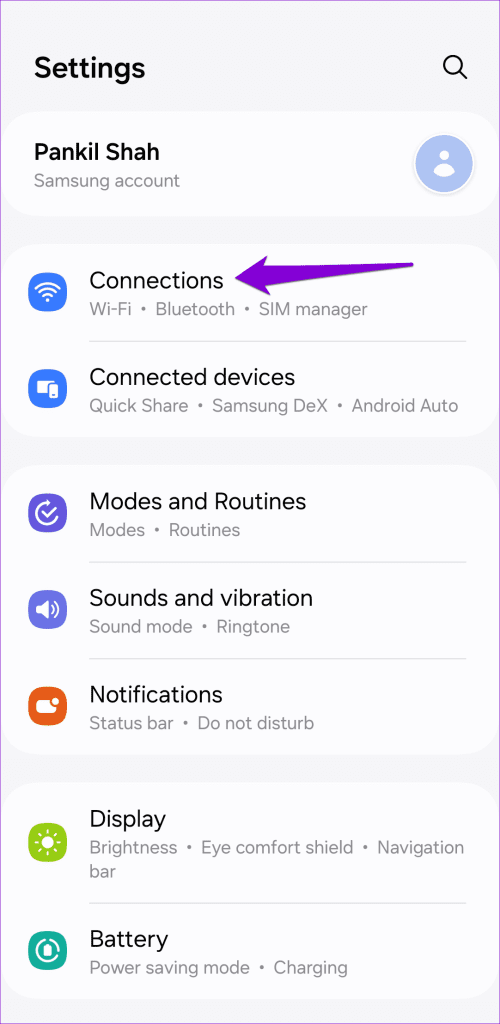
Step 1: Open the Settings app on your phone and tap on Connections .
Step 2: Tap on More connection settings . Then, scroll down to select Private DNS .
Step 3: Select the Private DNS provider hostname option, type dns.google in the text field, and tap Save .

iPhone
Step 1: Open the Settings on your iPhone and navigate to Wi-Fi . Tap the info icon next to your Wi-Fi network.
Step 2: Scroll down to tap on Configure DNS and select Manual from the following screen.

Step 3: Tap the minus icon to delete the prefilled entries under DNS servers.
Step 4: Tap Add Server and type 8.8.8.8 and 8.8.4.4 in the text box. Then, tap Save in the top-right corner.

Fix 4: Turn Off Restricted Mode on YouTube
YouTube’s Restricted Mode is a useful feature that filters out potentially mature content. However, it can sometimes interfere with YouTube’s processes. You can try disabling Restricted Mode on YouTube to see if it fixes the “There was a problem with the server [400]” error.
Step 1: Open the YouTube app, tap your profile icon in the top right corner, and select Settings .

Step 2: Tap on General and disable the toggle next to Restricted Mode .

Fix 5: Clear App Cache (Android)
Outdated or corrupted cache data can also affect YouTube’s performance and result in server errors. You can try clearing the YouTube app cache on your phone to see if that restores normalcy.
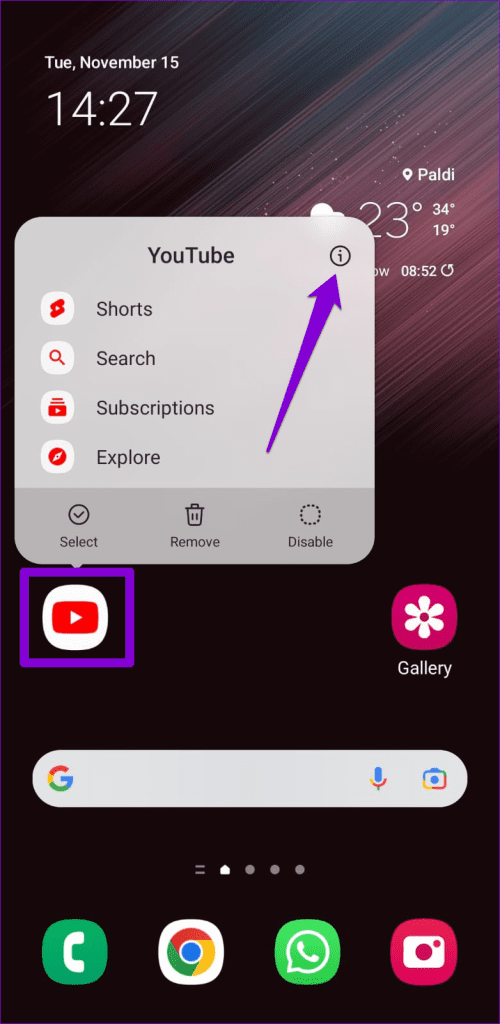
Step 1: Long press the YouTube app icon and tap the info icon from the resulting menu.
Step 2: Go to Storage and tap the Clear cache option at the bottom.