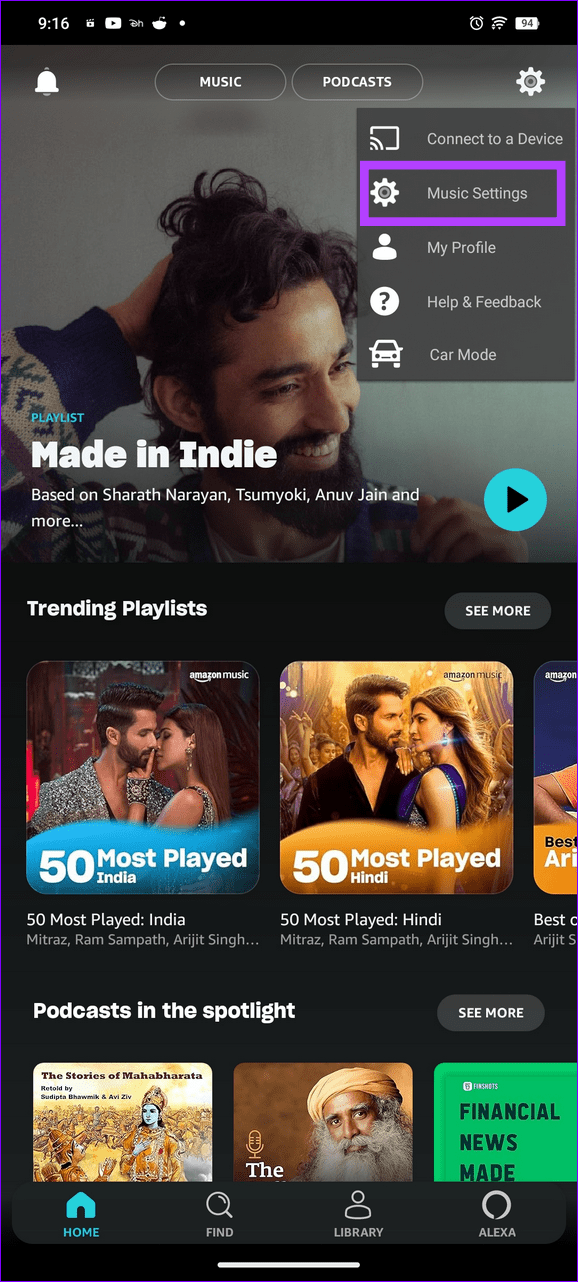
- Switch music streaming quality under Amazon Music app Settings > Music Settings > Streaming Quality.
- Disable the Sleep Timer feature from Music Settings > Sleep Timer.
- Sign out and log back into the Amazon Music app.
Common Fixes
- Check your network connection : Ensure your phone is connected to a good internet connection. I recommend an internet speed of at least 5Mbps to stream music. Also, switch between Wi-Fi and mobile data to resolve network issues.
- Check the Amazon Prime subscription : Open the Amazon app, expand the You tab at the bottom, and select Your Account. Tap Manage Prime membership to view your subscription status.
- Disconnect Bluetooth devices : Disconnect all connected Bluetooth devices on your phone to prevent the music from routing to the connected accessory.
- Turn off Battery Saver or Low Power Mode : Head to Android settings, select Battery, and turn off the Battery Saver mode. On iPhone, open Settings, tap Battery, and toggle off the Low Power Mode.
- Disable VPN : Open the dedicated VPN app , disconnect the active connection, and reopen Amazon Music.
- Update or reinstall the Amazon Music app : Head to the Google Play Store or Apple App Store, search Amazon Music, and tap Update (if available). Alternatively, delete the app and install it.

On Android
Step 2: Scroll to the bottom and tap Sign Out . Re-enter your account credentials to log in.

On iOS

Fix 3: Disable Data Saver or Low Data Mode
On Android: Open the Settings app > tap Network & internet > select Data Saver > turn off its toggle.
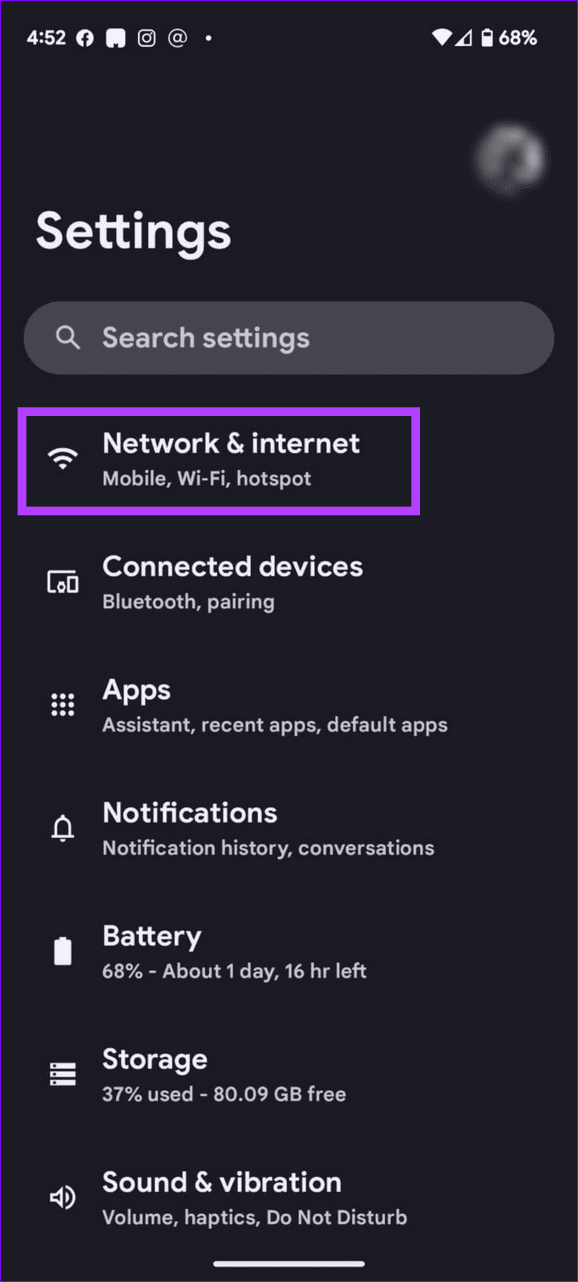
On iOS: Open iPhone Settings > tap Wi-Fi or Mobile Service > select your network connection > toggle off the Low Data Mode .

Fix 4: Switch the Streaming Quality
Step 2: Scroll down and select Streaming Quality under Playback settings.
Step 3: Switch the existing streaming quality settings to resume playing music.

Step 2: Tap Clear cache , followed by the Clear storage button.

