- In most cases, restarting or updating WhatsApp on your PC should resolve notification issues.
- Ensure you have allowed WhatsApp to show notifications on your PC and haven’t muted any contacts or groups.
- If the issue persists, consider re-linking your WhatsApp account or resetting the app.
Fix 1: Verify In-App Notification Settings
The first thing you should do is check WhatsApp’s in-app settings to ensure that notifications are not disabled. Here’s how to do it.
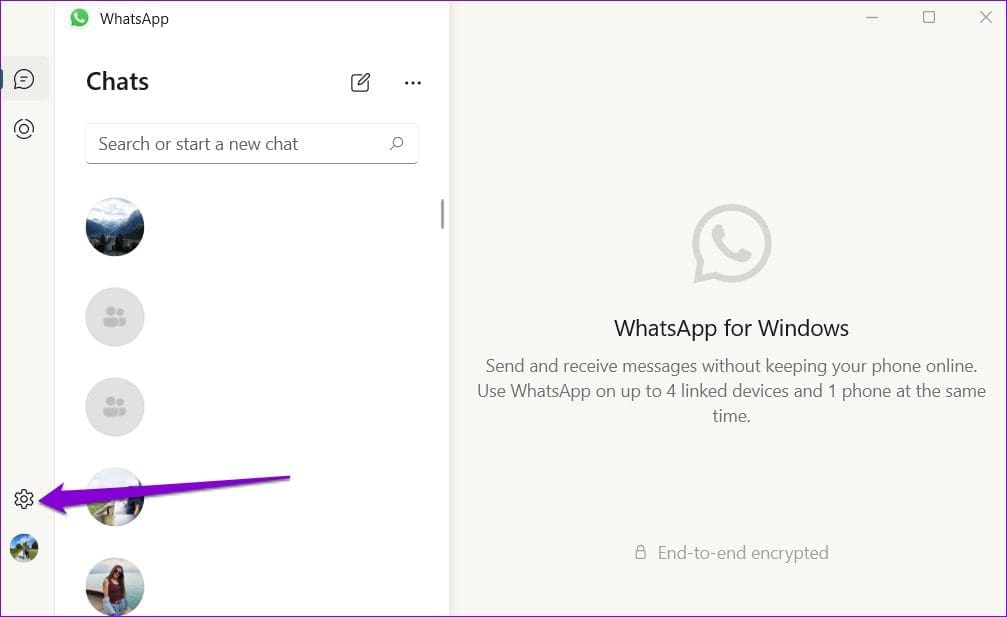
Step 1: Open WhatsApp on your PC and click the gear-shaped icon on your left.
Step 2: Navigate to the Notifications tab. Then, enable the toggles for When new messages are received and When WhatsApp is closed .

Fix 2: Enable WhatsApp Notifications From Settings
Windows 11 lets you enable or disable notifications for each app individually. If you’ve accidentally turned off notifications for WhatsApp, here’s how to re-enable them.
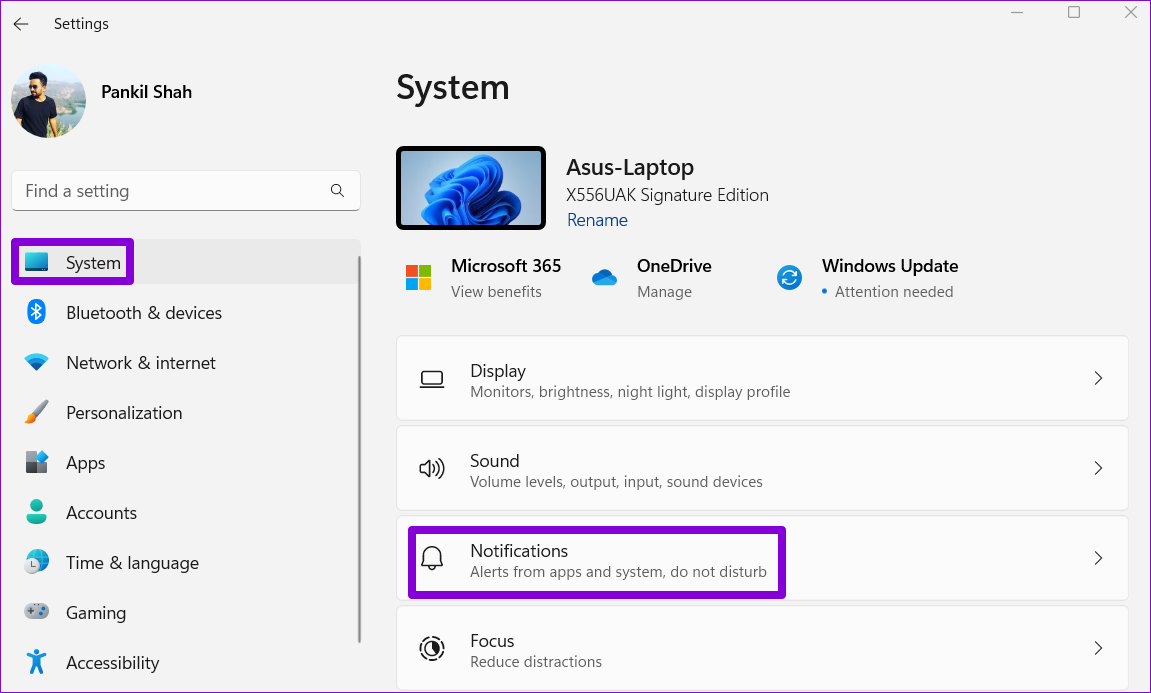
Step 1: Press the Windows key + I to open the Settings app and head to System > Notifications .
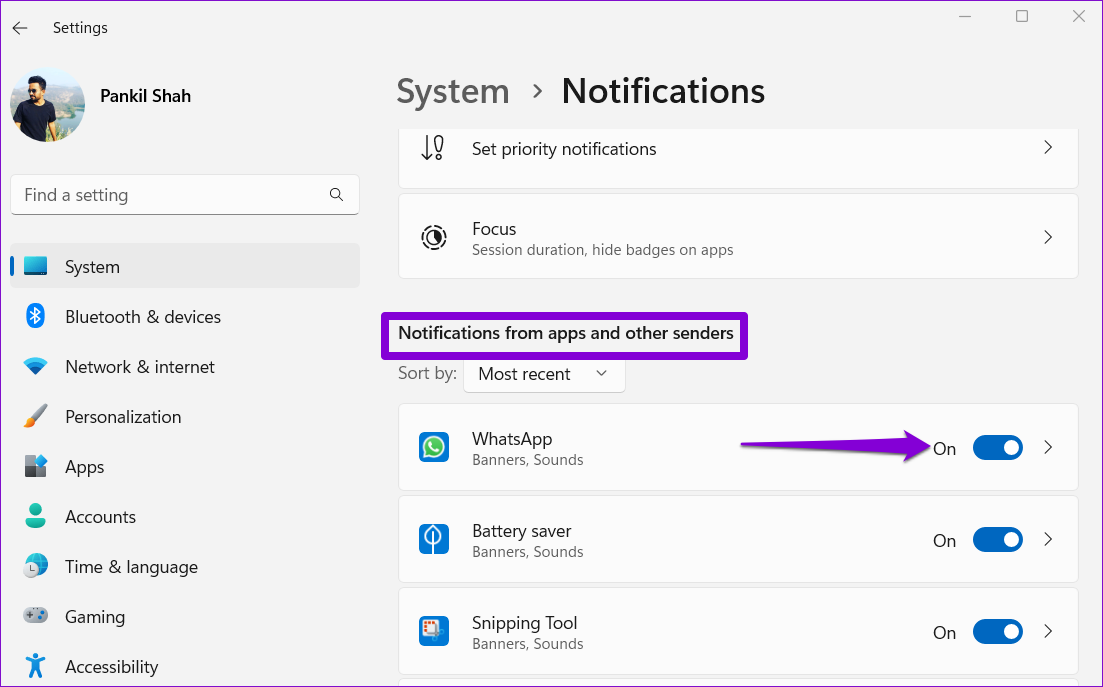
Step 2: Under Notifications from apps and other senders , locate WhatsApp on the list and enable the toggle next to it.
Fix 3: Allow WhatsApp to Run in the Background
Another reason WhatsApp may fail to send notifications is if it does not have permission to work in the background . In that case, you won’t get any alerts for messages or calls unless WhatsApp stays open on your computer.
To change background app permissions for WhatsApp, use the following steps.
Step 1: Press the Windows key + I to open the Settings app, then go to Apps > Installed apps .
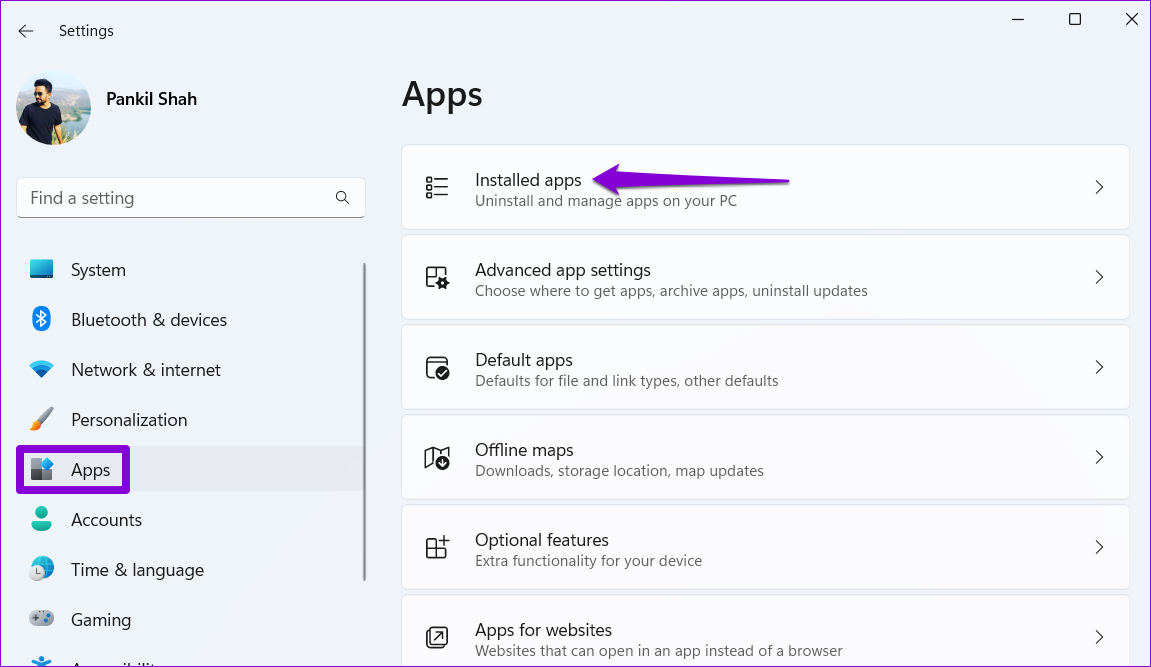
Step 2: Scroll down or use the search bar at the top to locate WhatsApp on the list. Click the three-dot menu next to it and select Advanced options .

Step 3: Under Background apps permissions, use the drop-down menu to select Always .

Fix 4: Check for Muted Conversations
Have you muted any of your contacts or chat groups? If so, WhatsApp will not show you notifications for those specific contacts and groups.
Open WhatsApp on your PC and look for chats with a mute speaker icon next to them. Right-click on the conversation you want to unmute, go to Muted , and select Unmute . Repeat this to unmute all contacts and chat groups for which notifications are not working.

Fix 5: Remove the Linked Device and Add It Again
If WhatsApp still fails to show notifications on Windows 11, try removing your linked device and adding it again. Here’s how to do it.
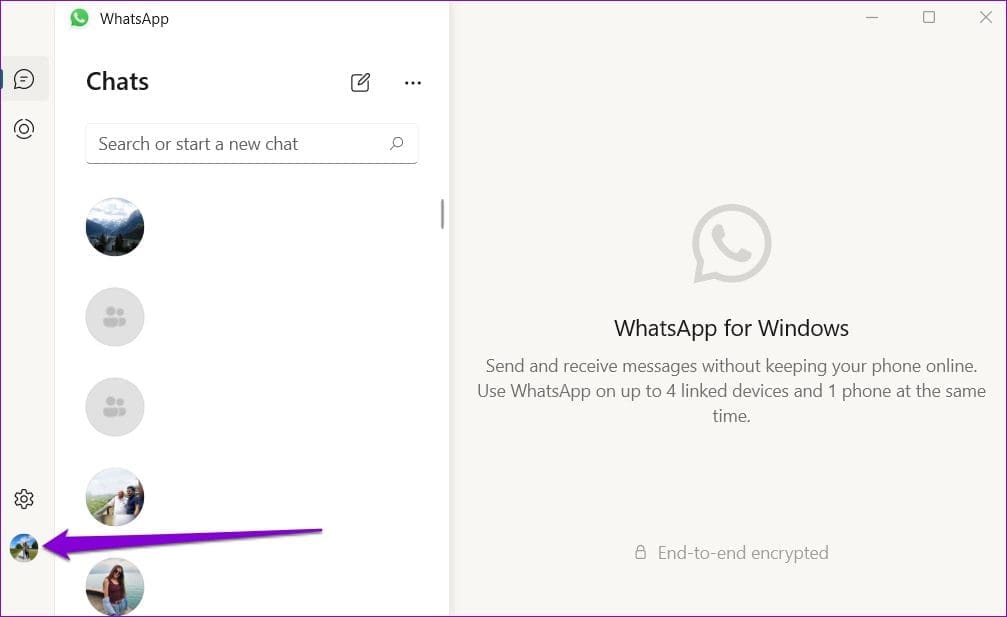
Step 1: Open WhatsApp on your PC > click on your profile picture at the bottom left corner.
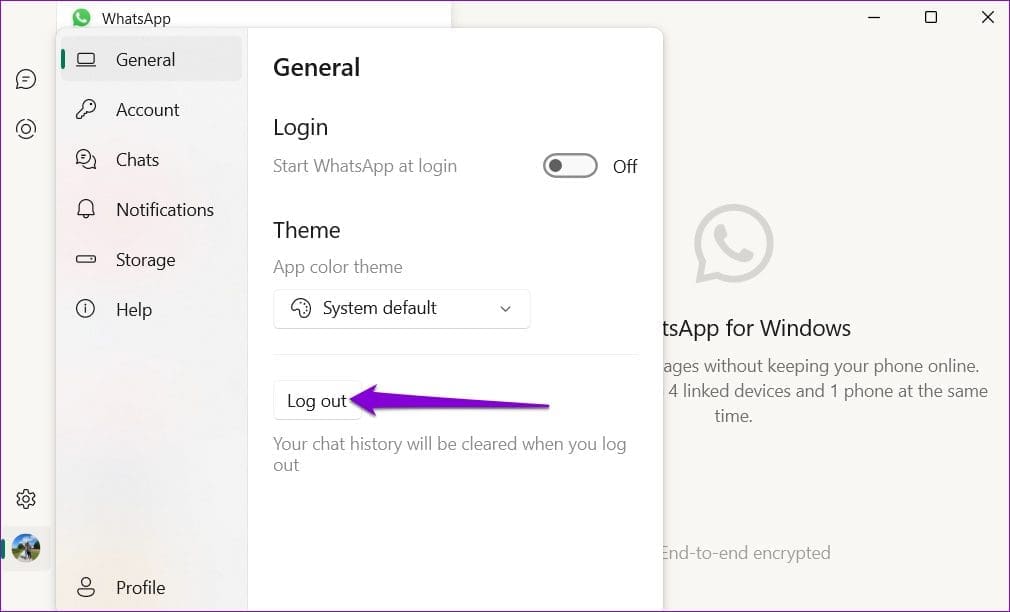
Step 2: In the General tab, click on Log out .
Step 3: Open WhatsApp on your iPhone or Android. Tap the three-dot menu icon at the top right corner > select Linked devices .
Step 4: Tap on Link a Device and use your phone’s camera to scan the QR code on your PC.

Fix 6: Repair or Reset WhatsApp
Your Windows 11 PC has a repair feature that you can use when apps like WhatsApp fail to work correctly. Although there are several ways to repair an app on Windows , the easiest one is through the Settings app. Here are the steps to follow.
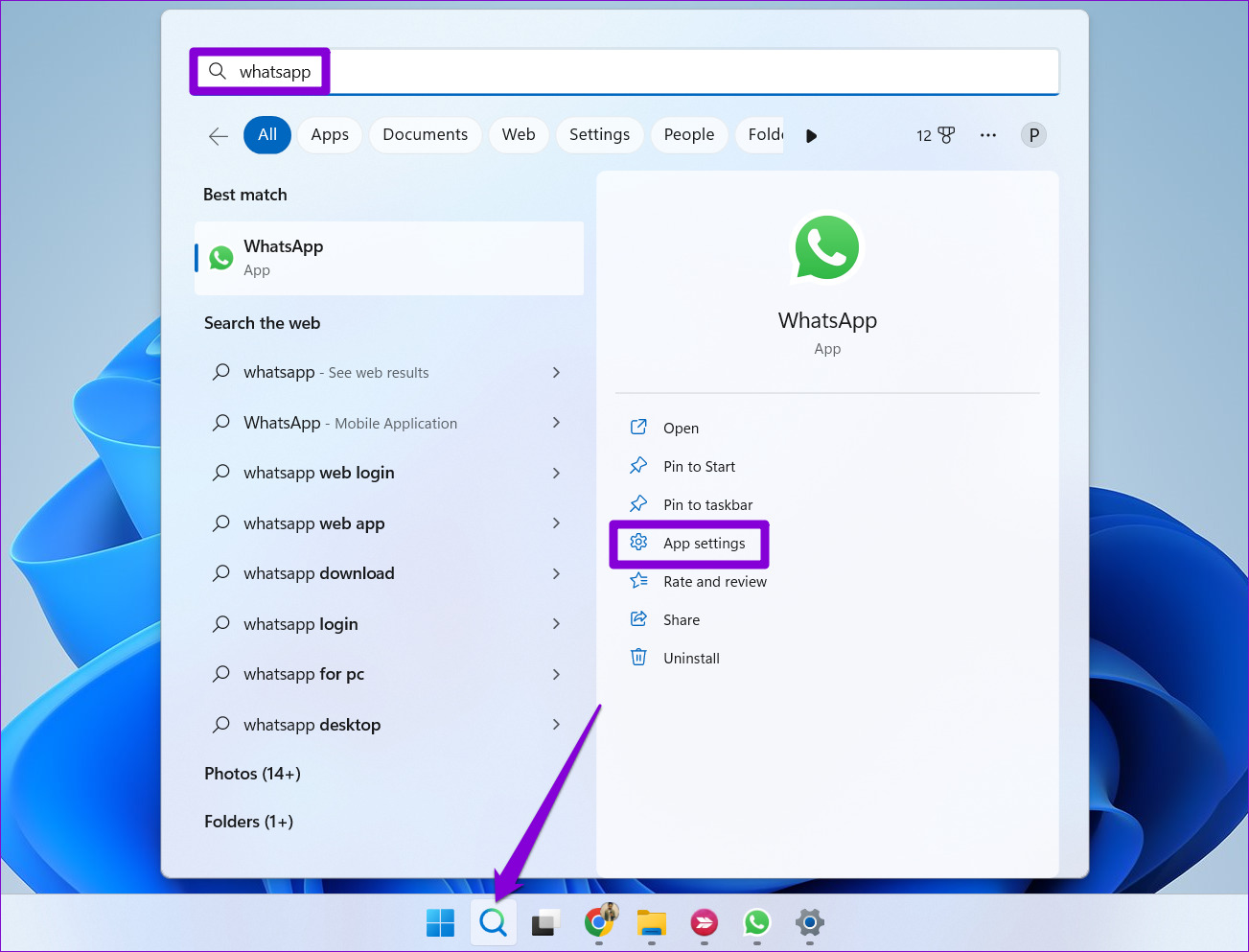
Step 1: Click on the search icon on the taskbar, type WhatsApp in the box, and select App settings .
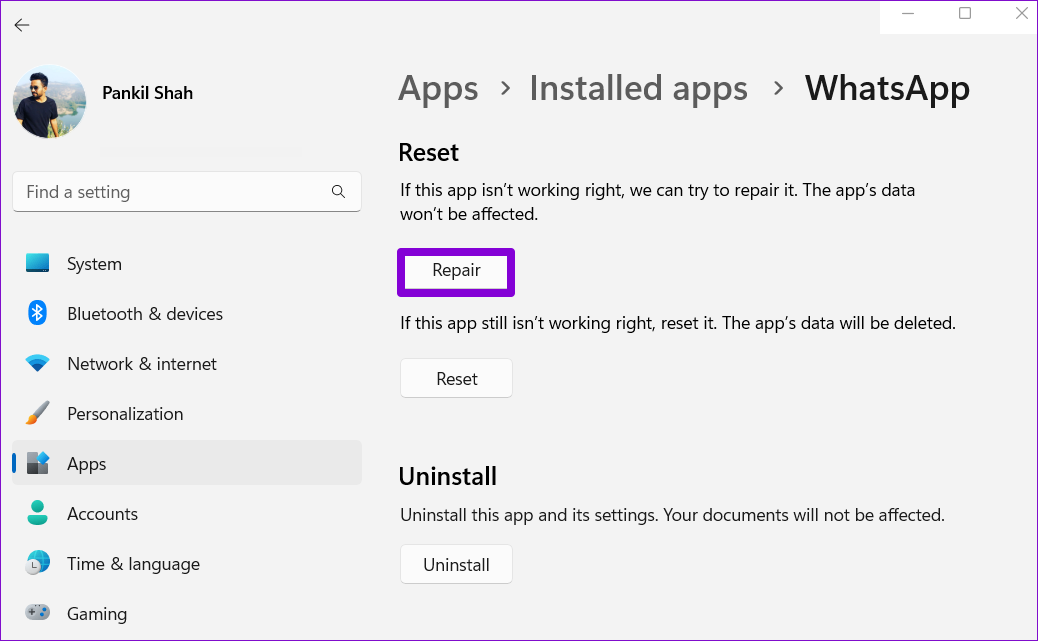
Step 2: Scroll down to click the Repair button. If the problem persists, click on Reset in the same menu.