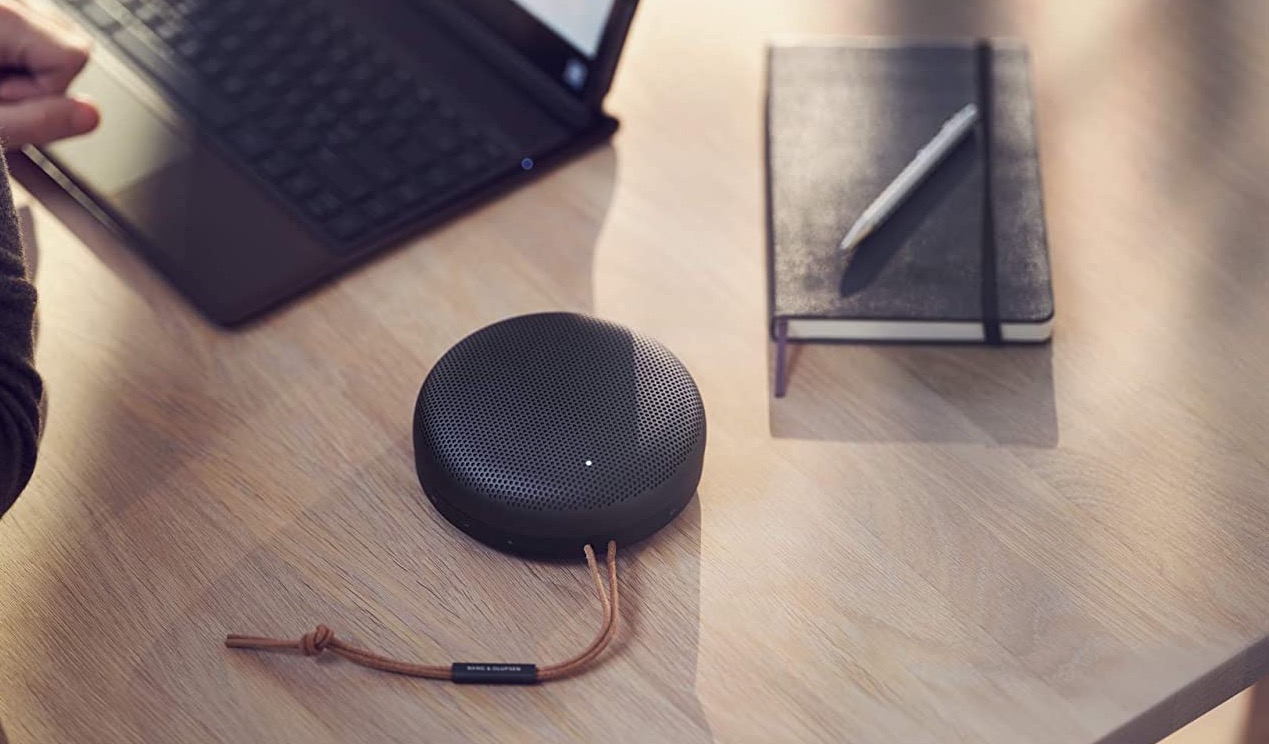
The Beosound A1 (2nd Gen) is one of the premium portable speakers from the house of Bang & Olufsen. It’s a small circular-shaped speaker that easily fits into your pocket or your tote bag. It’s waterproof, and you can easily take it to the beach. Another speaker in the same form factor is the Marshall Emberton Bluetooth speaker. This one is in almost the same price bracket and ticks off the right boxes.
Hence, it brings us to an important question—is the Bang & Olufsen Beosound A1 better than Marshall Emberton? Is it the other way around?
Well, that’s what we will find out in this post as we compare the Beosound A1 against Marshall Emberton. Since it’s going to be a long post, let’s get going, shall we? But first,
- This is how you can make calls using duo from Google Nest speakers
- Here are the best outdoor garden speakers that you can buy
- Take a look at these best waterproof Bluetooth speakers under $60
Design and Connectivity
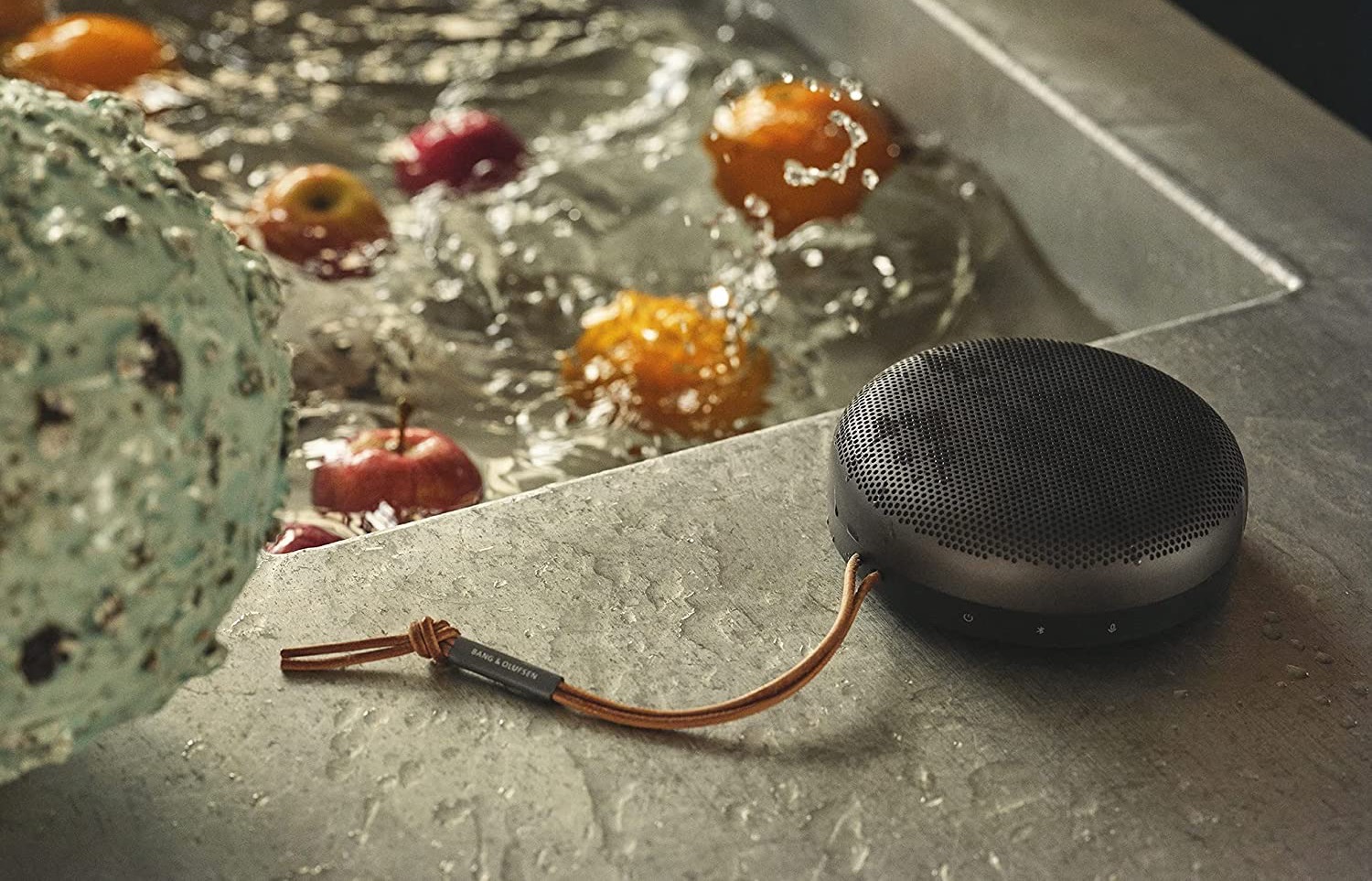
As noted earlier, the Beosound A1 is a premium doughnut-shaped Bluetooth speaker. It looks polished and the good news is that it’s not heavy and weighs just about 1.2lbs.

The Beosound A1 also comes with a leather strap that ups its looks by several folds. At the same time, it allows you to hang the speaker or loop it around your hand.
When it comes to buttons, all are marked and present on the base of the speaker.
Buy Bang & Olufsen Beosound A1
View Price
It’s a modern speaker and comes with Bluetooth 5.1 support. For those who’re unaware, Bluetooth 5.1 is known for its long range and wide bandwidth. It also supports Microsoft Swift Pair and Google Fast Pair to fasten the pairing process.
You can also pair two Beosound A1 speakers for stereo sound. However, you can’t pair a 2nd Gen speaker with a first Gen speaker. Lastly, it’s a waterproof speaker, and you can take it out for the occasional pool party.
As opposed to the round and elegant looks of the Beosound A1, the Marshall Emberton sports a rectangular look. And it offers that retro speakers look, just like other models from Marshall. It’s painted black and sports grills at the front, along with the signature Marshall logo. It’s small and lightweight and barely weighs 1.54 lbs.

Interestingly, the Emberton doesn’t sport a slew of buttons like most conventional Bluetooth speakers. Instead, it has a four-directional joystick at the top that functions as a power button, volume control, and playback control. A mini amplifier, we’d say.
Plus, there’s a digital LED indicator on the side to display the battery status. And despite the bare USB Type-C port, this one is a waterproof speaker with an IPX7 rating.

It’s a Bluetooth 5.0 speaker that has the bottom is lined with non-slip material to keep it from skidding on a slippery surface.
Features
This Beosound speaker doesn’t support Wi-Fi and connects to your phone to run Alexa. Thankfully, the far-field microphone tech and Bluetooth 5.1 means you can wake up Alexa from a distance.
On the other hand, Marshall Emberton is a humble Bluetooth speaker with a quirky design. It doesn’t have smart features, and you will have to go through the old-school way of playing music through your phone.
Battery
For its small size, the Beosound A1 packs a pretty punch regarding battery life. Bang & Olufsen rates it at 18 hours. Of course, the battery life depends on how low do you use the speaker.
The Beosound A1 lives up to the expectations. The folks at T3 found the battery life to plummet to just 80% even after playing music for 8 hours. The best part is that you can see the remaining charge on the companion app.
Interestingly, the Marshal Emberton speaker also sports a pretty good battery life. For the record, it is rated at 20 hours. The folks at Sound Guys tested this speaker and found it to last around 13 hours and 48 minutes in moderate volume.
On the upside, it comes with a fast charge mechanism, and a simple 20-minute charge will give you enough juice to play sound for 5 hours.
Audio Performance
Now, let’s address the elephant in the room—Audio Performance. The Bang & Olufsen Besound A1 doesn’t disappoint in this aspect. For one, it delivers a pretty loud volume for its size. Secondly, it delivers dynamic audio with intense bass. And it’s a delight to listen to instrument-heavy and bass-heavy songs in this one.
Interestingly, it doesn’t disappoint in the Bluetooth Codec department. For now, it supports both AAC and AptX (adaptive) Bluetooth codecs . And if you must know, these codecs are a tad rare in this price category.

Marshal speakers are known to deliver good audio, and this one is no exception. It delivers a full-sounding bass and is loud for its size. However, it lacks a little in the audio department, especially if you look for the details.
Apart from that, it doesn’t support modern, lossless Bluetooth codecs and audio defaults to the standard SBC Bluetooth codec. On the positive side, there are no lags or latency when playing videos as per the folks at Sound Guys.
Bang & Olufsen Beosound A1 vs Marshall Emberton
So which one should you choose? If you want an elegant speaker that also doubles as a smart speaker on demand, the Beosound A1 is your best bet. The audio is impressive. And the overall features and looks almost justify the premium pricing.
Buy Marshall Emberton
View Price
However, if you are looking for a rugged speaker that sports a quirky look (little amplifier, remember?), you may consider the Marshall Emberton Bluetooth speaker. It has no smarts but doubles up as a good speaker for your pool outings and sounds better than the average waterproof speaker. Also, it’s $20 less than the Beosound A1.
Was this helpful?
- Add a header to print your company name, address, logo, etc., on every page.
- Use Freeze panes to lock the 1st row and 1st column of an Excel sheet.
- Uncheck Headings (View > Show pane) to hide Column name and Row numbers.
Print the First Row or Column on Every Excel Page
Step 1: On your workbook, select the desired sheet and navigate to the Page Layout tab on the ribbon.
Step 2: Then, click on the icon for Page Titles under the Page Setup section.
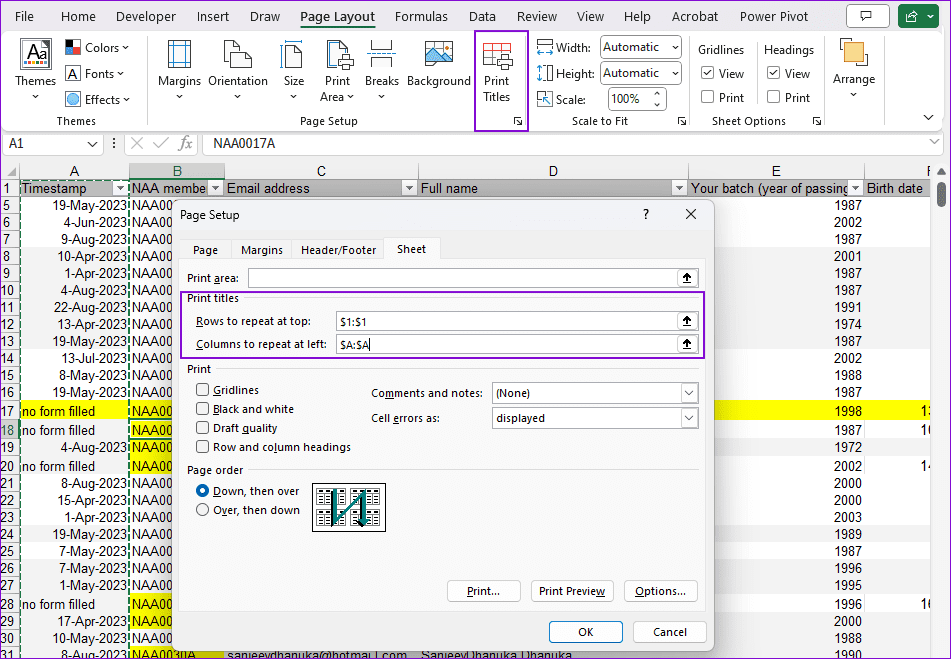
Step 3: In the Page Setup modal window, switch to the Sheet tab and spot the section for Print titles . It includes row and column options.
Note: Though we focus on the header row, the setting can also be applied to columns.
Step 4: To set up printing of the top row on each page, click on the Arrow up button in front of ‘Rows to repeat at top’ text box. For columns, take the second one.
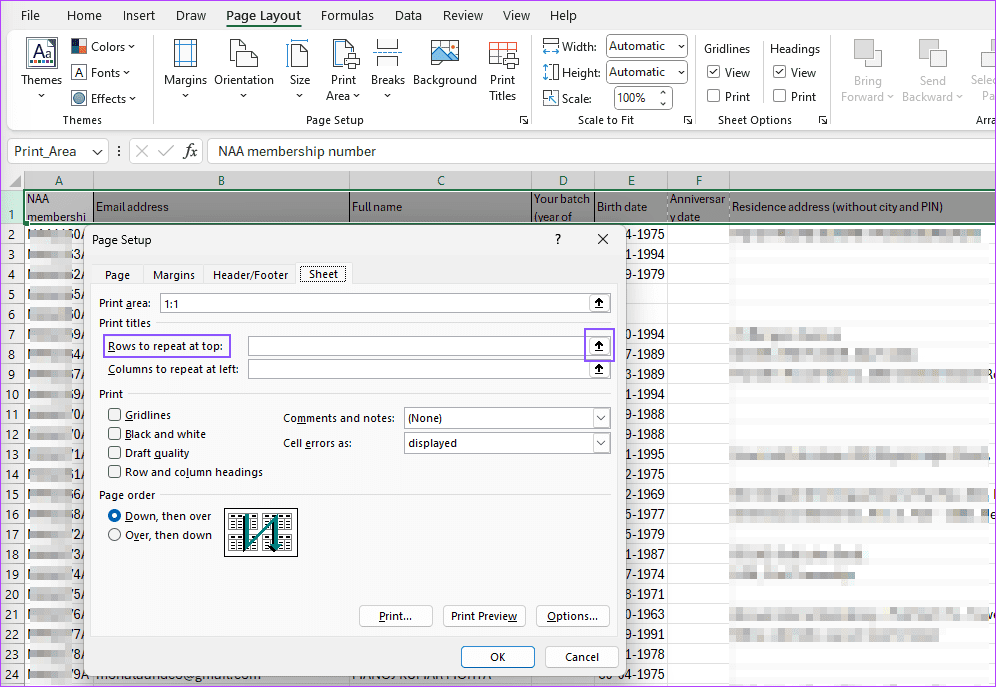
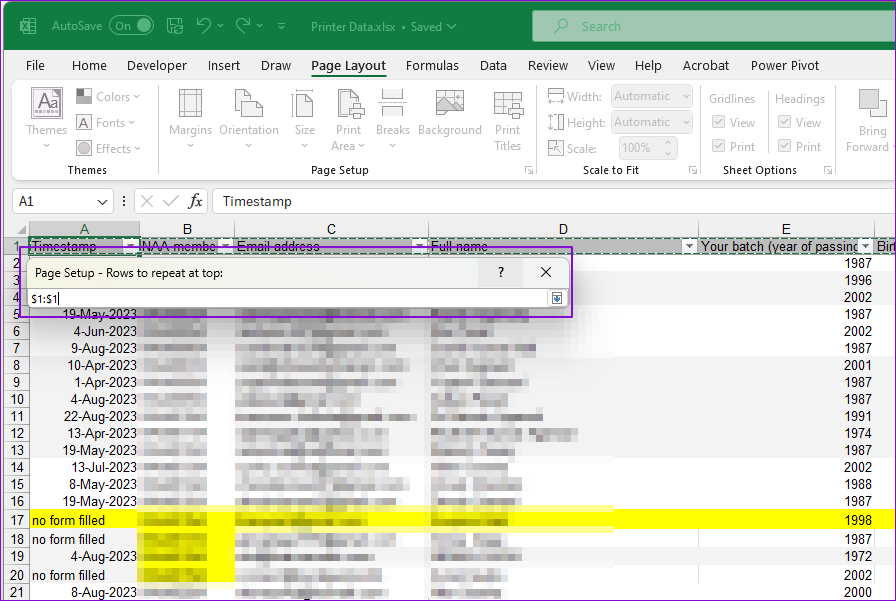
Step 5: That will take you to the Excel sheet along with a dialog box. Click row number 1 (on the sheet) and press the arrow-down button in front of it.
Here, you can select multiple rows on each page if you wish to repeat them. Generally, you would want the top row and, in rare circumstances, the leftmost column.
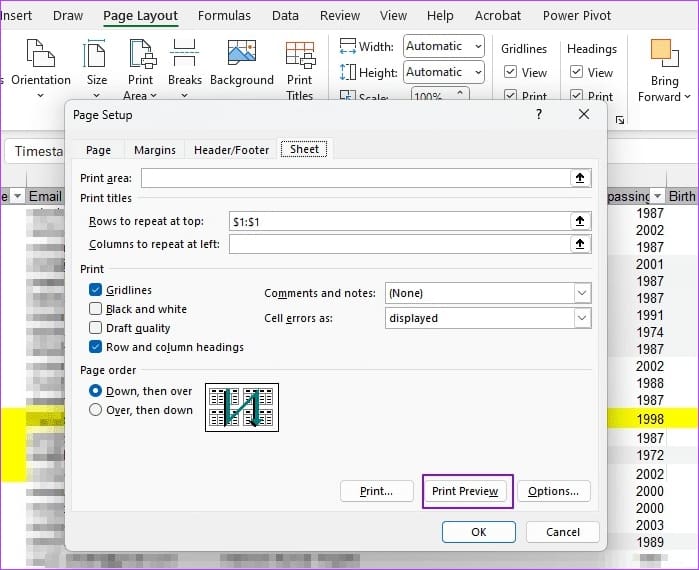
Step 6: Back in the Page Setup modal window, you will see the text boxes populated with the row/column values to repeat on each page. You can choose Print Preview to ensure the print includes a header or columns on all pages.
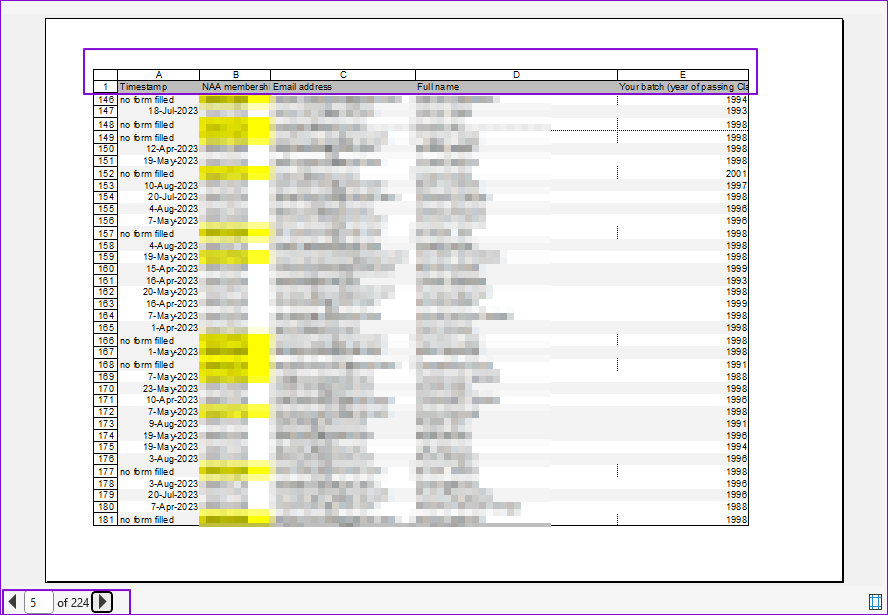
In the print preview, check whether the settings work. Note that the settings are sheet-specific and do not apply to the workbook.
If you cannot print, check out the guide on Excel printing fixes .
How Do You Print Row and Column Numbers When Printing in Excel?
Sometimes, you also want to print row headings 1, 2, . . . and column headings A, B, . . . To achieve this, navigate to Page Layout > Sheet Options and check the Row and column headings box in the Print section.
Why Is Print Titles Button Greyed Out?
If you cannot access the Print Titles button, it might be because you are editing a cell or have a chart selected. Similarly, if you cannot use the Rows to repeat at the top spreadsheet icon, it could be because you have selected multiple worksheets within your workbook.
