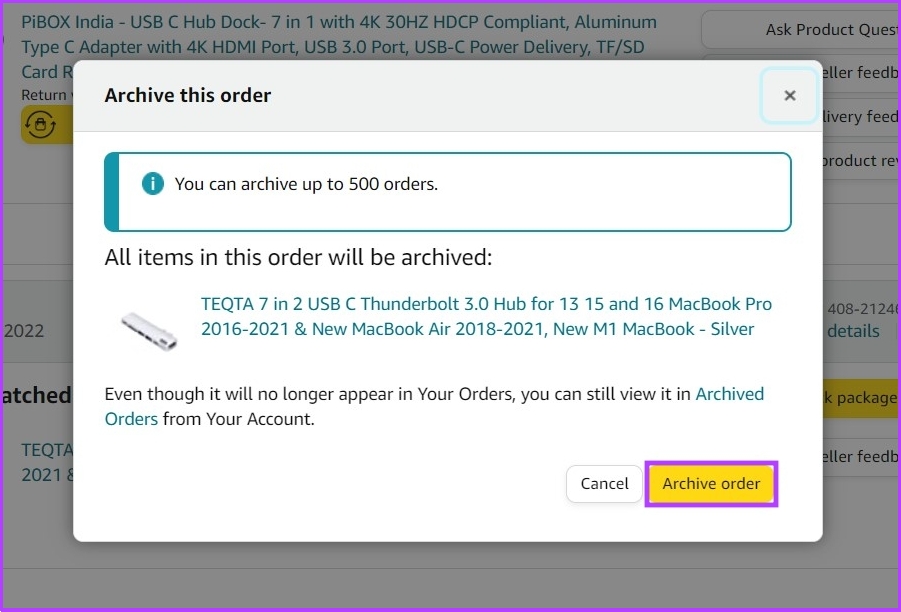
- You can archive up to 500 orders on Amazon. But not more than that.
- To archive orders using your mobile, open the Desktop version of the website on your phone’s browser.
- To archive orders using your desktop, log in to your Amazon account, go to Accounts and Lists > Your Orders > Archive.
Step 1 : Open any browser on your phone. We will use Google Chrome for this guide. You can use a web browser of your choice.
Step 3 : Tap on the three dots at the top-right corner and select Desktop Site from the drop-down.
Step 4 : Now, tap on Accounts & Lists and select Your Orders from the drop-down menu.

Step 5 : Locate the order you want to archive and tap on Archive order .
Step 6 : In the Archive this order prompt, select Archive order .
Step 2 : Now, hover the cursor over Accounts & Lists at the top and select Your Orders from the menu.
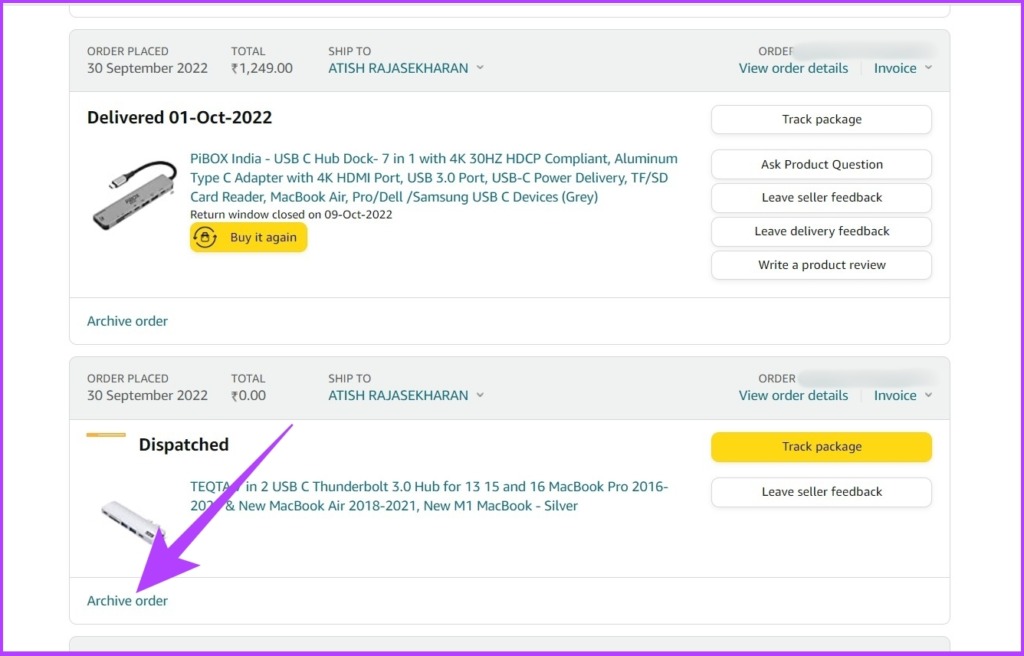
Step 3 : Scroll down to find the Archive order and click on it.
Step 4 : Click on Archive order.
Step 2 : Hover the cursor over Accounts & Lists and select Your Orders from the drop-down menu.
Step 3 : Tap the timeline drop-down , scroll down, and select Archived Orders .
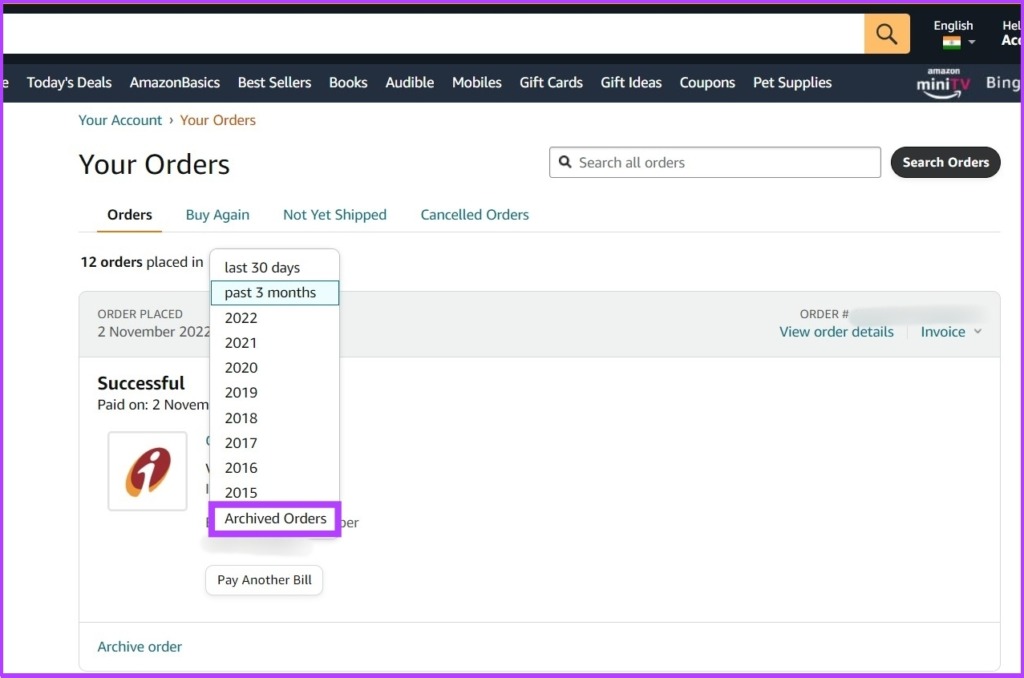
With this, you can view all your archived orders.
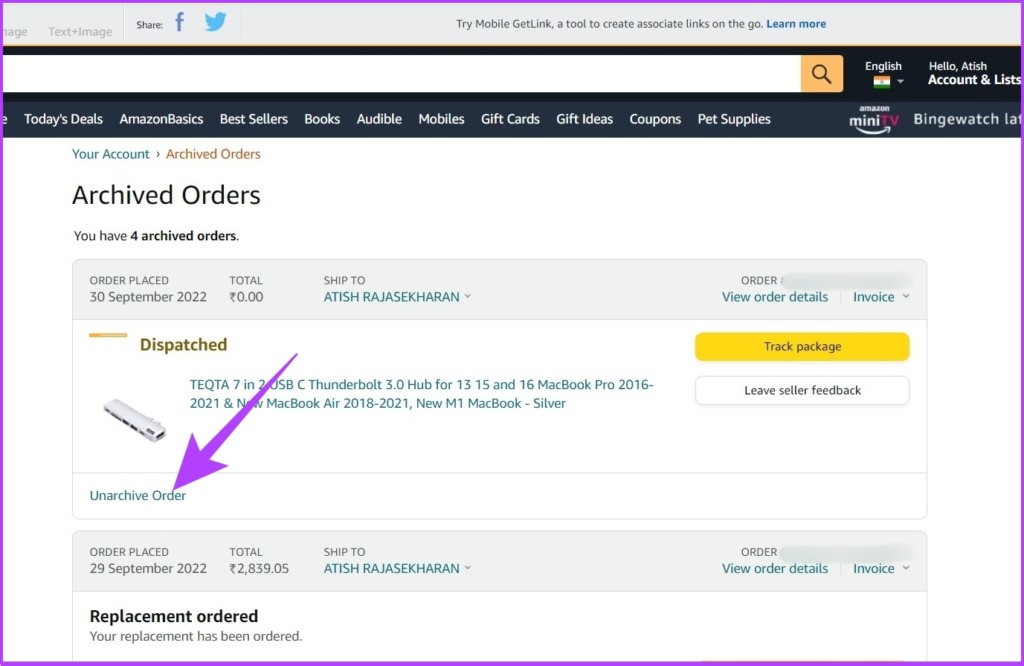
If you want to unarchive an order from the lists, click on Unarchive Order. The order will move back to the default Orders section.