- You can change your user account picture through the Settings app or by visiting the Microsoft account page online.
- Windows 11 does not provide an option to remove the account image, but you can replace it with a transparent image file to hide it from view.
How to Change User Account Image
You can quickly change your user account image on Windows 11 using the Settings app. This method works for all users, regardless of account type.
Step 1: Press the Windows key + I to launch the Settings app.
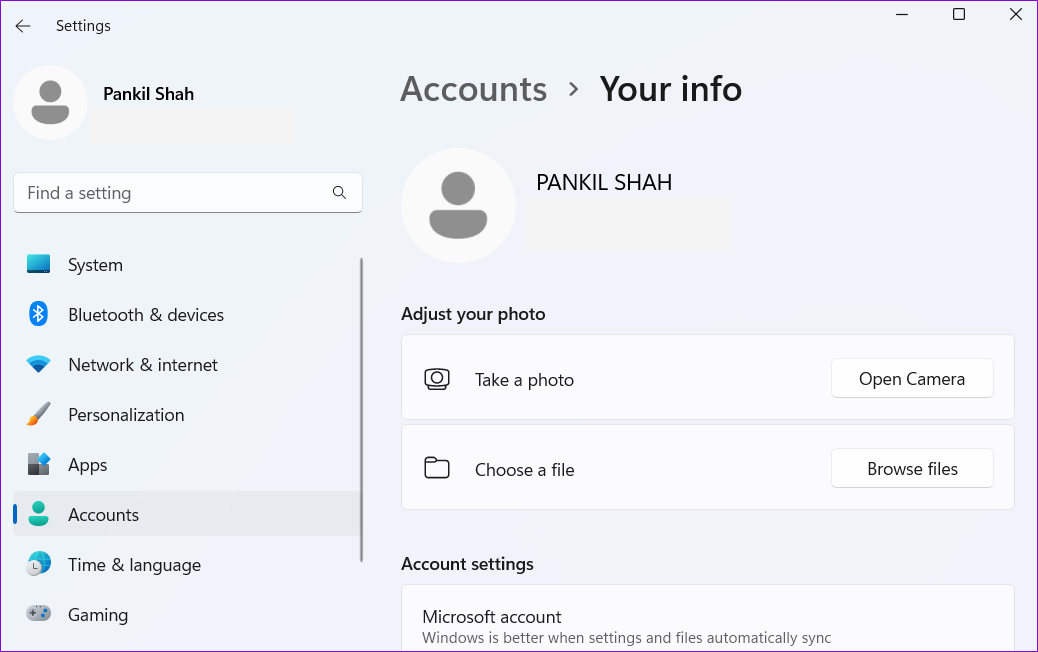
Step 2: Switch to the Accounts tab and click on Your info .

Step 3: In the Adjust your photo section, click the Browse files button.
Tip : Alternatively, if your Windows computer has a camera attached, you can also take your photo. Click the Open Camera button > capture your photo > click on Done .

Step 4: Locate the picture you’d like to use as your account image and click on Choose picture .

Windows will automatically resize and crop the image you select.
After you complete the above steps, your new account image will appear in the Settings app, Start menu , and sign-in screen. Further, if you have signed in to Windows with your Microsoft account, the change will also reflected in all Microsoft services you use.
How to Change User Account Image for Microsoft Accounts
When you sign in with a Microsoft account on Windows , it automatically downloads and displays the image associated with your account. Changing your Microsoft account picture from the web also changes your Windows 11 user account picture.
Step 1: Visit the Microsoft account page from your preferred browser and sign in to your Microsoft account if you haven’t already.
Step 2: Navigate to the Your info tab and click on Change photo .

Step 3: Click on Add a photo and upload a new photo from your PC.
Step 4: Edit your photo by moving or resizing the circle and click on Save .

Windows will update your Microsoft account photo. Although, it may take some time before the account image change is reflected on your computer.
How to Remove or Delete User Account Image
While you can change the user account image via the Settings app, you won’t find an option to remove or delete it in Windows 11. However, it’s still possible to do so.
Remove User Account Image
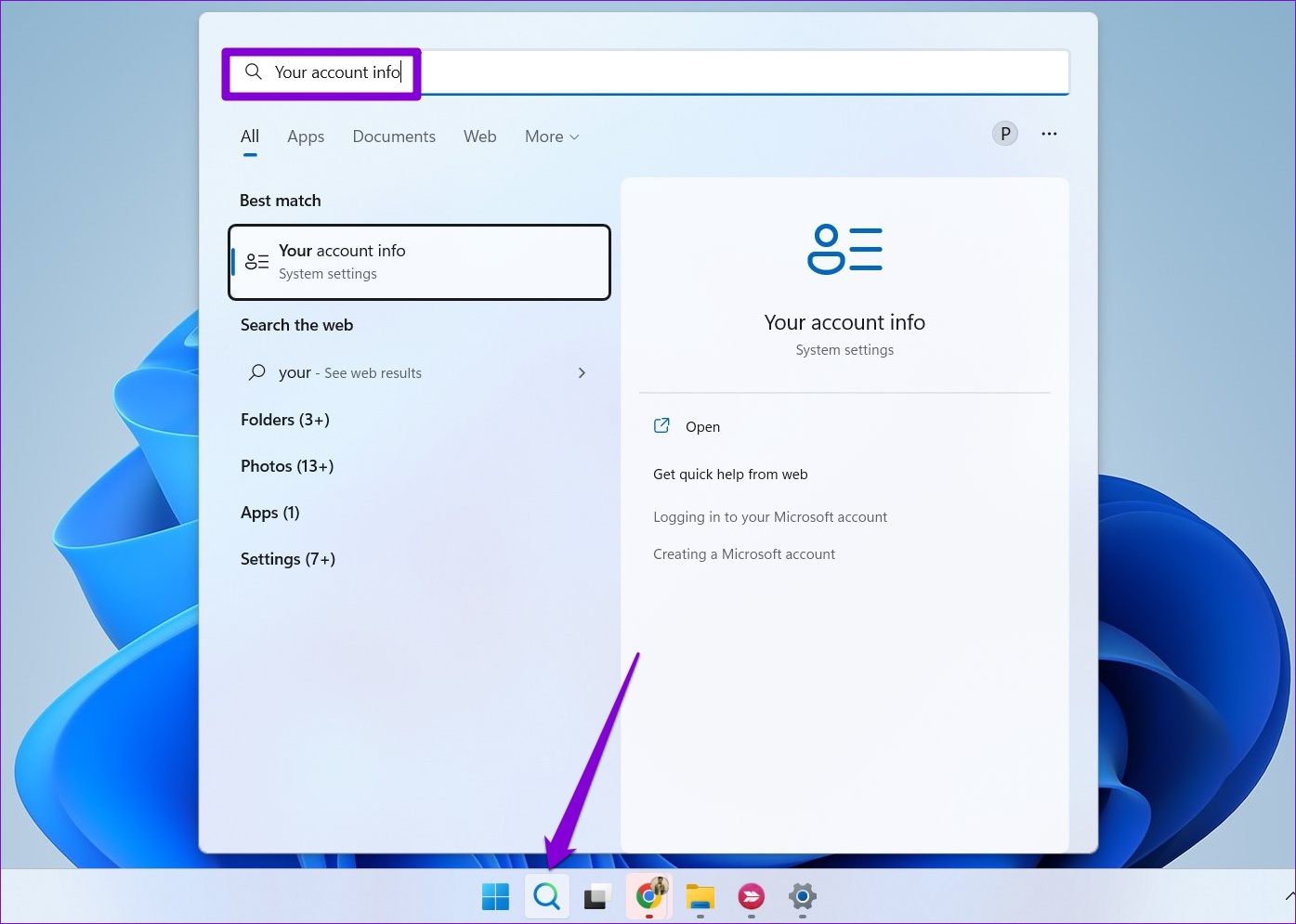
Step 1: Press the Windows key + S to open the search menu. Type your account info in the box and press Enter .
Step 2: Click on Browse files .
Step 3: In the Open dialog, navigate to the following folder.
C:\ProgramData\Microsoft\User Account Pictures
Step 4: Select user.png or user-192.png and click Choose picture .
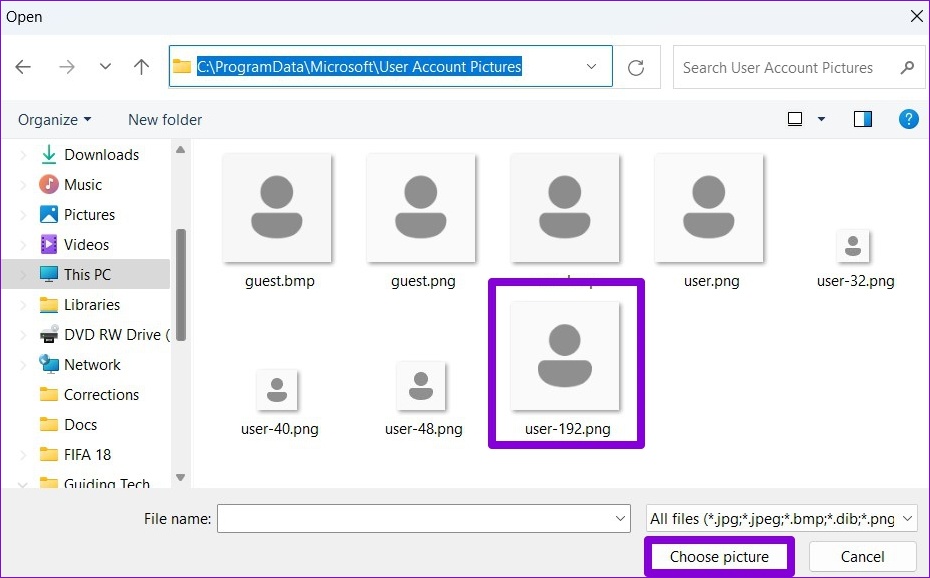
This will replace your user profile photo with the default one. Note that if you’re signed in with your Microsoft Account, the change will also reflect on all Microsoft services linked to your account.
Delete User Account Image
Windows saves all your account images in the Account Pictures folder. However, if you no longer want to use those images, here’s how you can delete them.
Step 1: Press the Windows key + E to open File Explorer.
Step 2: Paste the following path in the address bar at the top and press Enter to navigate to the Account Pictures folder.
Note: Ensure you replace yourname in the following path with your account name.
C:\Users\yourname\AppData\Roaming\Microsoft\Windows\AccountPictures
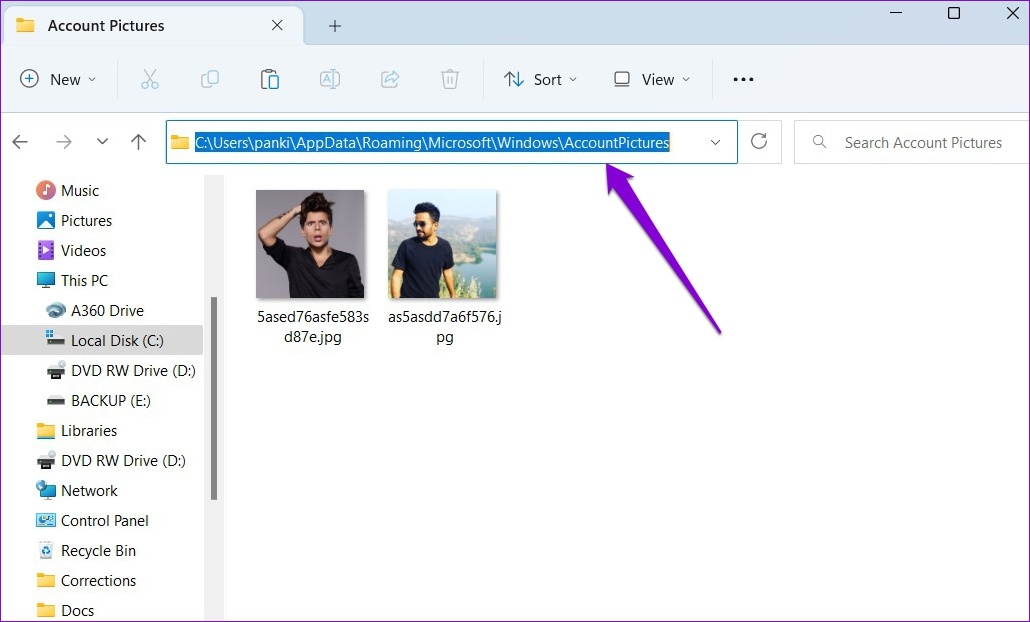
Step 3: In the Account Pictures folder, you’ll see all the pictures you’ve used as your account image. Select the images you want to delete and click the trash icon at the top.
Tip : After deleting the pictures, don’t forget to empty the Recycle Bin to remove them completely.

