Most Gmail users are familiar with the email service’s interface . By default, emails appear into three main categories named Primary, Promotions, and Social. Gmail uses these categories to separate emails sent by marketing or media-sharing sites. However, if you need to sift through several emails at once, these categories might make your work more tedious.

For better email management, you can create rules to further filter the emails in your inbox. With these rules, you can send emails to labels, trash, star, or forward emails. That way, you can click on those filters or labels to check specific batch of emails. Here’s how to create rules to filter your Gmail:
How to Create a Filter in Gmail
With specific rules, you can forward emails, add them to labels or send them to the trash. For these rules to apply to your email, you need to create a filter. There are three different ways to create a filter in Gmail.
How to Create a Filter Using a Search Criteria
The search bar in Gmail already serves as a filtering tool. When used, it generates targeted results based on search queries. Here’s how you can create a filter using search criteria.
Step 1: Open Gmail in your preferred web browser.
Step 2: Within the Search bar, click the Show search options icon.

Step 3: In any or all of the below fields, enter your search criteria:
- From
- To
- Subject
- Has the words
- Doesn’t have
- Size
- Date within
- Search
- Has attachment
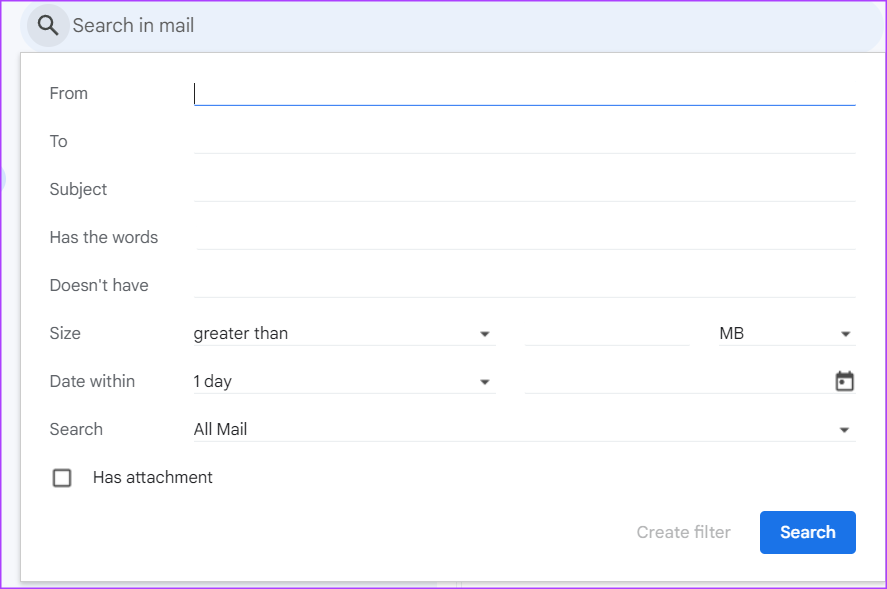
Step 3: Click the Create filter button at the bottom of the search window.
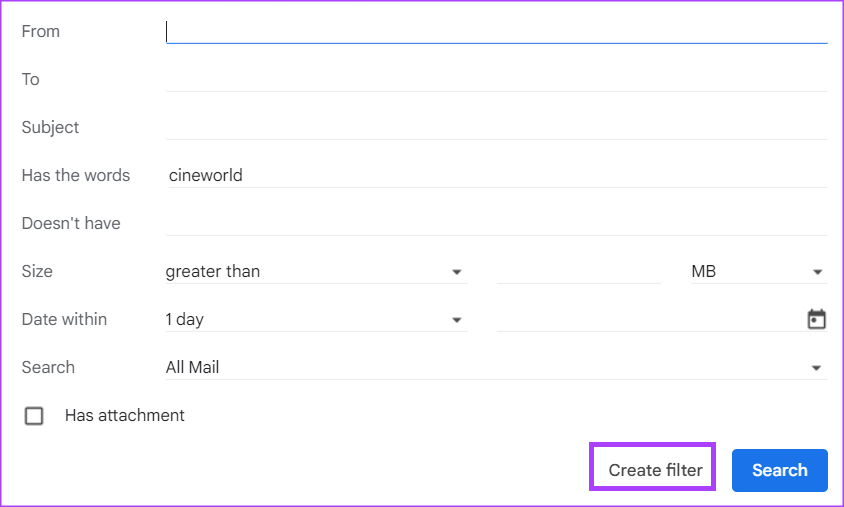
Step 4: In a new window, choose what you would like the filter to do when a message matches your search criteria.

If you choose to forward messages, this action will only apply to future emails.
Step 5: After selecting your preferred action, click Create filter at the bottom of the window.
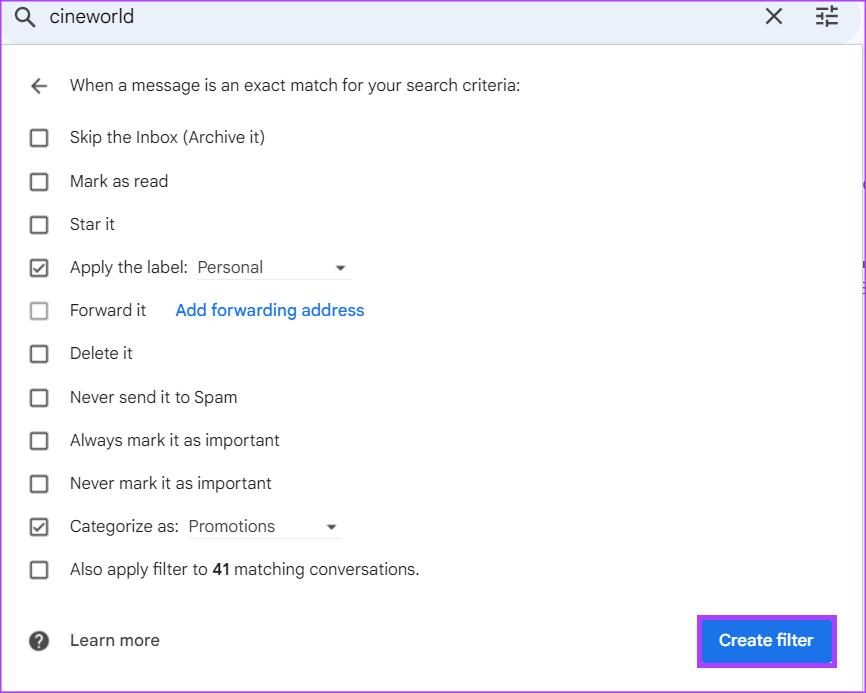
How to Create a Filter Using a Specific Email
Instead of going through the search bar to set up a filter for your emails, you can bulk-select emails in your inbox and assign a particular action to them. Here’s how to do so:
Step 1: Open Gmail in your preferred web browser.
Step 2: Tick the box beside the email you want to use for the filter.
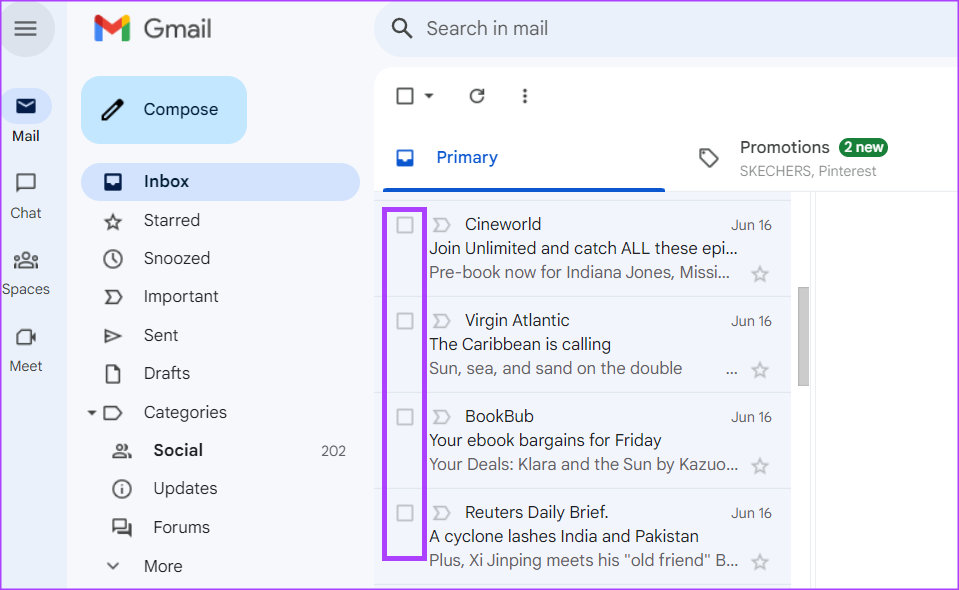
Step 3: Click the three vertical dots menu in the top-right corner.
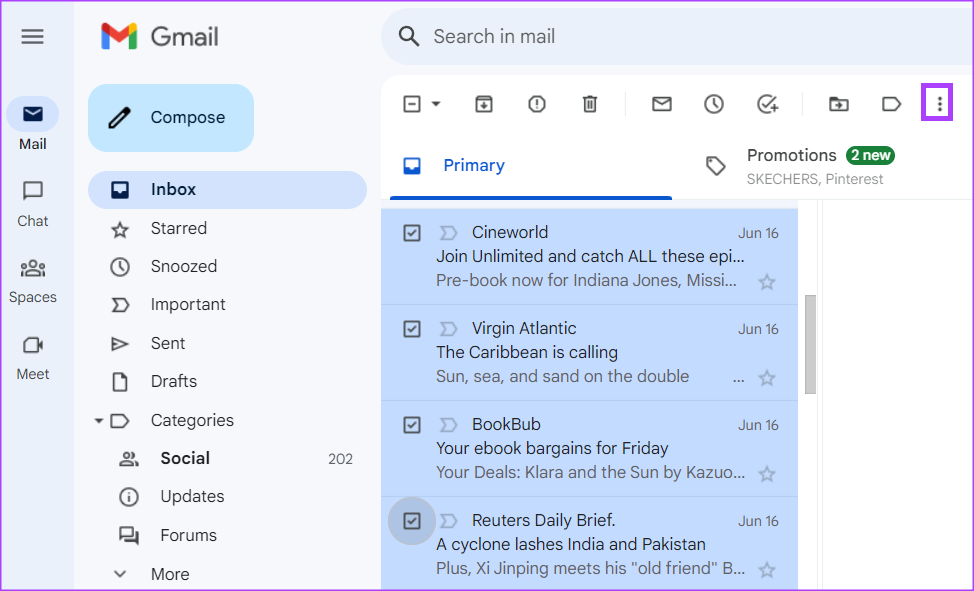
Step 4: Click ‘Filter messages like these’ from the options shown.

Step 5: Enter your search criteria in the new window that appears.

Step 6: Click the Create filter button at the bottom of the search window.
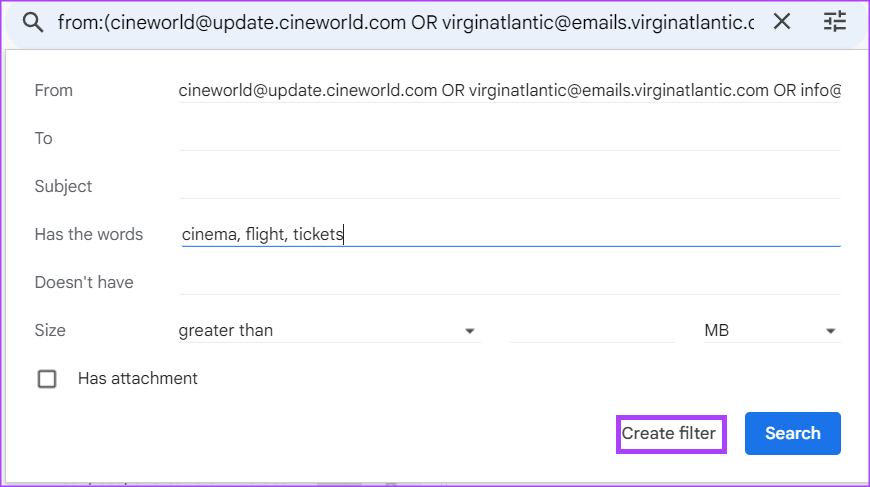
Step 7: In a new window, choose what you would like the filter to do when a message matches your search criteria.
Step 8: After selecting your preferred action, click Create filter at the bottom of the window.
How to Create a Filter From Gmail Settings
You can also make use of your Gmail settings to create a filter. Here’s how to do so:
Step 1: Open Gmail in your preferred web browser.
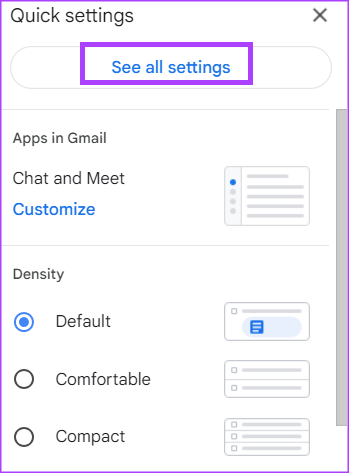
Step 2: Click the Settings icon.

Step 3: Click See all settings.
Step 4: Click the Filters and Blocked Addresses tab.

Step 5: Click ‘Create a new filter.’

Step 6: Enter your search criteria in the new window that appears.
Step 7: Click the Create filter button at the bottom of the search window.
Step 8: In a new window, choose what you would like the filter to do when a message matches your search criteria.
Step 9: After selecting your preferred action, click Create filter at the bottom of the window.
How to Edit or Delete a Filter
If you want to make additional changes to a filter after creating it or you would like to delete it, here’s what you should do:
Step 1: Open Gmail in your preferred web browser.
Step 2: Click the Settings icon.
Step 3: Click See all settings.
Step 4: Click the Filters and Blocked Addresses tab.
Step 5: Tick the box beside the filter you want to edit or delete.
Step 6: Click Edit to update the filter or Delete to remove it.
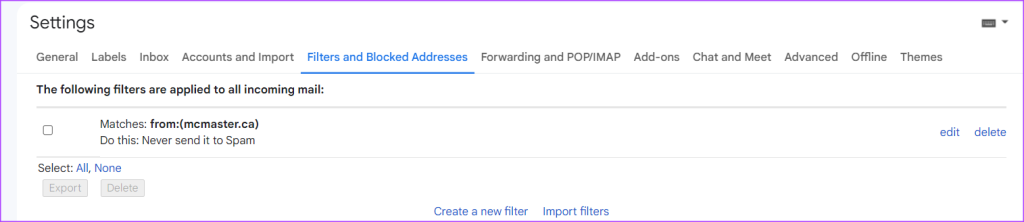
If you select Edit, the search window will pop-up from which you can change the filter.
How to Export a Filter in Gmail
If you would like to set up the same rules across all your Gmail accounts, you can do so by exporting a filter. Here’s how:
Step 1: Open Gmail in your preferred web browser.
Step 2: Click the Settings icon.
Step 3: Click See all settings.
Step 4: Click the Filters and Blocked Addresses tab.
Step 5: Tick the box beside the filter you want to export.
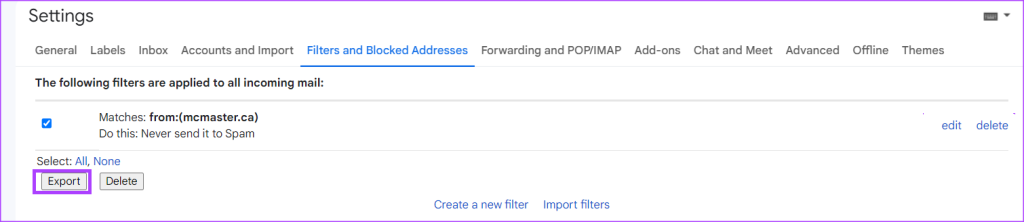
Step 6: At the bottom of the page, click Export, and you will get an .XML file.
How to Import a Filter in Gmail
After exporting the .xml file, here’s how to import it into other Gmail accounts.
Step 1: Open Gmail in your preferred web browser.
Step 2: Click the Settings icon.
Step 3: Click See all settings.
Step 4: Click the Filters and Blocked Addresses tab.
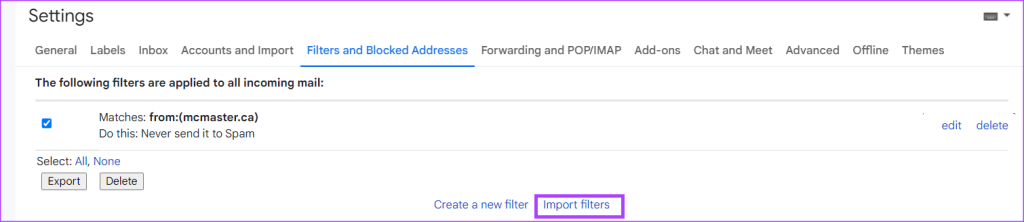
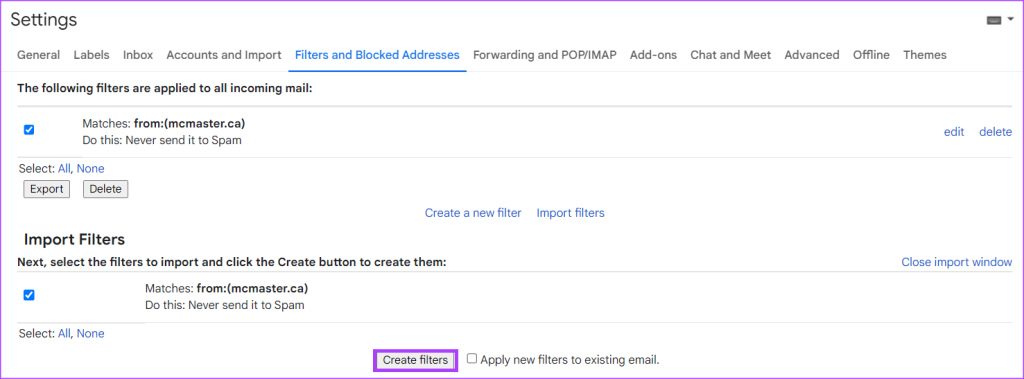
Step 5: At the bottom of the page, click Import filters.
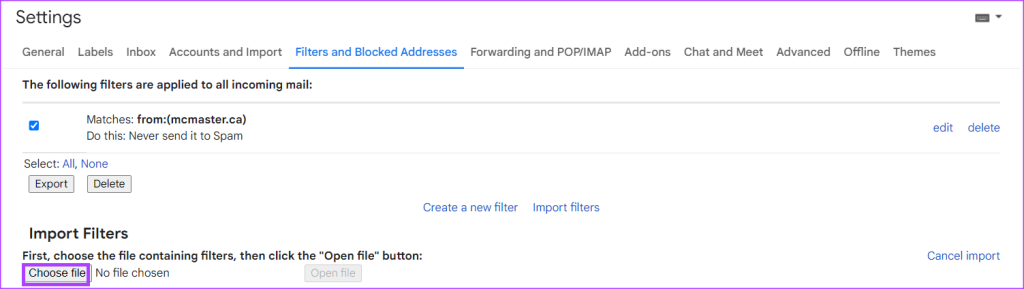
Step 6: Click the Choose file button and select the file with the filter you want to import.
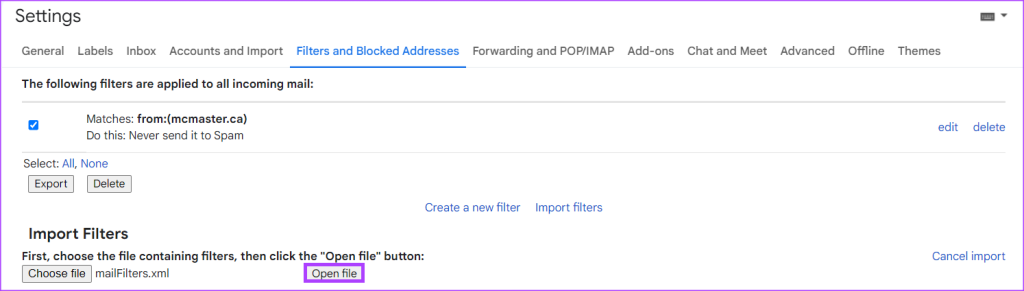
Step 7: Click Open file.
Step 8: Click Create Filters.
Mass Deleting Emails in Gmail
While creating rules helps with better email management, it may not help clearing up your Gmail storage. To ensure irrelevant emails do not take up your storage space, you can consider mass deleting the mails .
