- For new Samsung One UI 6 versions, Lock Screen Stories has been replaced by Dynamic Wallpapers.
- Go to Settings > Wallpaper > Change Wallpaper > Wallpaper Services > disable Dynamic Wallpaper by selecting None.
- You can enable Lock Screen Stories from Settings, the lock screen, or the Galaxy widget.
How to Disable Lock Screen Stories
Lock Screen Stories automatically changes wallpapers on your Samsung device . Here are two ways of disabling the feature.
Method 1: From Settings
Step 1: Open Settings on your phone. Tap on Lock Screen and select Lock Screen Stories .
Step 2: Disable the toggle for On to disable Lock Screen Stories.

Fix 2: From Lock Screen
Step 1: To do so, tap on the Info icon on any of the lock screen stories. Then, hit the Settings icon on the next screen.

Step 2: You will be taken to the Lock screen stories settings. Turn off the toggle.
Fix 3: From Widget
Step 1: Touch and hold an empty space on your home screen. Tap on Widgets > swipe left and look for Galaxy Widget .
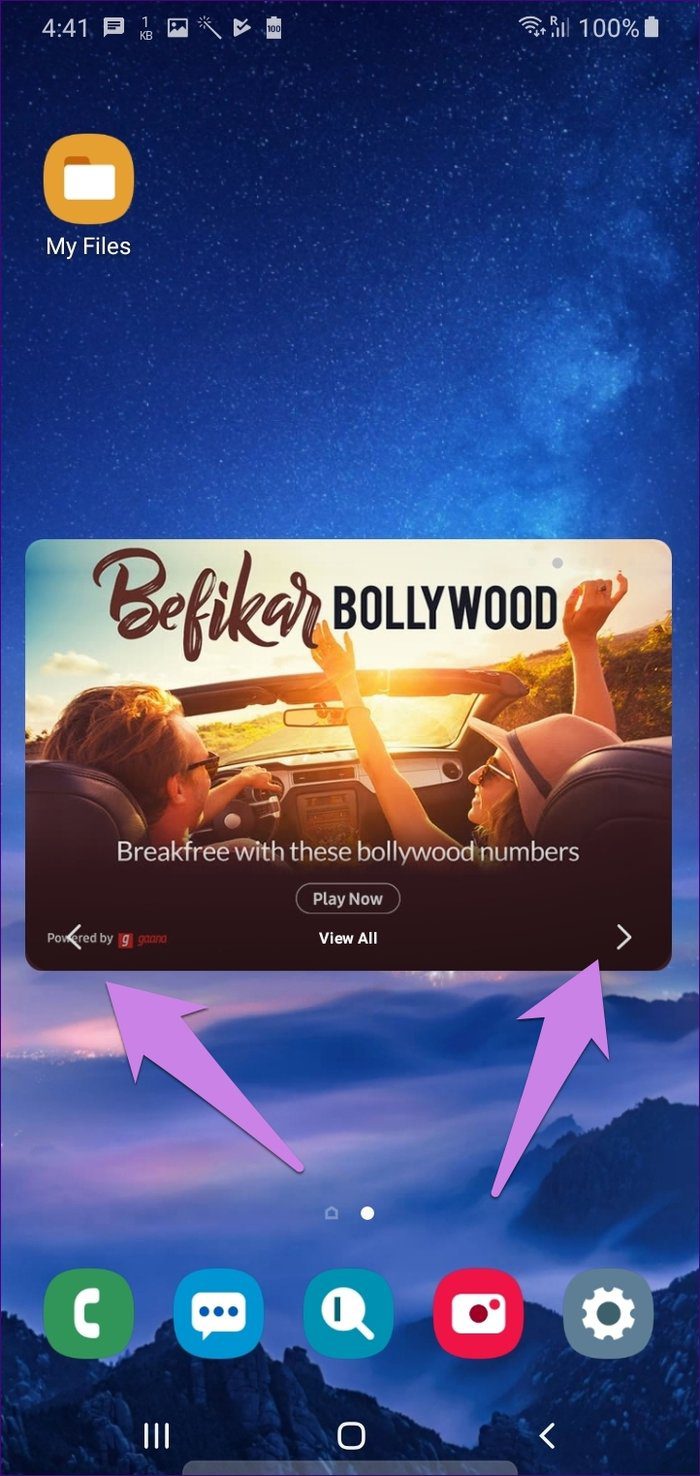
Step 2: Hold it and drag it on the home screen. Tap on the arrows appearing on the widget to see other cards. Tap on the Lock Screen Stories card and disable it on the next screen.
How to Disable Dynamic Wallpaper From the Lock Screen
With the new OneUI 6 update , the feature has been replaced with Dynamic Wallpapers. Here’s how to disable it.
Step 1: Open Settings and tap on Wallpaper and style .
Step 2: Tap on Change wallpapers and select Wallpaper services .

Step 3: Disable the Dynamic Wallpaper service by tapping on None .
