- Disable HDR on Fire TV Stick if your TV doesn’t support the content playback.
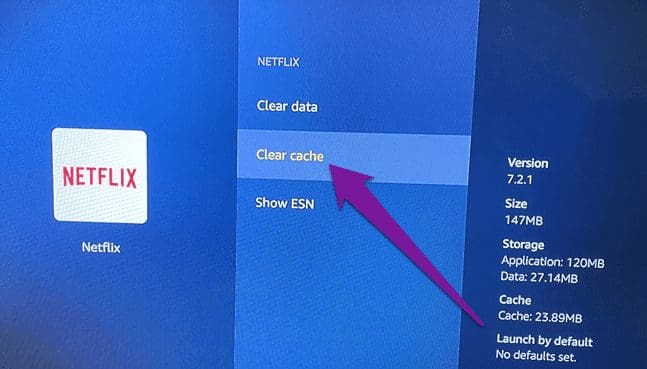
- Clear Netflix app cache by going to Settings > Applications > Manage Installed Applications > Netflix > Clear cache.
- Reset your Fire TV Stick if nothing works. Then, log in to your Amazon account and download Netflix again.
Basic Fixes
- Check Netflix server status : You can visit DownDetector to see if the Netflix servers are working for your area.
- Reboot your Fire TV Stick : Sometimes, a simple restart is all it takes to fix such issues.
- Check your Netflix subscription status : If your subscription has ended or the payment did not go through, it can cause playback issues on your Fire TV Stick.
- Update the Netflix app or Fire OS : You can install the latest version of the app and update the version of Fire OS.
Fix 1: Disable HDR on Firestick
If your TV doesn’t support HDR playback, it’s better to disable the feature on your Firestick.
Step 1: Go to Settings on the home screen and select Display and Audio .
Step 2: Select Display > go to Dynamic Range Settings .
Step 3: Select Adaptive .

Fix 2: Clear Netflix App Cache
The app cache helps you log in quickly to your account by saving your preferences. However, the cache can become corrupted over time and cause issues. It’s good to clear the Netflix app cache on your Firestick.
Go to Settings > Applications > Manage Installed Applications > Netflix > Clear cache .
Fix 3: Check the Number of Profiles on Your Netflix Account
Every Netflix account allows a specific number of profiles to be created under it. So, check whether you have exceeded the profile limit.
Step 1: Open the web browser on your computer and log in to your Netflix account .
Step 2: Click the profile icon at the top-right corner and select Account .

Step 3: Scroll down and select Manage Profiles . If necessary, you can check and remove profiles from your account.
Fix 4: Reset Fire TV Stick
This will remove all your downloaded apps and preferences from your Fire TV Stick. Consider this as a last resort.
Step 1: Go to Settings on the home screen > select My Fire TV .

Step 2: Scroll down and choose Reset to Factory Defaults .
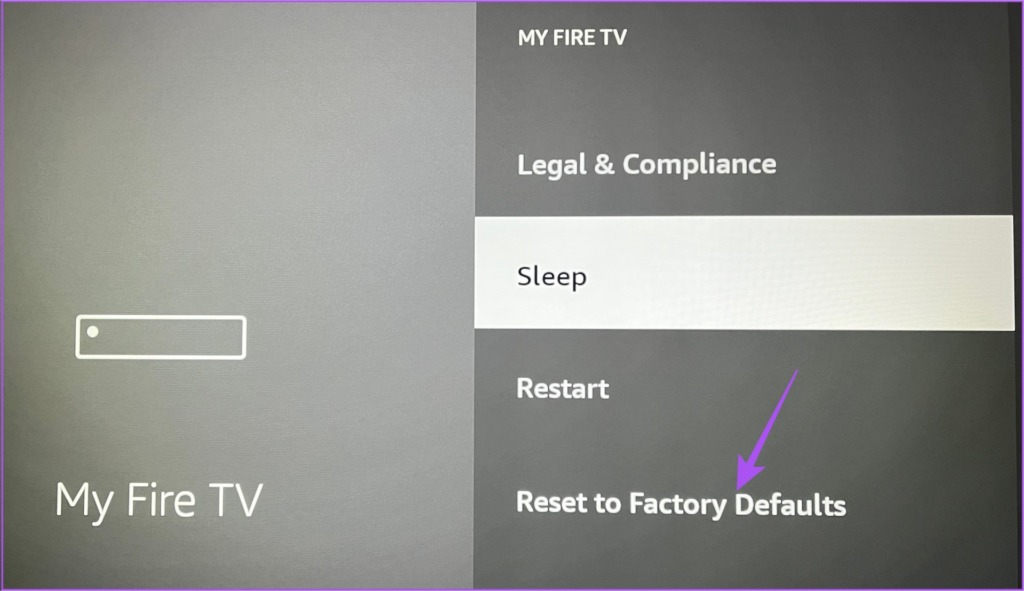
Step 3: Follow the on-screen instructions to complete the process.
