- Check if your contact has enabled Activity Status to see the typing indicator in your chat.
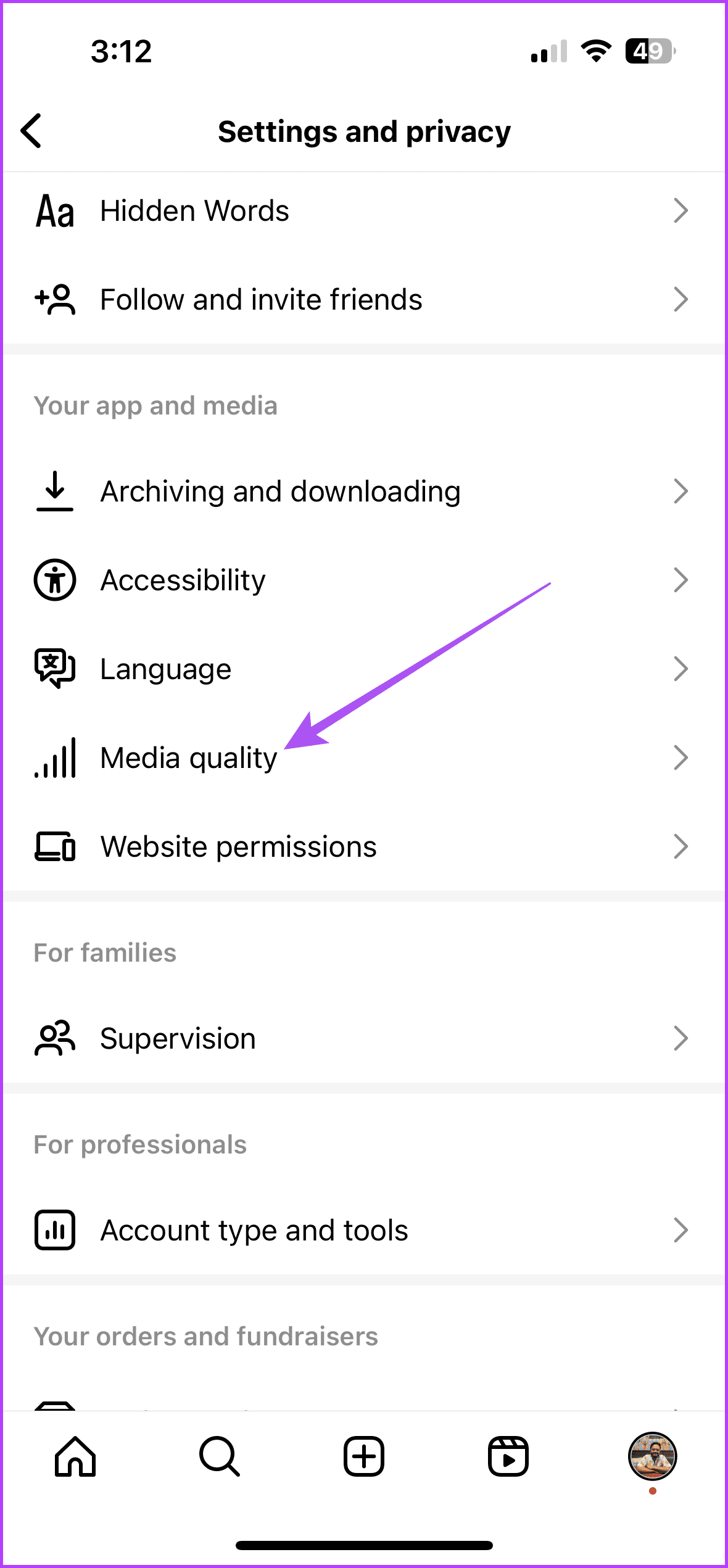
- Disable Less Mobile Data Usage in Instagram by going to Settings in the Instagram app > Media quality > disable Use less mobile data.
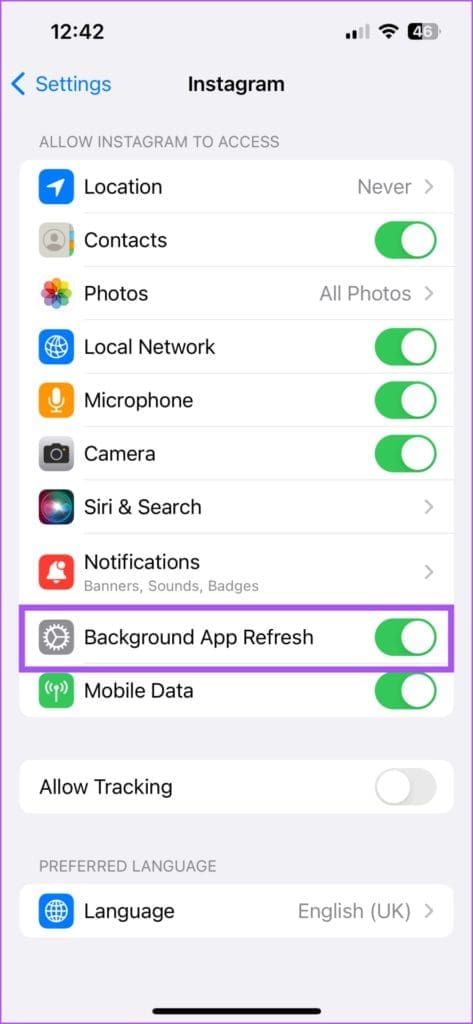
- Enable Background App Refresh on iPhone by going to Settings > Instagram > Background App Refresh.
Basic Fixes
- Force quit and relaunch Instagram : You can force quit and relaunch the app to give it a fresh start, especially if it has been running in the background for some time.
- Switch from mobile data to Wi-Fi : You can do this to improve your internet speeds.
- Update Instagram : Installing an updated version will help remove any bugs in the current version causing this issue.
Fix 1: Check Activity Status
If the Activity Status has been turned off, you can’t see whether the user is active on Instagram . It also prevents the typing indicator from showing in the chat window.
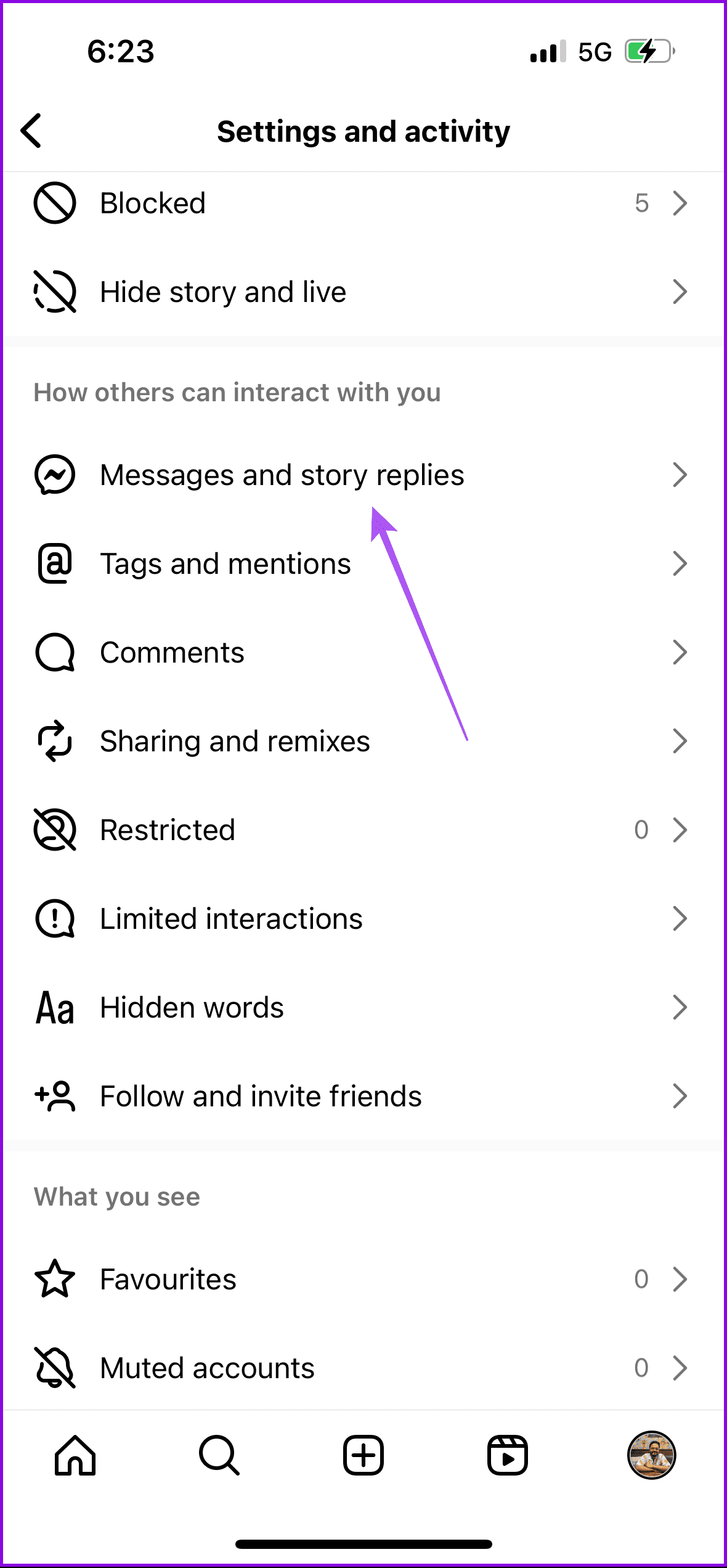
Step 1: Go to your profile and tap the hamburger menu icon at the top-right corner. Then, select Settings and activity .
Step 2: Tap on Messages and story replies > Show activity status .
Step 3: Enable the toggle for Show Activity Status .
Fix 2: Disable Less Mobile Data Usage
Being outdoors requires using mobile data, and that is why you should disable the option of Less Mobile Data Usage in the Instagram app.
Step 1: Go to your Instagram profile > open Settings and activity .
Step 2: Scroll down and tap on Media quality > disable the toggle for Use less mobile data .
Step 3: Return to Instagram’s home screen and chat with a friend to see if this fixes the problem.
Fix 3: Enable Background App Refresh (iPhone)
Background App Refresh ensures that your app’s activity is updated while it runs in the background, and you switch to a different app.
Step 1: Open the Settings app on your iPhone > scroll down and tap on Instagram .
Step 2: Enable the toggle for Background App Refresh .
Step 3: Close Settings and open Instagram to check if this fixes the problem.
