- You can use Guided Access to freeze the touchscreen on your iPhone and prevent kids from controlling the display.
- On your Android device, use App Pinning or download a third-party app to freeze the touchscreen.
Disable Touchscreen on iPhone Using Guided Access
The accessibility feature set contains many useful features to improve the functionality of your iPhone . One such feature is Guided Access, which lets you freeze the touchscreen.
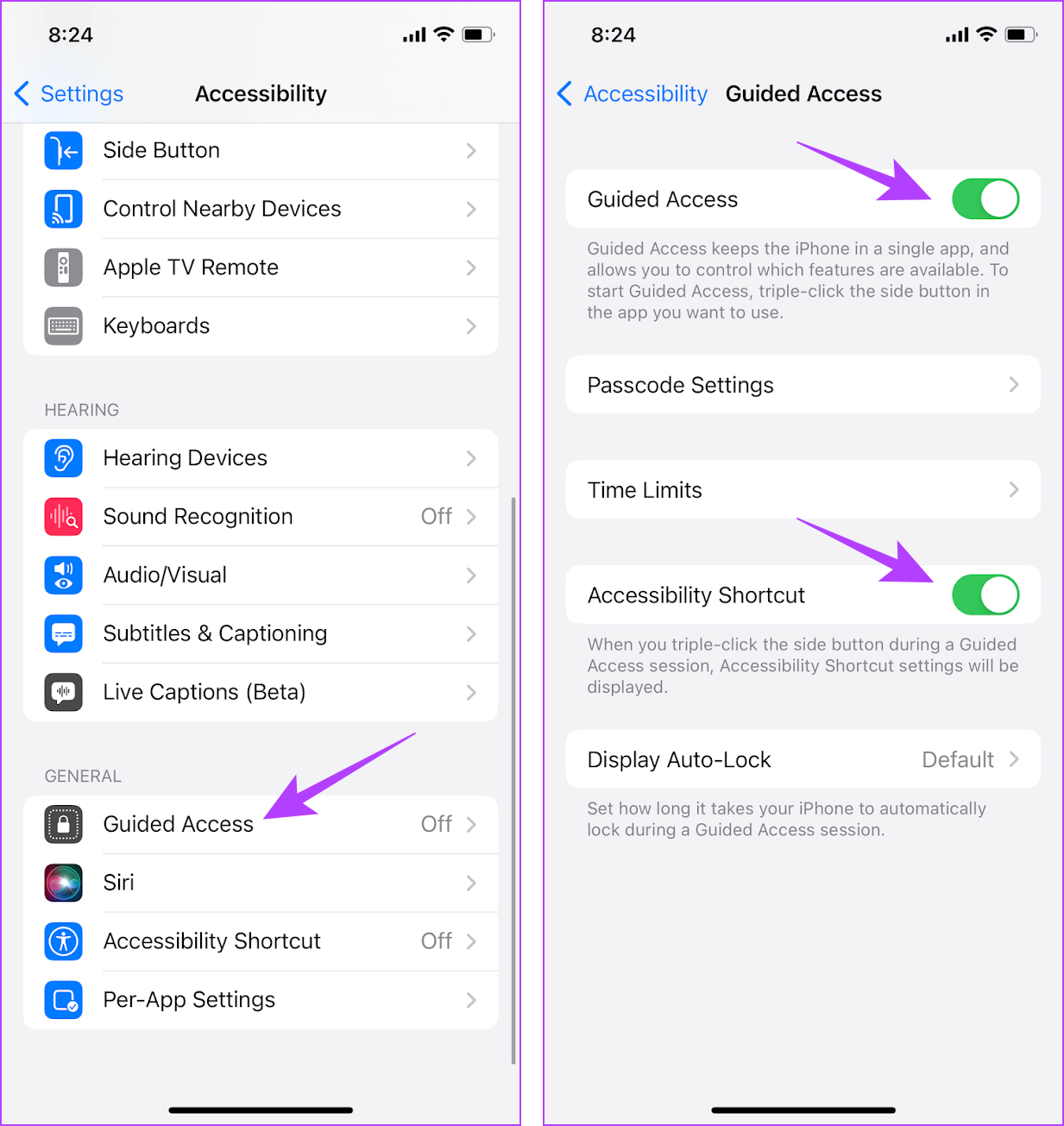
Step 1: Open the Settings app and select Accessibility > Guided Access .
Step 2: Turn on the toggle for Guided Access and Accessibility Shortcut .
Further, check whether to use the home button/side button to trigger the shortcut. It is provided in the description under Accessibility Shortcut.
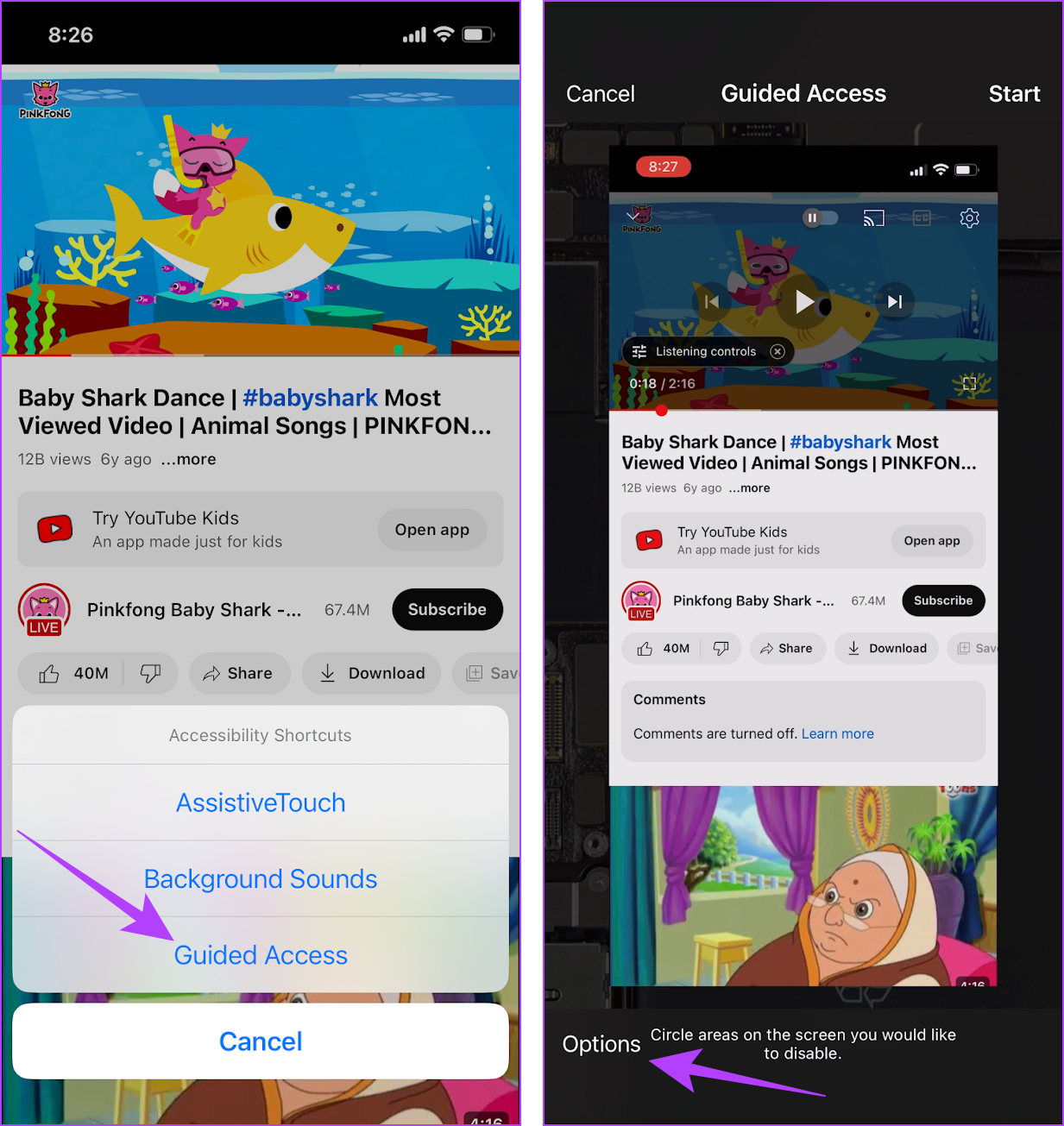
Step 3: Go to the app you want to block the touchscreen and trigger the accessibility shortcut . Triple-tap the side button on your iPhone. If your iPhone has a home button, triple-tap the same.
You will see the Guided Access page directly, or you may have to select it from the list of options.
Step 4: Select Guided Access . Tap on Options .
Step 5: Turn off the toggle for Touch and tap on Start . Set a Passcode to modify or end Guided Access.
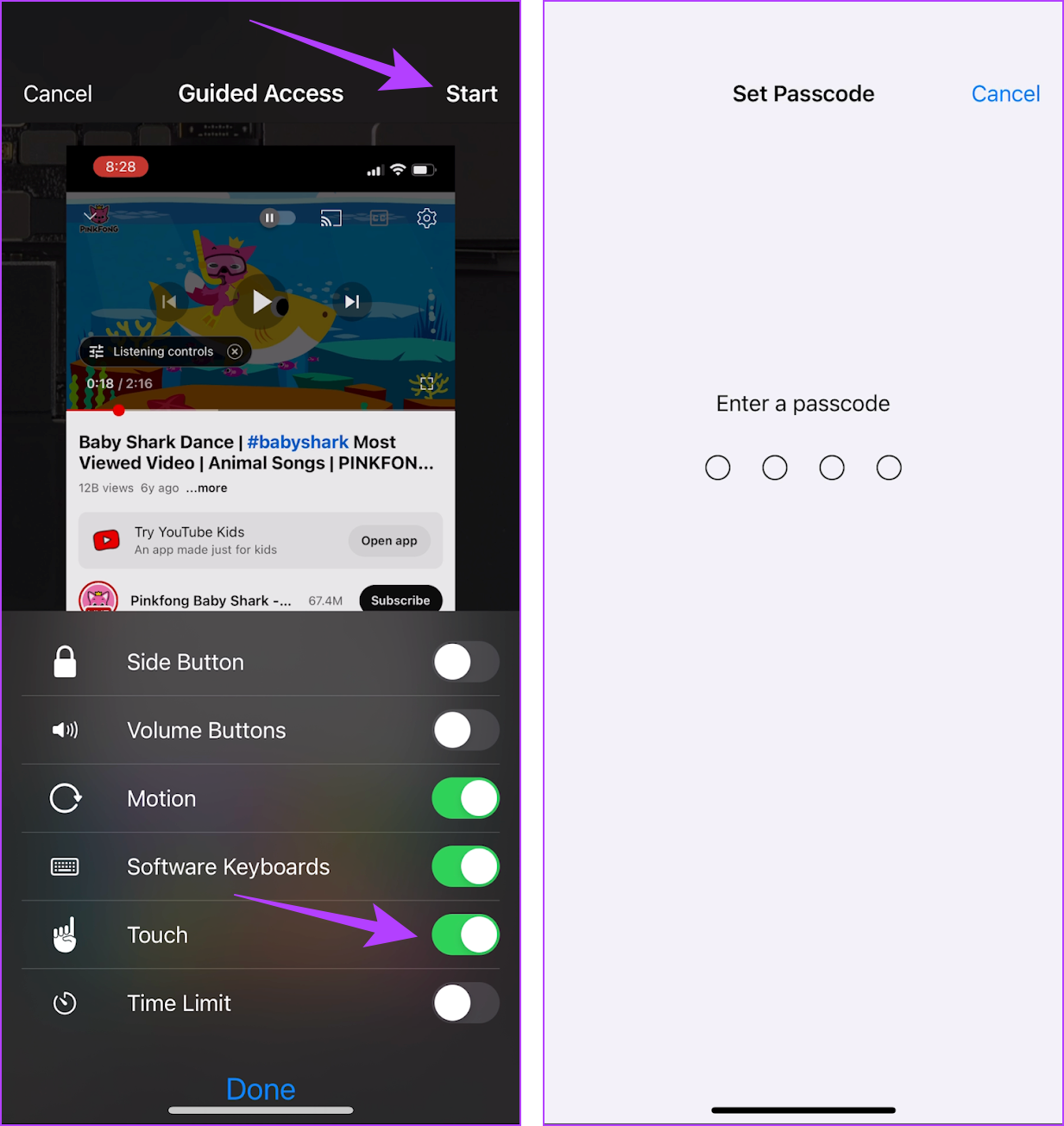
Guided Access will now start, and the touchscreen will freeze. You can triple-tap the power button (iPhone X, XR, 11, 12, 13, 14 Series) or the home button and tap on End to unfreeze your iPhone’s touchscreen.
How to Freeze Screen on Android for Kids
Method 1: Use App Pinning to Lock the Touch Screen
Android has a built-in option to lock the phone screen and prevent any touches. This feature is called App Pinning. However, you must disable the navigation gestures and use the navigation buttons to enable App Pinning.
Note : We’ve used a OnePlus device to demonstrate the process, but it remains the same for other Android devices as well.
Step 1: Open the Settings app and tap on Additional Settings .
Step 2: Tap on System Navigation > select Buttons .

Step 3: Now, go back to the Settings menu, go to Password & Security , and tap on System Security .
Step 4: Scroll down to find App Pinning and turn on the toggle for App pinning.

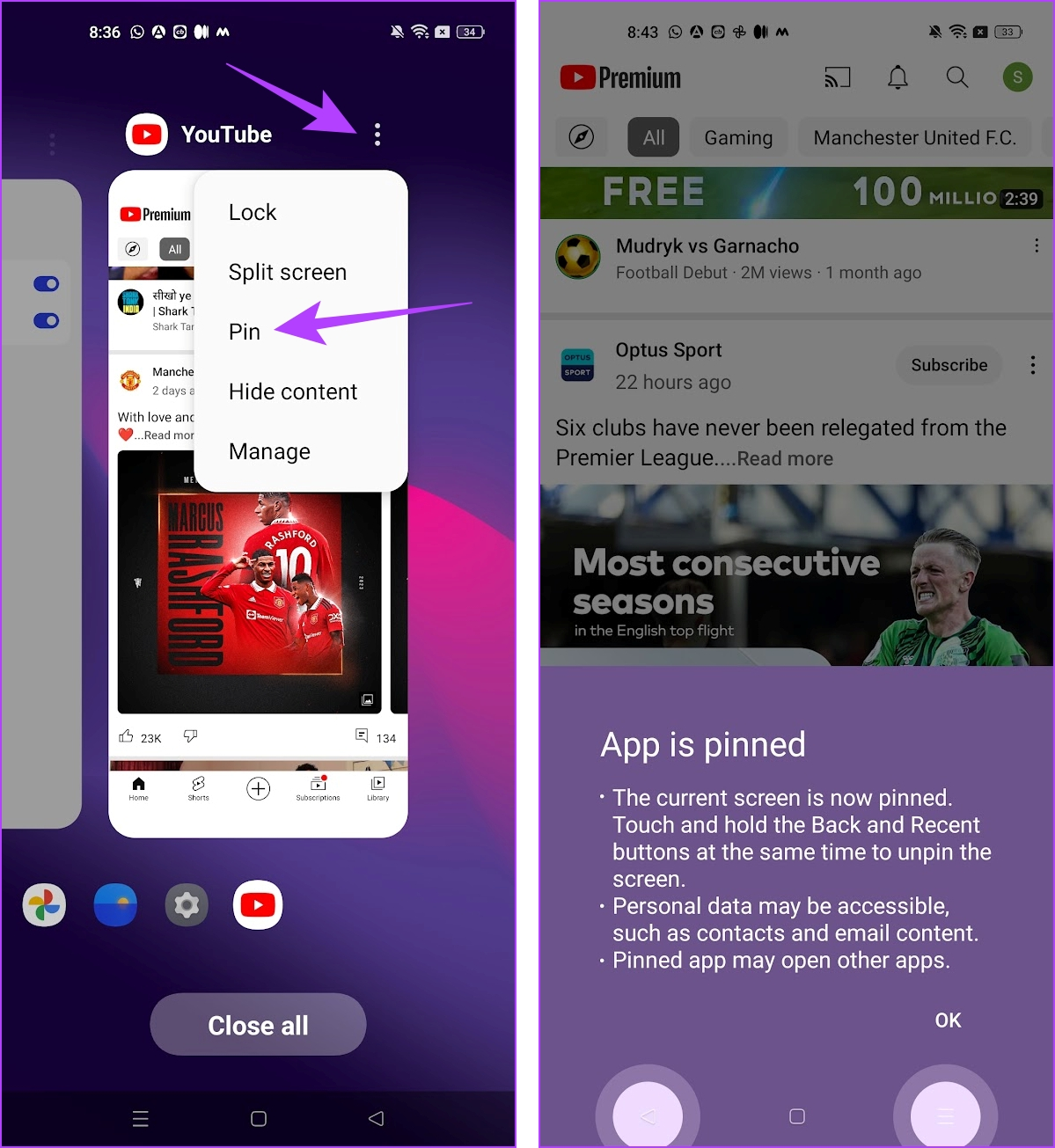
Step 5: Open the app you want to freeze and open the app switcher tray. Tap on the three dots icon and tap on Pin .
Note: If you want to unfreeze the screen, tap and hold the leftmost and the rightmost navigation buttons for a few seconds.
Method 2: Use a Third-party App
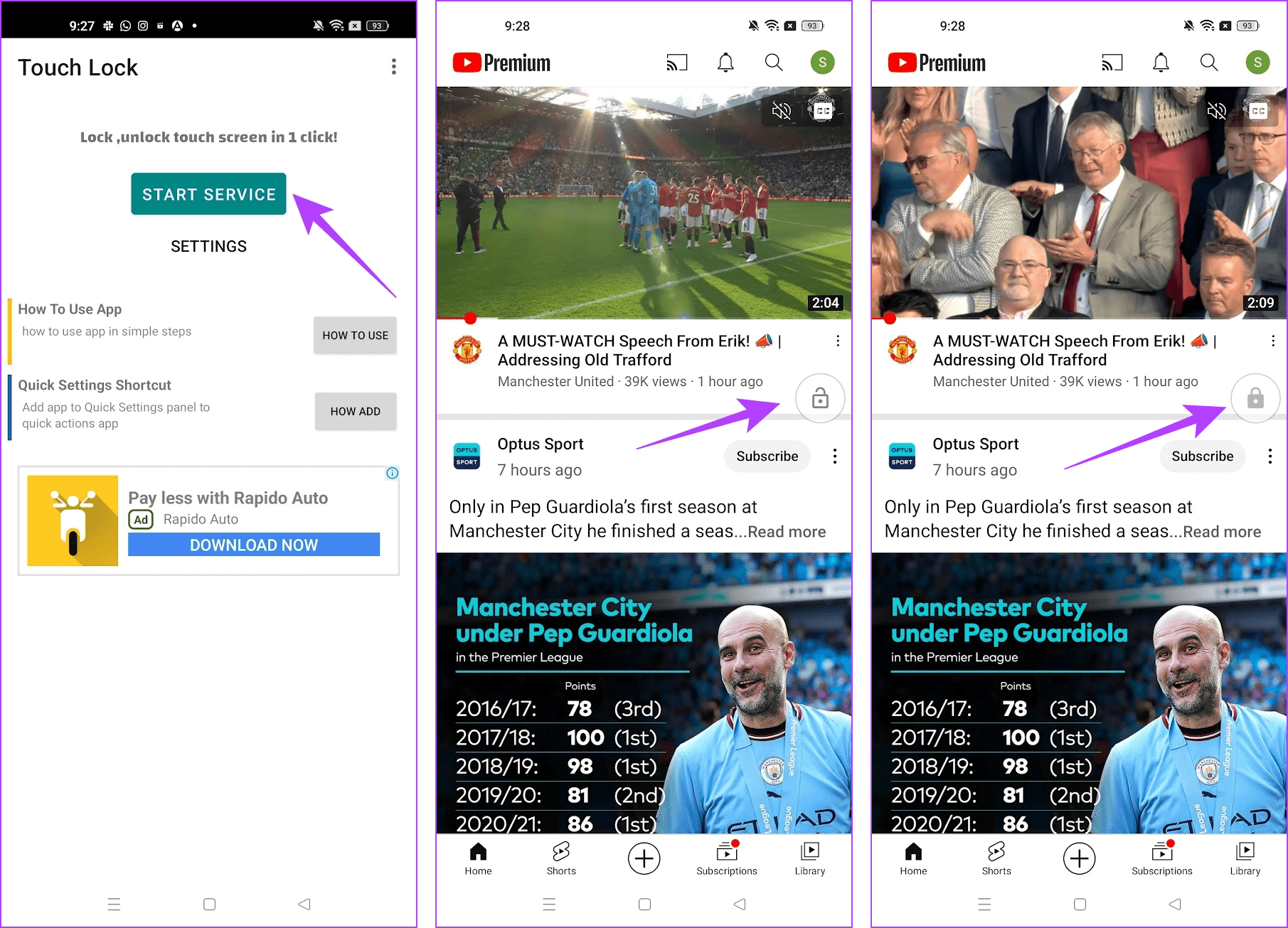
Touch Lock is a well-designed app to lock the touchscreen on your Android device. Here’s how you can install the app and use it to freeze your screen.
Step 1: Download Touch Lock from the Play Store . Open the app and grant the necessary permissions . Tap on Start Service .
Step 2: Open the app you want to freeze the screen for. Tap on the floating lock icon to lock the touch controls.
Step 3: To unlock your screen, tap once . The floating lock button will appear. Double-tap on it to unlock the screen.
Step 4: Now, drag the lock icon to the remove button and stop the service.