Your friends on Instagram can send you DMs or direct messages, delivered straight to the messages section. From there, you can view and respond to the messages. However, can you see your Instagram messages without being seen? Let’s find out.

An automatic read receipt is triggered whenever you open a message, preventing you from seeing your Instagram messages without being seen. Now, this message will be left on read for the other user until you respond. This can create undue pressure to respond, lest your friend mistake it as ghosting. However, is there a way to turn off read receipts on Instagram? Keep reading to know.
Can You Turn Off Read Receipts on Instagram
No. As of writing this article, you can’t turn off or hide read receipts on Instagram. This means opened messages will display a little Seen sign underneath them in the chat window. However, there are some ways you can use to circumvent this feature and prevent the read receipt from being sent. Let’s look at them.
How to Read Instagram Messages Without Being Seen
Since there is no option to disable read receipts, you can use any of the four below-mentioned ways to read Instagram messages without being seen.
1. Read Message Using Notification Panel
One of the easiest ways to see Instagram messages without sending a Seen notification is by using the notification panel on your device. However, to use this method, you must have notification enabled for the Instagram app. Additionally, you might only see limited messages when previewing the Instagram message. Here’s how to do it.
Step 1: Depending on your device, pull down from the top-left corner or the top of the screen to open the notification panel.
Step 2: Here, view the relevant Instagram message.
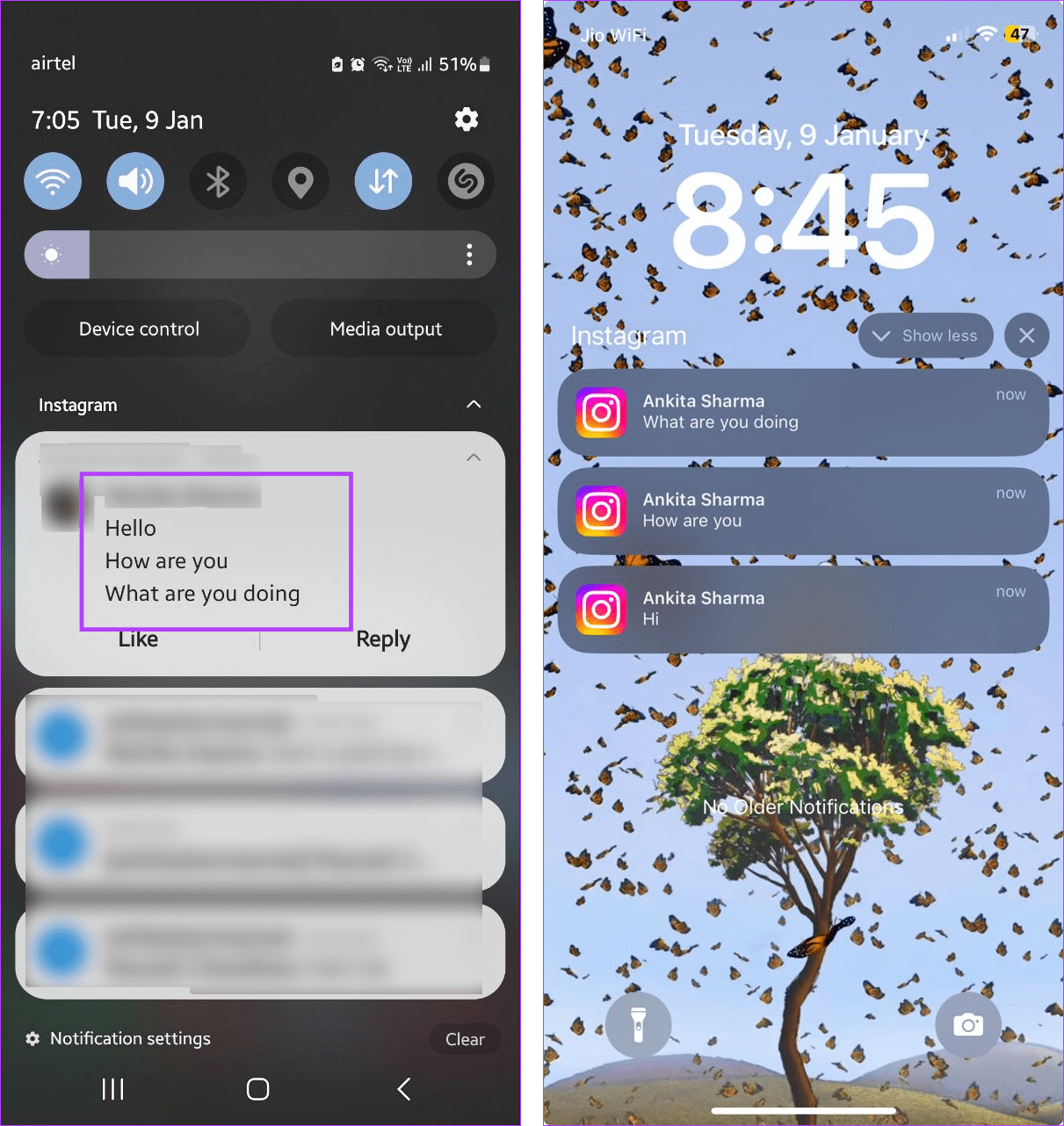
If the message preview collapses, tap on the arrow icon to expand it to see the entire Instagram message from the notification panel.
2. By Turning on Airplane Mode
Enabling Airplane Mode on your phone turns off all radio communication, ensuring the read receipts are not reported to the other user. However, once you read the message, you must uninstall and reinstall the Instagram app. Otherwise, the Seen notification will be sent once you connect your device to the internet. Here’s how to do it.
Step 1: Open Instagram and tap on Messages.

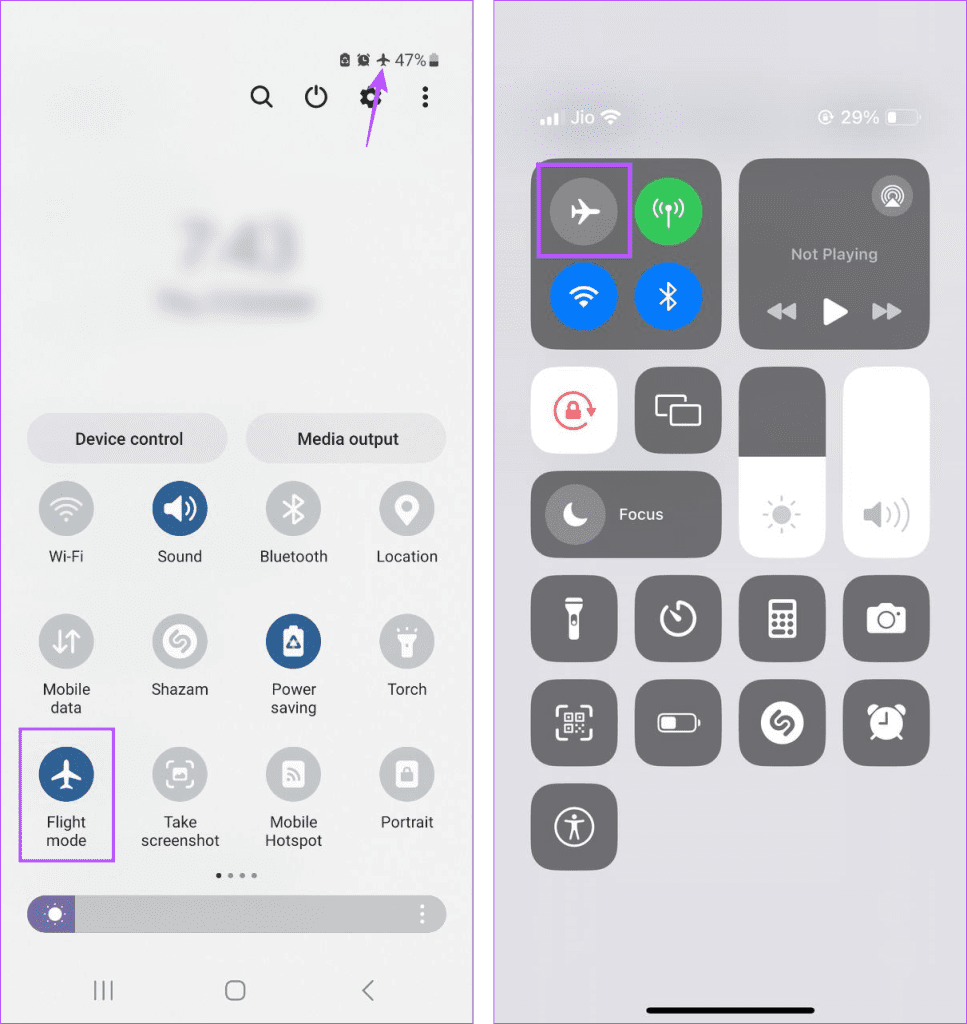
Step 2: Wait for the messages to load. Once done, swipe down from the top of the screen to open Quick Settings on Android.
If you’re using an iPhone, open the Control Center by swiping down from the top-left corner or, if your device has a Home button, swiping up from the bottom of the screen.
Step 3: Now, tap on the airplane icon on the respective device to enable Airplane Mode.
Step 4: Once done, open the message on Instagram to view it.
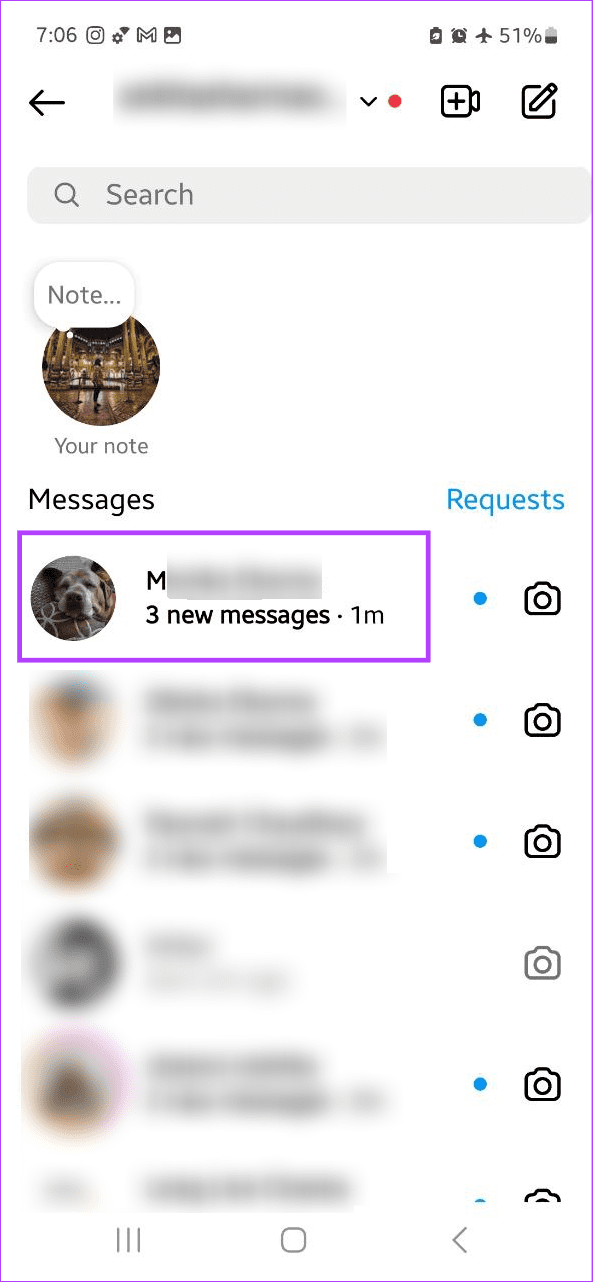
Step 5: Now, exit the app and, if you’re using an Android device, long-press on it for more options. Here, tap on Uninstall.
Step 6: Then, tap on OK.
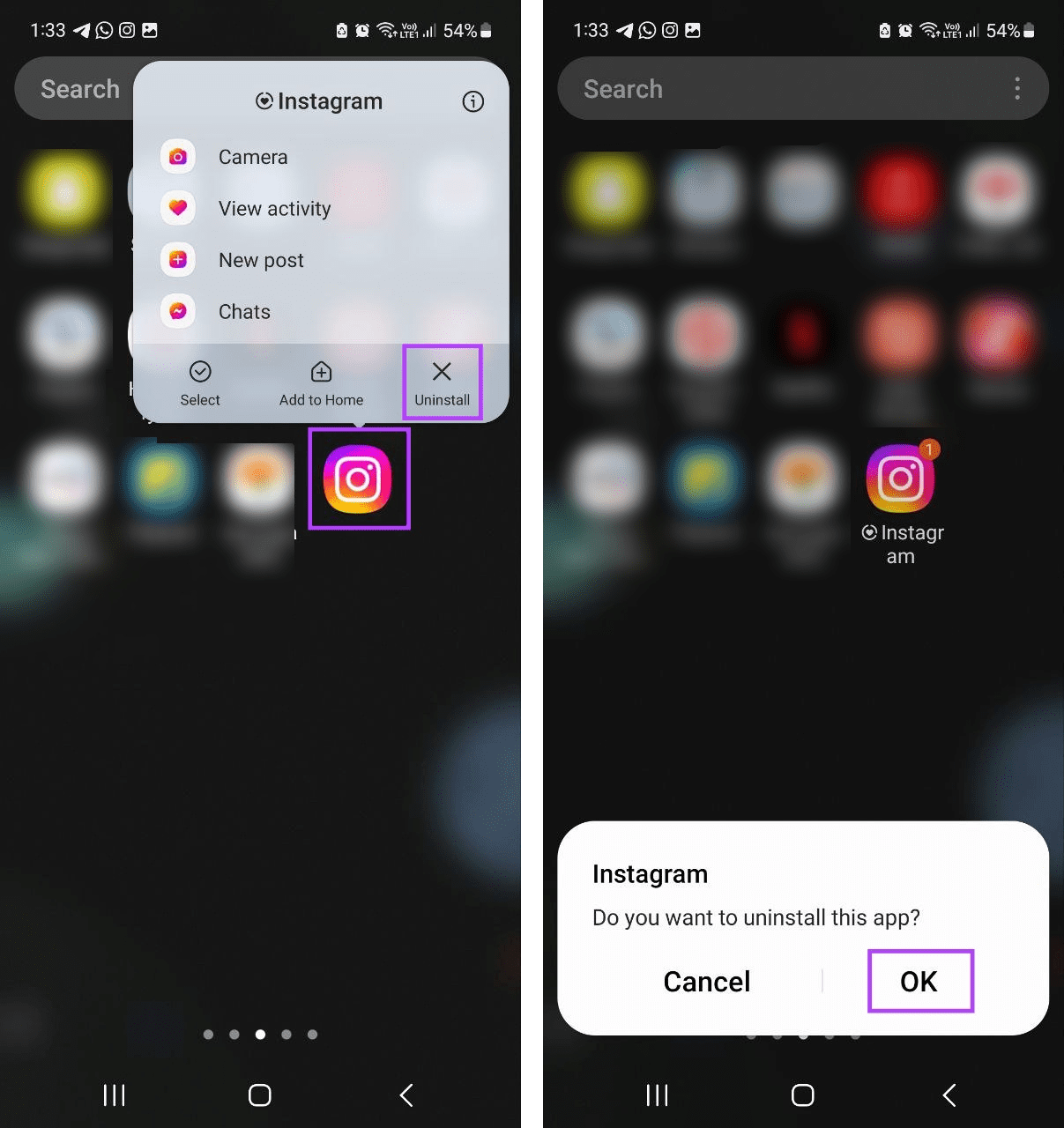
Step 7: Then, go to the relevant app store and reinstall the Instagram app on your device.
Download Instagram on Android
Download Instagram on iPhone
3. Using the Restrict Option
Another way to open Instagram messages without being seen is by restricting the user . Once done, it will move the restricted messages to the Requests section. Here, you can view them without triggering the read receipt.
However, please note you will need to unrestrict the user if you wish to reply to their messages. Once done, it will send the read receipt for the messages you have already seen. Here’s how to do it.
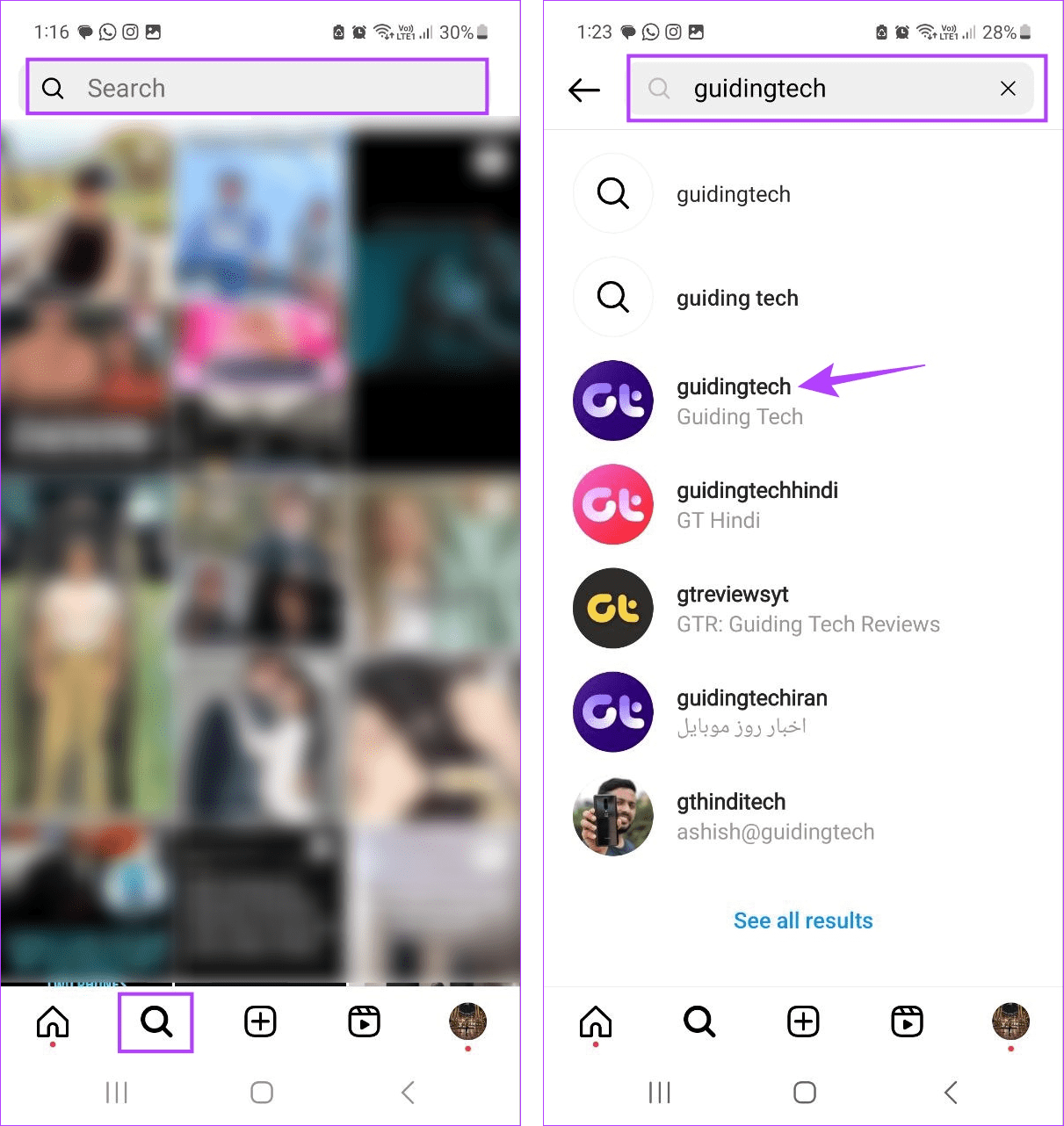
Step 1: Open Instagram and tap on the search icon.
Step 2: Tap on the search bar and type the name of the account or user. Tap on the relevant search result.
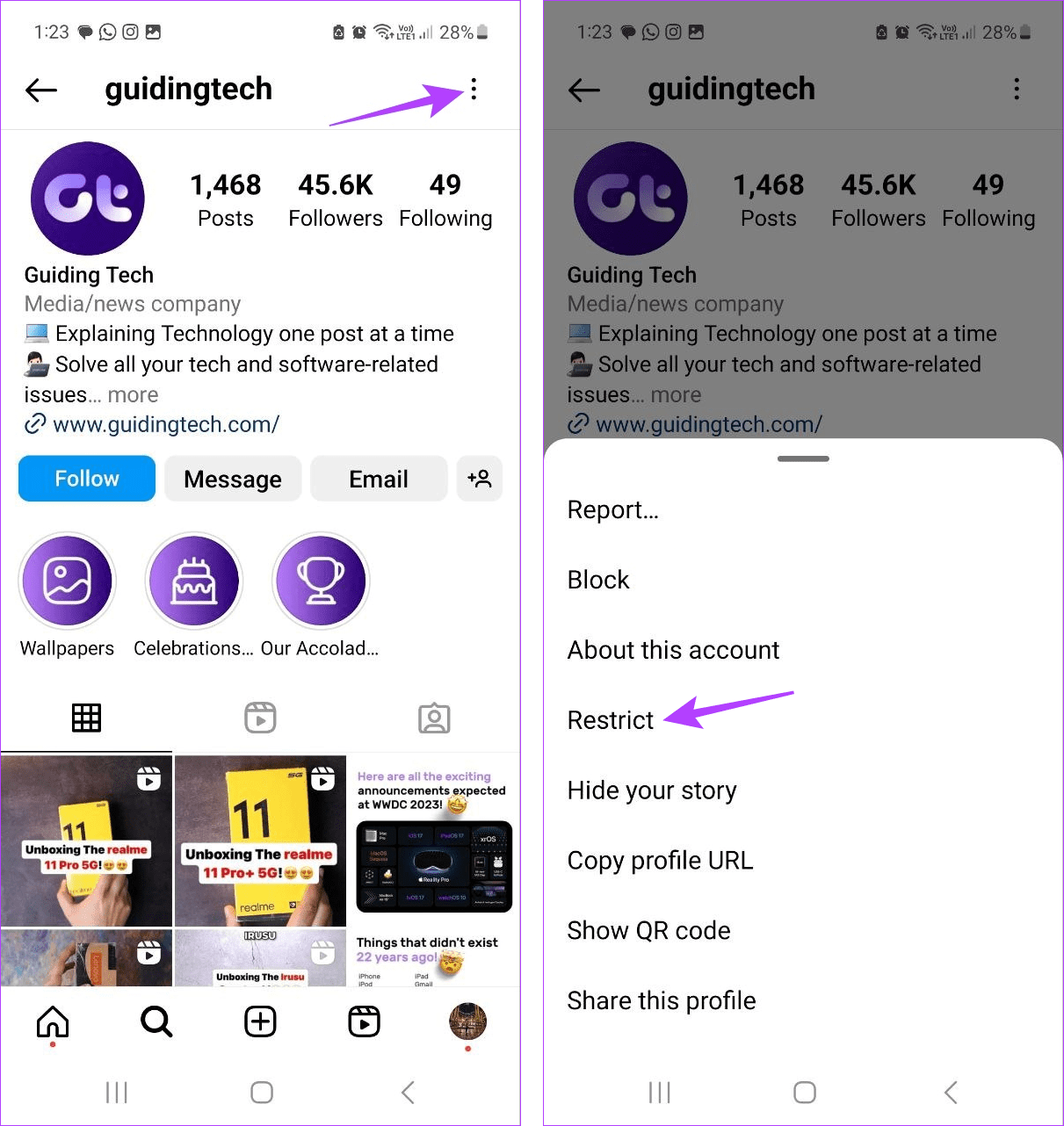
Step 3: Once the page opens, tap on the three-dot icon. Tap on Restrict.
Once this is done, you can view their message on Instagram. Here’s how.
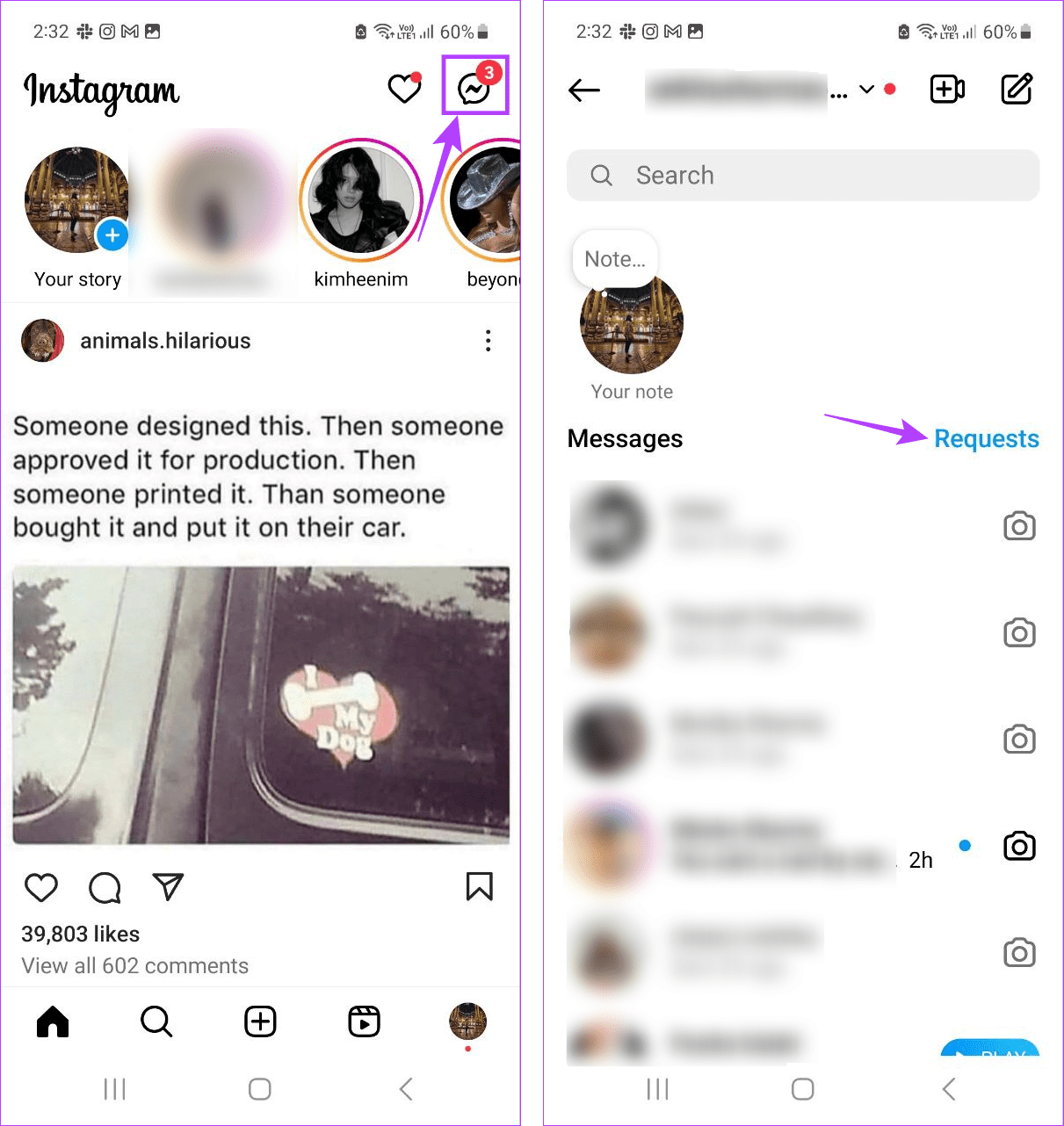
Step 4: On the Instagram main page, tap on the Message icon in the top-right corner.
Step 5: Now, tap on Requests.
Step 6: Tap on the user you have restricted.
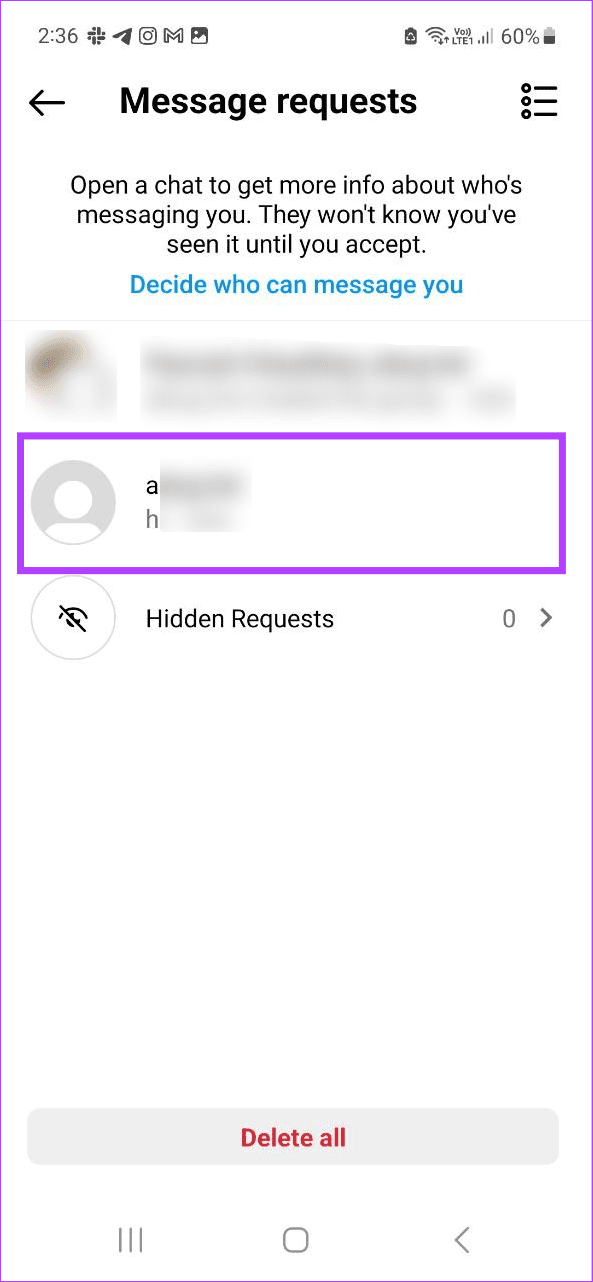
You can now view their messages without them being notified on Instagram. Then, once you unrestrict the user, they will again be visible in the main message window on Instagram.
4. By Turning off Message Notifications
If you’ve accidentally tapped on a message notification in the past, thus triggering the read receipt, you can turn off notifications for Instagram. This will stop Instagram from sending you message notifications altogether. Follow the below steps to do it.
Note : This will turn off all Instagram notifications.
On Android
Step 1: Open Settings and tap on Notifications.
Step 2: Here, tap on App notifications.
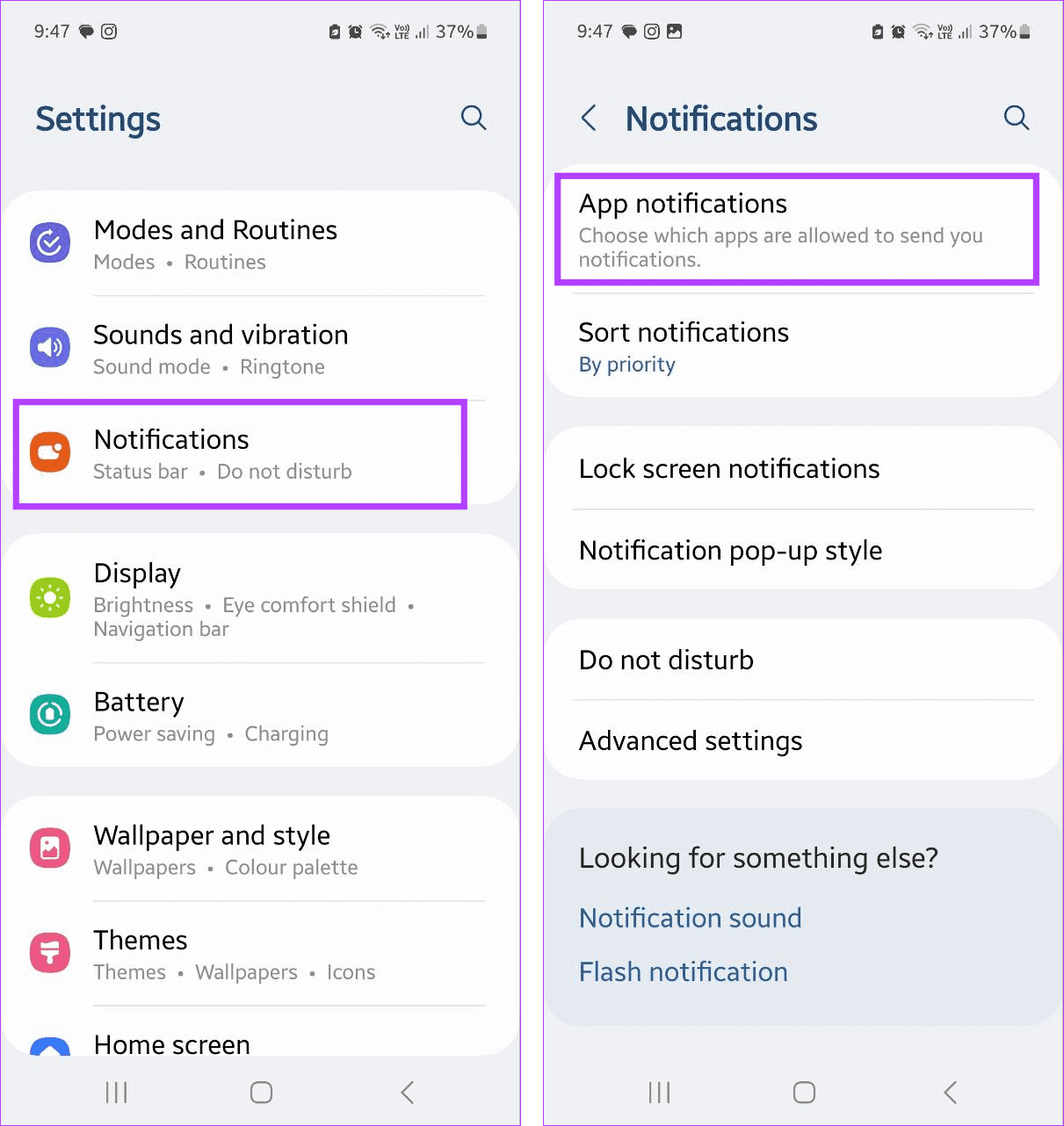
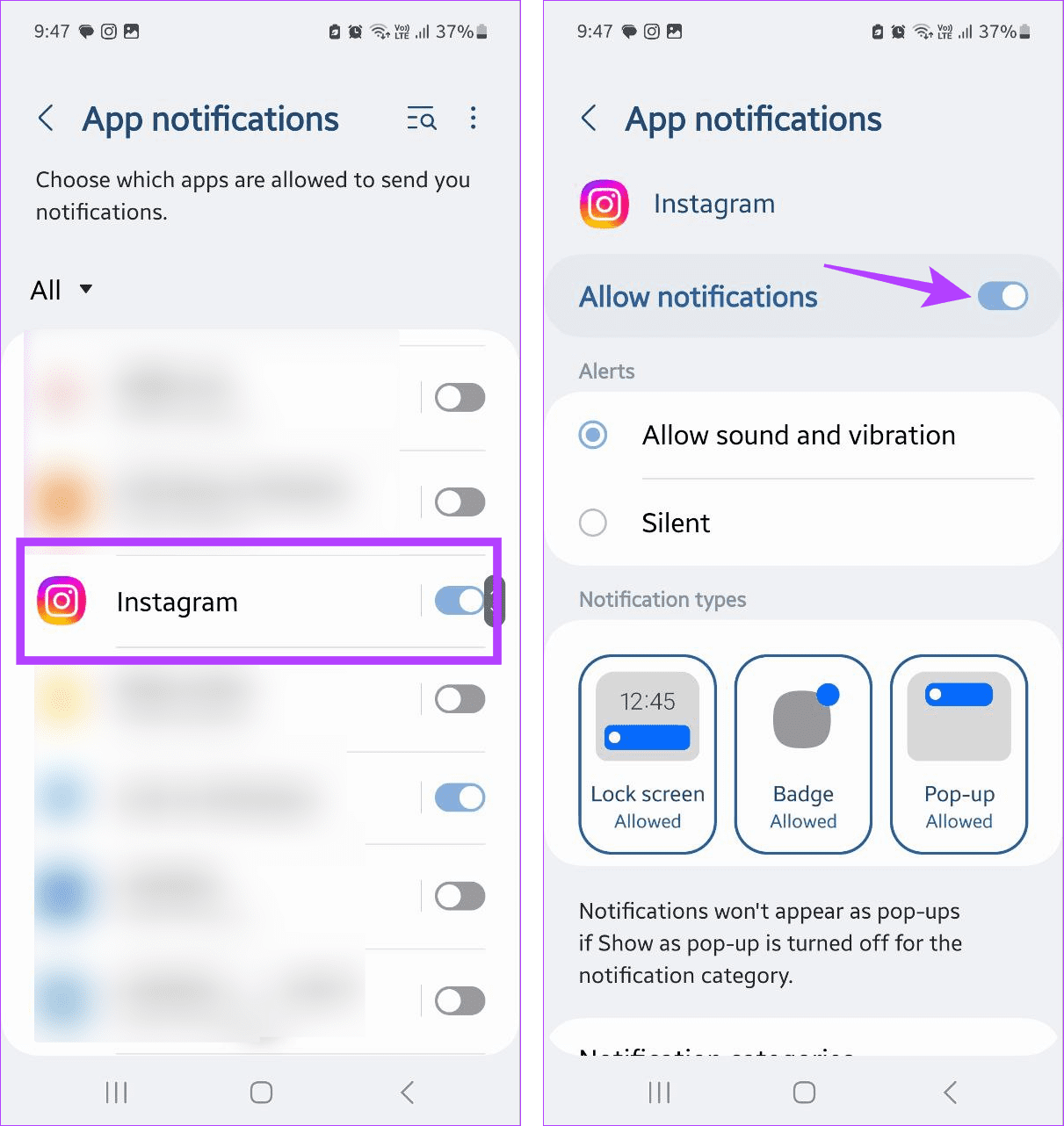
Step 3: Scroll down and tap on Instagram.
Step 4: Turn off the toggle for Allow notifications.
On iPhone
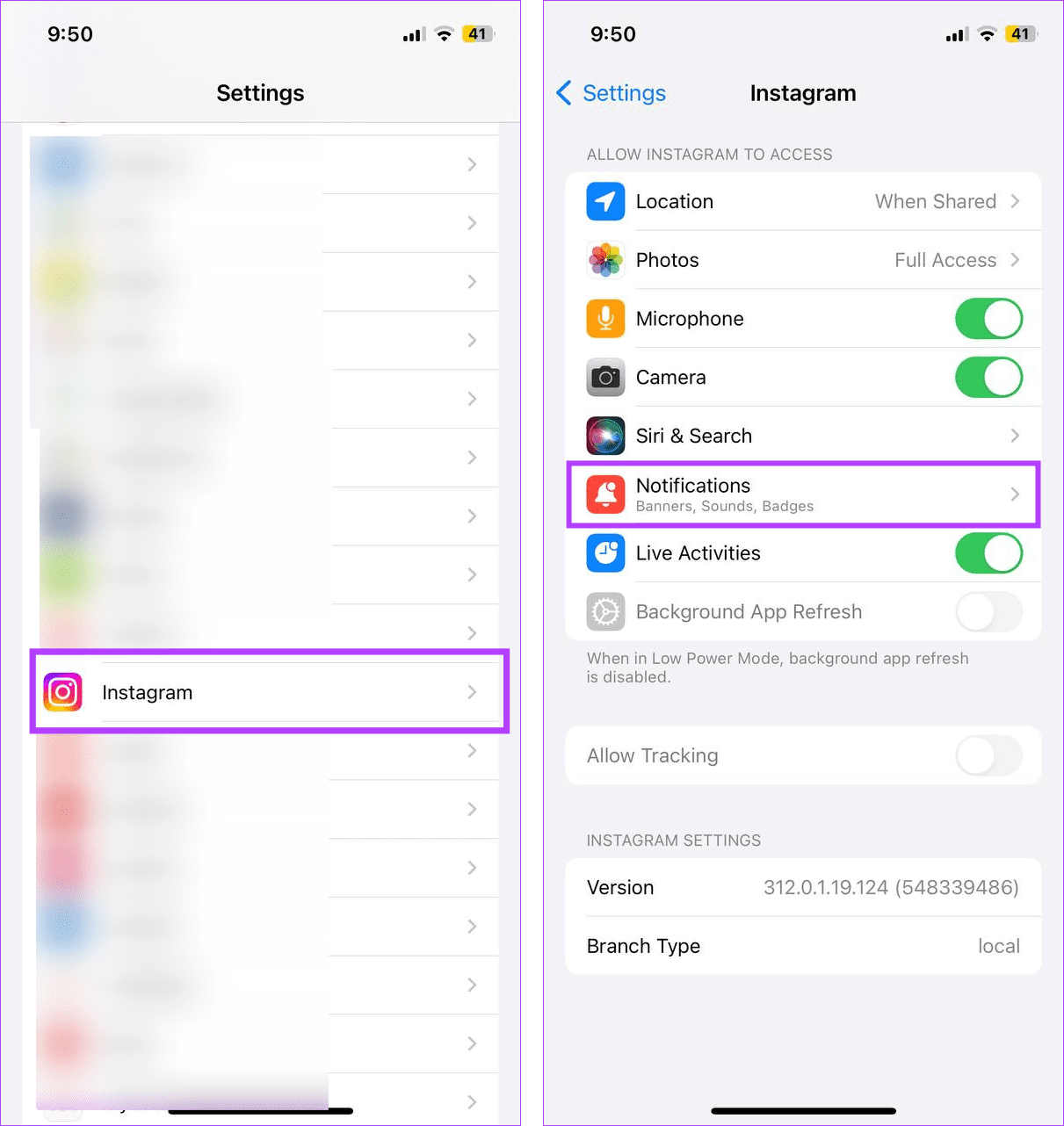
Step 1: Open the Settings app and tap on Instagram.
Step 2: Tap on Notifications.
Step 3: Here, turn off the Allow Notifications toggle.
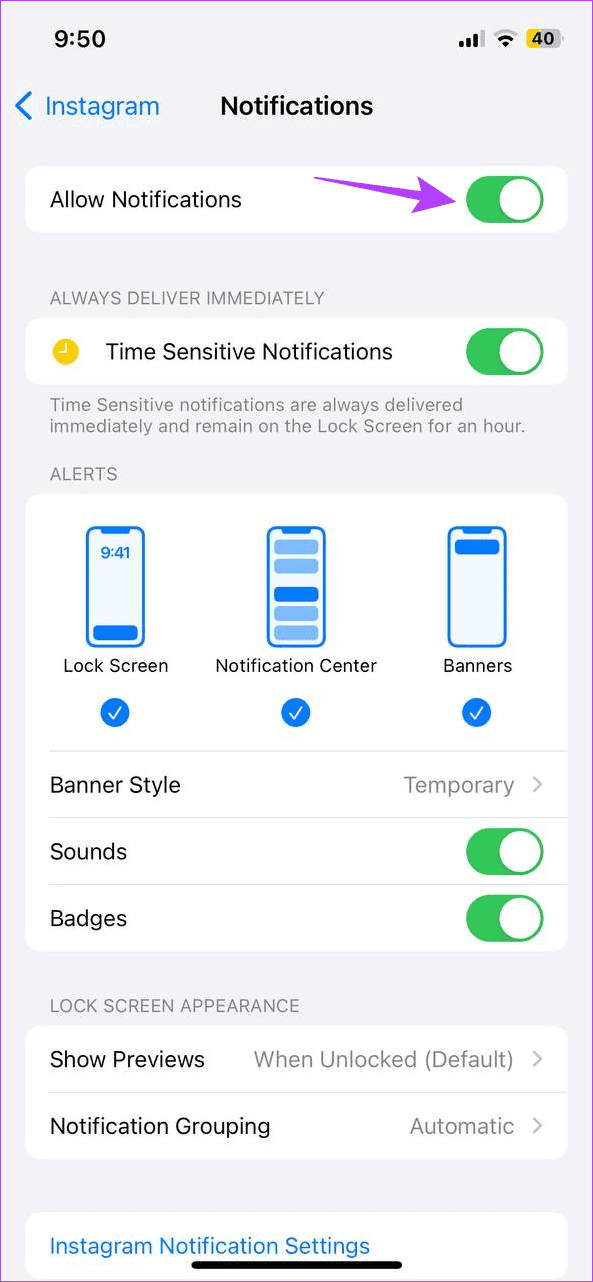
If you want to get notifications from Instagram again, follow the above steps and enable the relevant toggle to allow notification updates from Instagram.
Since there is no official way to turn off read receipts on Instagram, users will need to use any of the above-mentioned ways to hide the read receipts. Otherwise, the Seen notification will be visible underneath the read message on Instagram.
Yes, certain third-party apps claim to provide anonymity when viewing Instagram messages. However, these apps will need access to your Instagram profile and, in certain cases, can even get you banned on Instagram. So, we strongly suggest against using them.
Get Rid of Read Receipts
While read receipts are a good way to know who has read your message, there are times when you want to see the message without notifying the other person. So, we hope the ways listed in this article helped you see Instagram messages without being seen. You can also check our other article to know more about hiding who you follow on Instagram .
