Although Apple Mail has received a nice feature boost with the latest iOS 16 update on iPhone, most users prefer third-party alternatives like Gmail and Outlook for familiarity and a better experience. Now that you can change the default email app on iPhone, it’s easier than ever to ditch the default solution for a capable third-party email app. Here’s how you can set up and use Gmail like a pro on iPhone.
Since Google uses the same Gmail interface on iPhone, folks who used Android earlier can continue the same practices with email management on iOS. With home screen widgets, lock screen widgets, and several other features, Gmail is an ideal choice for iPhone users. Let’s set it up.
Get Gmail App from the App Store
Unlike Android phones, Gmail isn’t pre-installed on an iPhone or iPad. Luckily, you can download the official Gmail app for your iPhone from the App Store.
Step 1: Open the App Store on your iPhone and get the Gmail app.
Download Gmail for iPhone
Step 2: After Gmail app installs, tap on Open button and sign in with your email accounts.

Gmail supports all popular email providers like Outlook, iCloud, Hotmail, Office 365, and IMAP accounts.
Set Gmail as the Default Email App on iPhone
After you download Gmail from the App Store and set your preferred email accounts, it’s time to set it as the default email app on your iPhone.
Step 1: Open Settings on your iPhone.

Step 2: Scroll to Gmail.

Step 3: Open ‘Default Mail App.’

Step 4: Select Gmail from the following menu.

After you have set Gmail as the default email app on your iPhone, whenever you click on an email address, iOS will open Gmail instead of the Apple Mail app on your iPhone.
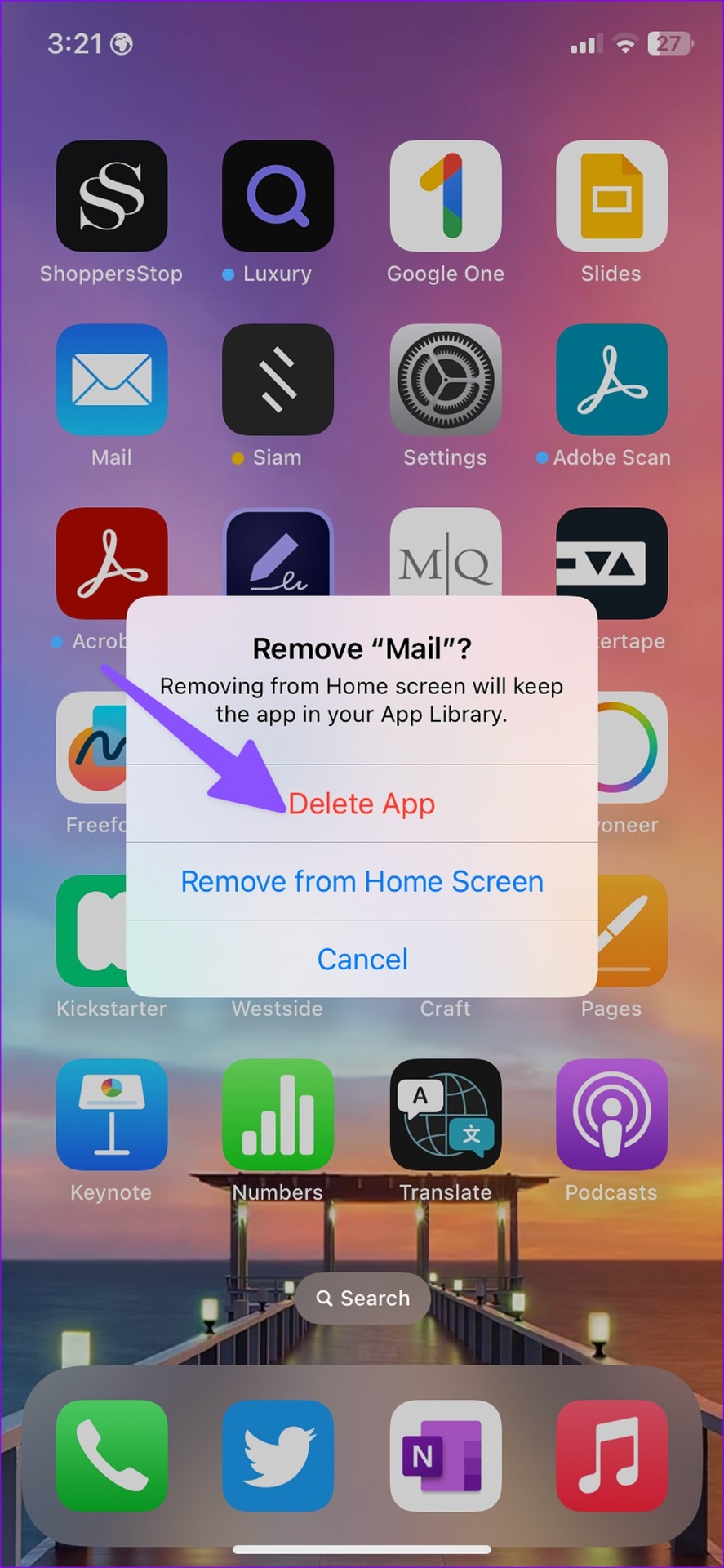
Apple also allows you to delete select default apps on your iPhone. If you no longer need the Mail app, use the steps below to remove it.
Step 1: Long-press on the Mail icon and select ‘Remove App.’

Step 2: Tap ‘Delete App,’ and you are good to go.
It’s also a handy way to free up space on iPhone. Read how to free up storage without deleting apps on your iPhone.
Use Gmail Home Screen Widgets on iPhone
With iOS 16 update, Apple supports home screen widgets on iPhone. Like many other third-party apps, Gmail offers home screen widgets to glance over relevant information without opening the app. However, you’ll need to setup widgets to show email details. Here’s how you can set Gmail home screen widgets on your iPhone.
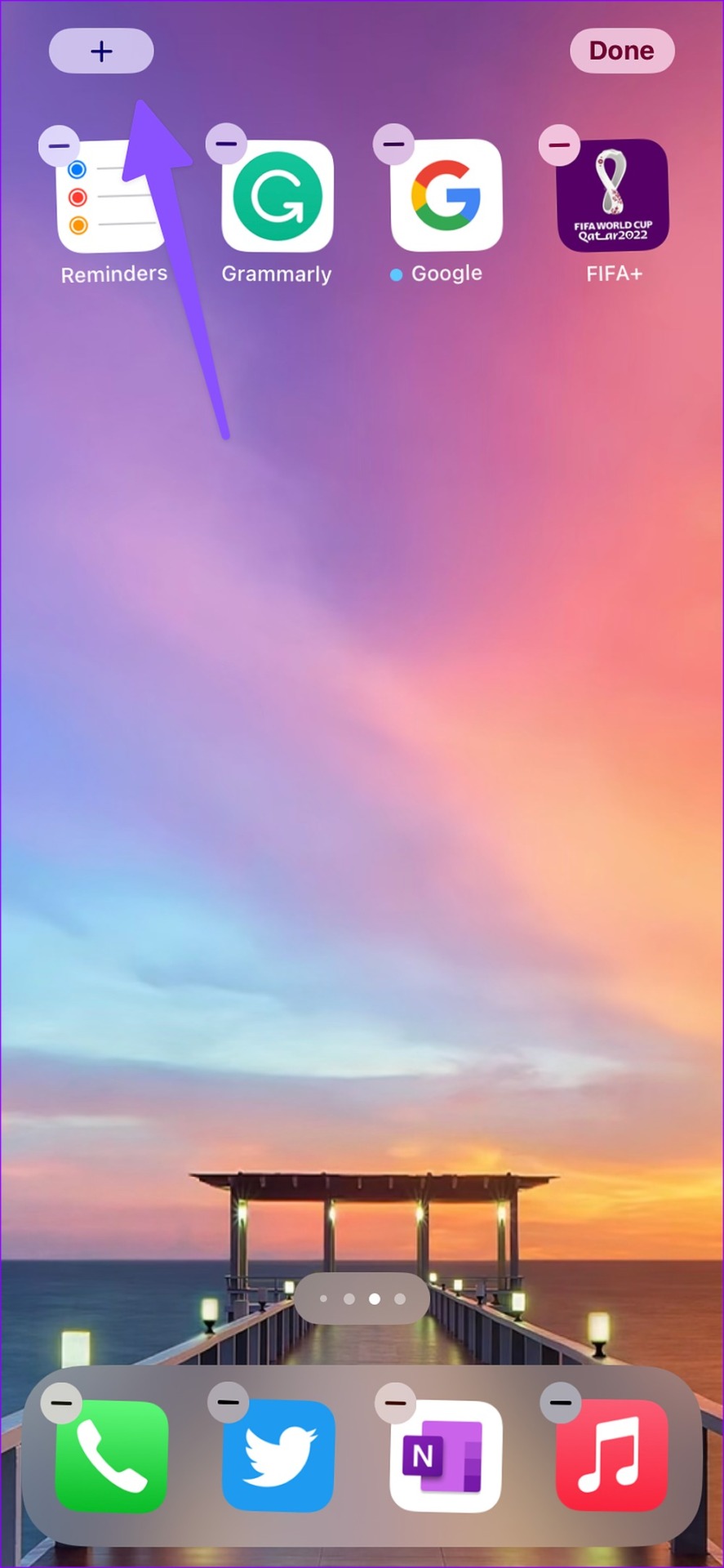
Step 1: Long-press on any empty space on the home screen.
Step 2: When the app icons start to jiggle, tap + in the top-left corner.
Step 3: Scroll to Gmail.

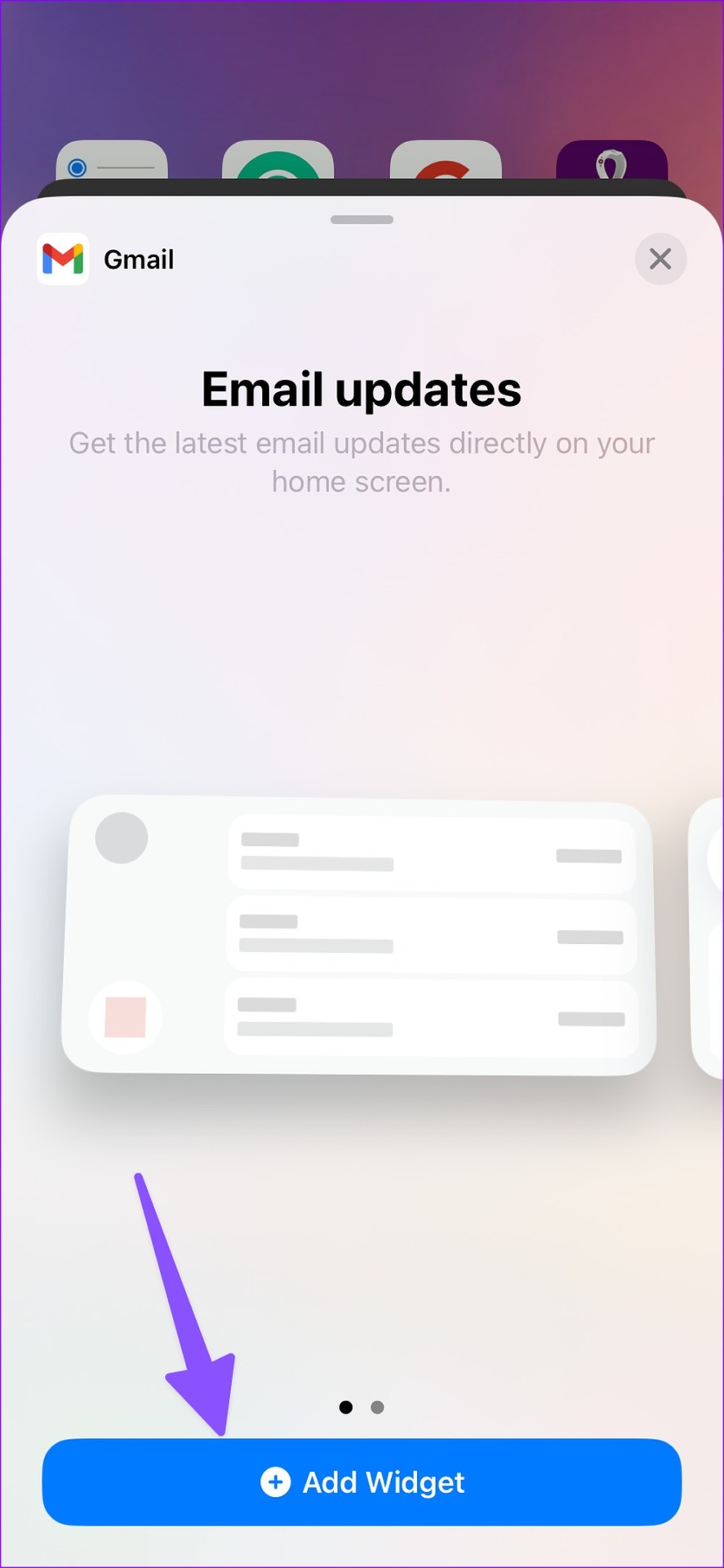
Quick Email Actions: Allows you to quickly jump to the unread email inbox, compose an email, and search for messages using the widget.
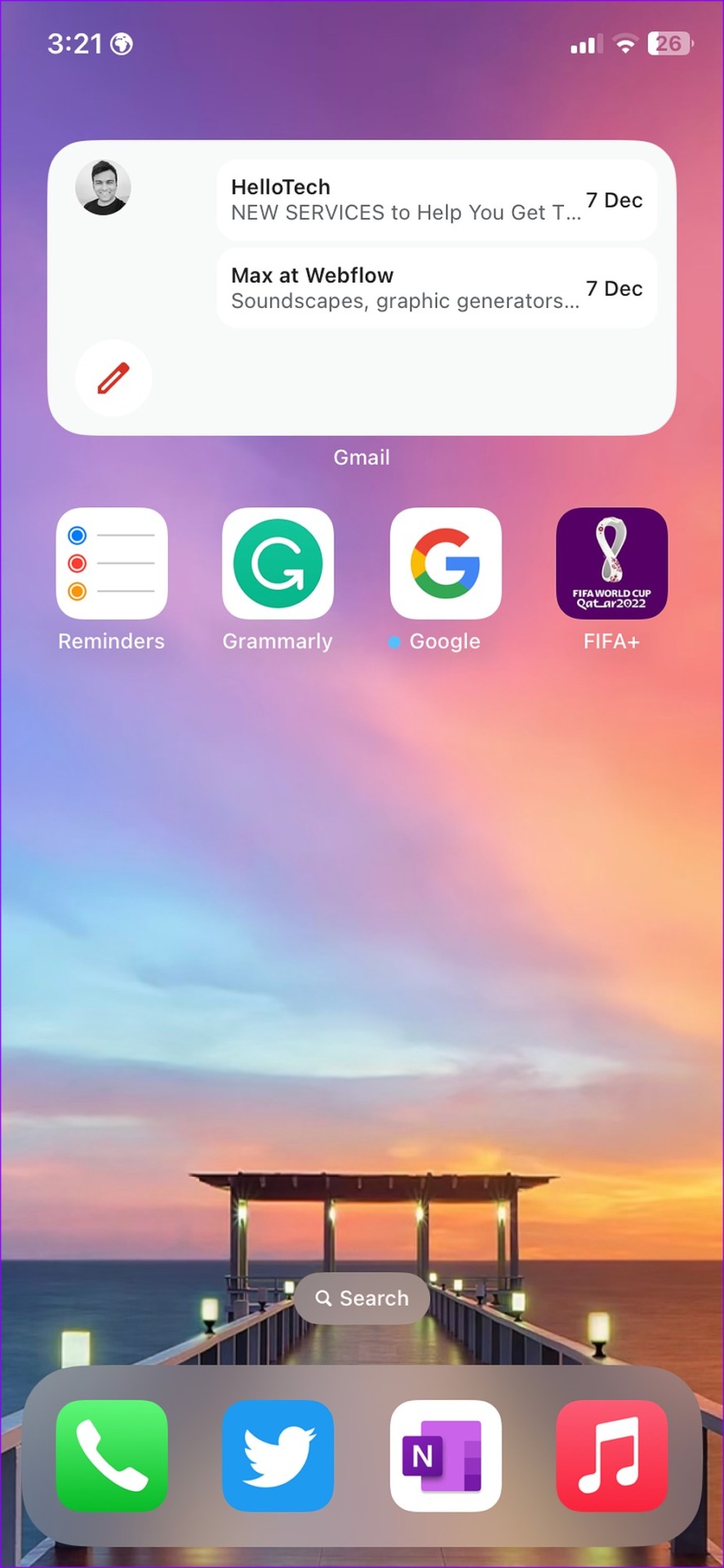
You can also create a stack of Gmail widgets on the iPhone home screen to save some space. Simply long-tap a widget and place it over another widget to create a stack. You can swipe up or down to cycle through Gmail widgets.
Add Gmail Lock Screen Widgets
Lock screen widgets are a part of the massive lock screen overhaul with the iOS 16 update. You can now customize your iPhone lock screen with custom fonts, colors, new wallpapers, and app widgets. You can check our dedicated post to customize your iPhone lock screen like a pro . Go through the steps below to set Gmail widgets on the lock screen.
Step 1: Long-tap on your iPhone lock screen.
Step 2: Select Customize.

Step 3: Tap Lock Screen.

Step 4: Select the widget space below the clock.

Step 5: Scroll to Gmail.

Step 6: You can either add a small unread widget or a normal size widget on the lock screen.

Step 7: Hit the Done button in the top right corner.

After this, you don’t need to open Gmail or go to the home screen to check unread emails. You can check the same from the iPhone lock screen too.
