Microsoft Teams’ user base is skyrocketing . Many companies around the world are switching to Microsoft Teams to enable their teams to collaborate and discuss ideas, projects, and more. Credit to Microsoft, new features are dropping for the app at a quick pace. Apart from updating video calling functions , Microsoft is also accommodating other tasks such as signing documents in the Teams app. That’s quite useful to quickly sign and share documents.

Microsoft is leveraging the Microsoft 365 suite and OneDrive integration to share and send files among the channels.
Apart from sharing screens, you might want to quickly sign and share some documents too. You can download them, open a PDF editor or digital signature software, import the document, sign it, and then send it to Microsoft Teams. Or you can directly open the document in Microsoft Teams and sign it using the suggested methods below. No need of any additional software on the PC or Mac to sign documents.
This post will guide you on how you can sign documents in Microsoft Teams using SignEasy and Zoho Sign. Let’s get started.
Sign Documents Using SignEasy in Microsoft Teams
SignEasy is a dedicated software to add and include a digital signature. The company offers the app for the Microsoft Teams. Follow the steps below to sign documents in Microsoft Teams.
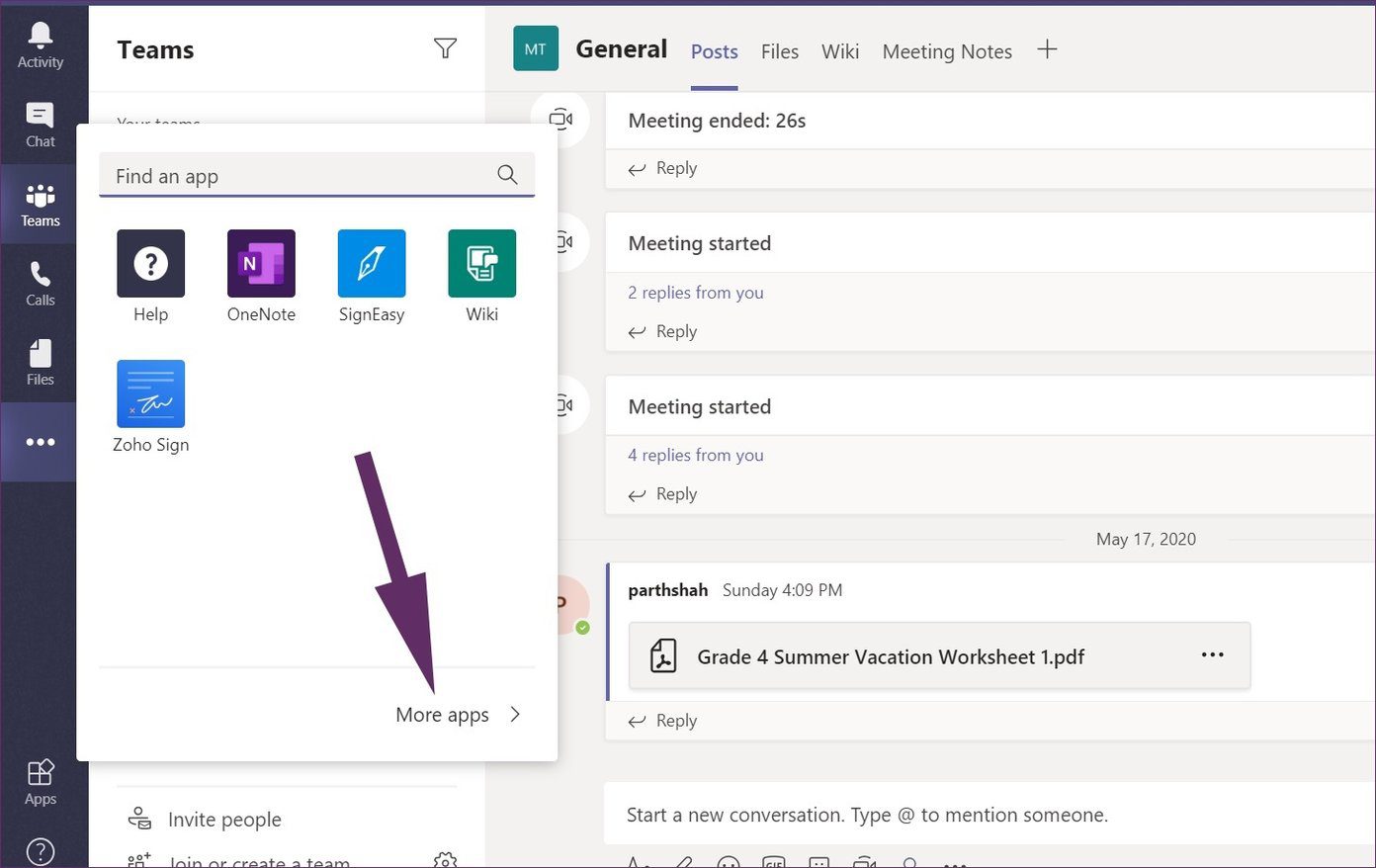
Step 1: Open Microsoft Teams and tap on the three-dot menu in the sidebar.
Step 2: From the following menu, tap on More apps option. That will open a dedicated app store for Microsoft Teams.
Step 3: From the search bar at the upper left corner, search for SignEasy, and select add to install the app in Microsoft Teams.
Step 4: After successful installation, you will find the app in the sidebar.

Step 5: Tap on SignEasy and create an account for the service.
Step 6: After successful signup, you will find the SignEasy tab in the app.
Step 7: You can drag and drop a file in SignEasy. Tap Import and add a file from the PC.
You can sign documents, add initials, date, text, checkmark, and even add an image to documents.
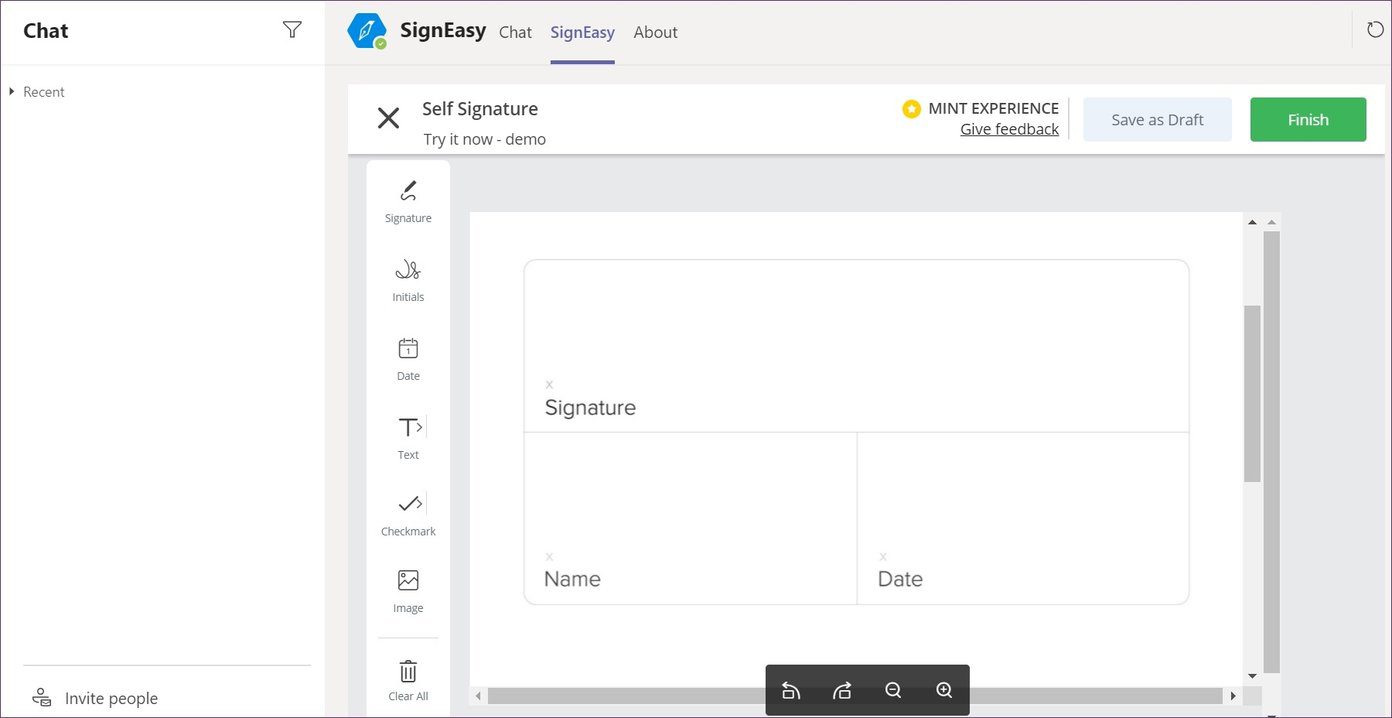
I like how SignEasy offers different options to sign documents. You can tap on the Signature menu in the sidebar and offer different types of signs with name, the ability to draw a signature, an option to upload sign from the PC, or the saved signatures.

I mostly opt for a sign from the type menu and save it as a primary signature for future use.

After filling up the necessary details, you can download the document on the device and share it among the members of Microsoft Teams. SignEasy offers 14-days of free trial, and after that, the paid plans start at $7 per month.
Sign Documents Using Zoho Sign in Microsoft Teams
Zoho Sign is an excellent alternative to SignEasy. If you use Zoho’s apps, then you should consider using Zoho’s solution to sign documents in Microsoft Teams . Go through the steps below.
Step 1: Open Microsoft Teams and navigate to the three-dot menu in the sidebar.
Step 2: Tap on More apps option and open a dedicated app store for Microsoft Teams.
Step 3: From the search bar at the upper left corner, search for Zoho Sign and select add to install the app in Microsoft Teams.

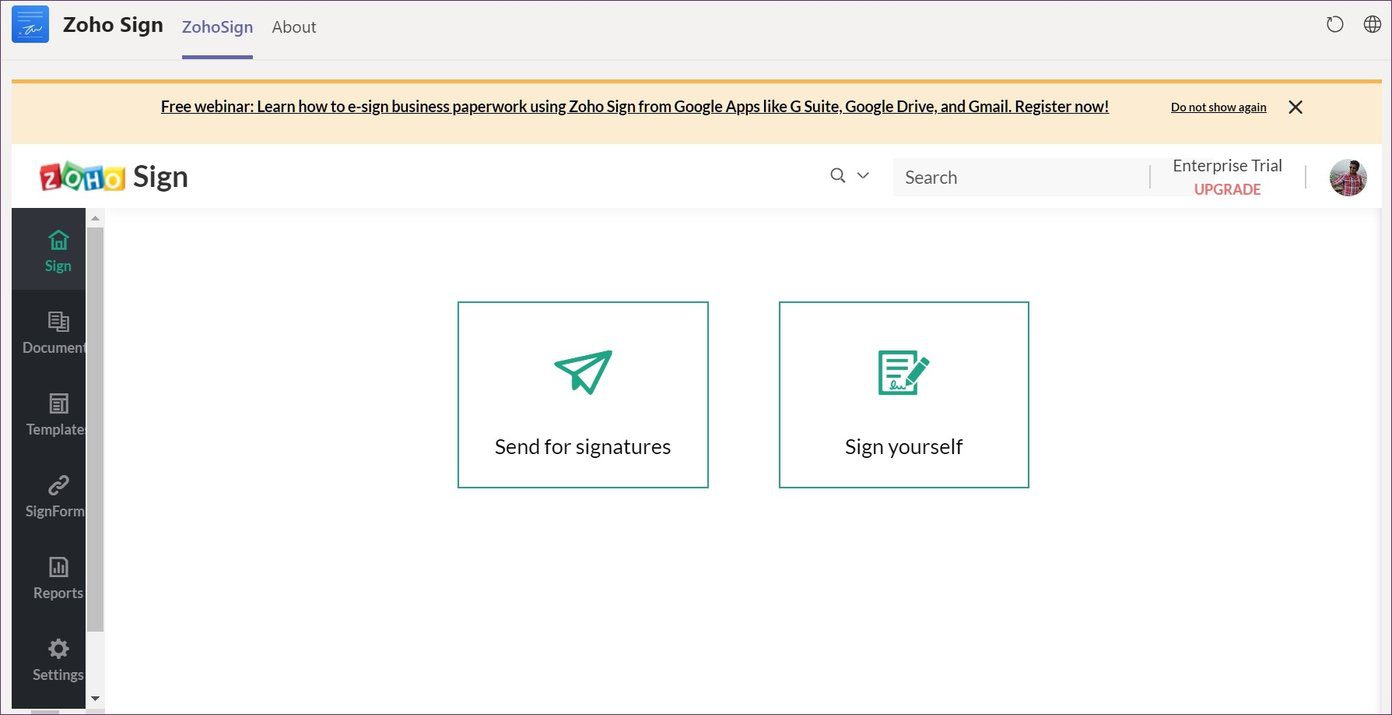
Step 4: After successful installation, open the Zoho Sign app from the sidebar and log in using the Zoho credentials. If you are using it for the first time, then signup for the service.
Step 5: Upload the file or use drag and drop to add documents in Zoho Sign.
Zoho will open the document in Microsoft Teams, and you can choose from the various options to edit PDF . They include the signature, initials, company details, email, text, job title, date, using the drag and drop from the sidebar.
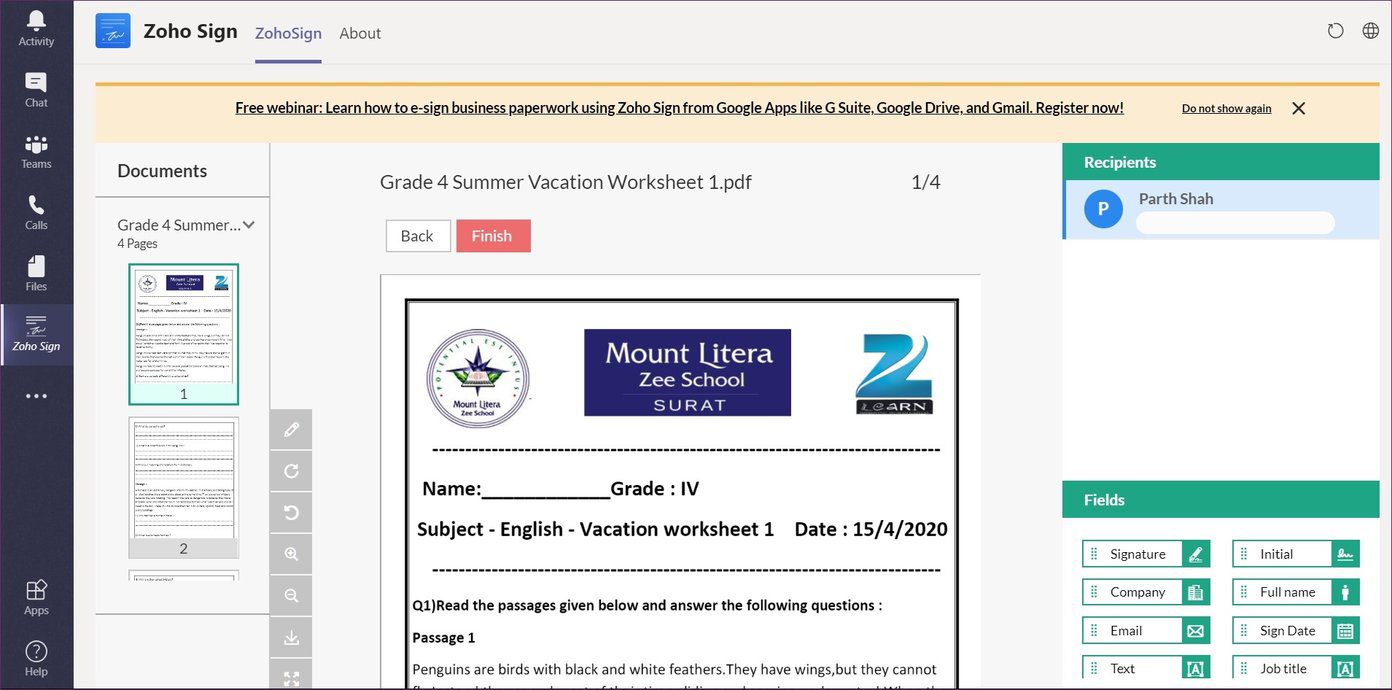
To sign a document, select the signature function and place it in the documents. You can select from the built-in signatures, draw your signature using the red/black/green pen, or upload a signature from the PC. I found the built-in signatures to be more professional than SignEasy’s offerings.

After finishing the editing, hit Save and it will store that in Zoho’s library. You can access them from the Documents menu. Now, you can share the signed document with team members on the Teams channel.

Sign Documents on the Go
So next time you’ve to sign and dispatch documents urgently, you can undertake the same using Microsoft Teams. A dedicated app store in Microsoft Teams is an excellent addition to the popular software. The add-ons aren’t limited to productivity software only. You will find project management, education, and apps for IT departments and developers too. After setting up Microsoft Teams, do visit the app store and download the relevant apps for you.
Next up: Do you know users can blur the background during video calls in Microsoft Teams? Read the post below to find out how to use the function in Teams software.
Was this helpful?
- Access the print queue on your computer and manually clear any stuck print jobs that might be causing the issue.
- Ensure you have the latest printer drivers installed. If not, update them or reinstall the drivers to resolve compatibility issues.
- Use your computer’s built-in printer troubleshooter tool to detect and fix common printer problems.
Preliminary Fixes
- Check Printer Connection : You should first try power cycling both your computer and printer. Refreshing the connection between your devices may solve this problem much quicker than you had anticipated.
- Check Pages and Ink : If your printer has run out of pages or ink, you may receive the ‘documents are waiting’ error. You should refill the ink or add more pages to your printer for a smooth operation.
- Check your Printer Status : Ensure your printer’s status is not set to offline. This will make the printer undetectable for your computer. As a result, your PC won’t be able to communicate with the printer.
Fix 1: Run the Printer Troubleshooter
Step 1: Navigate to Settings . Then, open the System and select Troubleshooters .
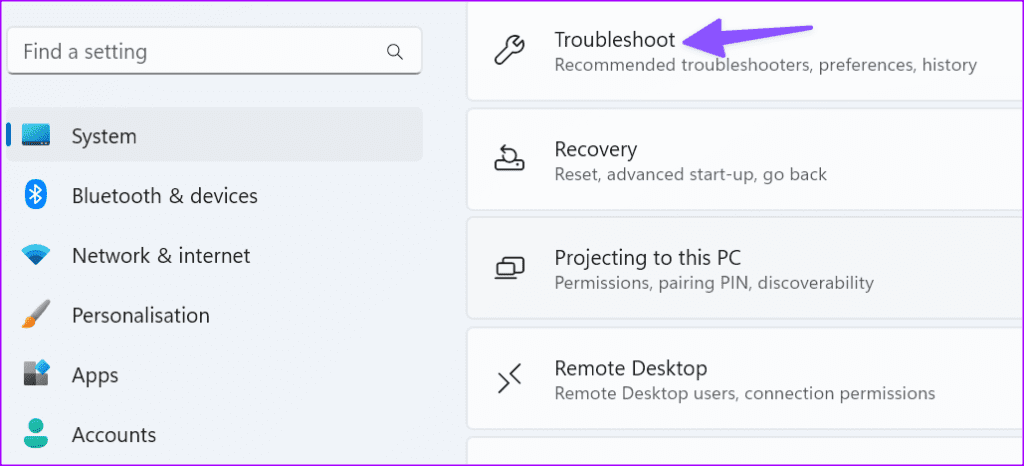
Step 2: Select Other troubleshooter . Now, Run the printer troubleshooter from the following menu and follow the on-screen instructions.
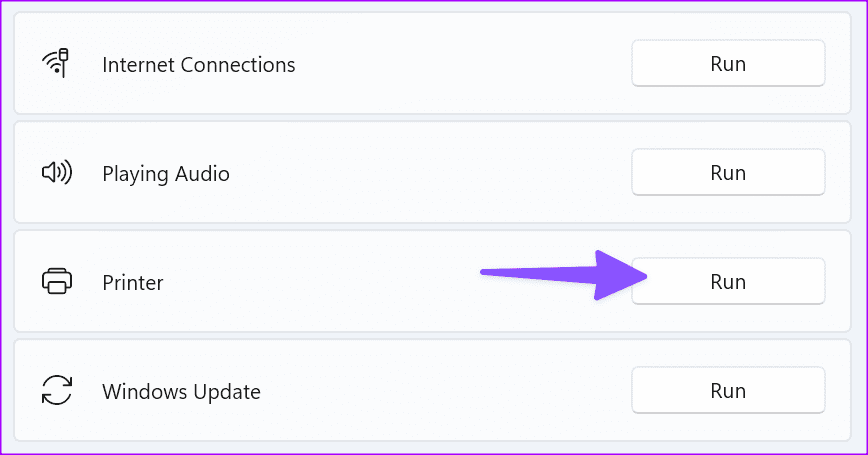
If the troubleshooter cannot solve your problem, try restarting the Print Spooler service.
Fix 2: Restart the Print Spooler
Step 1: Press Windows + R to open a new Run window.
Step 2: Then, type services.msc and press Enter .

It opens the services menu.
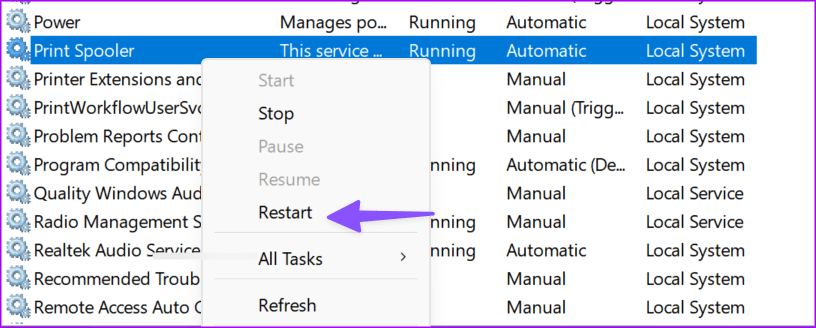
Step 3: Scroll down to Print Spooler .
Step 4: Right-click on the service and select Stop .
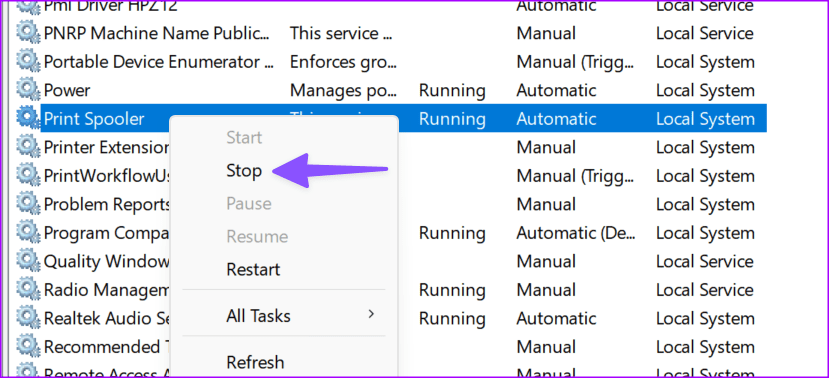
The service should no longer be running now.
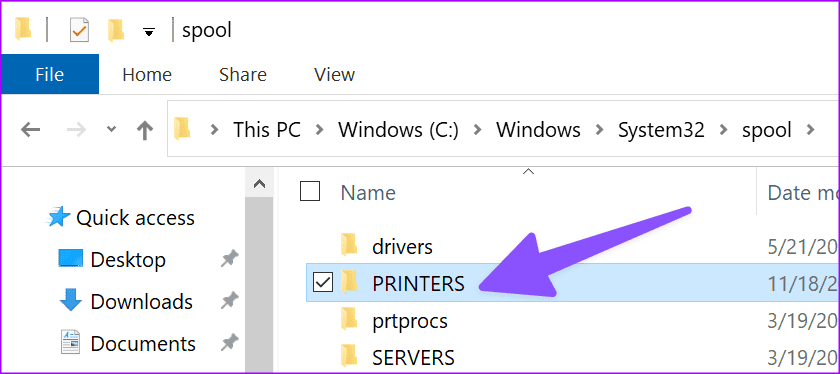
Step 5: Now, launch File Explorer and go to the following path.
C:\Windows\System32\spool\printers
Step 6: Delete the content of the folder. By doing that, you’ll delete the printing queue.
Note : Don’t delete the folder itself.
Step 7: Restart your computer.
Step 8: Go back to Print Spooler and restart the service.
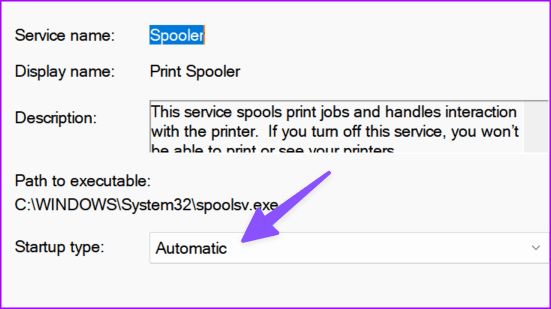
Step 9: Set the Startup Type to Automatic .
If the steps above are too complicated, complete the same task from the Command Prompt menu.
Step 1: Launch the Command Prompt as admin.
Step 2: Run these commands and press Enter after each one.
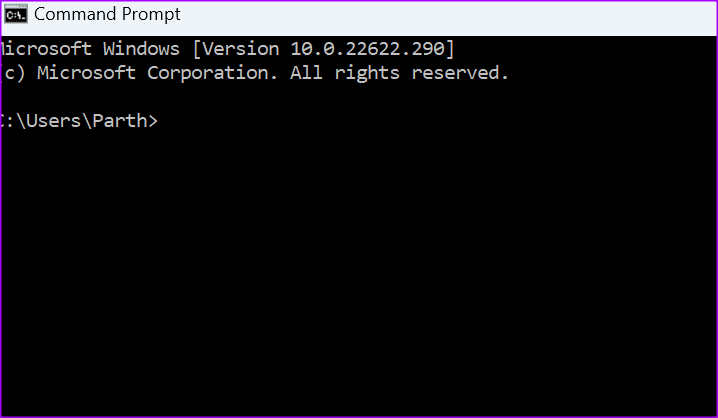
net stop spooler
del /Q %systemroot%\system32\spool\printers\*.*
net start spooler
Check if the error is gone. If this doesn’t resolve, check out the next fix.
Fix 3: Reinstall the Printer Drivers
If your print drivers got corrupted, are missing, or are running outdated drivers, you may not print your documents. That’s why you need to update your drivers. Or reinstall them if they get corrupted.
Step 1: Launch the Device Manager . Then, go to Print Queues and expand the list.
Step 2: Select Update driver and check if the problem is gone.
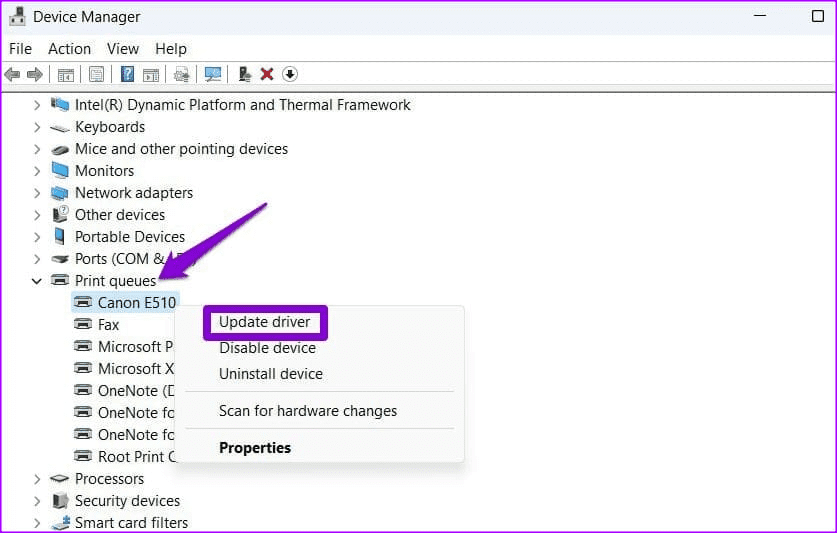
If it persists, select Uninstall device to remove your current print drivers. Restart your computer. Your device will automatically install the latest print drivers.
Check if your printer still says documents are waiting to be printed.
Fix 4: Remove and Add Your Printer
If nothing worked, maybe re-adding your printer to your computer will do the trick. It’s a handy way to fix the printer ‘documents waiting’ error.
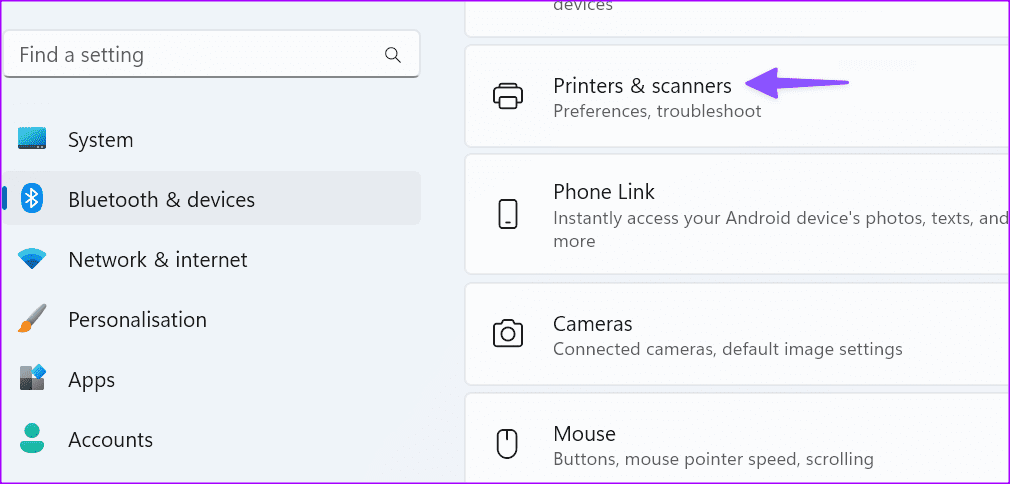
Step 1: Head to Settings > Bluetooth & devices > Printers & scanners menu.
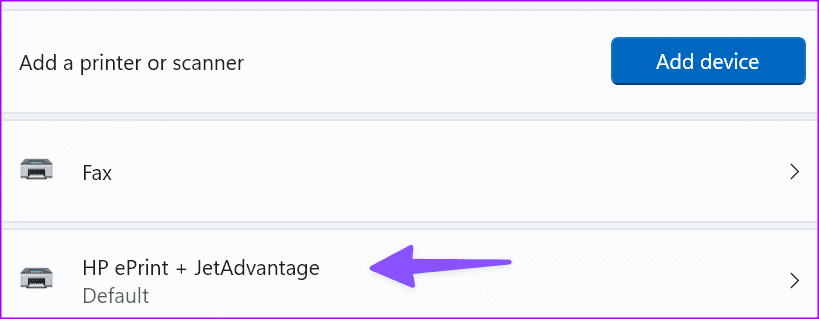
Step 2: Select your preferred printer.
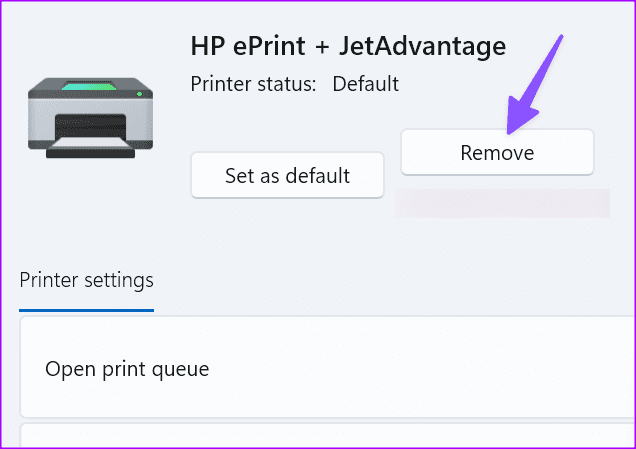
You can check the printer’s details. You can run the troubleshooter from the same menu too.
Step 3: Click Remove .
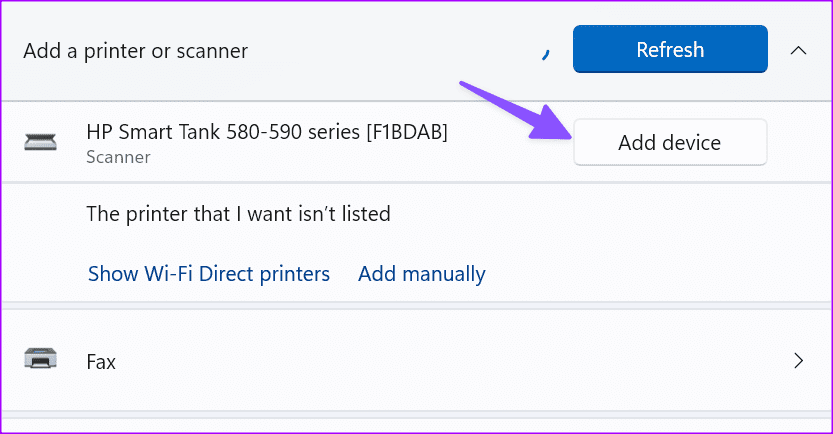
Now, go back and select Add device . Once Windows detects your printer, click Add device .
You may need to cancel documents waiting to print and try again.
If the printing error only appears while using Google Chrome , check our dedicated guide to troubleshoot it. Before you rush to the nearest store to print your documents and files, use the tricks above to fix the problem.
