- You can upload Private or Unlisted videos on both the mobile and web apps and change existing videos to Private or Unlisted.
- Unlisted Videos can be viewed by people with the link for them.
- Private videos can be accessed by people you have invited. You can invite up to fifty people with a YouTube account to watch them.
How to Upload an Unlisted or Private Video on YouTube
On Web Browser
Step 1: Open YouTube on your web browser. Click on the videocam icon at the top right corner > Upload video .

Step 2: Select the file you want to upload. Tap on Next and continue by adding the relevant details.
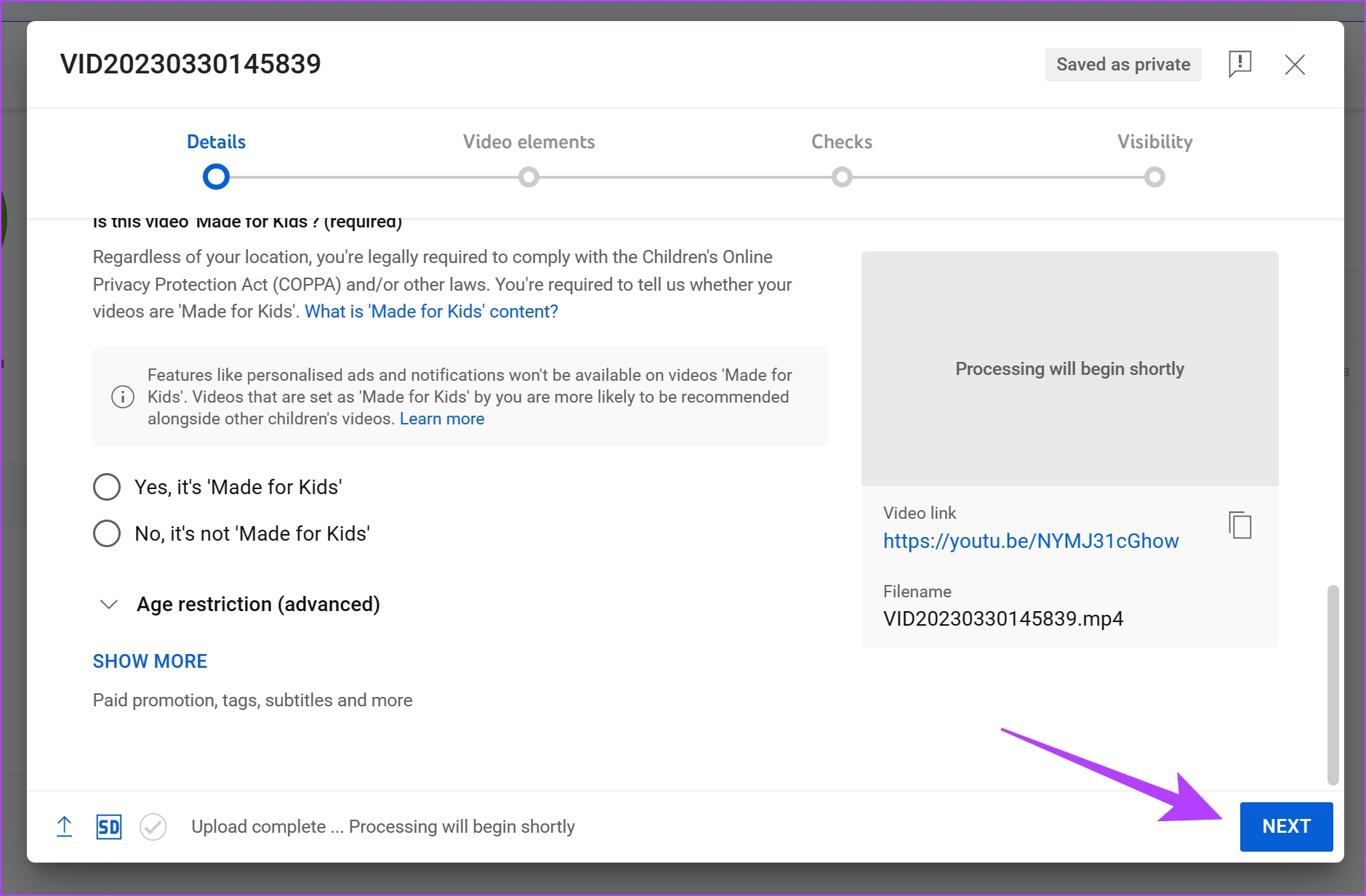
Step 3: Once you reach the Visibility option, check the box for Unlisted or Private and click on Save .

On YouTube Mobile App
Step 1: Open the YouTube app on your device. Tap on the Plus icon in the bottom ribbon > Upload a video .
Step 2: Select the video you want to upload. Preview the video and tap on Next . Tap on Visibility .

Step 3: Ensure it is set to Unlisted or Private . Tap on Next , select whether your video is suitable for kids, and Upload it.

How to Share Links for Unlisted or Private YouTube Videos
Once you upload a video on YouTube and set the visibility to unlisted, you can share the video link with your friends and family. Hence, only the ones with the link can exclusively watch the videos.
For Private videos, you must invite people using their email addresses.
On Web
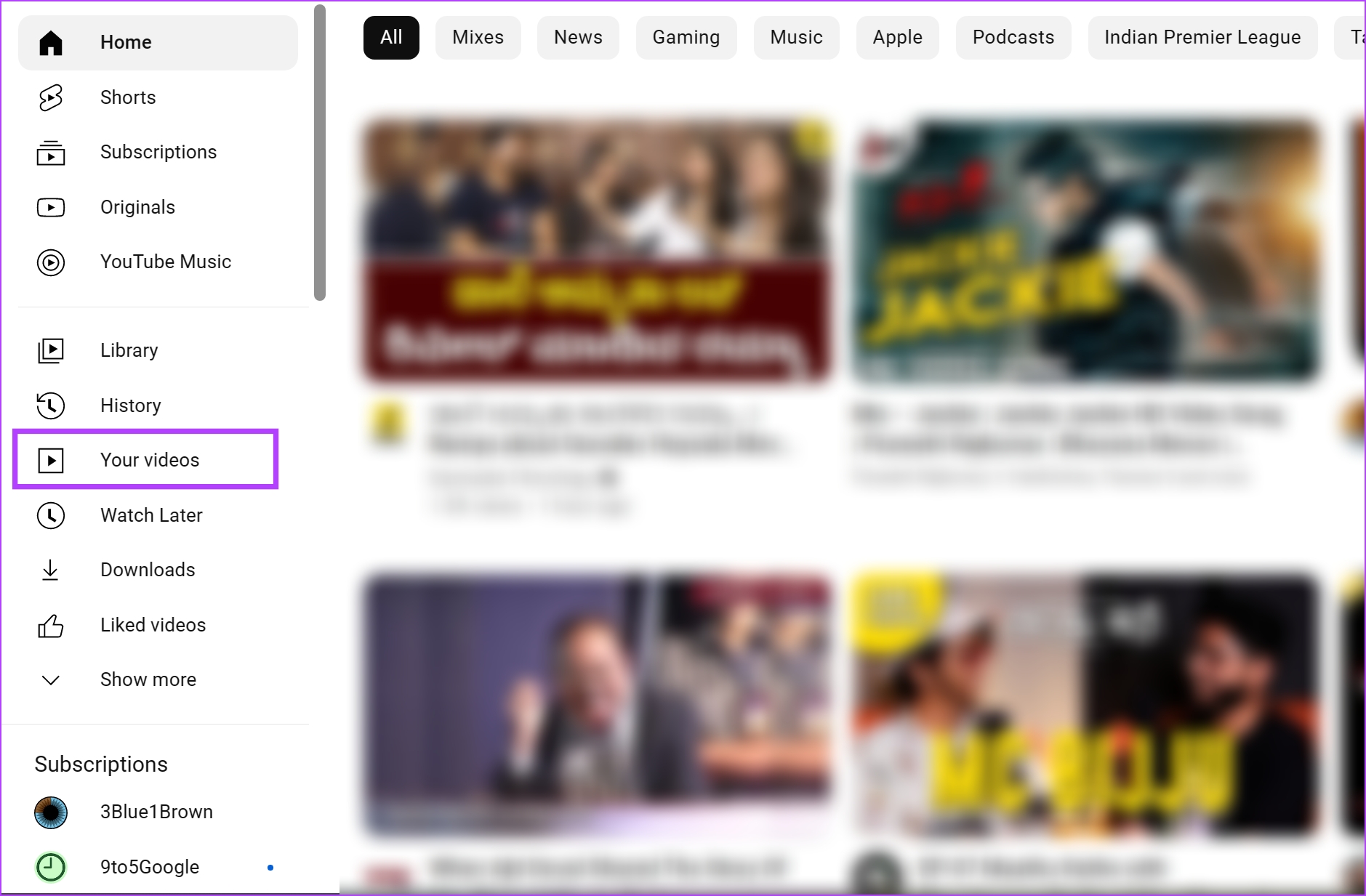
Step 1: Open YouTube on your browser and click on Your videos .
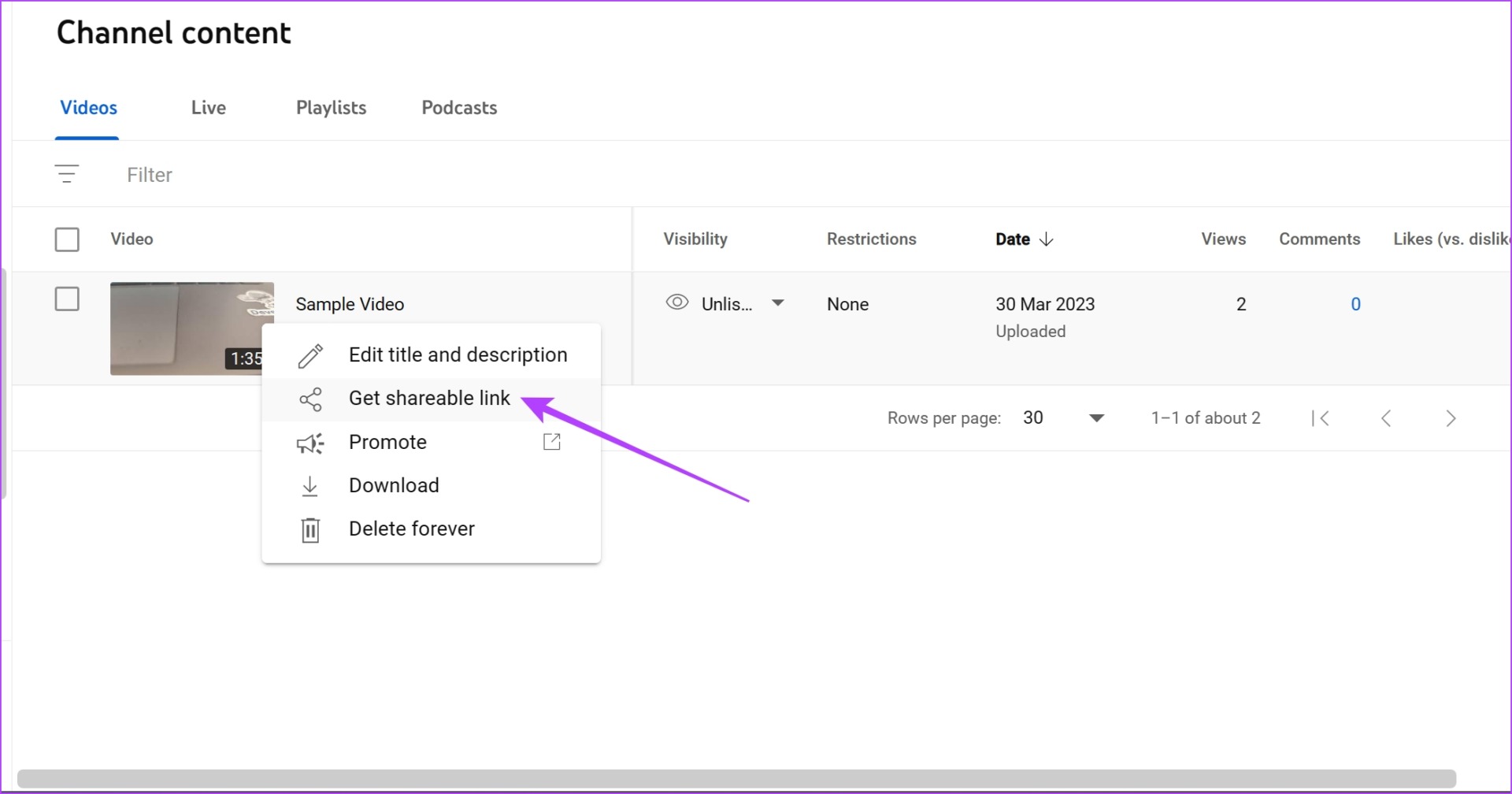
Step 2: Hover the mouse around the video you want to share and click on the three dots icon .

Step 3: Click on Get shareable link .
The link will be copied to your clipboard and you can share it with your friends and family so they can watch the video.
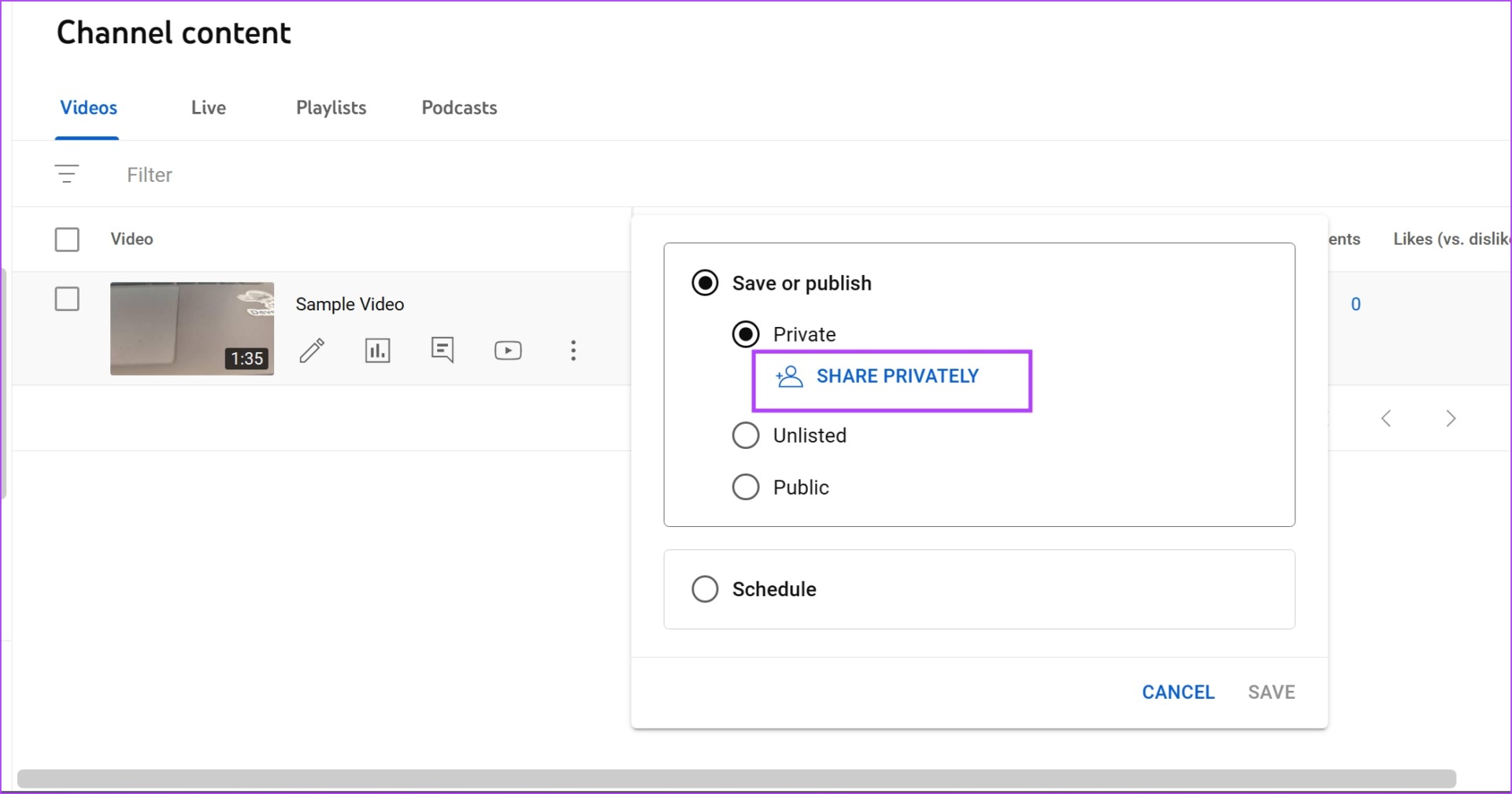
Step 4: For Private videos, click on Private under the visibility of your video.

Step 5: Now, click on Share Privately . Add the email addresses of the people you want to invite and click on Done .
On YouTube App (Unlisted Videos Only)
Unfortunately, you can only share Unlisted YouTube videos on the mobile app.
Step 1: Open the YouTube app on your device. Tap on Library and select Your videos .
Step 2: Tap on the three-dot icon below the video you want to share. Now, tap on Share video .
Hence, you can share your unlisted videos by using the given sharing options.

How to Make Your Existing YouTube Videos Unlisted or Private
Here’s how to change the visibility of an existing public video to make it unlisted or private.
On Web
Step 1: Open YouTube on your browser and click on Your videos .
Step 2: Now, click on the public icon under Visibility .
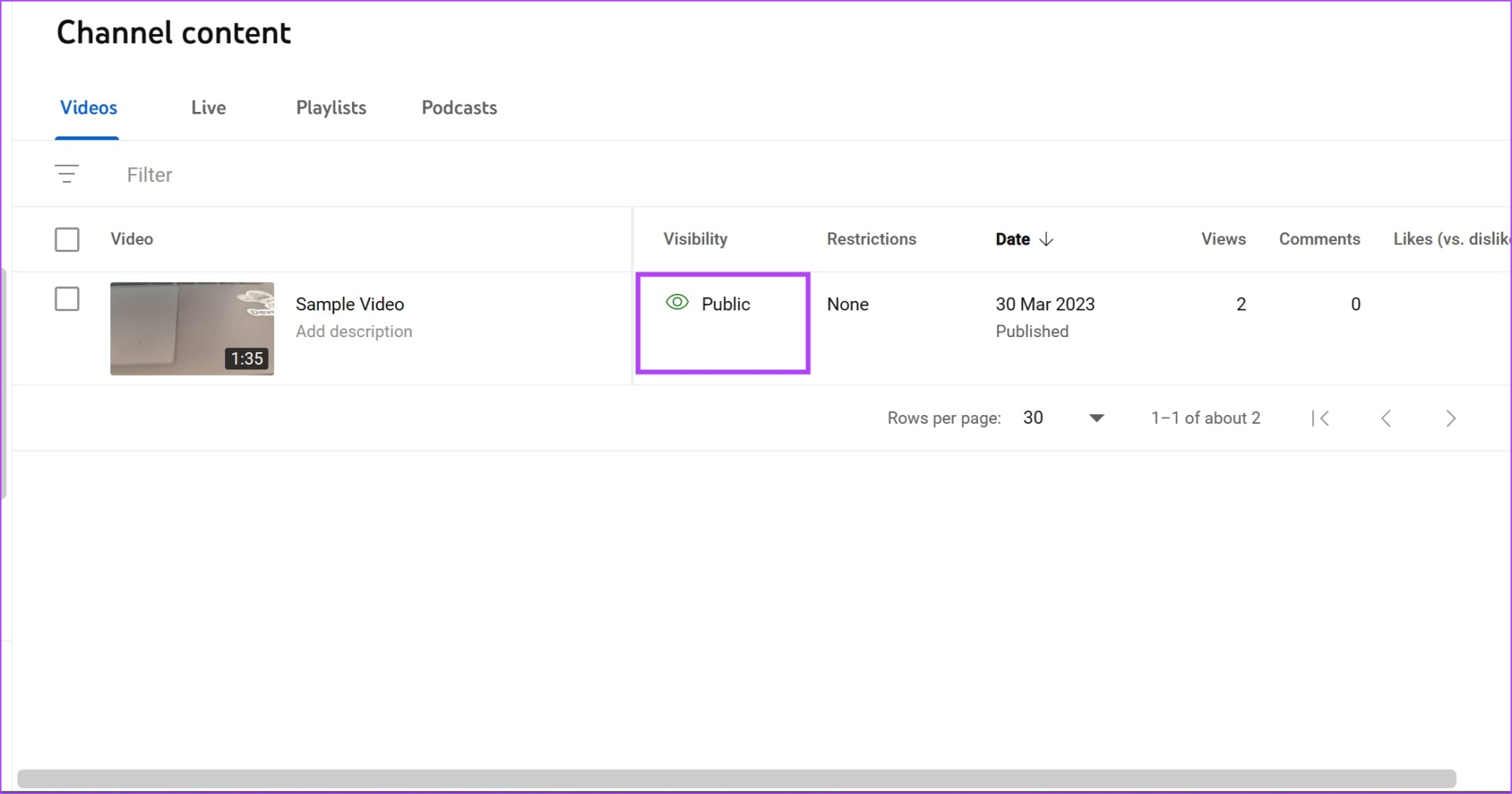
Step 3: Check the box for Unlisted to change the visibility and click on Save .

Next, let us see how to make existing videos unlisted on the mobile app.
On Mobile App
Step 1: Open the YouTube app on your device. Tap on Library and select Your videos .
Step 2: Tap on the three-dot icon below the video you want to change its visibility > tap on Edit .
Step 3: Tap on Visibility > select Unlisted or Private and now go back. Tap on Save .

