- You can select different color options for Stars, such as purple-question, green-check, and more.
- Gmail offers four-star styles as default, but you can add more from settings.
- You can automatically add a star to a Gmail inbox using filters.
Add Star to an Email on Web
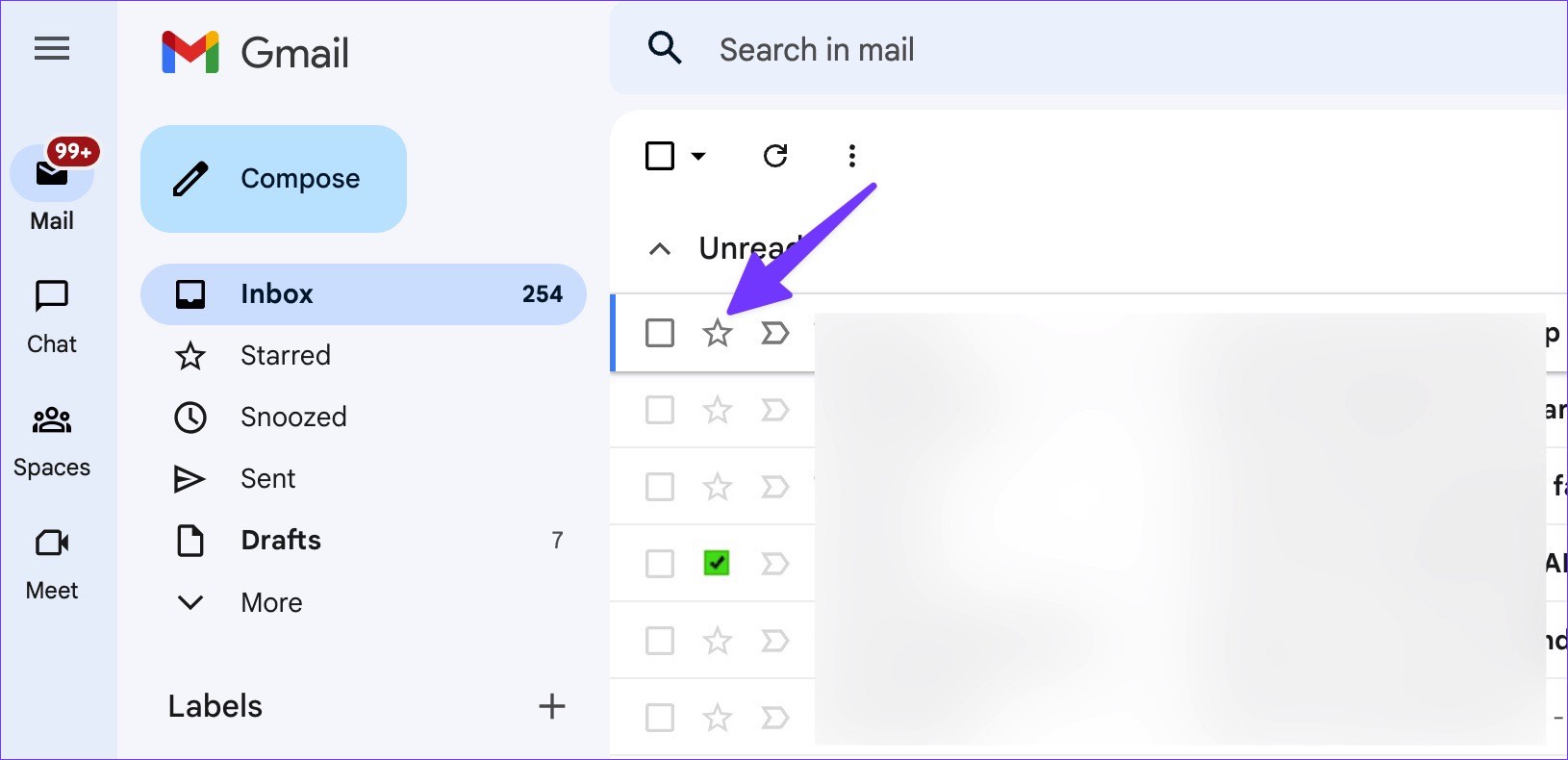
Step 1: Open Gmail and locate the essential email or the one you want to visit again.
Step 2: Select the star icon beside the email.
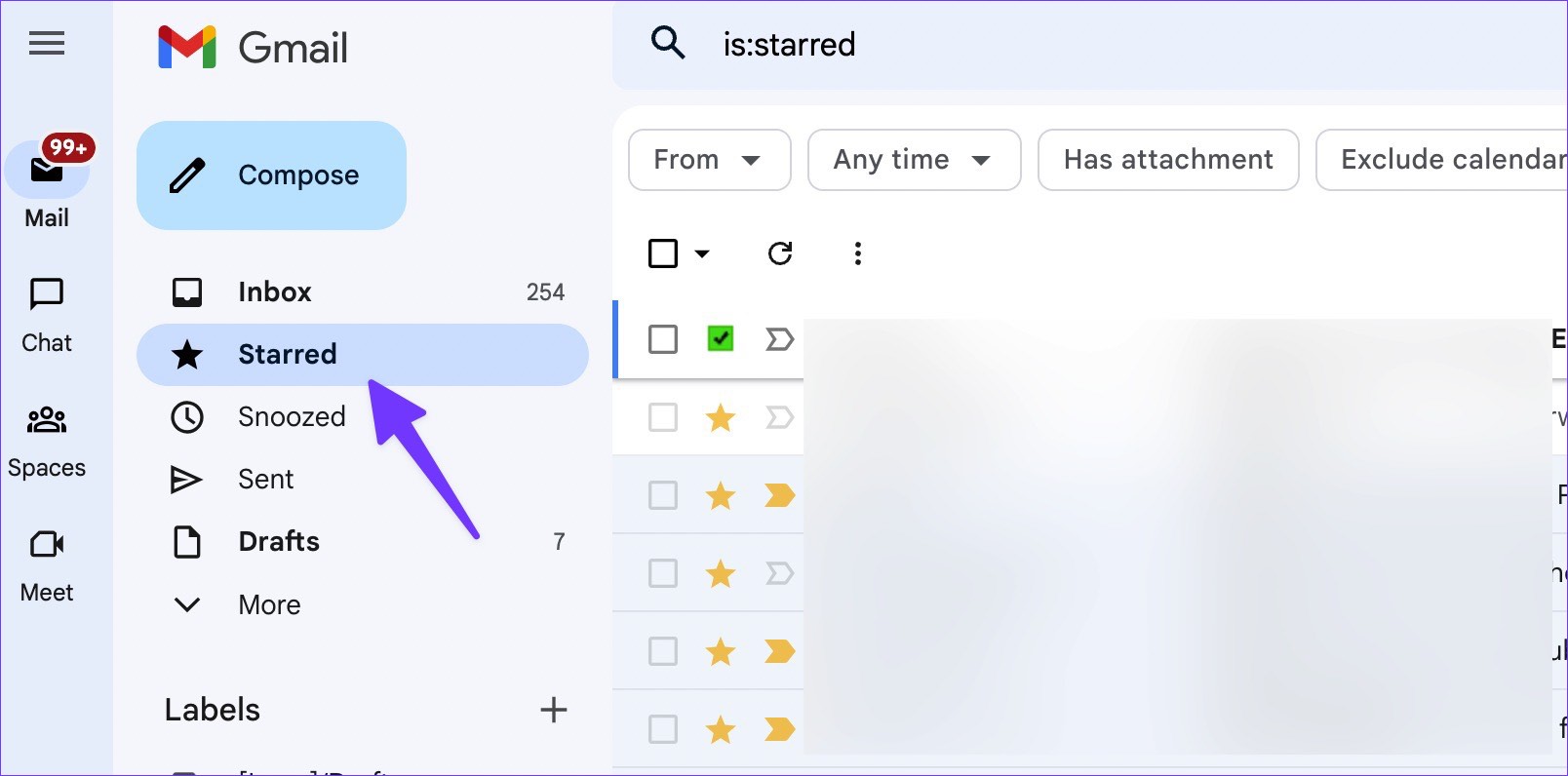
Step 3: From the Gmail sidebar, click on the Starred label to view your marked emails in one place.
Use Gmail Mobile Apps to Star Emails
Step 1: Open Gmail on iPhone or Android.
Step 2: Tap the star icon beside an email.

Step 3: To check your favorite emails, tap the hamburger menu at the top-left corner and tap Starred .
Use Different Star Styles
Step 1: Find the email address to which you want to add a star on the phone or web.
Step 2: Successfully click on the star icon and move between star types in use.

Step 3: When you visit Starred inbox from the sidebar, you can check different star types in action. It’s easy to separate them from the standard starred email.
Unfortunately, there is no way to use different star types on Gmail mobile apps.
Customize Star Styles on Gmail
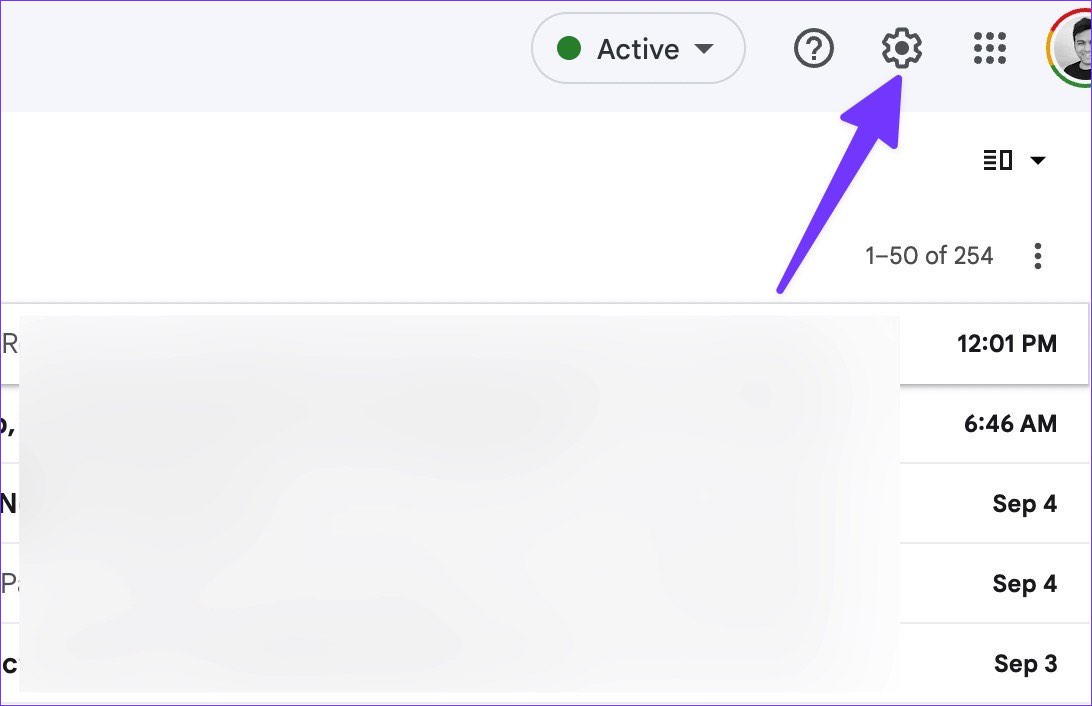
Step 1: Open Gmail in your preferred web browser and select the Settings gear at the top-right corner.
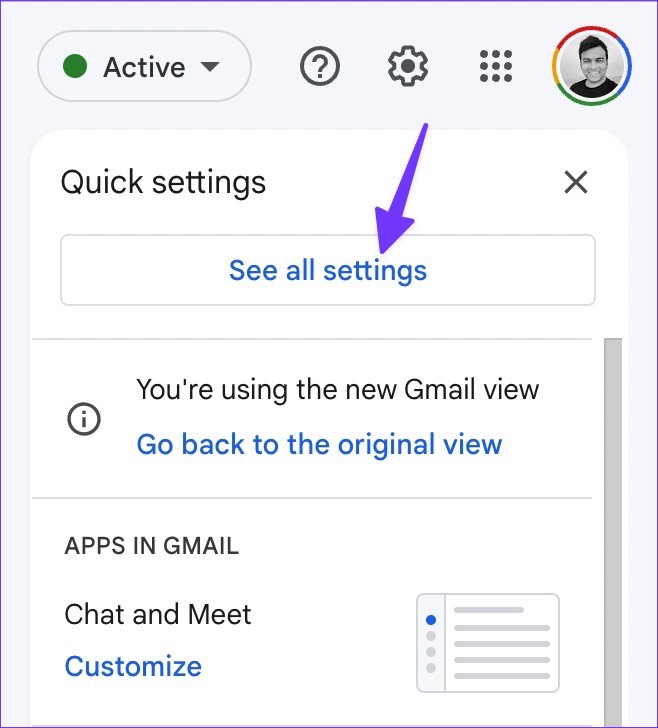
Step 2: Click on See all settings from the flyout to open the General section. Scroll to the Stars section.
Step 3: You’ll find the stars under In use and Not in use in this section.
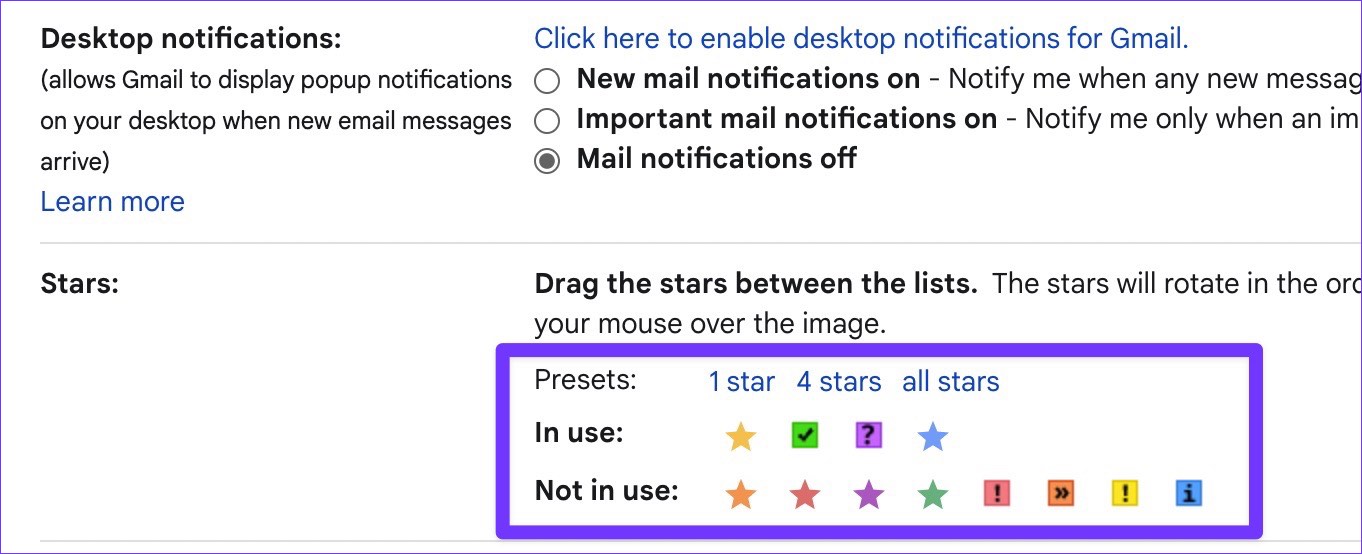
Step 4: Drag the stars between the lists. The stars will rotate in the order shown below when you click successively. Hover your mouse over the image to learn the name of a star for search.
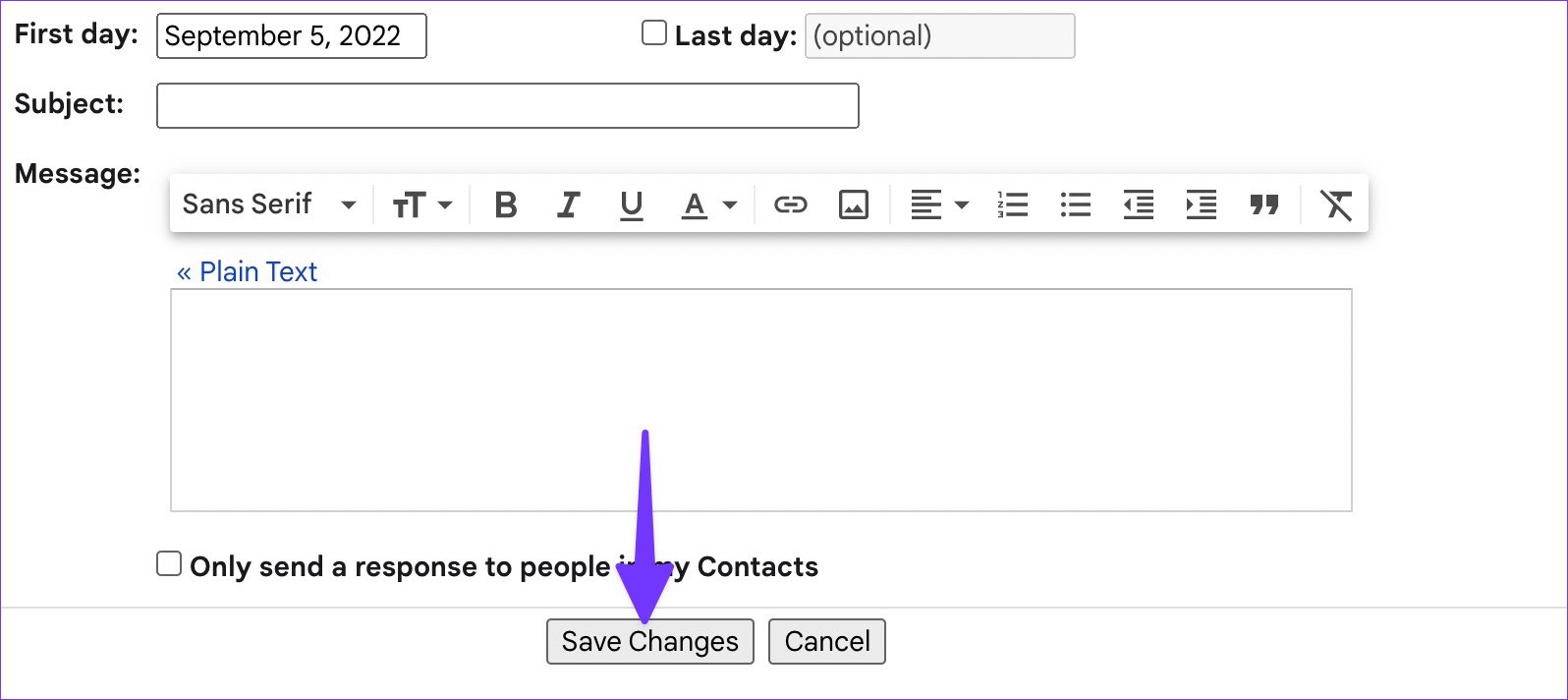
Step 5: You can also choose stars from default Presets . Scroll down and press the Save Changes button.
Automatically Add a Star to a Gmail Inbox
Step 1: Open Gmail and click on Show search , i.e., the menu control at the end of the search bar.

Step 2: Enter the email address, subject, words, etc., to filter existing or upcoming emails and click on Create filter .

Step 3: Check the box for Star it and click on Create filter .

After creating this filter , whenever you receive an email that meets all the conditions, Gmail will automatically add a star and send it to the Starred inbox. However, the service won’t allow you to assign other star styles like blue-star, purple-question, green-star, and more.
