- Open the Accounts page on Netflix using a web browser on your desktop or smartphone > click on Viewing Activity > then delete the watch history.
- You can delete individual movies or shows or delete everything at once from your history.
- You can also save a local copy of your viewing history by downloading a CSV file.
How to Delete Watch History on Netflix
On Mobile and Desktop
Step 1: Open the Accounts page on Netflix . Select the profile for which you want to check the viewing history.
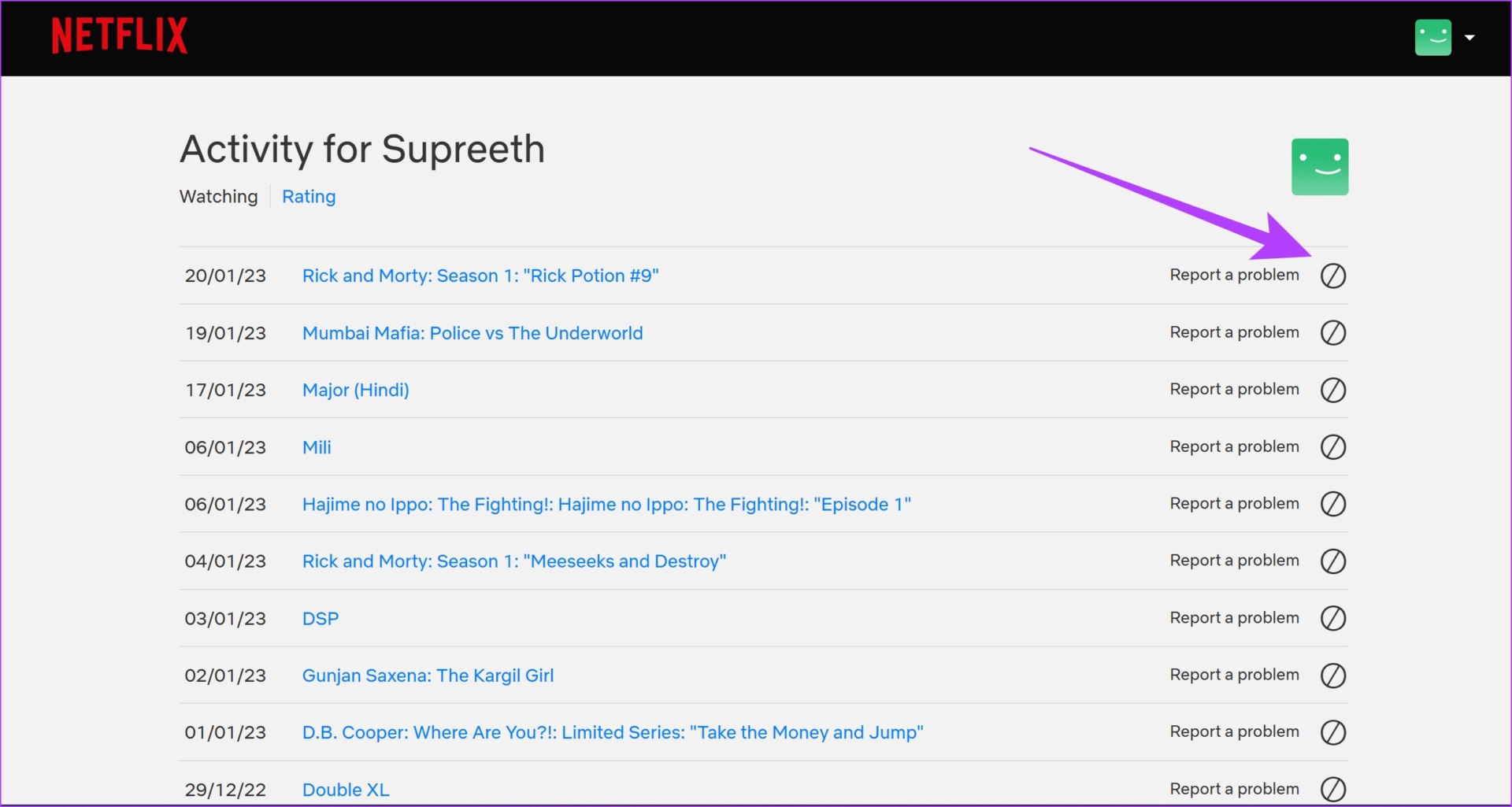
Step 2: Tap on Viewing Activity .

Step 3: Tap on the hide button next to the title you want to delete from your Netflix watch history.
You will now get a confirmation message that the item has been hidden.
You can also scroll down and use the Hide All button to delete your entire viewing history.
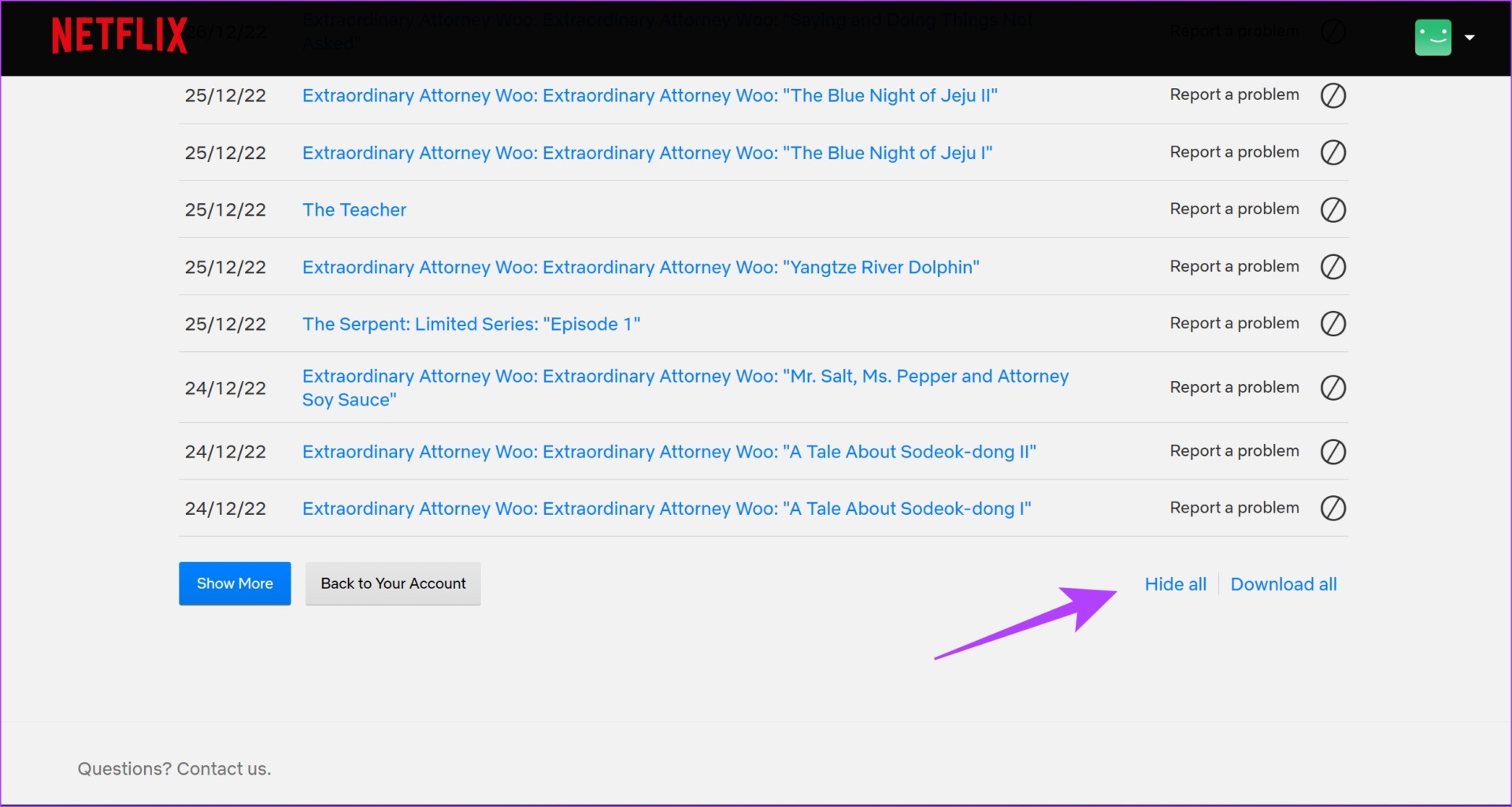
Tip: You can click on the Download All option to save a record of your viewing history as a CSV file.
On Smart TV
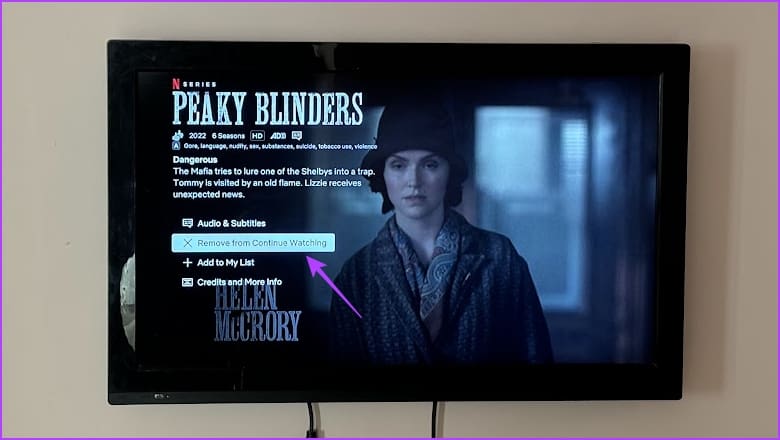
While you cannot reset the watch progress for a Netflix show or a movie on your smart TV , you can remove shows from continue watching . Simply open the title, go down the list of options, and select Remove from Continue Watching .
No. Once you delete an item on the Netflix Viewing activity, it will not appear in the downloaded list.
This usually occurs if someone who is supposed to use a different profile uses your profile to watch titles on Netflix.
Yes, but you can only see the date of the watch and not the exact time.
No, there is no option to view Netflix without your history getting recorded.
