- To watch videos on the Steam Deck, you must switch to Desktop mode for best results.
- You can seamlessly stream videos from websites like Netflix and YouTube on your Steam Deck.
- Alternatively, you can download and watch offline video files using a 3rd-party video player.
Stream YouTube, Netflix, or Other Websites on Steam Deck
Step 1 : Ensure your Steam Deck is connected to the Internet. To do that, press the Steam button on your console. In the pop-up menu, select Settings .
Step 2 : Now, tap on Internet from the sidebar. Then, connect to a Wi-Fi of your choice.

Step 3 : Next, enter the Desktop Mode. For that, press the Steam button on your console and select Power .
Step 4 : Select Switch to Desktop from the pop-up list.

Step 5 : Next, launch a web browser. By default, the Steam Deck has the Mozilla Firefox browser installed. To access it, tap on the Application Launcher icon and navigate to Internet > Firefox Web Browser .
Step 6 : In the address bar, enter the URL of the streaming website you wish to access.
Note : If the website requires you to enable DRM, you’ll get a notification at the top. Simply click on Enable DRM to proceed.
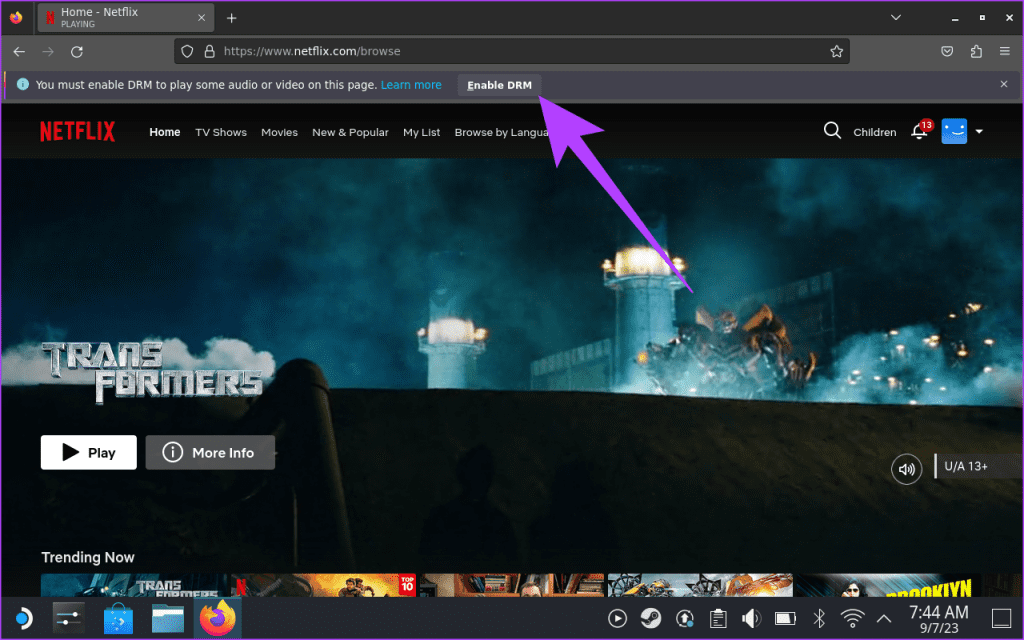
Step 8 : That’s it. Now, refresh the webpage and enjoy your movie, TV show, or any video on your Steam Deck.
Watch Offline Movies and Videos on Steam Deck
If you don’t have an internet connection or prefer watching movies offline, you can also watch movies on Steam Deck stored in your device’s internal storage or external storage device. To watch offline movies on Steam Deck, download a media player app. We will go with the VLC media player for illustration.
Step 1 : Open the Application Launcher and navigate to All Applications > Discover .
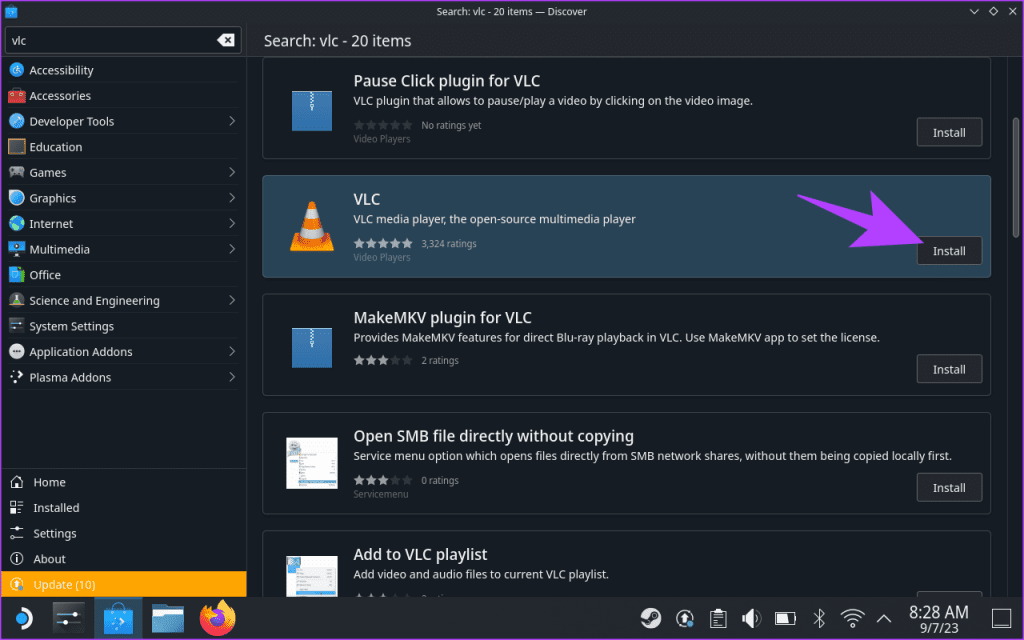
Step 2 : Click on the Search section at the top. Type the name of the media player you wish to install and search for it. We’ll use VLC .
Step 3 : From the search results, select VLC media player . Click on Install to proceed.
Step 4 : Now that VLC is installed on your Steam Deck, it’s time to transfer media to your console . You can download videos from a cloud storage service, connect your Steam Deck to a PC, or transfer media to a microSD card.
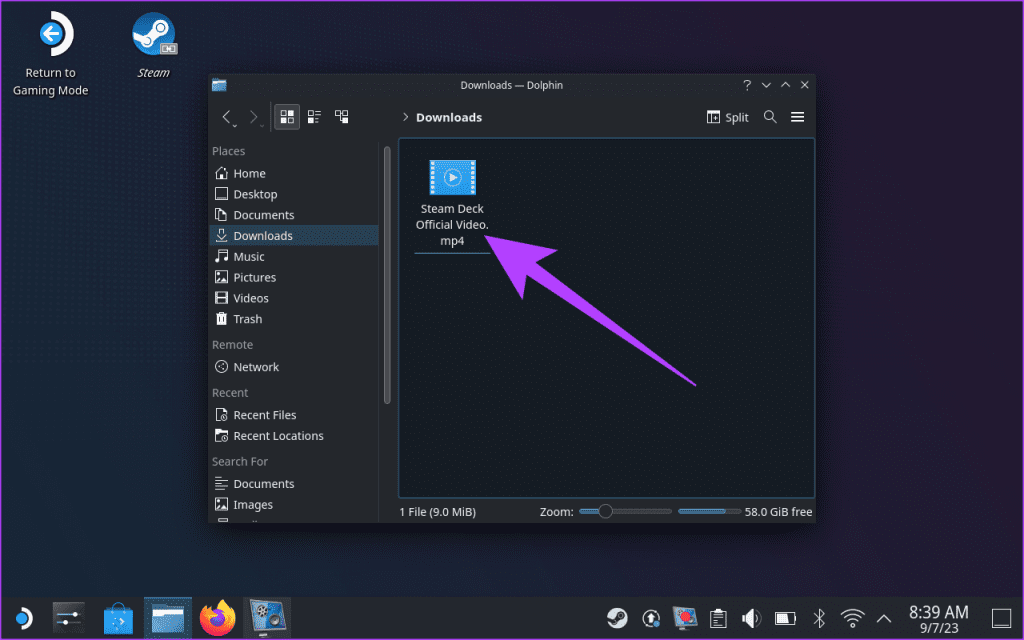
Step 5 : Once you have the media loaded, launch VLC . To do that, open the Application Launcher and navigate to Multimedia > VLC media player.
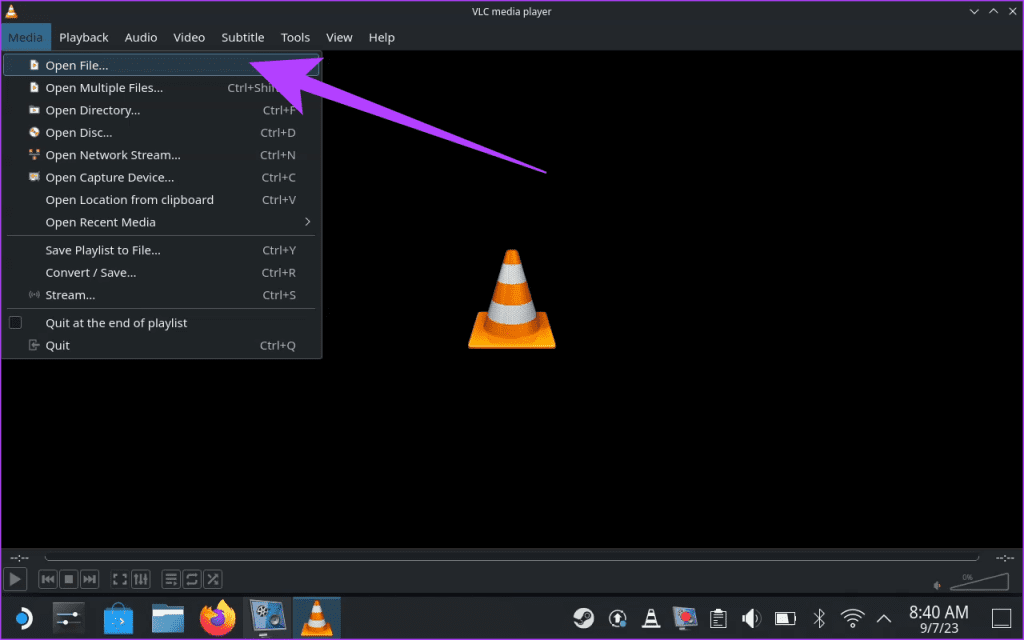
Step 6 : Inside the VLC media player, click the Media option in the menu bar. Then, select the ‘Open File…’ option.
Step 7 : Now, navigate to the folder containing the video file you want to play. Once done, highlight it and click on Open .
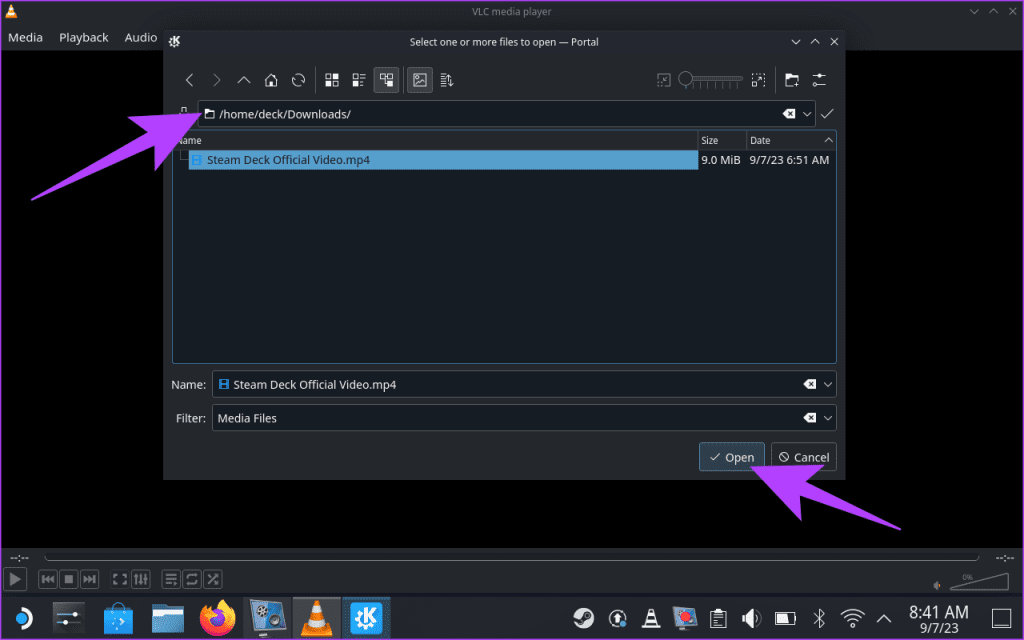
And that’s it. Your offline video file will now play inside the VLC media player.
Watch Movies on a Bigger Display With Steam Deck
You can also connect your Steam Deck to a TV or monitor if you want to watch movies on a bigger display. To do this, you will need a USB-C to HDMI cable . Alternatively, you can use a Steam Deck dock as well. Once the cable is connected, select the display output option as you like.
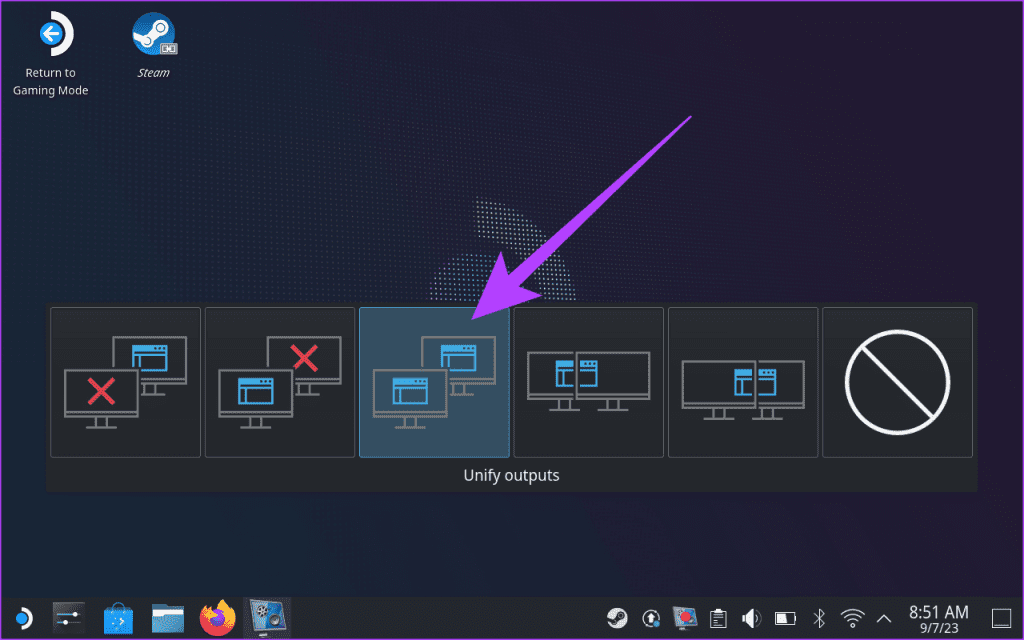
Once done, you can playback the media file on your TV, monitor, or any other external display connected to the Steam Deck.
Yes, you can install Kodi on your Steam Deck. Kodi is a free, open-source media player that can be used to organize and play your movies, TV shows, music, and other media. You can install Kodi on your Steam Deck from the Discover Store app.
Netflix on Steam Deck is currently limited to 720p resolution. This is due to the platform’s DRM restrictions. However, considering the Steam Deck has an 800p display, this shouldn’t make a massive difference in quality.
The go-to recommendation is the VLC Media Player on Steam Deck. However, you can also check out SMPlayer, Haruna Media Player, PlasmaTube, or MPV. Additionally, you can check out Elisa, Amberol, and Vvave media players if you prefer listening to music files. Finally, Kasts is excellent for listening to podcasts on Steam Deck.
