After a long day of work or while late at night, our eyes do need some much-needed respite from the otherwise strong glare on our screens. And if there’s ever the need to tone down the amount of light coming out of a desktop or smartphone, it’s when reading lengthy PDFs. So, are there any PDF readers out there that do offer such functionality?
Thankfully, there are quite a few. Below, you can find four PDF readers that not only offer the ability to switch to a built-in night mode but are also pretty awesome to use all around. Without any further ado, let’s get started.
1. Adobe Acrobat Reader
Adobe Acrobat Reader is a name synonymous with PDF and needs no introduction. It’s been around for decades, and arguably provides one of the best PDF-viewing experiences (well, except for the occasional quirk ) on any platform.
It would be a shame if it weren’t to feature support for a dedicated night mode, but thankfully, it does. At least, that’s the case on the mobile versions — on Windows, you need to rely on a workaround.
Windows
On Windows, Adobe Acrobat Reader provides a dark theme (View menu > Display Theme) that you can switch to eliminate at least some of the glare coming out of your screen. But what about the actual PDFs that you want to read? There isn’t a readily available night mode switch that you can use to darken the background of your documents. However, a brief dive into the Accessibility settings should help you deal with how Acrobat displays PDFs.
On the Preferences panel (Edit menu > Preferences > Accessibility), click the radio button next to Use High Contrast Colors. You can then use the menu next to High Contrast Color Combination to select a color combo — Green Text on Black, Yellow Text on Black, or White Text on Black.

After selecting your preferred color combo, apply the changes. Any open documents should be rendered with the chosen color combo instantly! It even displays images without any color inversions.
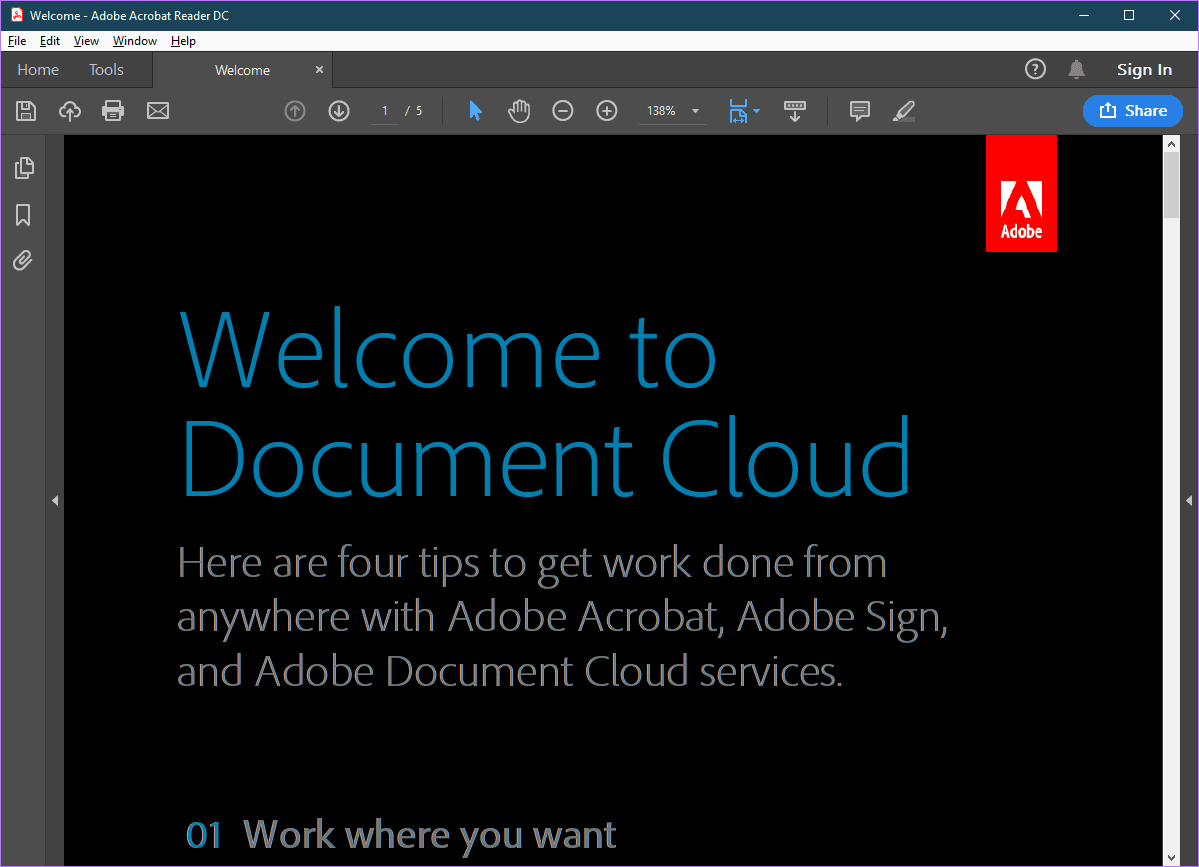
While a one-click night mode option would have been far more convenient, the Accessibility color options still present an excellent alternative in emulating similar functionality.
Download Adobe Acrobat Reader (Windows)
iOS
On iPhone and iPad, Adobe Acrobat Reader provides a dedicated night mode option. Tap the page-shaped View icon, and then turn on the switch next to Night Mode to instantly display document backgrounds in black and text in white.
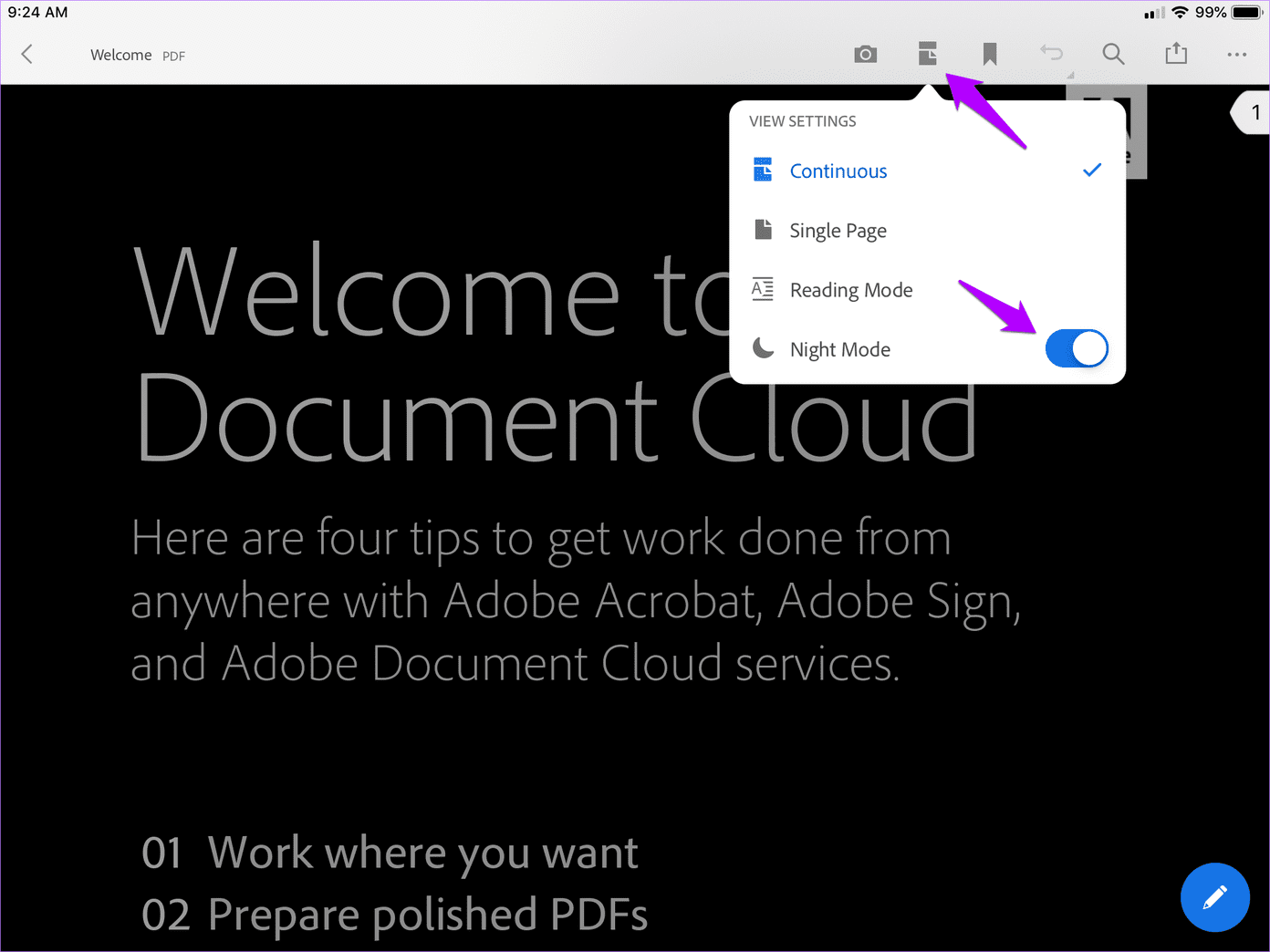
It works pretty well on text-heavy documents, but it displays images in inverted gray-scale — not most ideal for certain PDFs. But then again, perhaps that’s intentional — images that have a lot of bright colors in them don’t mix well against a fully dark background, and Adobe Acrobat Reader’s gray-scaling does help out in that regard.
Another gripe (albeit a minor one) is that the Adobe Acrobat Reader theme isn’t affected — you should still see it rendered in its default white, but you can easily hide it by briefly tapping the screen.
The functionality and ease of use that Adobe Acrobat Reader brings to the table, combined with the Night Mode toggle, make it the first choice on iOS.
Download Adobe Acrobat Reader (iOS)
Android
Just like with the iOS version of Adobe Acrobat Reader, turning on night mode requires a brief tap to the View icon at the top of the screen. However, Adobe Reader on Android also applies night mode not just to your PDFs, but to the entire theme as well.
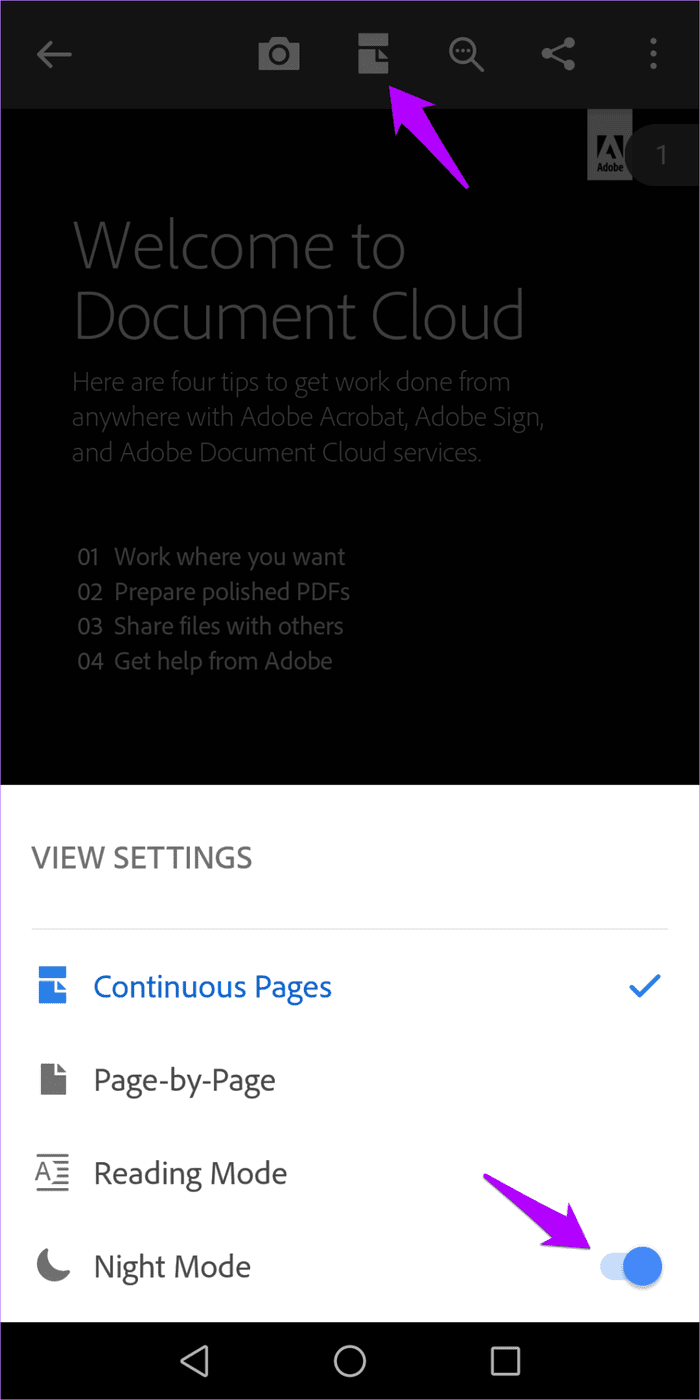
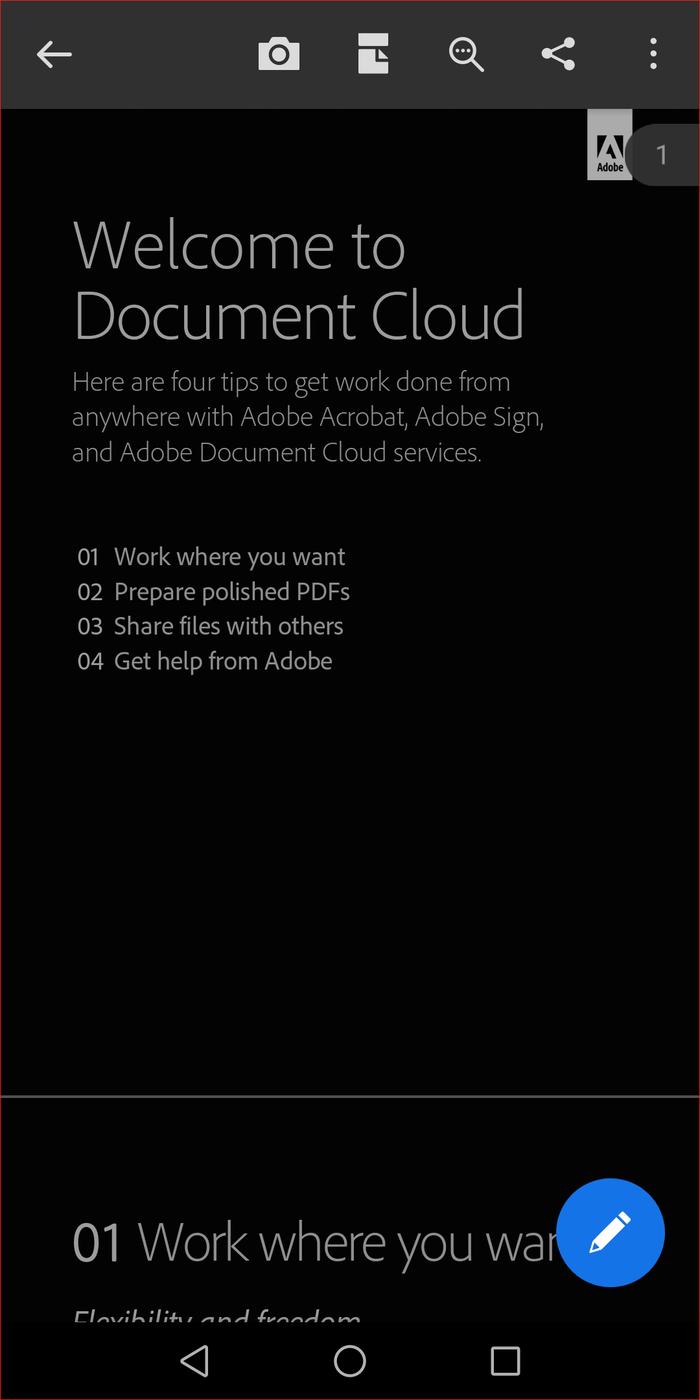
Aside from the fact that it shows images in gray-scale, Adobe Acrobat Reader in dark mode looks phenomenal.
Download Adobe Acrobat Reader (Android)
2. Xodo
Xodo is a completely free PDF reader that facilitates document collaboration with an array of annotation tools. It also lets you sign into its Xodo Connect online service for a smoother experience while sharing and working on documents with others. And unlike Adobe Acrobat Reader, it even offers a limited set of PDF creation tools that could come in handy.
You can easily enable a full-fledged night mode with customizable color combos across both the Windows and Android versions of the application is just icing on the cake. Don’t worry, the iOS version also features night mode support minus the customization aspects.
Windows
On Windows, Xodo looks just like a native UWP app . It feels spiffy to use, and features a dark theme by default (you can change it to a lighter theme from Settings).
When it comes to reading a PDF, click the View Mode icon. On the menu that shows up, click the moon-shaped Night Mode icon — the PDF should render with a dark background instantly. It works surprisingly well except for the inverted images, which can be a sore point.
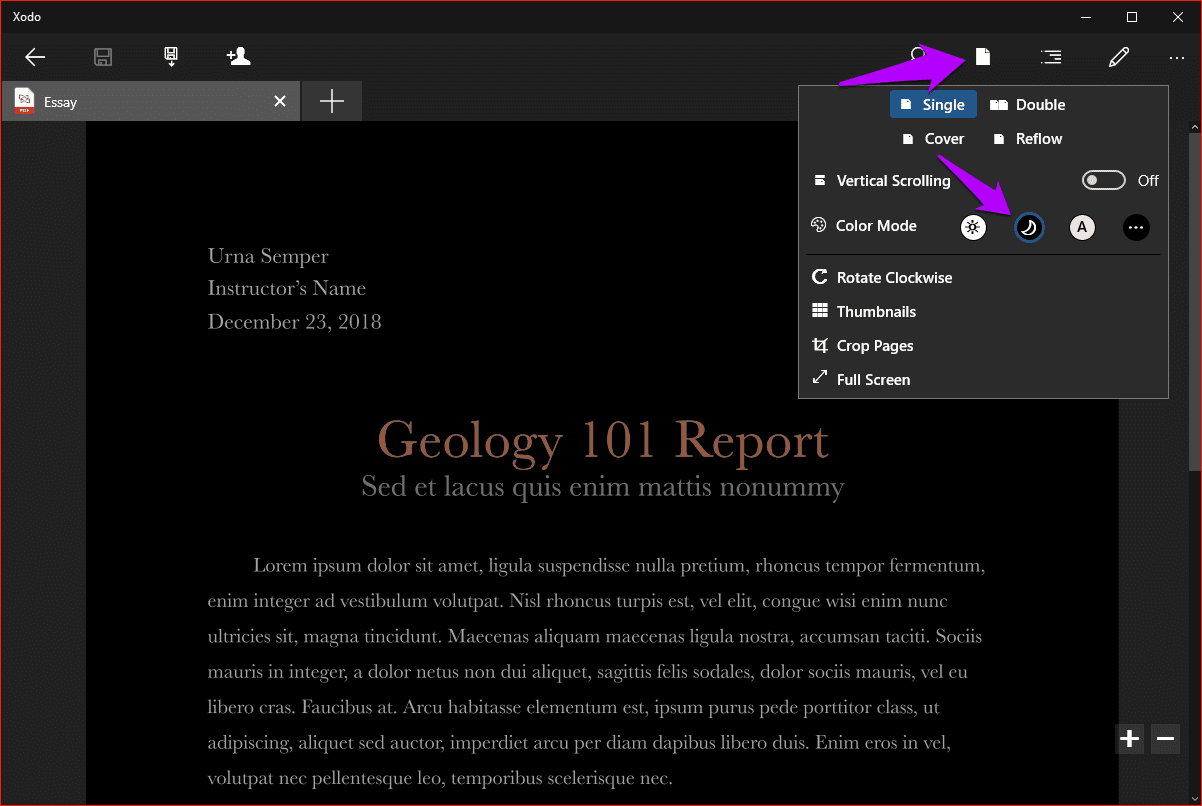
Alternatively, click the A-shaped icon within the View Mode menu to toggle on Sepia Mode. That prompts the app to display documents with a sepia tone and makes for a much warmer experience on the eyes. Sepia Mode removes the color from images but doesn’t invert them. So consider it a perfect replacement of Night Mode.
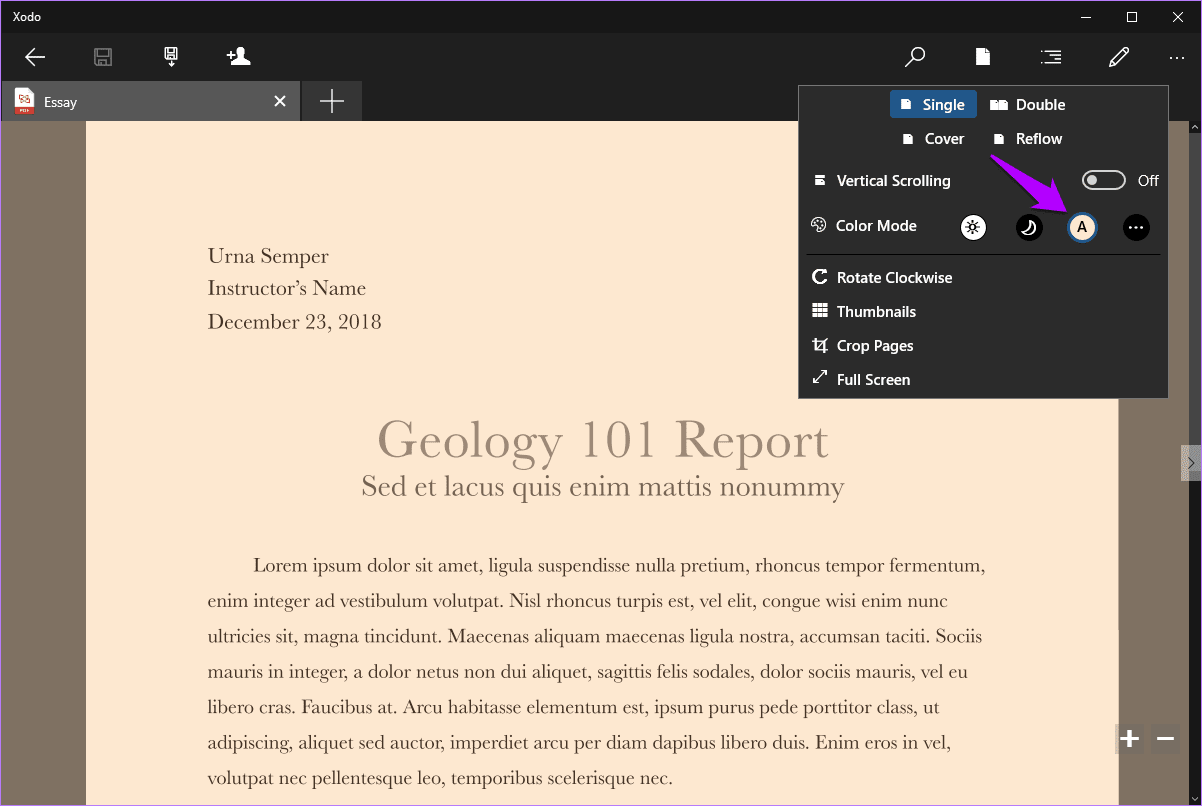
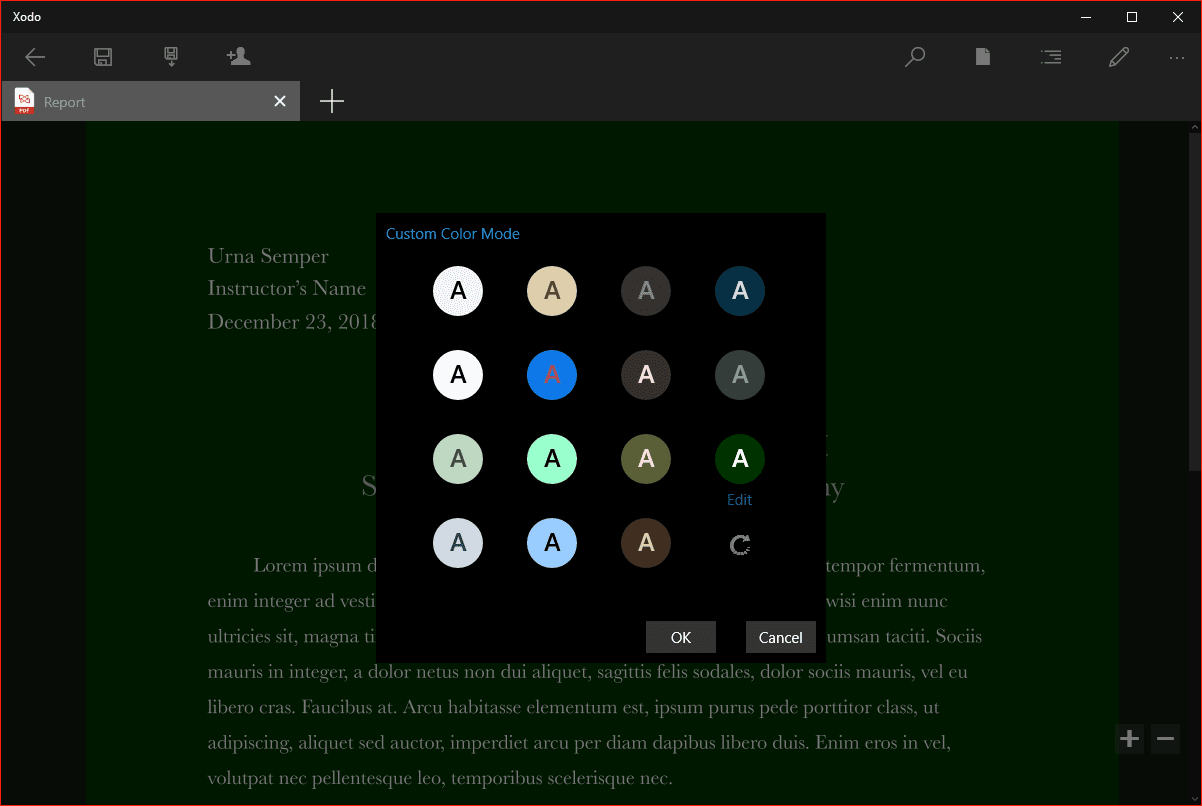
There’s also a Custom Color Mode switch (click three-dot icon) that you can use to readily switch to other background and text colors while also providing you the ability to choose custom colors. Don’t forget to try it out!
Download Xodo (Windows)
iOS
Xodo on the iPhone and iPad feels slightly unpolished but works pretty well. To switch on the night mode, open the Viewing Modes menu, and then tap on the Night Mode icon.

Sadly, there’s no option to modify the Xodo theme on iOS, but that shouldn’t be an issue since it auto-hides after a few seconds. And, there’s no Sepia Mode or alternate background colors to choose from either.
Download Xodo (iOS)
Android
The Android version of Xodo is much smoother compared to its iOS counterpart. Tap the Settings icon, and you can readily apply the built-in Night Mode not just to the PDF, but to the entire theme as well. Fantastic!
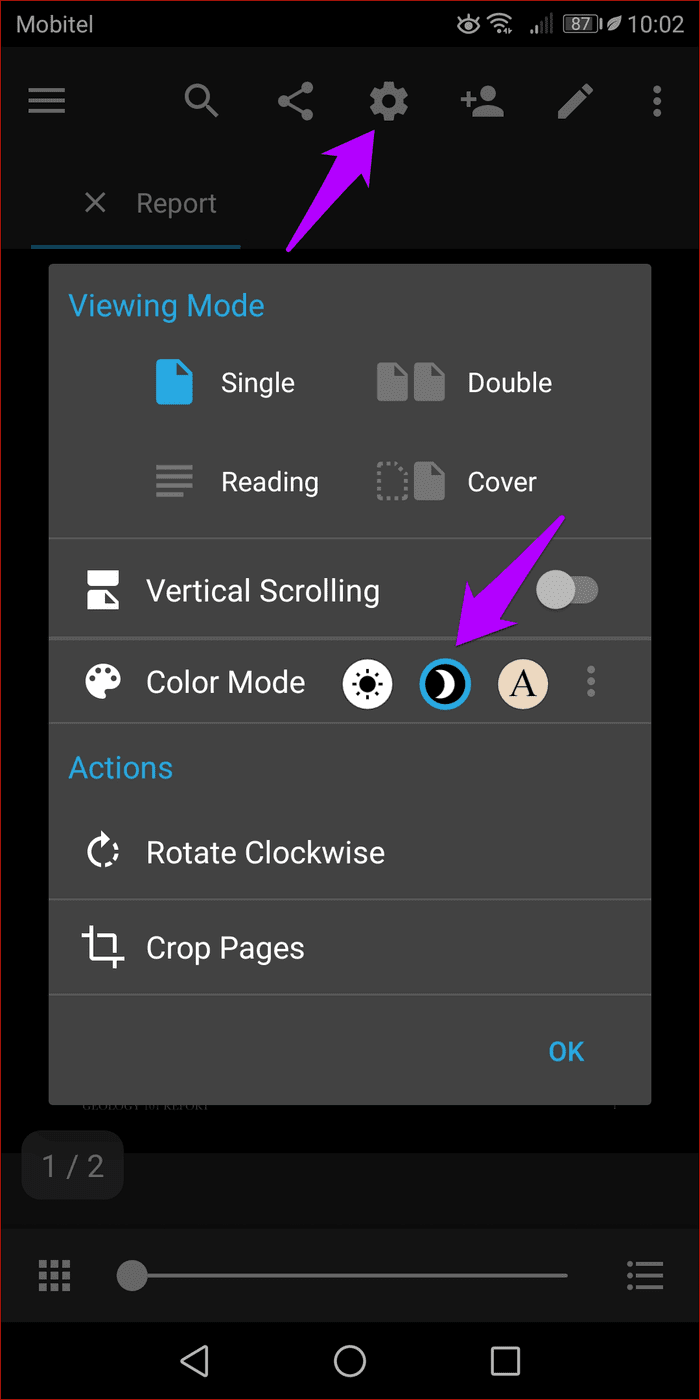
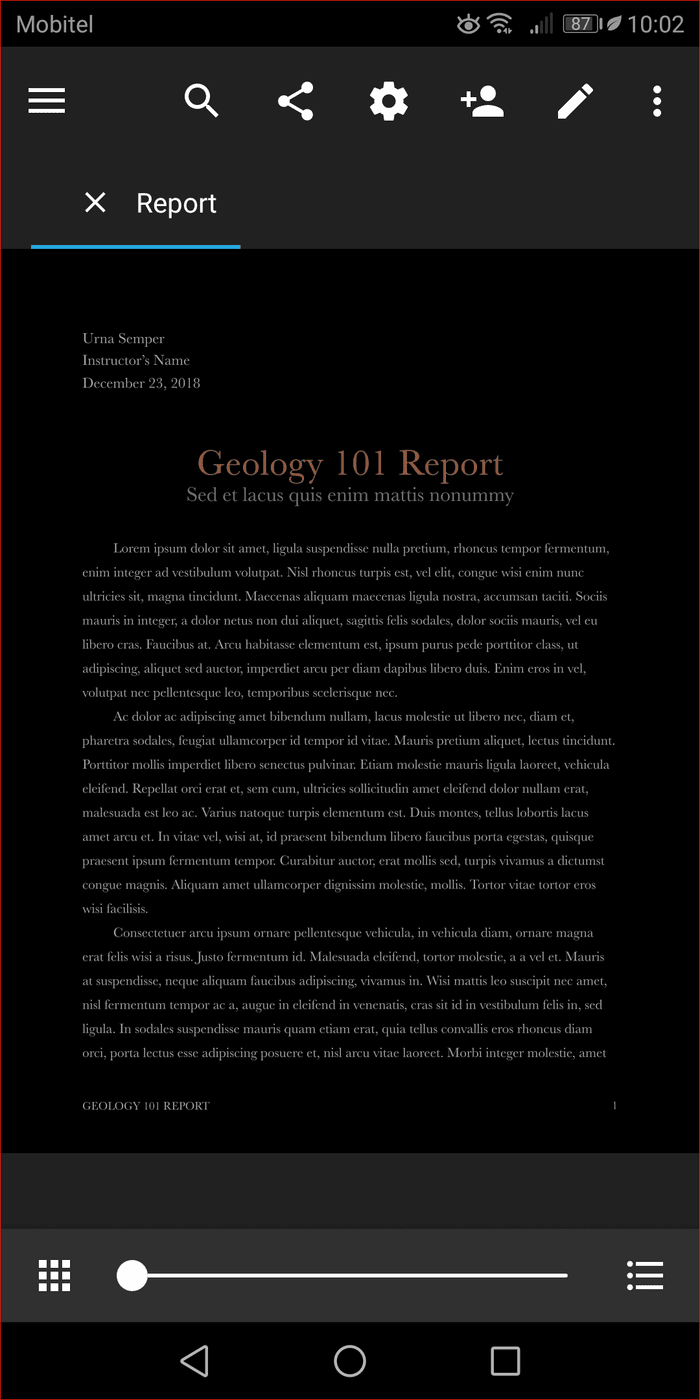
Further, the application also features Sepia Mode and other customizable color modes just like on Windows.
Download Xodo (Android)
3. Foxit MobilePDF
Foxit is another well-known name in the PDF landscape but competes primarily against PDF editing suites such as the likes of Adobe Acrobat Pro. However, Foxit also offers an entirely free application in the form of Foxit MobilePDF — contrary to the name, it’s also available on Windows.
While the application appears to be quite basic at first glance, you can still perform various tasks such as commenting and annotating provide that you sign in with a Foxit account . And of course, the included night mode functionality is terrific and keeps image inversions mainly to a minimum across all supported platforms.
Windows
After opening a PDF on the Windows version of Foxit MobilePDF, tap View on the menu, and then click Night Mode to switch off the lights instantly.
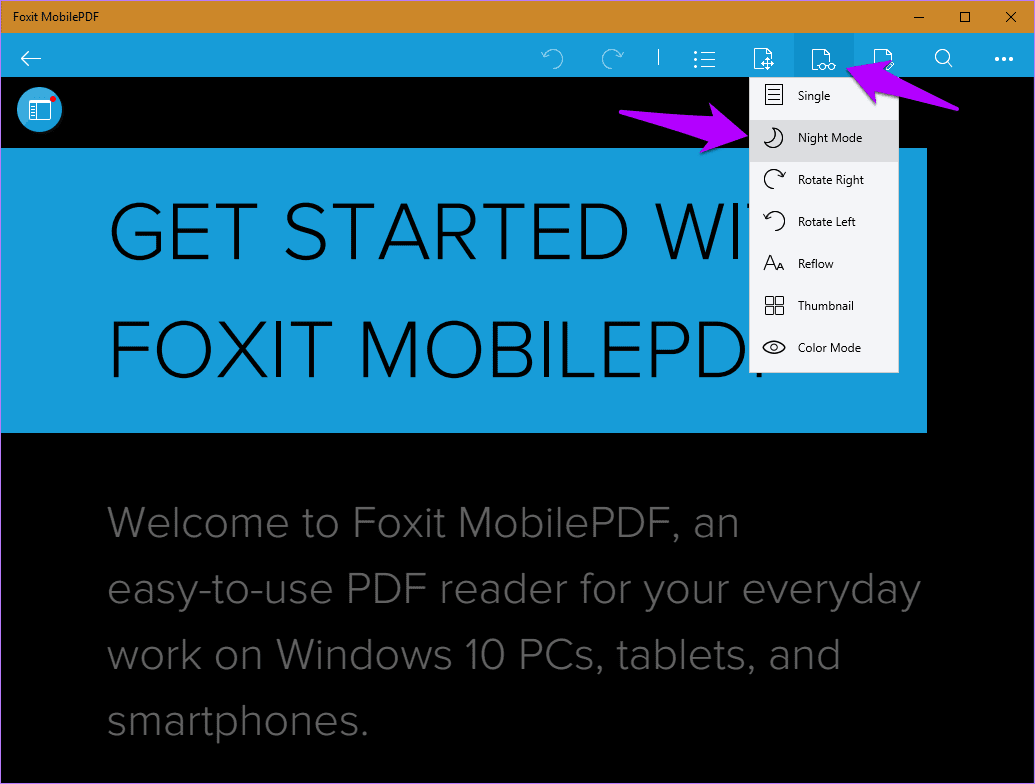
If the black background doesn’t go well with specific images, you can also use the Color Mode option within the same menu to switch between four different shades of background color.
Download Foxit MobilePDF (Windows)
iOS
On your iPhone or iPad, turning on night mode is as simple as tapping the View icon, and then turning on the switch next to Night Mode. It also provides various predefined background colors, as well as the ability to customize both background color and text.
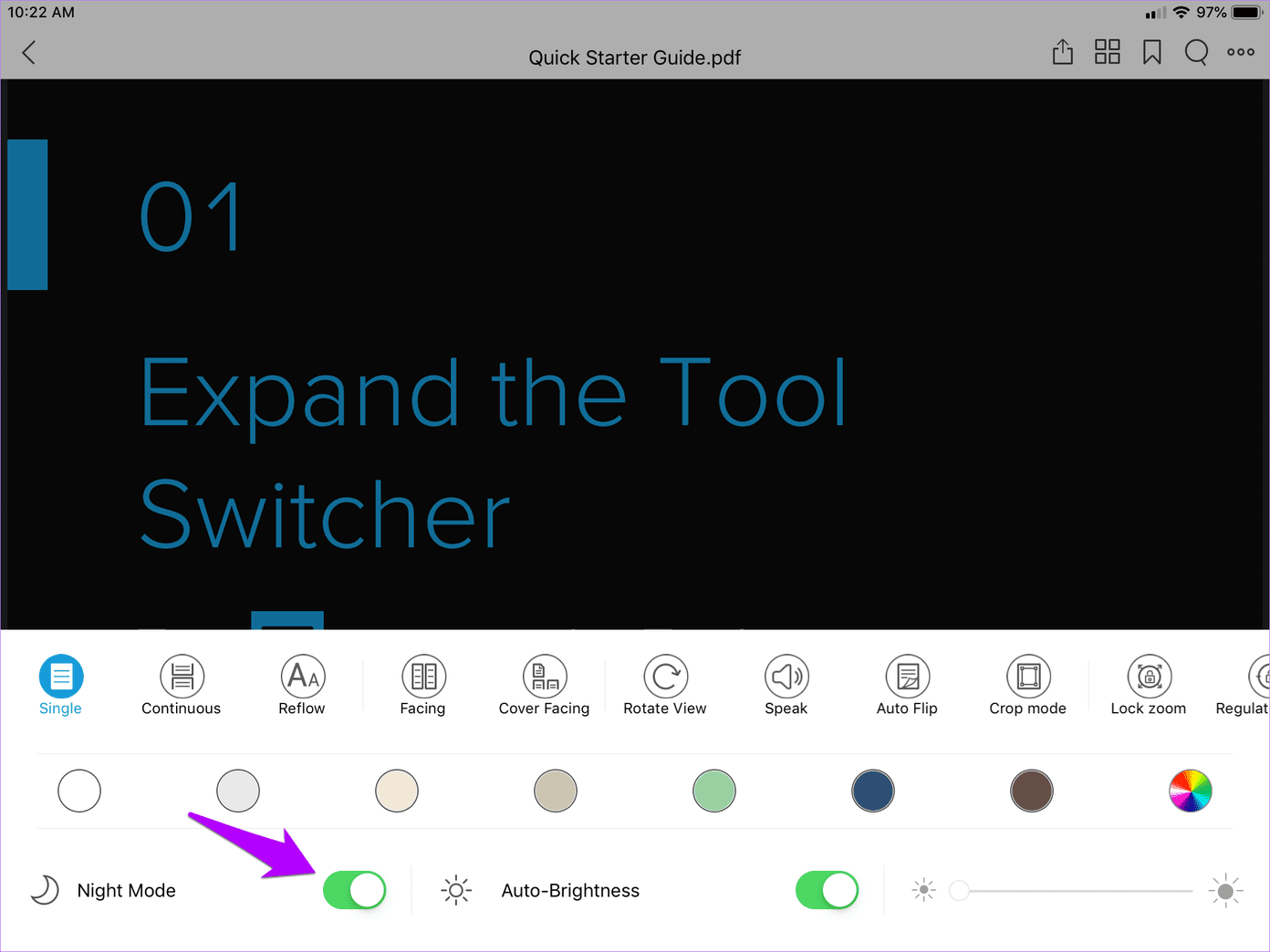
Further, there’s also an Auto-Brightness toggle and slider that proves to be very useful, especially when it comes to managing the brightness levels for the app separately from the rest of your iOS device.
Download Foxit MobilePDF (iOS)
Android
On the Android version, Foxit MobilePDF works pretty much the same — tap the View icon, tap Night Mode, and away you go!
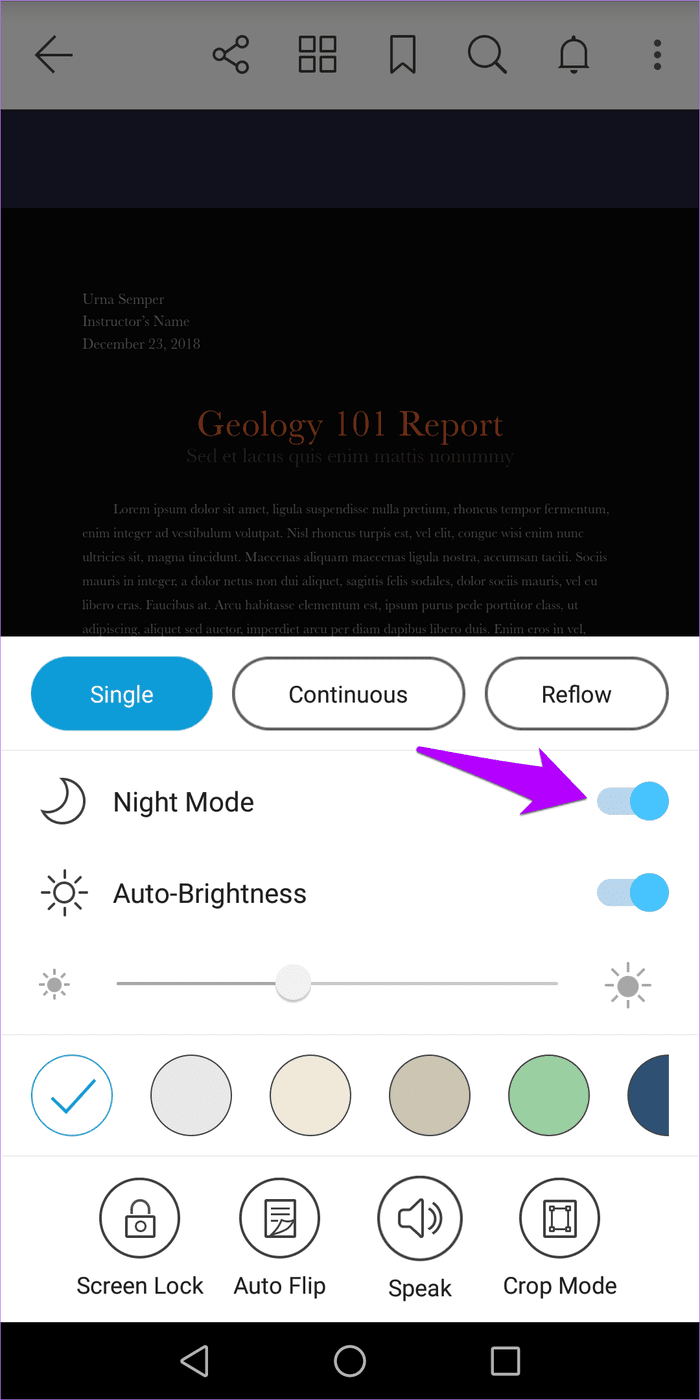
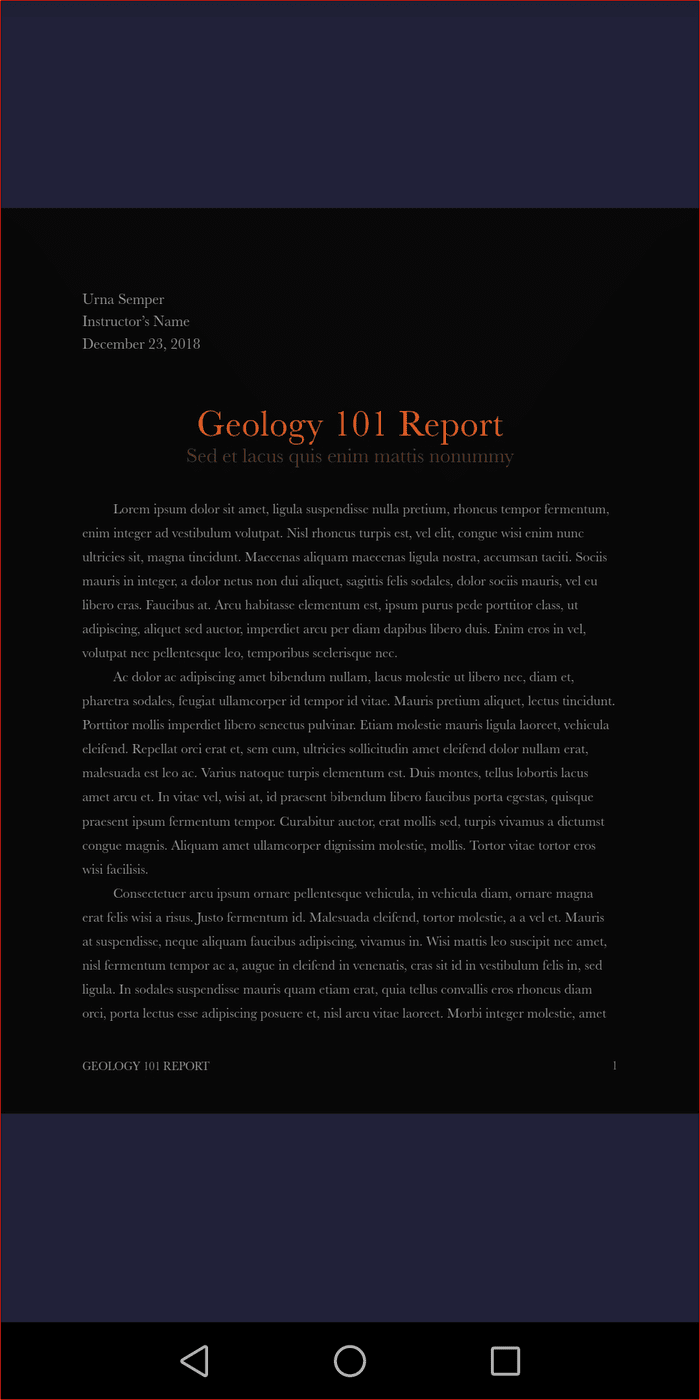
Just like on iOS, you have access to different (and customizable) background colors, as well as a built-in brightness slider complete with auto-brightness functionality.
Download Foxit MobilePDF (Android)
4. WPS Office
WPS Office is an all-in-one productivity suite that works as an excellent substitute to Microsoft Office . Further, it doubles up as a PDF viewer while providing various other tools to convert documents to Word, trim down file sizes, extract content from PDFs, and even merge files. And yes, it also provides Night Mode functionality.
However, the feature isn’t consistent across platforms — it dims the screen on Windows, adds a warmer tone on iOS, and entirely darkens the background on Android. Separate development teams at work? Maybe.
Windows
On Windows, open a PDF using WPS Writer (the word-processing app within the suite), and then click the light bulb-shaped icon to the lower-right corner of the screen. On the menu that shows up, click Night Mode. A slider is also present that lets you adjust the brightness levels.
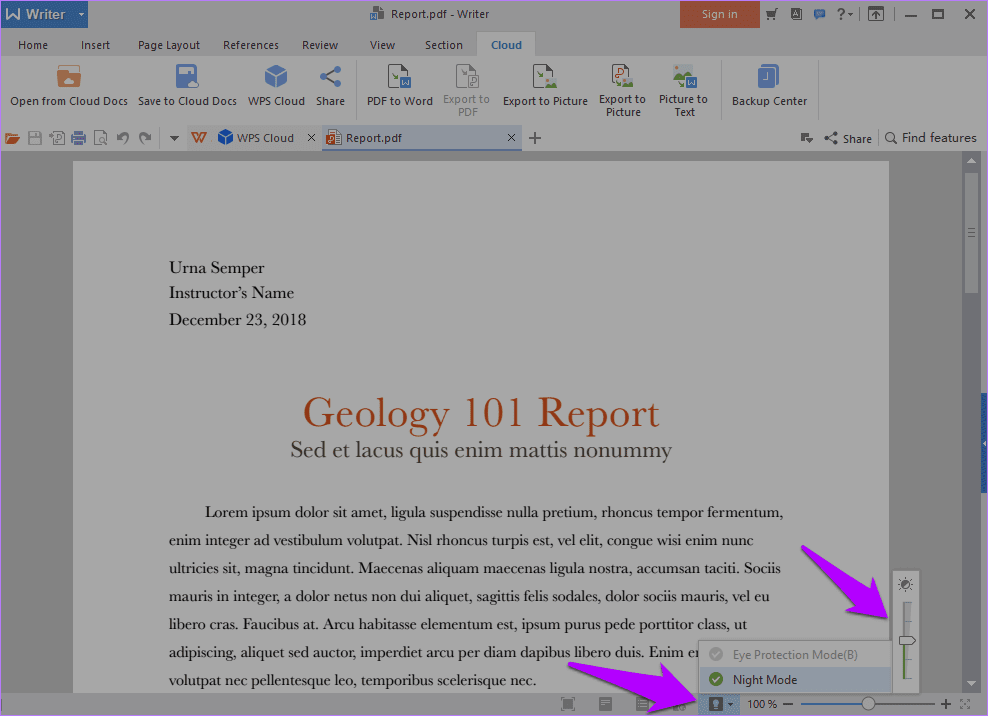
There’s also an Eye Protection Mode option — it’s still in beta and thus grayed out. It will be interesting to see what the feature brings to the table once it goes live.
Download WPS Office (Windows)
iOS
Fire up the WPS Office app on your iPhone or iPad, open a PDF, and then tap the Views icon. On the menu that shows up, tap the switch next to Eye Protection Mode (it’s likely to be the same feature that’s in beta on Windows), and the PDF document should render in a warm shade of yellow.

Download WPS Office (iOS)
Android
On the WPS Office app on Android, open a PDF document, and then tap on Tools. On the menu that shows up, tap View, and then flick on the switch next to Night Mode.
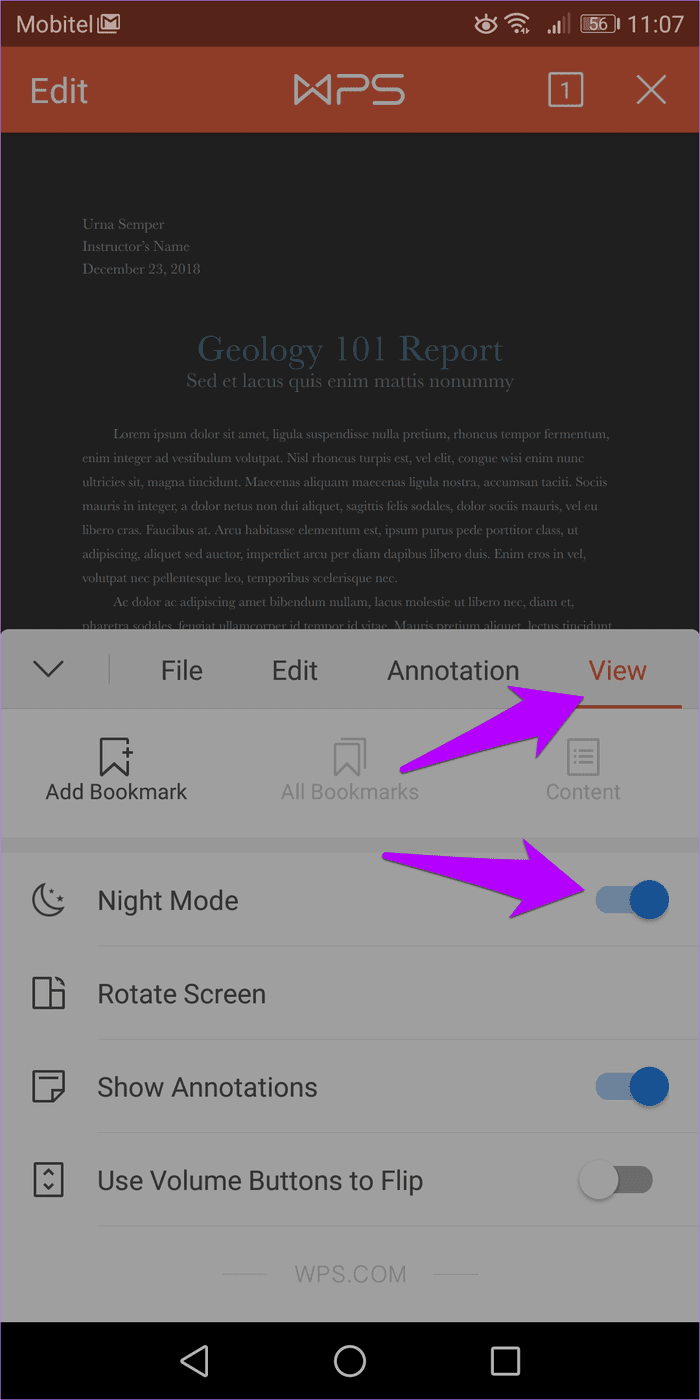
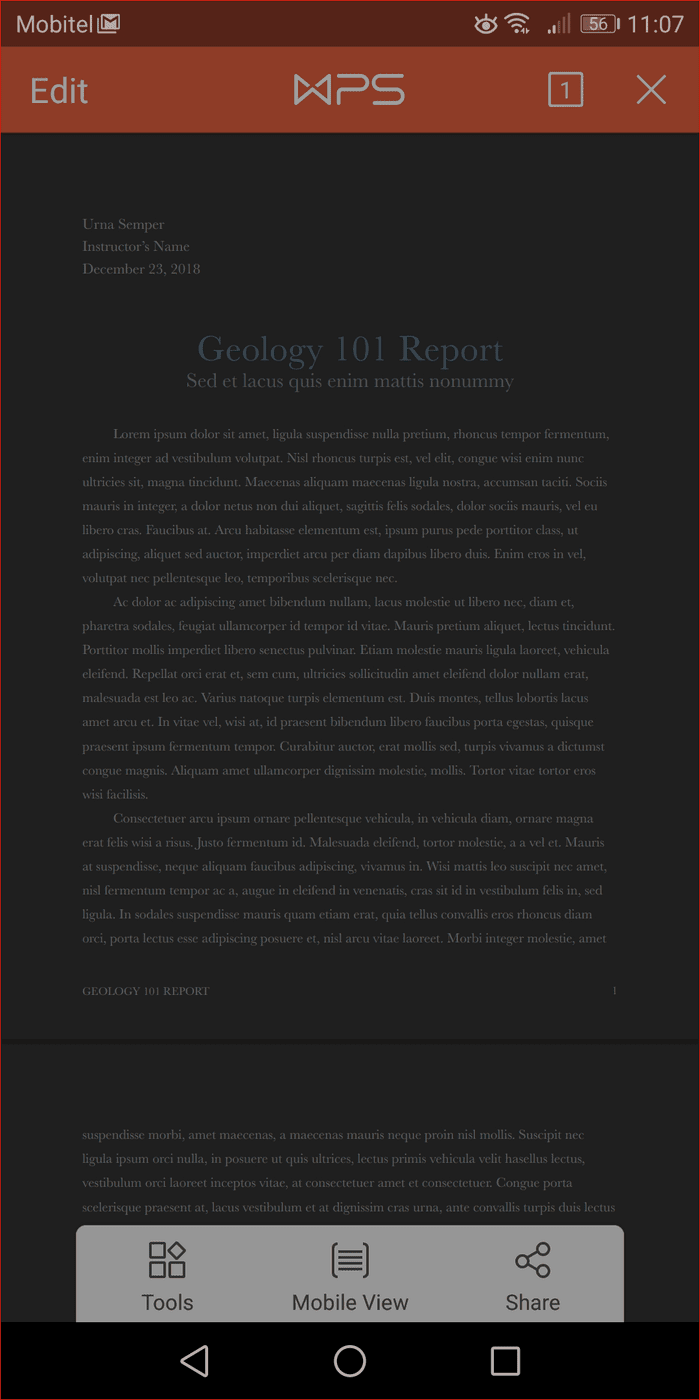
In addition to WPS Office, you can also use the WPS PDF app, downloadable separately from the Play Store , to gain similar functionality. However, it’s a pure PDF reader, so aside from basic features such as bookmarking and such, don’t expect anything out of the ordinary.
Download WPS Office (Android)
Your Eyes Will Thank You!
PDFs in night mode look terrific and are merciful on the eyes. And thanks to the apps above, it’s more than possible to use the functionality for those marathon reading sessions. Each of them offers their own unique blend of night mode, and the fact that they are available across multiple platforms make them all the more desirable.
Now it’s up to you to use them across all of your devices, or simply install those that you find works best for you on each platform. So, any other apps that you may know of? Do drop in a comment and let us know.
Next up: Using an iPhone or iPad? Click the link below to learn about 5 great browsers that sport dark mode and night mode capabilities.
Was this helpful?
A Windows Hello USB fingerprint reader can make the mundane task of logging in to your Windows PC an easy and convenient affair. If you want to save time, here are some of the best external fingerprint readers you can buy for your PC.
Arcanite USB Fingerprint Reader
Arcanite USB Fingerprint Reader
View Price
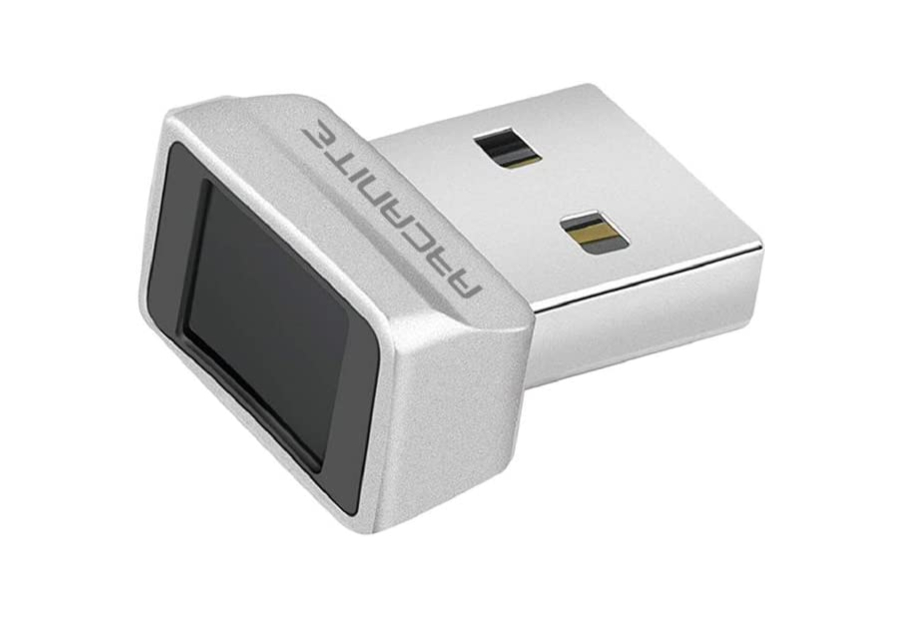
The Arcanite fingerprint reader is small, compact and resembles the dongles for wireless mouse or keyboard. It plugs into a USB-A port and protrudes slightly with the scanner on top. The sensor is positioned at the top of the reader, so it’ll work best only on vertically oriented USB ports.
Registering the device with Windows Hello allows you to store up to ten fingerprints. So, if multiple users access your PC, each can log in using their biometrics. While the Arcanite fingerprint reader works straight out of the box, you may have to download the device driver from Arcanite’s website if prompted.
What We Like
- Small and tiny
- Affordable
- Stores up to 10 fingerprints
What We Don’t Like
TEC Mini Fingerprint Scanner

TEC Mini Fingerprint Scanner
View Price
While Arcanite’s fingerprint reader should work fine for most people, it only unlocks your PC. TEC’s mini fingerprint, thanks to its proprietary software, goes one step ahead by allowing you to unlock locked files and folders.
The TEC fingerprint reader draws parallels to the one from Aracnite in the design department. It has a sensor on the top portion of the dongle for easy access. However, it has an ordinary build quality and may disintegrate after a few months. As such, we’d recommend against repeatedly plugging the dongle in and out of the USB port to extend the scanner’s life. On the upside, it’s affordable and won’t drain your pocket.
What We Like
- Small and portable
- Unlock files and folders
- Affordable
What We Don’t Like
- Poor build quality
Yoidesu Fingerprint Reader
Yoidesu Fingerprint Reader
View Price
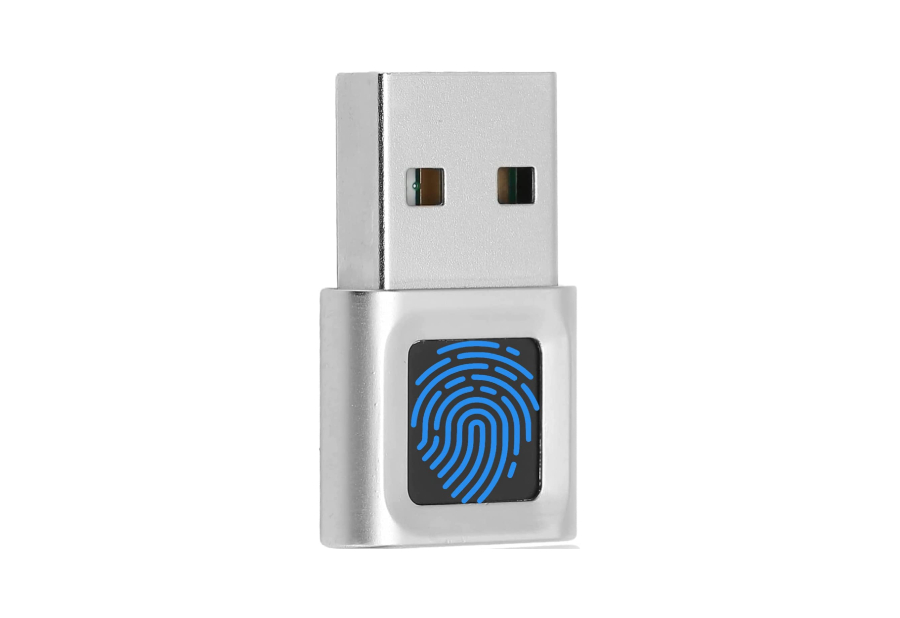
Yoidesu’s offering comes with a side-mounted scanner, unlike the fingerprint readers from Arcanite and TEC. This design makes it a better choice for those who use a laptop over a PC. You can leave it plugged into a USB port on the side and use it like a built-in scanner.
Above all, it has a better build quality, thanks to the metal construction. At the same time, the Yoidesu fingerprint reader has a larger footprint compared to the devices above. At the same time, you can register up to ten fingerprints. Moreover, the scanner boasts snappy unlocking speeds, so you should be able to unlock your laptop in the blink of an eye.
What We Like
- Faster response time
- Excellent build quality
- Larger footprint
- Stores up to 10 fingerprints
What We Don’t Like
- N/A
Verifi P2000
Verifi P2000
View Price
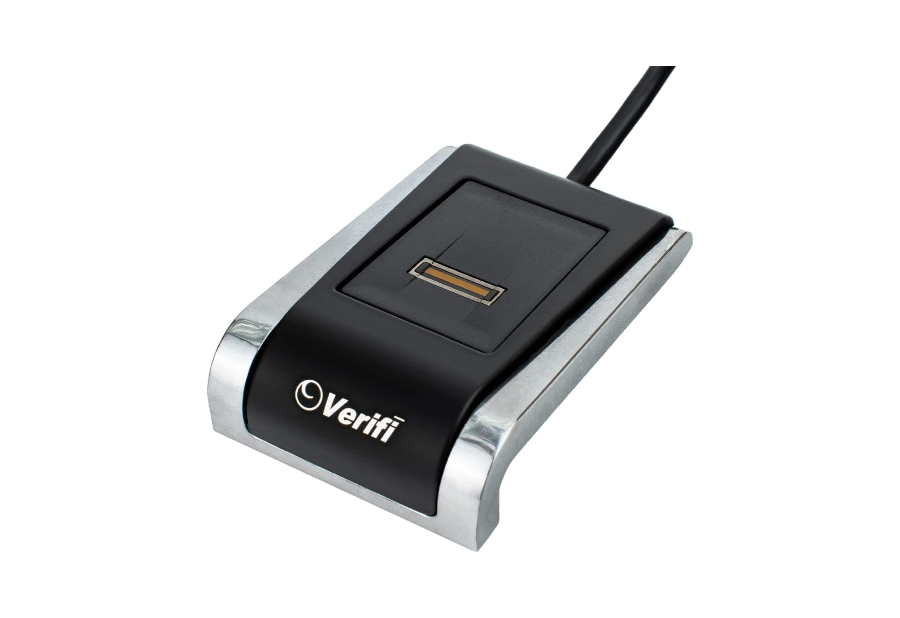
The Verifi P2000 is also compatible with some popular apps and password managers. So, if you use LastPass or 1Password, you can access all your credentials using just your fingerprint.
What We Like
- Reliable
- Works with apps and password managers
What We Don’t Like
- Works with older versions of Windows
Kensington VeriMark

Kensington VeriMark
View Price
Kensington is synonymous with security. So, if you’re looking for a reliable, secure solution for Windows Hello, the VeriMark fingerprint reader is the best option. In fact, it’s being deployed in U.S. Federal Government institutions and organizations, and has some of the best acceptance rates for a fingerprint reader.
That said, it doesn’t work on a plug-and-play basis with Windows 11. As such, you may need to download the drivers manually. But, if you can get past this step, we highly recommend VeriMark for professional users who want to keep their accounts secure.
What We Like
- Reliable
- Able performer
- Practical design
What We Don’t Like
- Expensive
- Not plug-and-play
A fingerprint reader is arguably more secure while a webcam is more convenient since you just have to look into it. You can pick either of them depending on your preference.
A long and difficult password can be harder to crack and might just be safer than using a fingerprint reader. But most of the time, a fingerprint reader is good enough since it’s both secure and convenient.
You can use Windows Hello on Windows 10 and Windows 11 computers.
