- Enabling Chrome sync lets you access information like bookmarks, history, saved passwords, addresses, etc., across devices.
- Use the same Google account on Chrome on all devices to view the synced data.
- You can sync everything or choose what you want to sync across all devices on Google Chrome.
What Information Does Chrome Sync
Signing in to Chrome with your Google account syncs your Chrome data, like passwords, history, and settings, to the cloud. You can then access that synced data when you use Chrome on another device by signing in with the same Google account. Here’s everything you can sync across devices on Chrome.
- Bookmarks
- Browsing History
- Open Tabs
- Apps, Extensions, and Themes
- Saved Passwords
- Addresses, phone numbers, payment methods, and preferences in settings.
Should You Sync Data on Google Chrome?
If you’re using Chrome across multiple devices, and want to see your activity on all of them – enabling sync is highly recommended and the process is completely safe. But if other people in your household use the same devices, they can see all the synched information.
How to Enable Sync in Chrome on Mobile and Desktop
To see your Chrome data across devices, log in to the same Google account on the browser. Then, enable sync on each device. This allows your activity and changes made on one device to be reflected on your other devices.
On Desktop
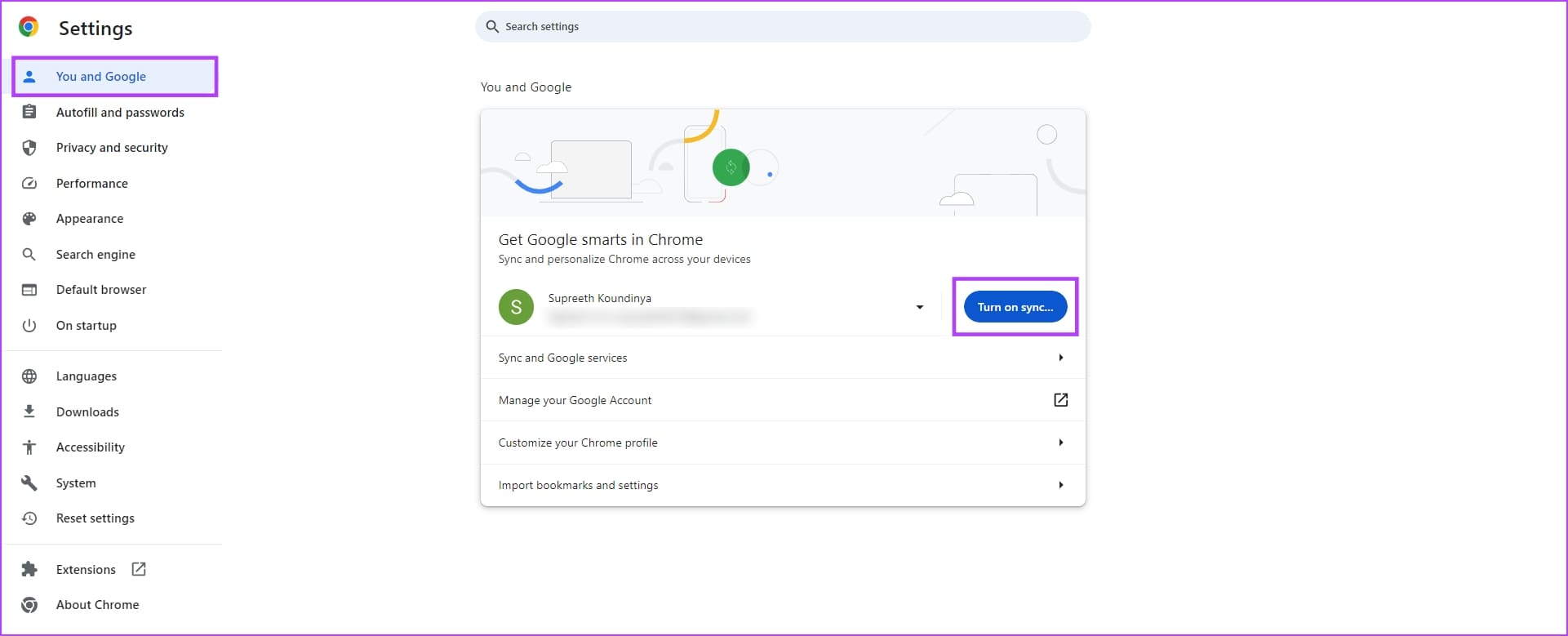
Step 1: Click on the three dots icon at the top right > select Settings > go to the You and Google tab in the sidebar > tap on Turn on sync.
Step 2: To choose what you want to sync, tap on Sync and Google services .
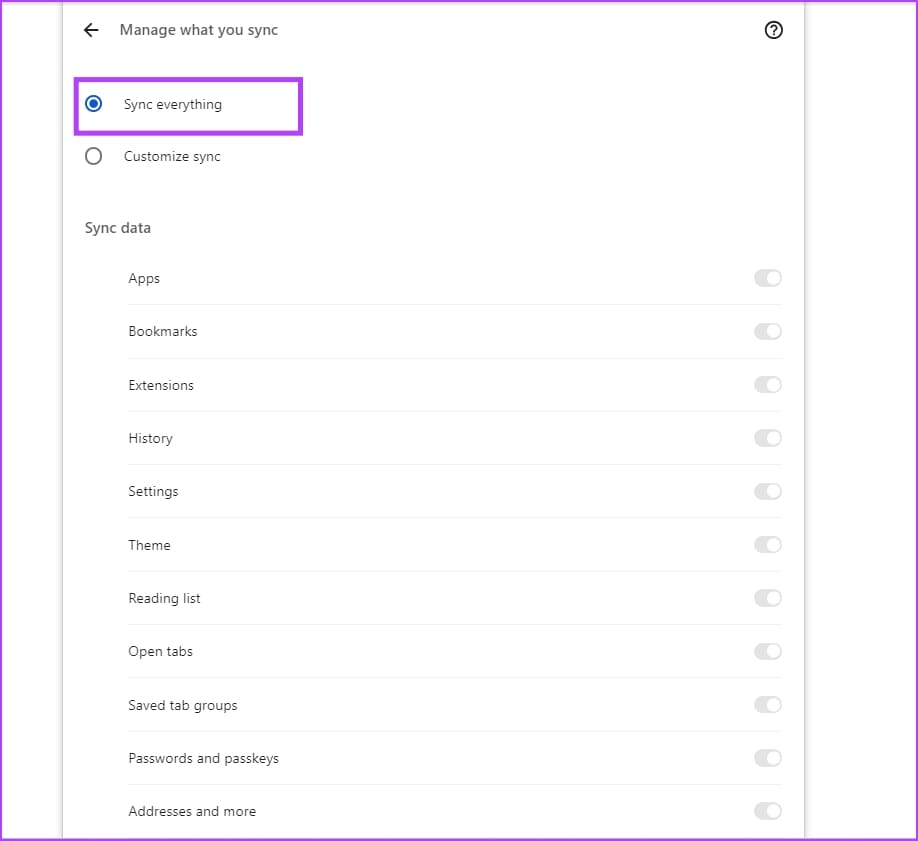
Step 3: Now, click on Manage what you sync .

Step 4: By default, Sync Everything is enabled. You can also choose Customize sync to select information you want to sync.
On Mobile
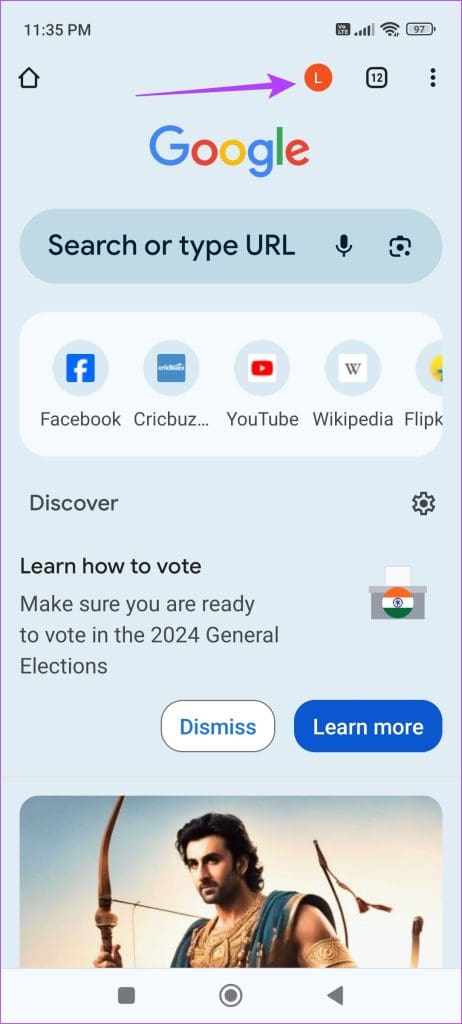
Step 1: Open Google Chrome > tap on your account icon . Alternatively, tap on the three dots icon at the top right corner and go to Settings .
Step 2: Turn on Sync under You and Google.
Step 3: Turn on Sync everything or turn it off or select only what you want to sync.